How to Change Notification Position in Microsoft Teams

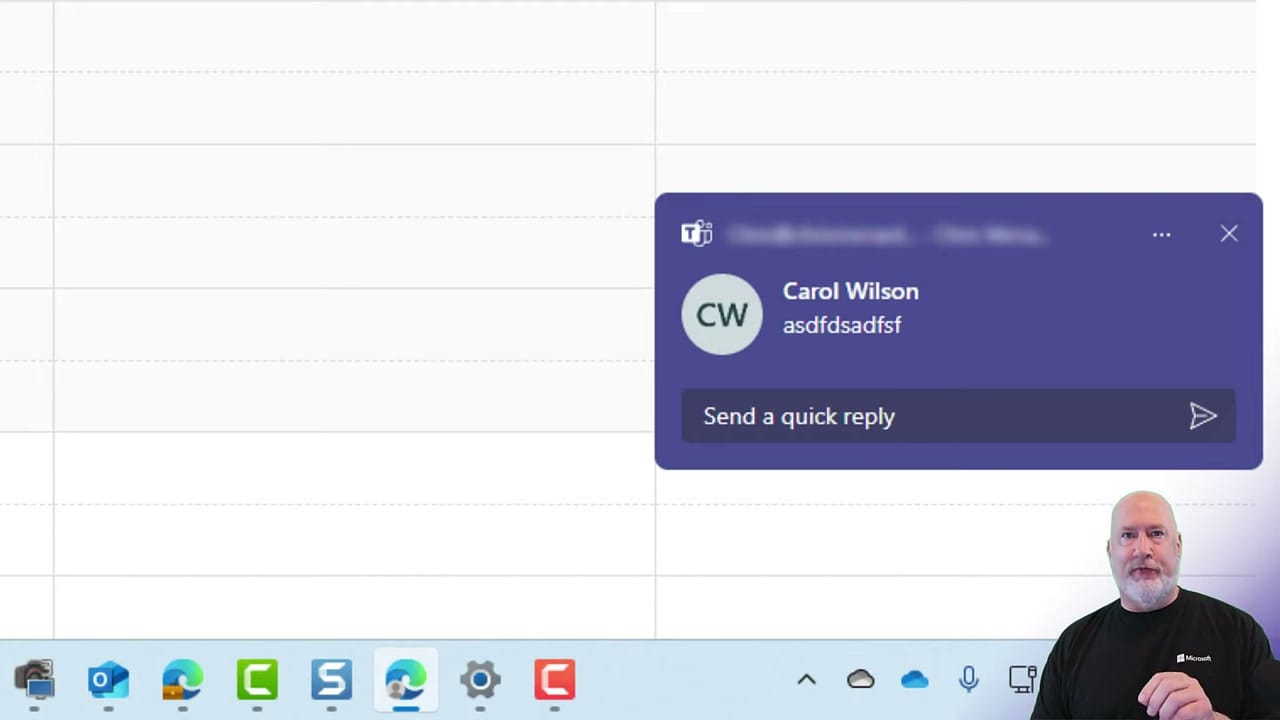
Microsoft Teams Desktop now lets you control where notification banners appear on screen. By default, notifications show in the bottom right corner, but you can move them to any corner.
How to Change the Position
Click the three-dot menu (Settings and More) at the top of Teams, then select Settings. Go to Notifications and Activities and look for the Display section.
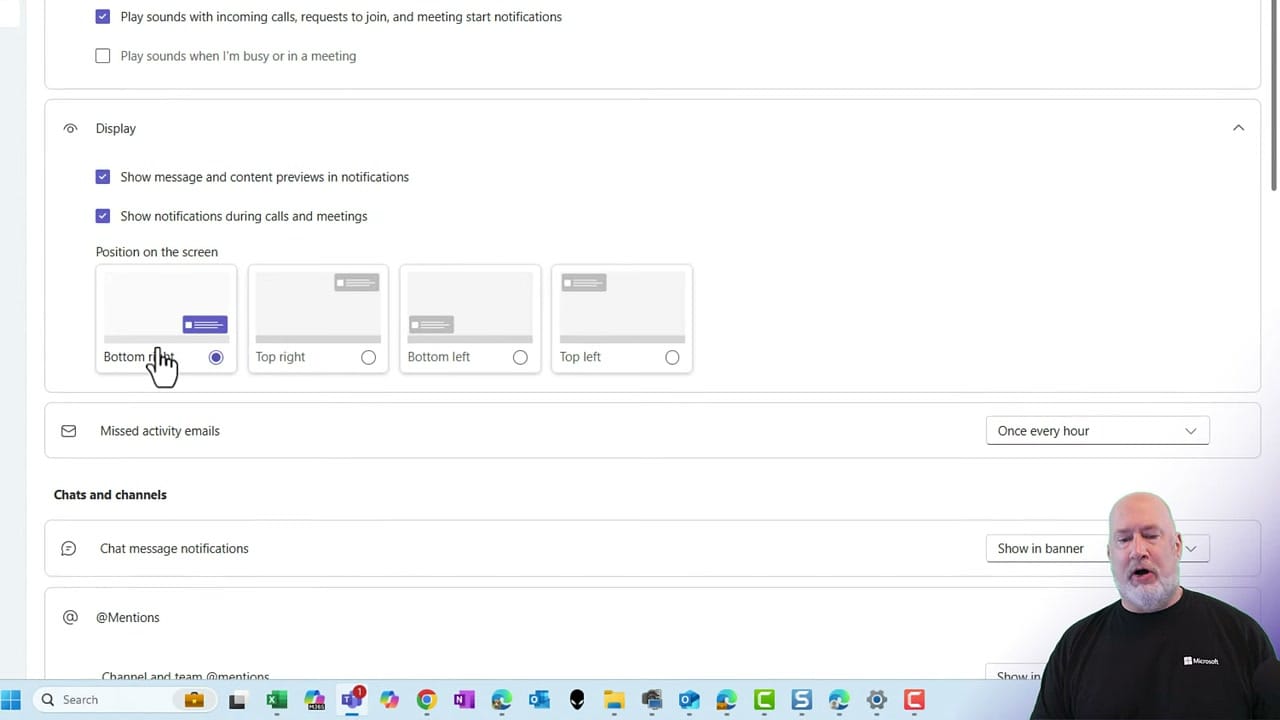
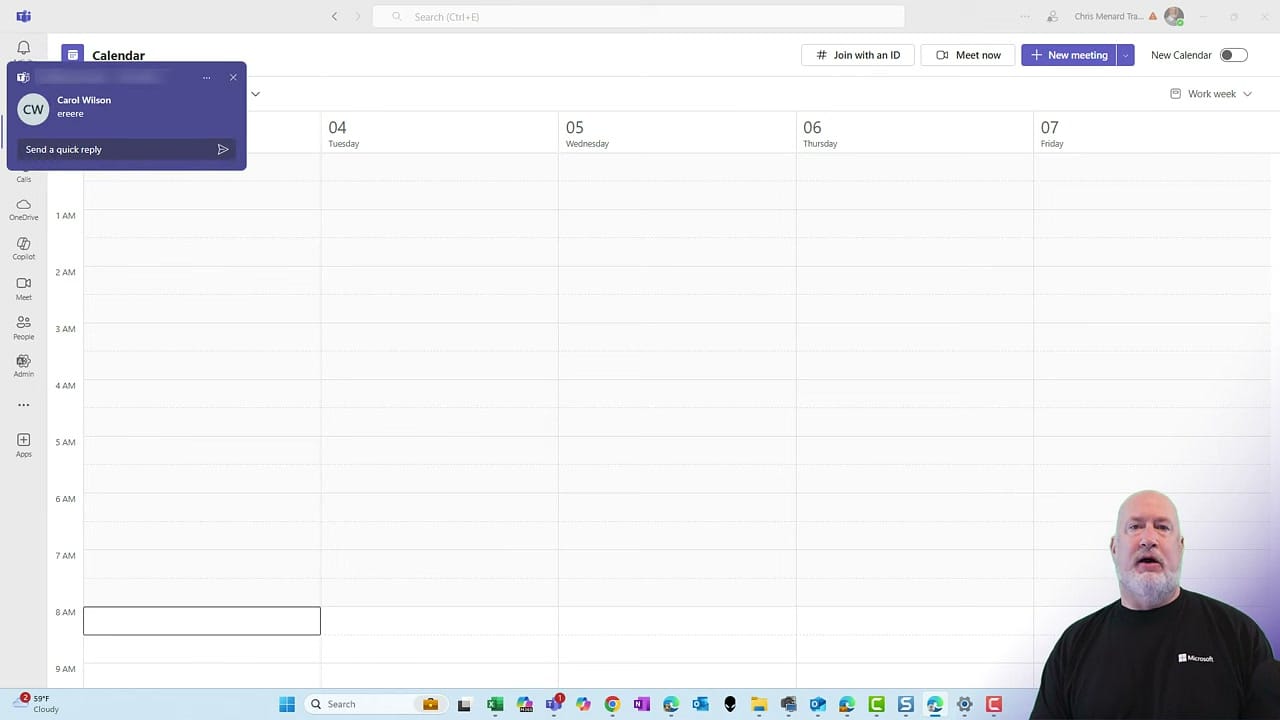
Select your preferred position. There is no Save button — the change applies immediately. Navigate to your chat or calendar and wait for a message to test it.
Bonus: Suppress Notifications During Meetings
If you don't want notification banners during meetings, set your status to Do Not Disturb. This suppresses all banners until you switch back to Available.
Popular Articles
Teams Three New Features December 2025: How to Pop Out Apps, Pin Teams, and Search Images
Learn three small but powerful Teams updates—sidebar app pop-outs, Pin-on-Top (Ctrl+Shift+T), and an Images search filter—to speed up multi-monitor workflows.
 Chris Menard
Microsoft 365 Copilot Chat Changes on April 15, 2026: What Unlicensed Users Need to Know
Microsoft is making an important change to Microsoft 365 Copilot Chat for users without a paid Microsoft 365 Copilot license. Starting April 15, 2026, many of those users will no longer have the same Copilot experience inside apps like Word, Excel, PowerPoint, and OneNote. The image below shows how Copilot
 Chris Menard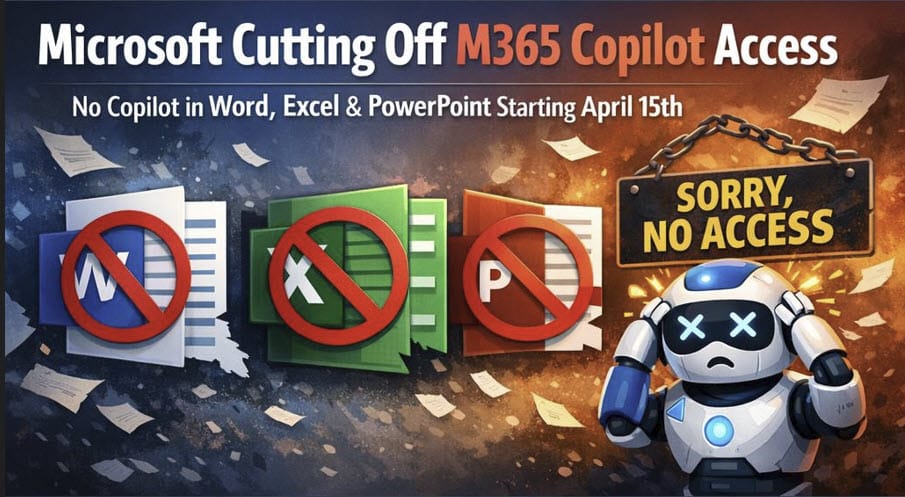
Scheduling Meetings with Copilot in Microsoft Outlook: A Game-Changer for Productivity: Chris Menard Training
I was thrilled to discover a fantastic new feature in Microsoft Outlook: scheduling meetings with Copilot. This AI-powered tool is revolutionizing how we manage our inboxes and organize meetings. Let me walk you through my experience with this impressive feature.
 Chris Menard
Auto XLOOKUP in Excel: Let Copilot Build Profit Formulas
Excel’s new Formula Completion feature makes writing formulas effortless. Just type the = sign, and Copilot suggests accurate, context-aware formulas.
 Chris Menard