Google Chrome Split View: Work in Two Tabs Side by Side
Chrome can show two tabs side by side in one window. Right-click a tab, choose Add tab to new split view, and pick the second tab. Here is how to start it, exit it, and swap sides.


Google Chrome holds roughly 68 to 70% of the browser market, depending on what stat you look at, so I think it's safe to say it's the most popular web browser. Here's a great new feature that has rolled out in Chrome, and I use it all the time now: split view. It puts two tabs side by side in the same window.
When I need to compare two tabs, I need to see them side by side. Yes, I could undock one tab, put it in a new window, and then use the Windows feature to line the two windows up. There's no need to do all that.
Add a tab to a new split view
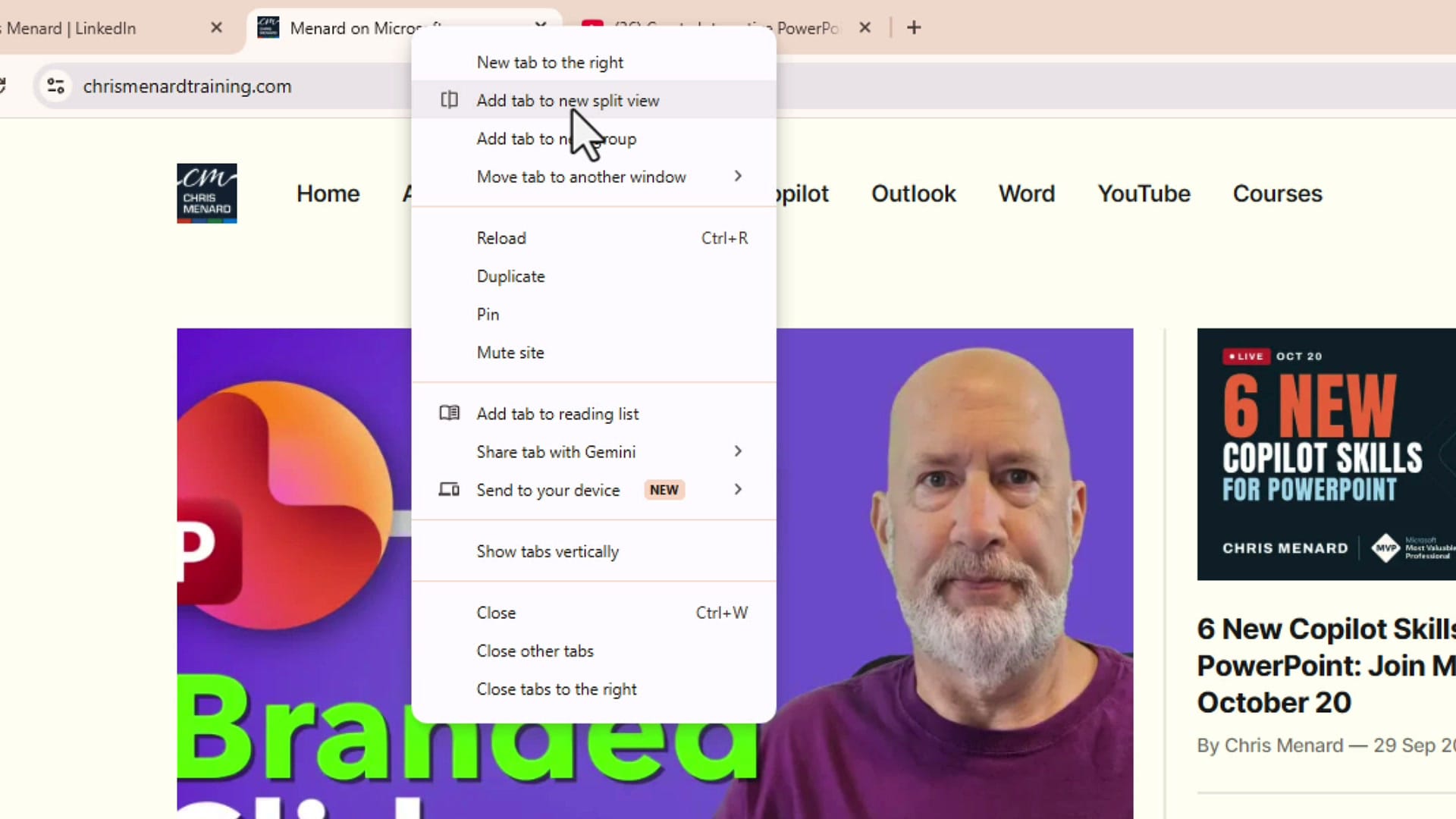
Right-click one of your open tabs. Near the top of the menu is a new option: Add tab to new split view. Click it.
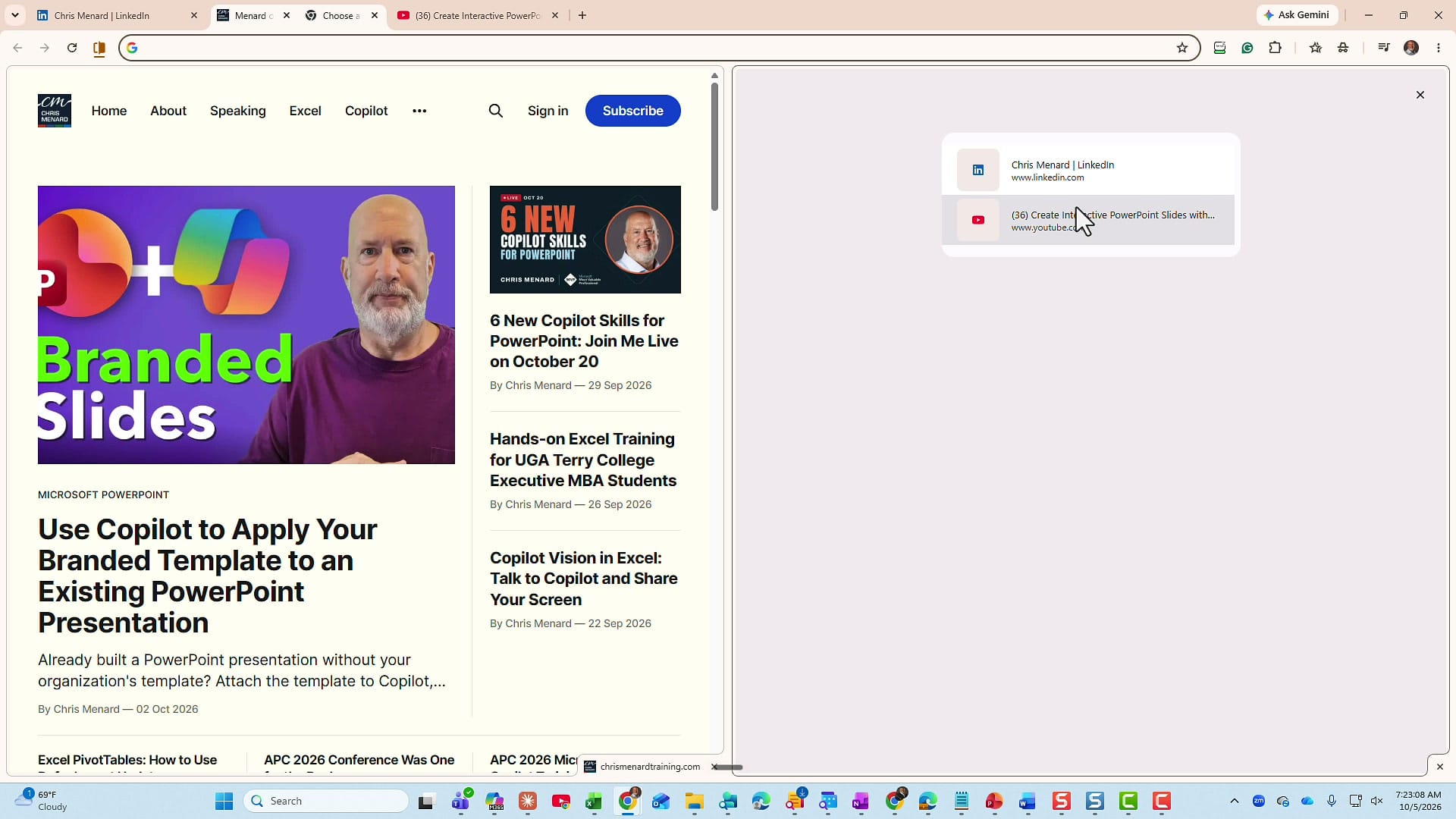
That tab moves to one half of the window. The other half shows you all your open tabs and asks which one you want to pull in. Click the tab you want.
Compare the two tabs
Now both tabs are in one window, and I can sit here and compare. In my case, I want to make sure that for every blog post I've written, I have also put a post on LinkedIn. My blog is on the left and my LinkedIn activity is on the right, and I can go back and forth just looking at these.
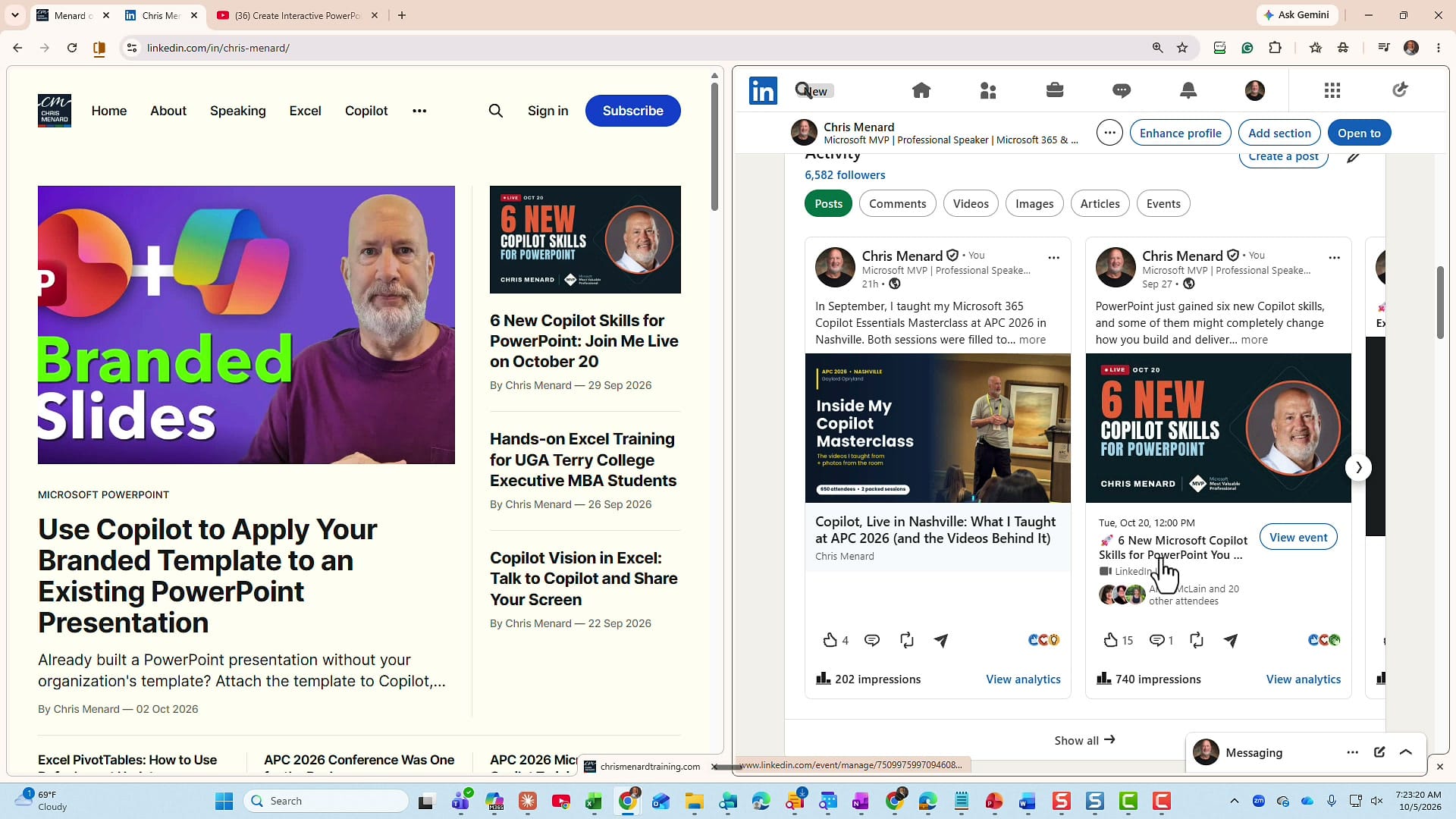
Each side works like a normal tab. You can scroll and click in one without changing the other.
Exit split view or swap sides
Look at the very top left of the browser. The two tabs are joined together. To get out of split view, right-click the joined tabs, point to Arrange split view, and click Separate views. You are back to two regular tabs.
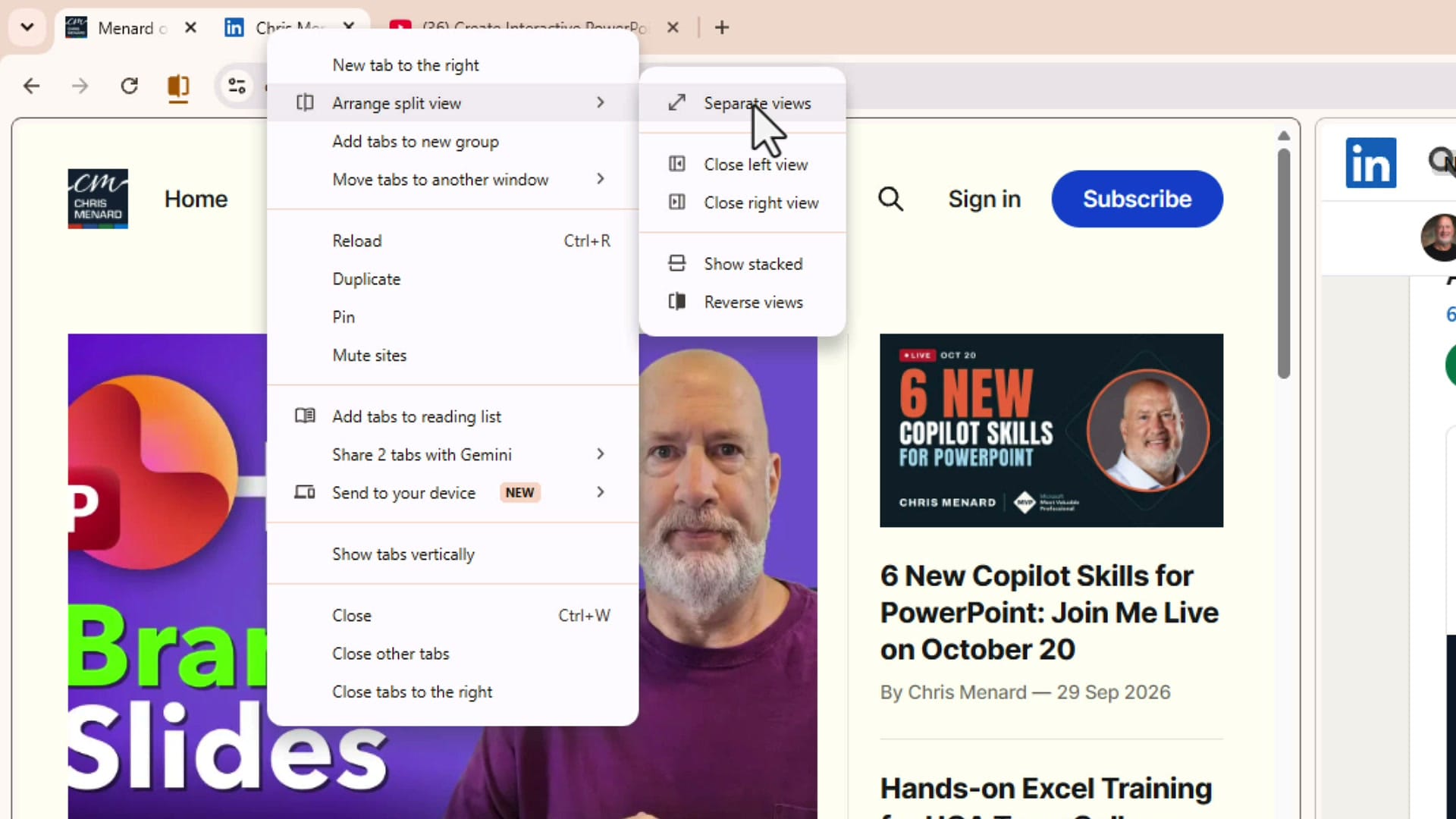
The same menu has a few more options:
- Close left view or Close right view closes one of the two tabs.
- Show stacked puts one tab above the other.
- Reverse views moves the tabs from left to right.
Quick recap
- Right-click a tab and choose Add tab to new split view.
- Pick the second tab from the list on the other half of the window.
- To exit, right-click the joined tabs and choose Arrange split view > Separate views.
Thank you for your time. Have a wonderful day.
Related guides
 Chris Menard
 Chris Menard
 Chris Menard
 Chris Menard