Pin Any Website to Your Windows Taskbar Using Chrome

Share
Pin Any Website to Your Windows Taskbar Using Chrome

If you have a website you visit frequently, you can pin it directly to your Windows taskbar using Google Chrome. No extensions or third-party tools needed — just a few clicks.

Step 1: Open the Website

Start by navigating to the website you want to pin. Open it in Google Chrome so it's the active tab.

Step 2: Open the Chrome Menu

Click the three-dot menu in the top-right corner of Chrome (the Customize and control Google Chrome button).
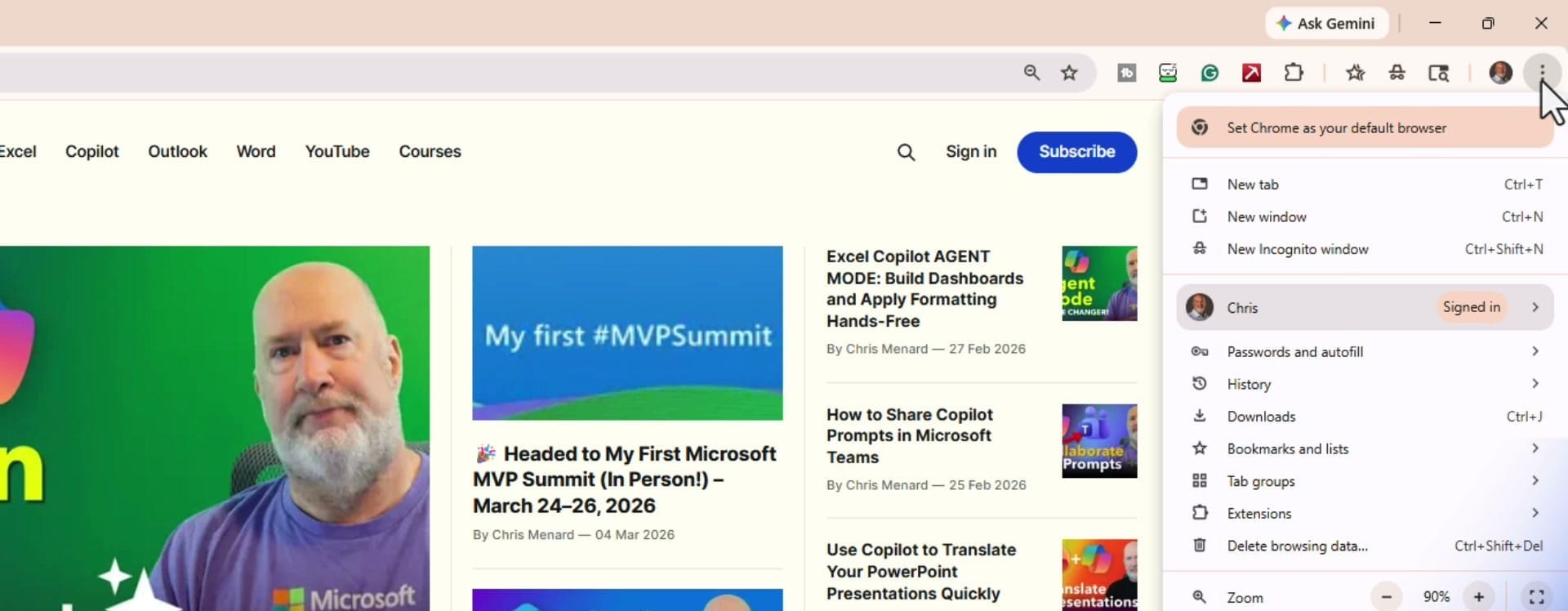
Chrome three-dot menu open showing menu options
Click the three dots in the top-right corner to open Chrome's menu

Step 3: Create the Shortcut

From the menu, hover over Cast, save, and share. In the submenu that appears, click Create shortcut.
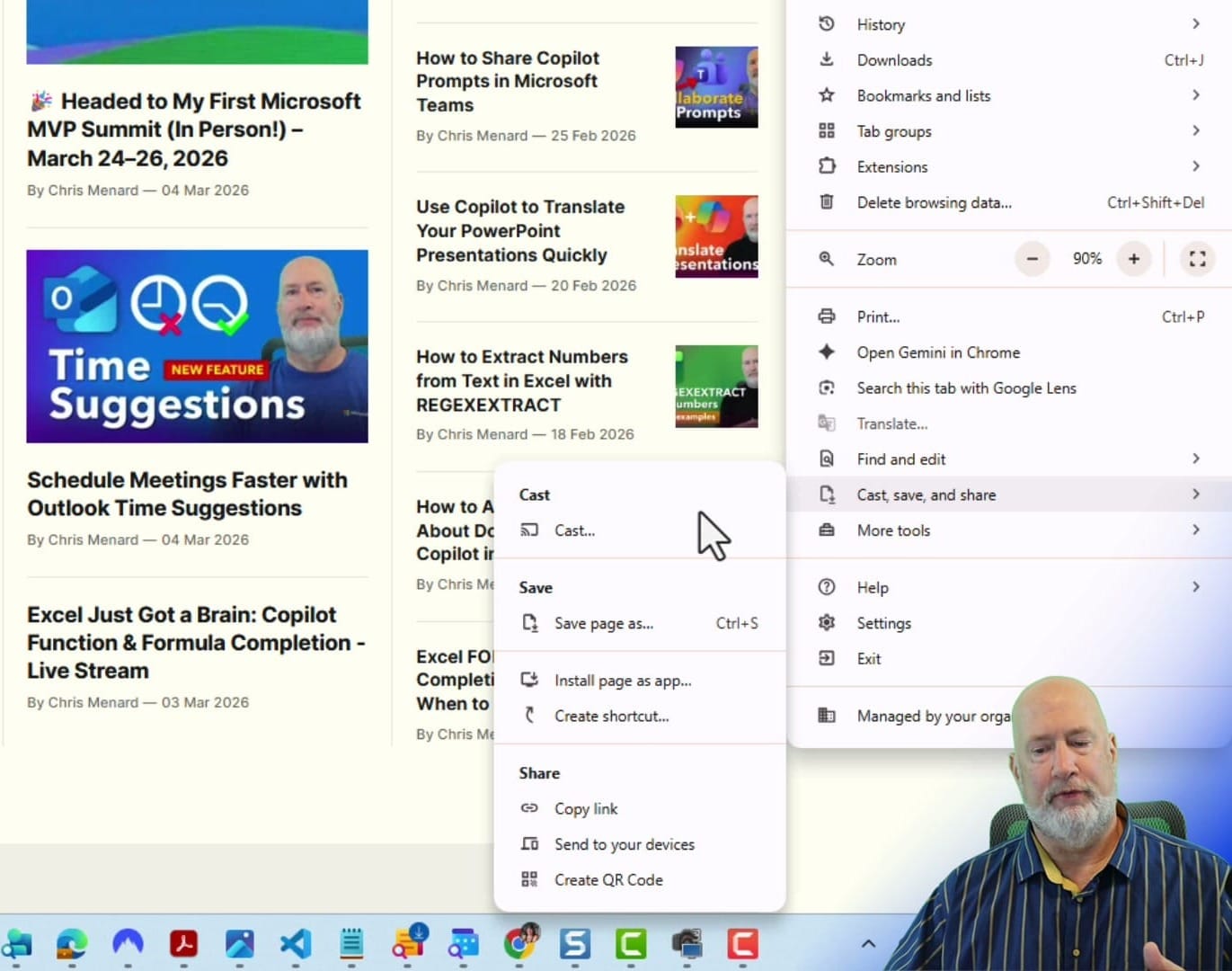
Chrome menu showing Cast, save, and share submenu with Create shortcut option
Navigate to Cast, save, and share → Create shortcut

A dialog box appears with the website name pre-filled. You can change the name if you'd like, or leave it as-is. Click Create.
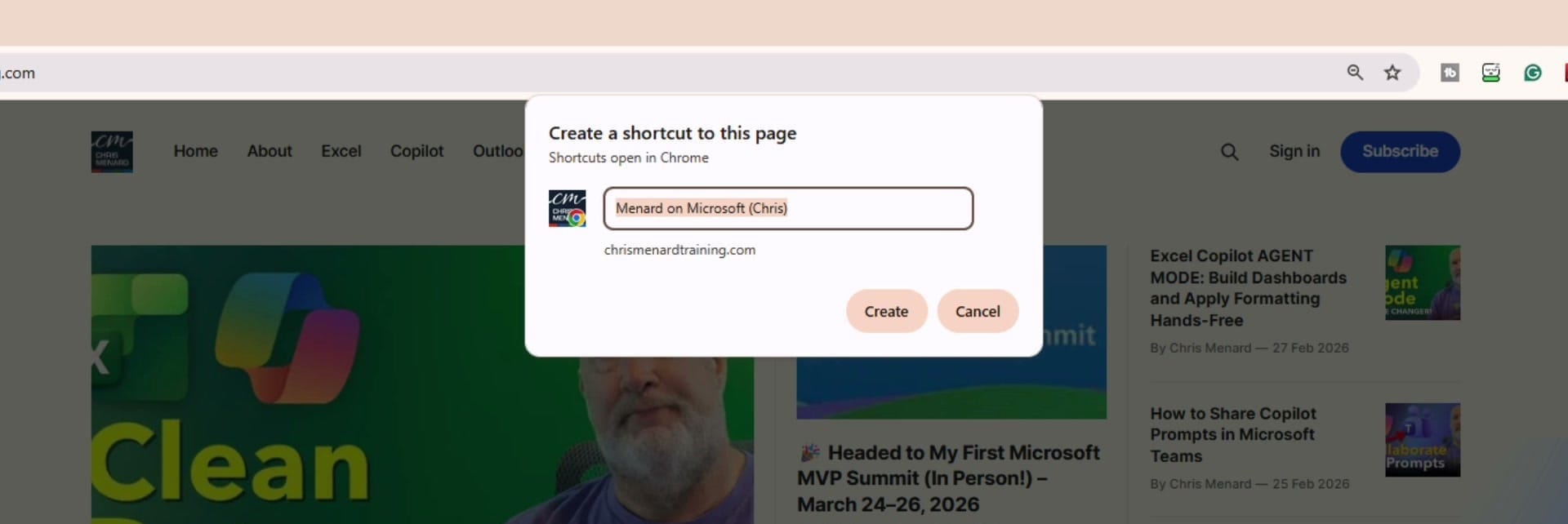
Create a shortcut to this page dialog box in Chrome
Rename the shortcut if needed, then click Create

Step 4: Drag the Shortcut to Your Taskbar

After clicking Create, File Explorer opens automatically with the new shortcut already selected. Simply drag and drop it onto your Windows taskbar.
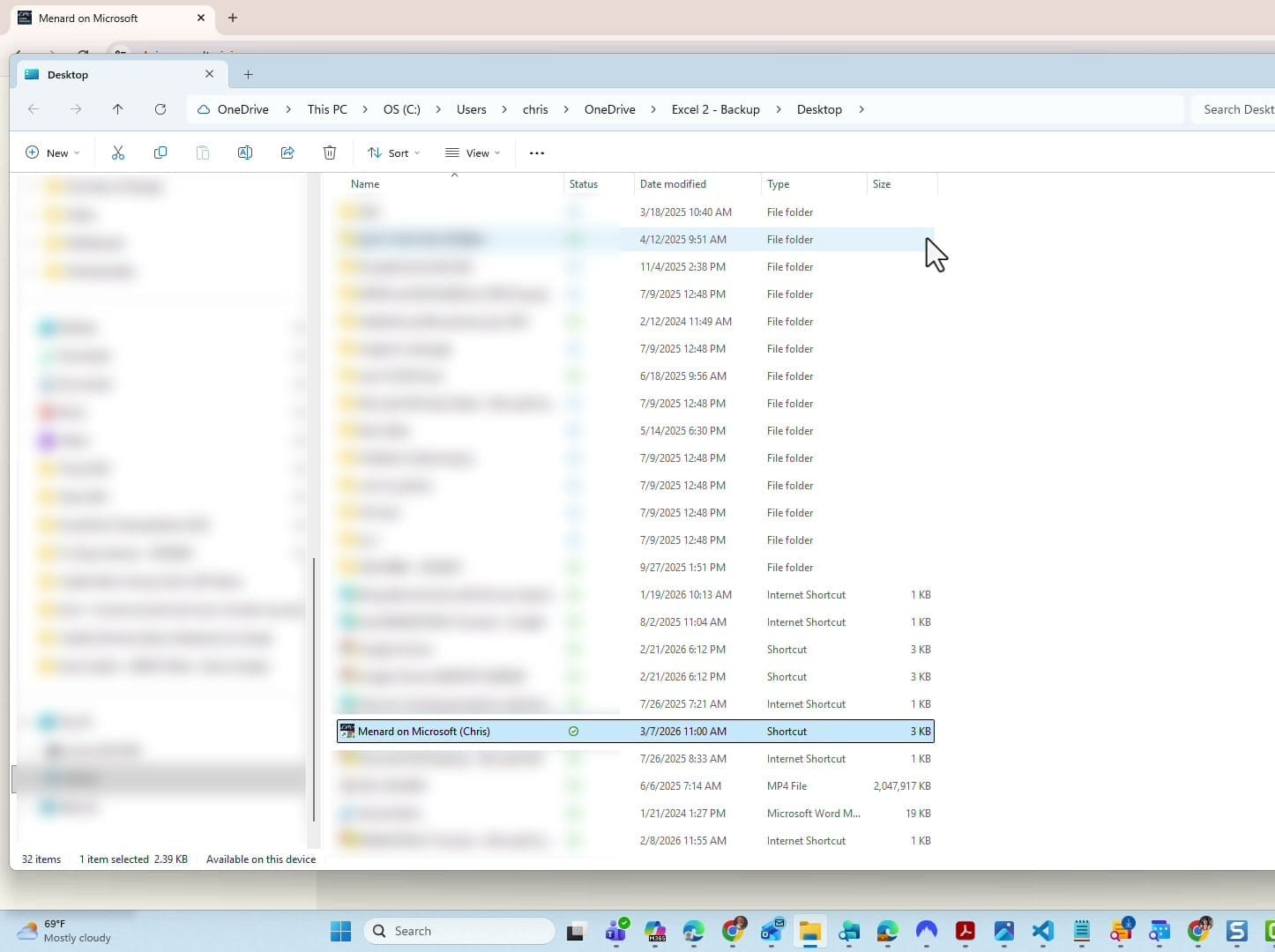
File Explorer showing the newly created website shortcut selected
The shortcut is already selected in File Explorer — drag it to your taskbar

Close File Explorer when you're done.

Step 5: Test It

The website icon now sits on your taskbar. Click it to verify the website opens correctly.
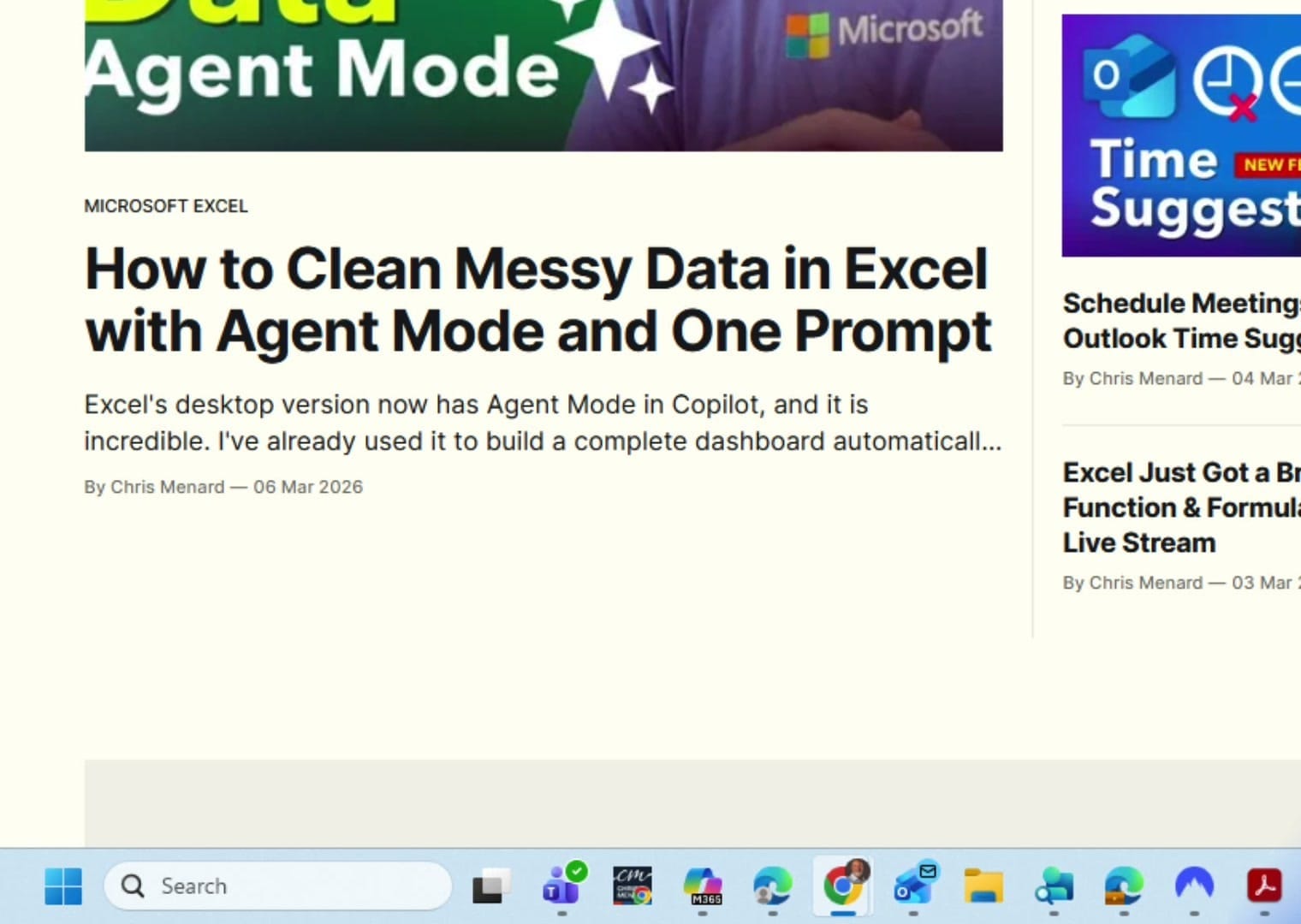
Windows taskbar showing the pinned website shortcut
The pinned website shortcut appears on the taskbar, ready to use with one click

That's all there is to it. One click from your taskbar launches the site instantly.

Want to learn more? Visit courses.chrismenardtraining.com for online training courses.

Top 18 Keyboard Shortcuts for Google Chrome You Need to Use
Are you using these top keyboard shortcuts for Google Chrome? Save time and be more efficient by learning and getting used to these.
Use Tab Groups in Google Chrome to stay organized
Do you use Google Chrome and have too many tabs open? The solution is to use Tab Groups. Tab groups in Chrome help you organize your tabs. You can use tab groups to groups tabs, name the tab group, and even add color to the group to make it easy to find.
Google Calendar - The Best Keyboard Shortcuts to Navigate and Move around
Google Calendar has been around since 2009 for general release. In this short video, I'll show keyboard shortcuts for navigating the Google calendar with different views, and quickly getting around. We will look at various views: day view, week view, month view, schedule view, and year view.

Want to learn more? Visit courses.chrismenardtraining.com for online training courses.

Read more

Copilot Skills in PowerPoint - Live Stream on October 20, 2026

Copilot Skills in PowerPoint - Live Stream on October 20, 2026

𝗠𝗼𝘀𝘁 𝗣𝗼𝘄𝗲𝗿𝗣𝗼𝗶𝗻𝘁 𝘂𝘀𝗲𝗿𝘀 𝗸𝗻𝗼𝘄 𝗖𝗼𝗽𝗶𝗹𝗼𝘁 𝗰𝗮𝗻 𝗰𝗿𝗲𝗮𝘁𝗲 𝘀𝗹𝗶𝗱𝗲𝘀. 𝗙𝗮𝗿 𝗳𝗲𝘄𝗲𝗿 𝗸𝗻𝗼𝘄 𝗮𝗯𝗼𝘂𝘁 𝘁𝗵𝗲 𝟴 𝗯𝘂𝗶𝗹𝘁-𝗶𝗻 𝗖𝗼𝗽𝗶𝗹𝗼𝘁 𝗦𝗸𝗶𝗹𝗹𝘀 𝘁𝗵𝗮𝘁 𝗰𝗮𝗻 𝗰𝗼𝗺𝗽𝗹𝗲𝘁𝗲𝗹𝘆 𝗰𝗵𝗮𝗻𝗴𝗲 𝗵𝗼𝘄 𝘆𝗼𝘂 𝗯𝘂𝗶𝗹𝗱, 𝗶𝗺𝗽𝗿𝗼𝘃𝗲, 𝗮𝗻𝗱 𝗽𝗿𝗲𝘀𝗲𝗻𝘁 𝗮 𝗱𝗲𝗰𝗸. Join me live on October 20, 2026, at Noon Eastern as I demonstrate each Copilot Skill and show practical ways to use them in your presentations. PDF of the 8 Copilot Skills in Pow

By Chris Menard