Excel Formula Completion with IF Functions: Commissions, Grades, and Copilot
I test Excel Formula Completion on real IF functions - a commission formula with absolute references and a nested IF for letter grades. Here's how Copilot did.


Formula Completion is one of my favorite features in Microsoft Excel. You press the equal sign, describe nothing, and Excel writes the whole formula for you. I use it constantly. It does need a paid Microsoft 365 Copilot license, and it has only been around a few months, so I wanted to push it harder than usual.
The thing I had never asked it to do was build an IF function. So on this worksheet I threw four tasks at it: a total, an average, a percentage difference, a commission IF with absolute references, and a nested IF that returns letter grades.
Here is exactly how it did on each one, including where it struggled.
Start simple: totals and averages
Before the IF statements, I like to warm up with something easy so you can see how Formula Completion behaves. I'm in cell F4, the Total column, and I press the equal sign on the keyboard. That's it — no ribbon button, no clicking the Copilot icon. Formula Completion reads the row and suggests B4+C4+D4+E4, which equals $188,500. That number is correct.
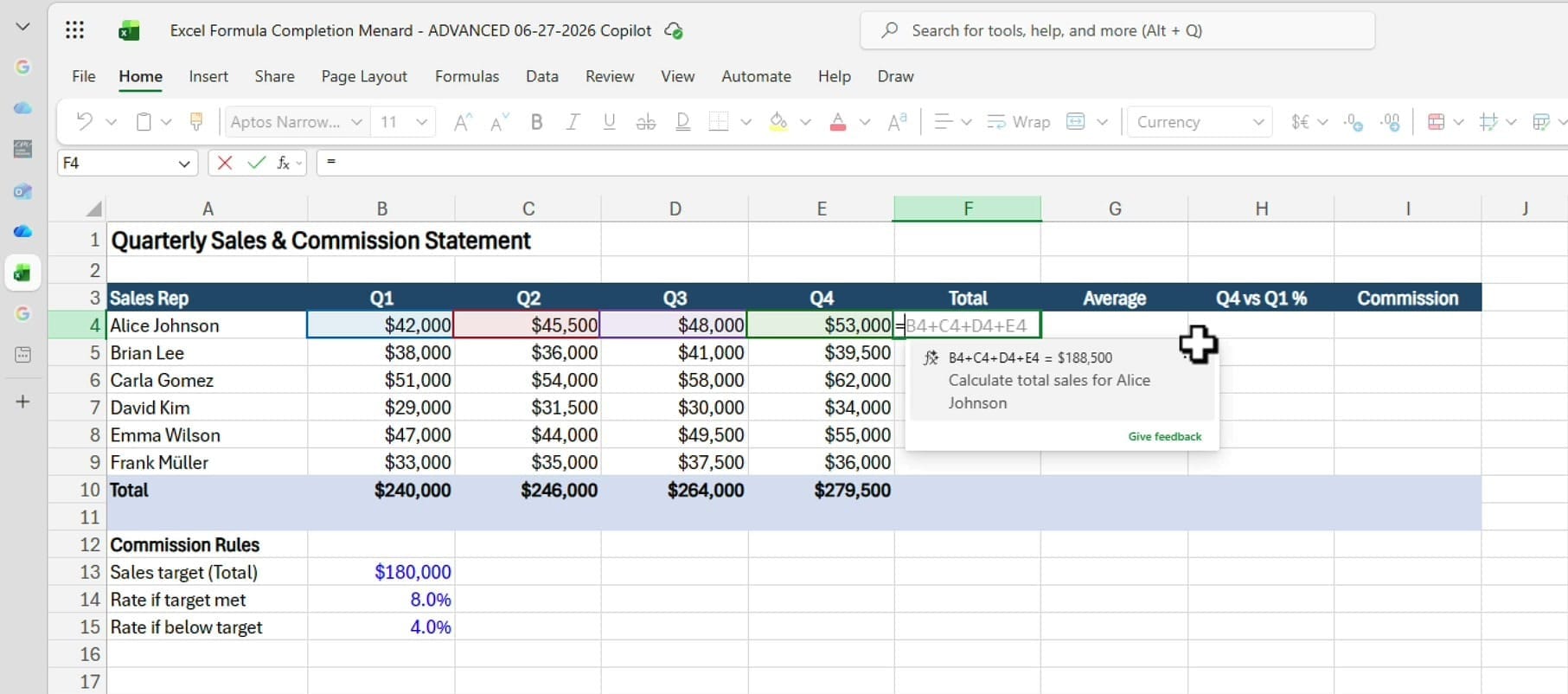
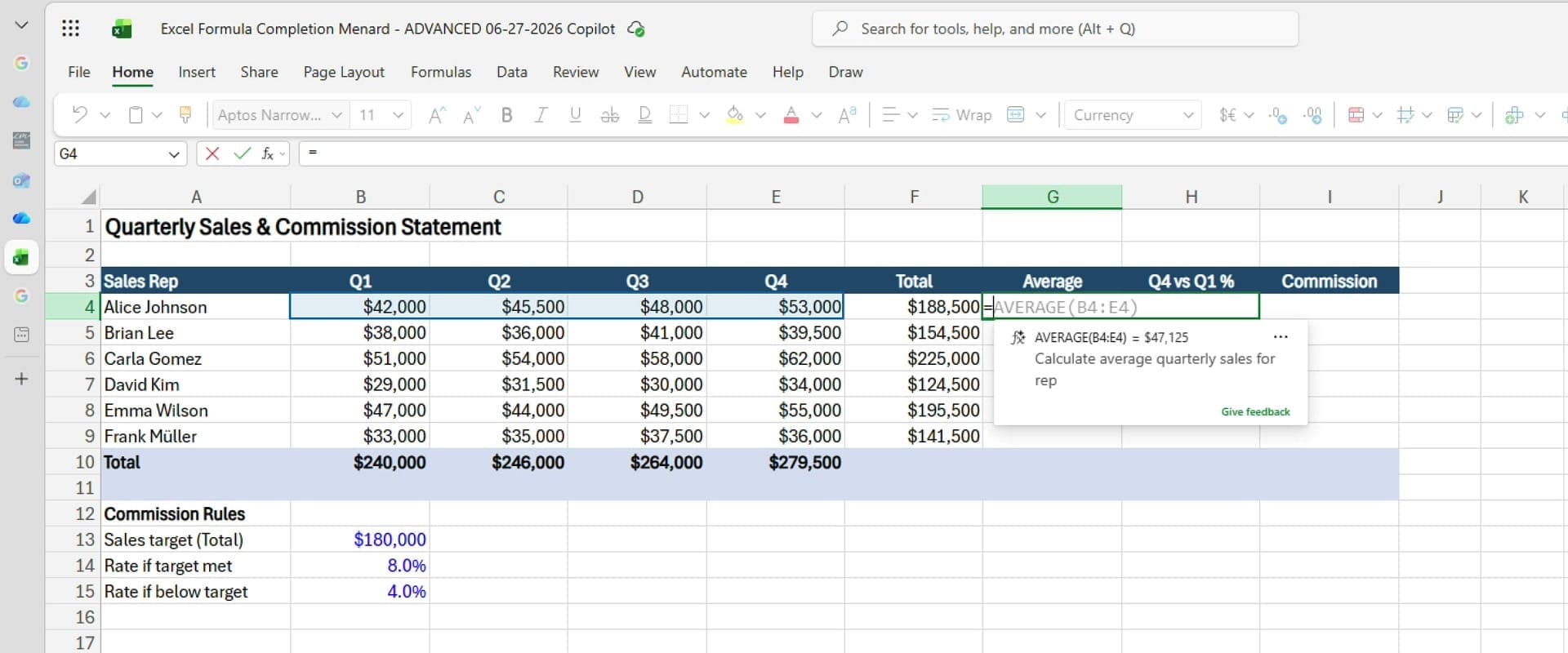
I was a little surprised it added the four cells individually instead of using the SUM function, which is what I would have written. It still got the right answer, so no complaints. Next I do the Average column the same way — equal sign in G4 — and it correctly returns =AVERAGE(B4:E4), or $47,125 for that rep. Then I autofill down the column.
A percentage difference between two quarters
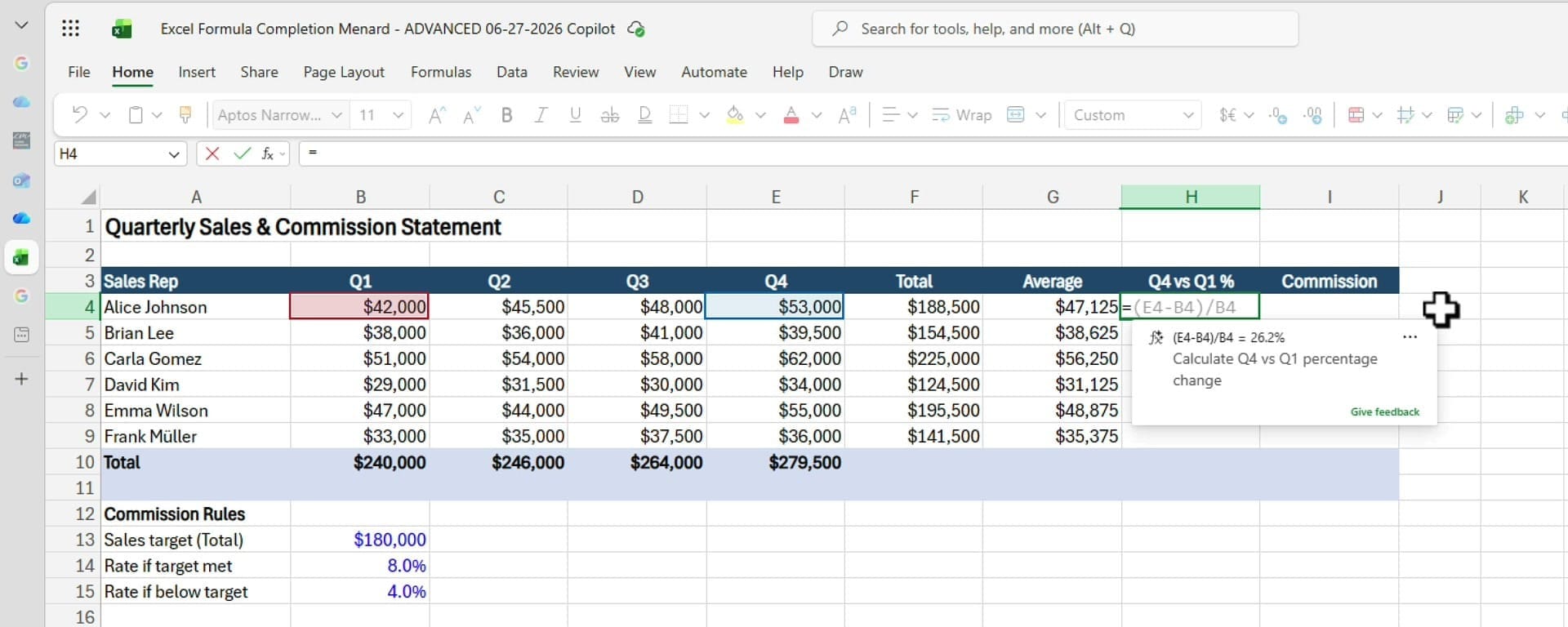
This one is a step up. I want the percentage change between Quarter 4 ($53,000) and Quarter 1 ($42,000). The correct approach is to find the difference first, then divide by the earlier quarter.
Formula Completion nails the order of operations: it writes =(E4-B4)/B4, which comes out to 26.2%.
It subtracted Q1 from Q4, then divided by Q1 — precisely the calculation I had in mind.
The real test: a commission IF with absolute references
Now for the reason I made this worksheet. Look at the commission rules at the bottom: if a rep's total is $180,000 or more, they earn an 8% commission; under $180,000, they earn 4%. Those two rates and the target live in fixed cells (B13, B14, B15), which means the formula needs absolute references so they don't shift when I autofill down. That's what makes this a genuine IF-function test.
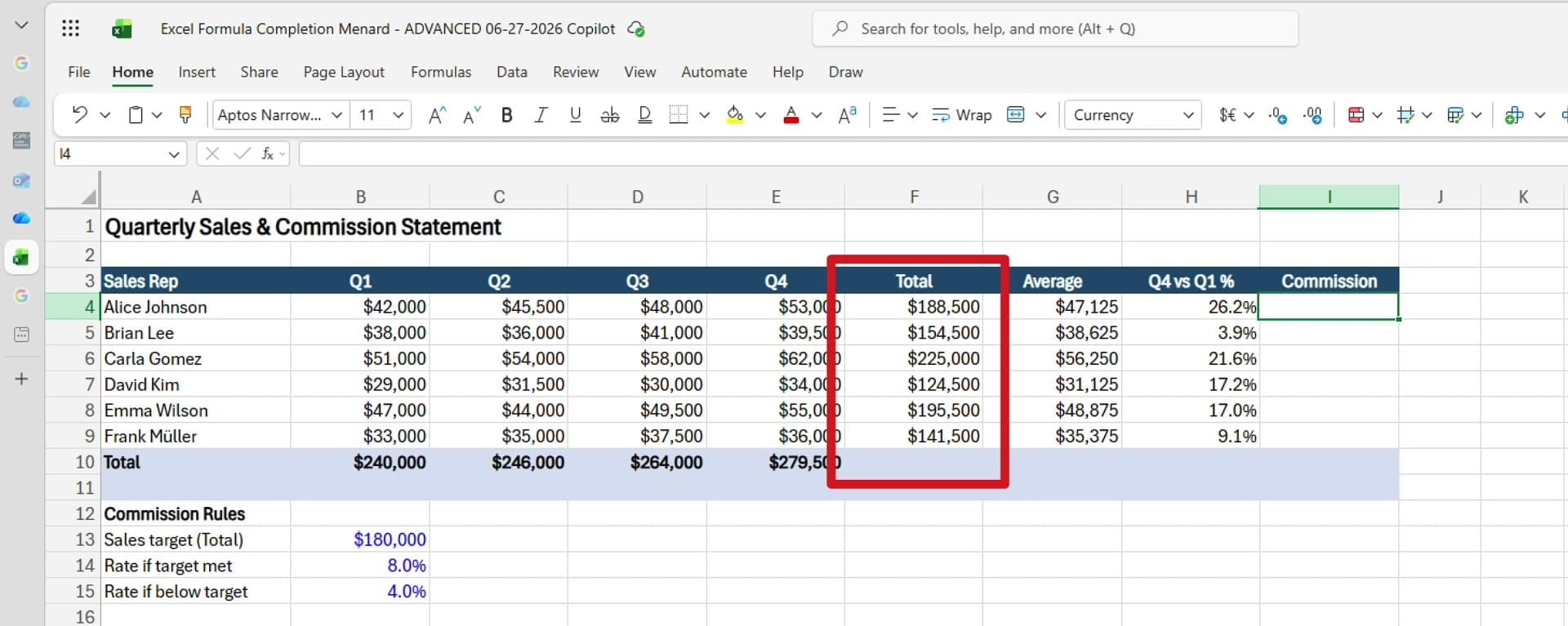
I'll be straight with you about how this went, because it's a useful lesson. The first attempt was wrong — it grabbed the wrong cell, and the result was clearly off. Always check your data in Excel; don't just accept the first suggestion. I deleted it and tried again, hoping it would notice I'd rejected the earlier version.
It took me about four passes before it produced what I wanted. That's more tries than it should take, and it's the feedback I'll send back to Microsoft.
When it finally landed, the formula was exactly right: =IF(F4>=$B$13,F4*$B$14,F4*$B$15). F4 (the rep's total) is compared to the absolute reference $B$13. If it's 180,000 or over, multiply the total by the 8% rate in $B$14; otherwise multiply by the 4% rate in $B$15. The dollar signs keep those rate cells locked as the formula fills down the column.
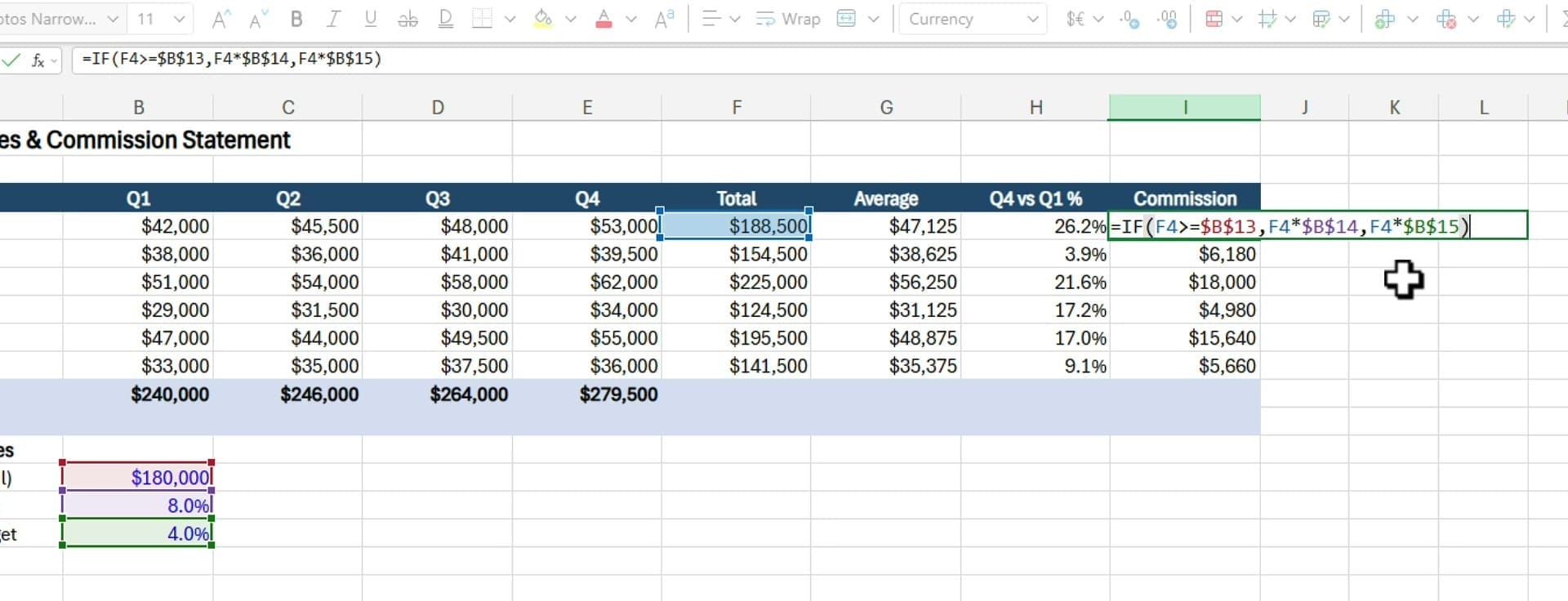
So Formula Completion can absolutely build an IF statement with absolute references — it just took a few nudges to get there. Given how new the feature is, I'll call this a fair result rather than a perfect one.
If you want a deeper comparison of when to reach for Formula Completion versus the COPILOT() function, I cover that in a separate guide linked at the end.
A nested IF for letter grades — with no lookup table
The last task is the most advanced. I have a list of student final grades and I want a letter grade next to each score. Normally, if my grade bands lived in a proper table, I'd use a VLOOKUP or XLOOKUP. But here there is no table — I simply typed the rules as a plain text note off to the side: A is 90+, B is above 80, C is above 70, D is above 60, and anything below 60 is an F.
I press equal in cell C4 and hope for a nested IF. Formula Completion reads my typed criteria and writes:
=IF(B4>=90,"A",IF(B4>80,"B",IF(B4>70,"C",IF(B4>60,"D","F"))))
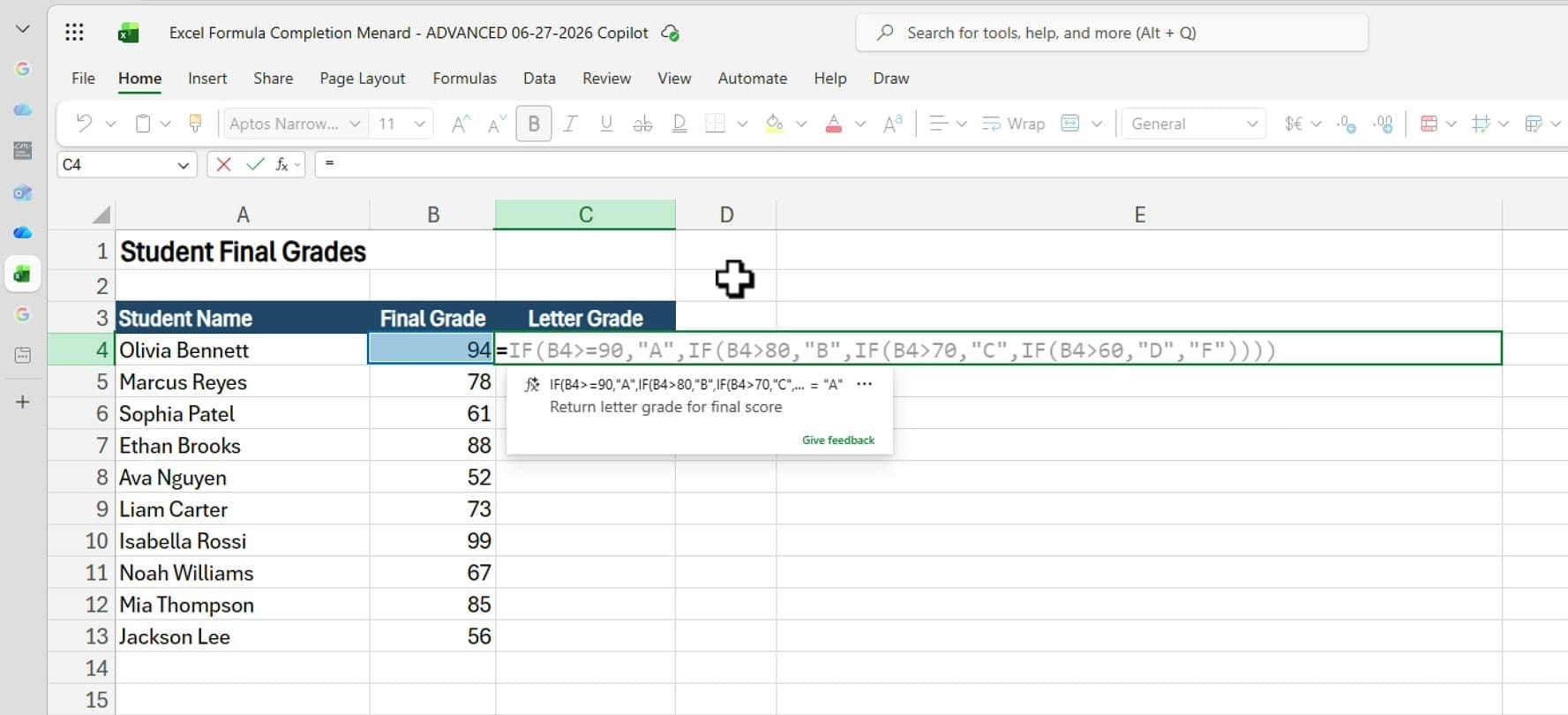
What impresses me here is that it built the entire nested IF purely from a sentence I typed in another cell. No table, no lookup — it interpreted my grading scale and translated it into logic.
Test the grade formula at the boundaries
Whenever you build an IF like this, test the edges. I autofill the formula down and start changing scores. An 81 returns a B. An 80 returns a C — and that is technically correct, because I wrote "greater than 80," not "80 or above," so exactly 80 falls into the C band. A 90 returns an A because the first test uses greater-than-or-equal. A 60 is an F, but 61 bumps up to a D.
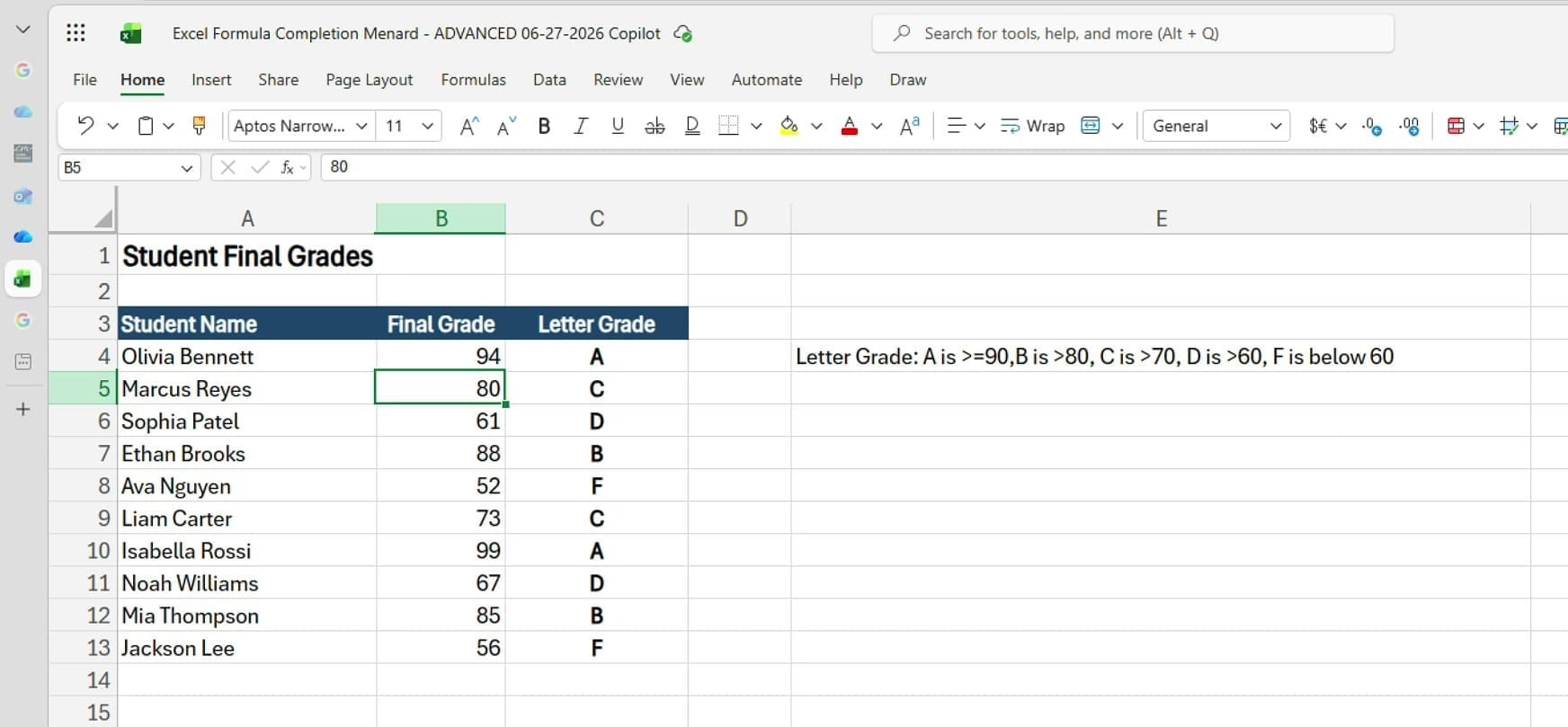
This is exactly why you test boundaries — the difference between >80 and >=80 is one letter grade for that student. Formula Completion followed my wording faithfully; whether that wording matches your school's policy is on you to check.
Where to find Formula Completion in Excel
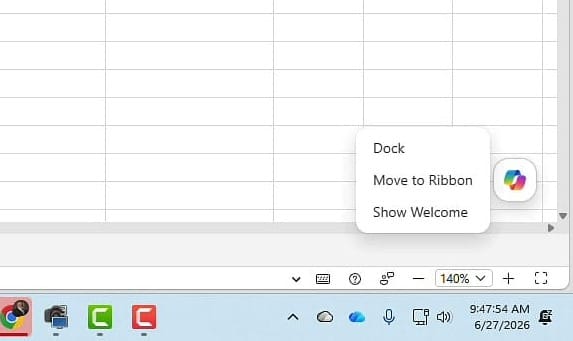
With a Copilot license, the Copilot icon sits in the bottom-right corner. You can dock it or move it back onto the ribbon. But for Formula Completion specifically, you do not click that icon at all. You just click a cell and press the equal sign - Formula Completion activates on its own.
My verdict
Formula Completion is now one of my favorite Excel features. It handled the total, average, and percentage difference instantly, wrote a clean nested IF for grades from nothing but a typed sentence, and eventually produced a correct commission IF with absolute references — even if that last one needed a few attempts. For a feature this young, that's a strong showing, and it keeps getting better. If you have a Copilot license, click a cell, press equal, and see what it writes for you.
LinkedIn Post on IF Function with Formula Completion
Related guides
 Chris Menard
 Chris Menard
 Chris Menard
 Chris Menard
 Chris Menard