Teams Meetings: Captions in your preferred language

Teams Meetings allows live translated captions in the language you are most comfortable with. By default, live captions are displayed in the language that’s spoken during the meeting, but you can change the language of the captions.
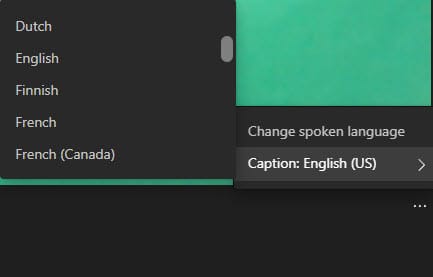
Teams change captions to your preferred language.
For example, ten people can be in English, four people in Spanish, and three in French. This is a great feature if you are having a multiple-language meeting.
YouTube Video
Teams Meetings - Captions in your preferred language | Multiple-Language Meetings
Chapters
- 0:00 Intro - 0:37 Cristian joins my meeting - 1:26 Turn on live captions - 2:00 Change captions - 4:28 Closing remarks
To use live translated captions:
- Turn on live captions in your meeting by going to More then click Turn on Live Captions.
- Next to the meeting captions, select the Caption Setting (three dots) and click Subtitles.
- Choose the language you want your captions translated to.
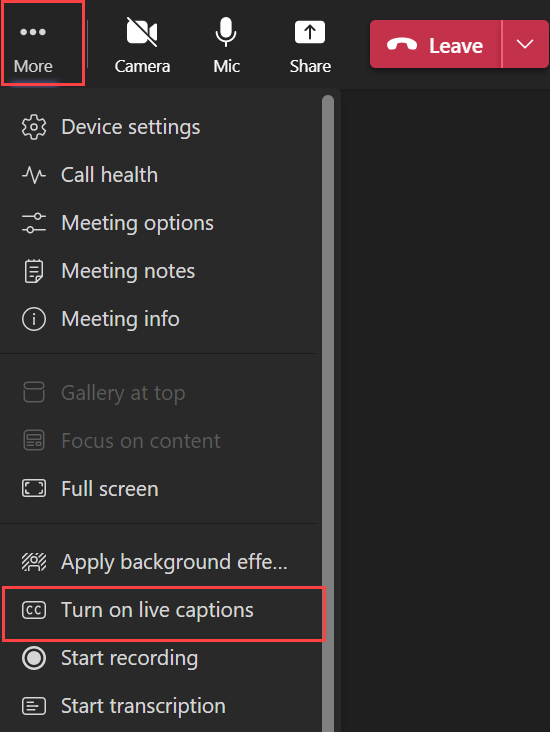
Teams - Turn on Live Captions
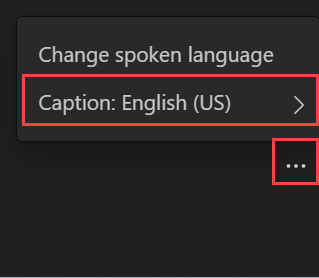
Caption Setting in Teams