Schedule Meetings Faster with Outlook Time Suggestions


Scheduling meetings in Outlook often means checking each person's calendar, guessing at available times, and sending back-and-forth emails. Outlook's new Time Suggestions feature eliminates that friction — it uses Exchange to scan everyone's calendar and automatically surface the next five times all attendees are free.
Watch the full tutorial:
Where Time Suggestions Works
Time Suggestions is available in Outlook on the web and the new Outlook desktop app. It does not work in Outlook Classic (the older desktop version). If you're not sure which version you have, the new Outlook has a simplified ribbon and a toggle switch at the top right to switch between versions.
How to Use Time Suggestions
- Create a new event from your Outlook calendar
- Add at least one attendee in the people field
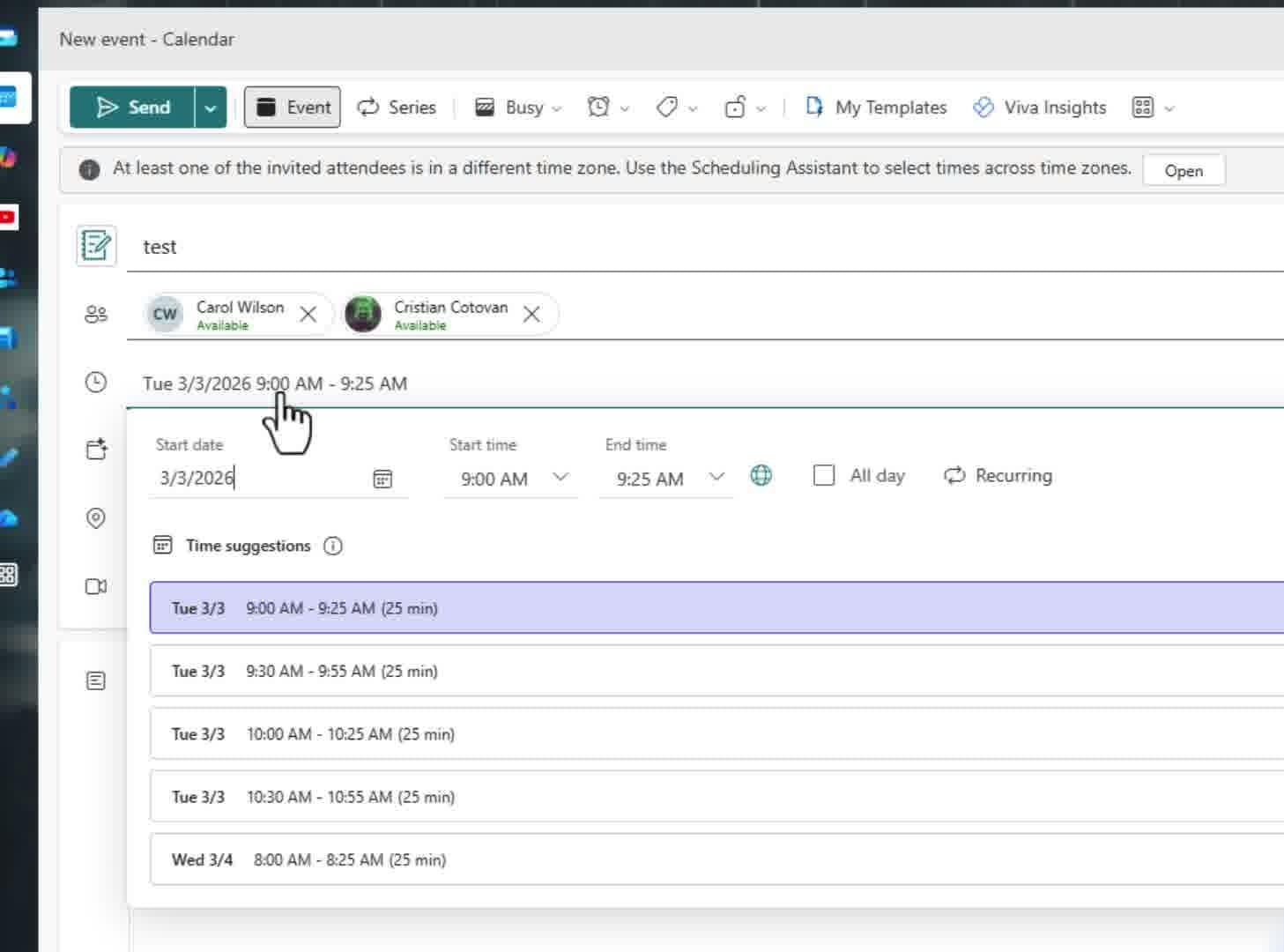
- Click on the date/time area — the Time Suggestions panel appears below
- Outlook shows the next five available time slots where all attendees are free
- Click any suggestion to select that time, then send the invite
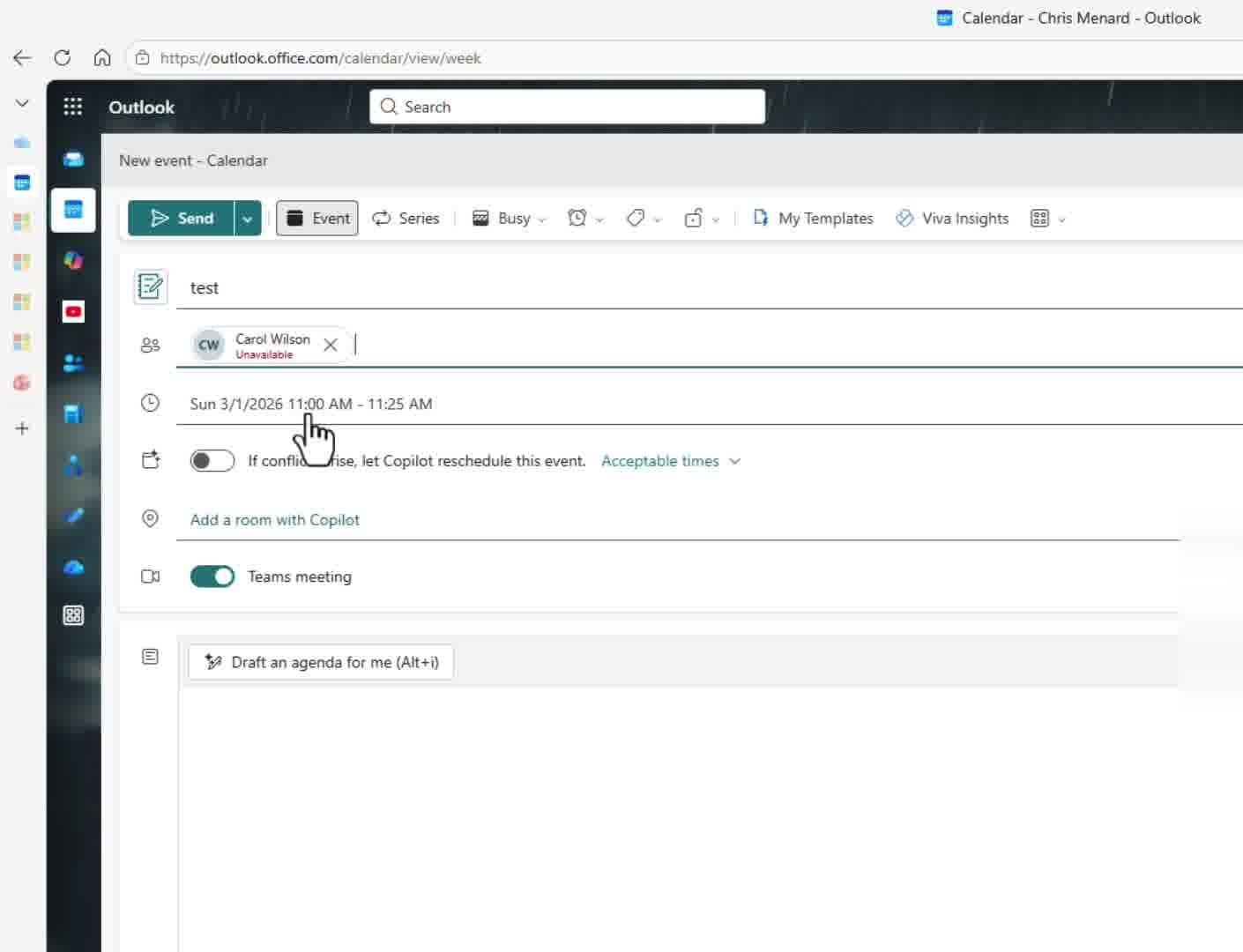
The suggestions respect your calendar settings — they won't suggest times outside working hours or on weekends (unless that's the only availability). If you notice a suggestion skips certain days, it means one or more attendees are fully booked on those days.
Adding More Attendees Updates the Suggestions
As you add more people to the invite, the Time Suggestions list updates in real time. The more attendees you add, the fewer available slots there may be — but Outlook always tries to find the next five overlapping free windows. This makes it easy to find a common time without manually comparing multiple calendars.
The External Attendee Limitation
There's an important caveat: Time Suggestions only works with internal attendees (people in your same Microsoft 365 organization). When you add an external contact — a client, vendor, or anyone outside your org — Outlook shows their status as "Unknown" because it can't access their calendar.
The suggestions still appear, but they're only based on the internal attendees' availability. This can still be useful — you narrow down your team's availability first, then propose those times to the external person.
Microsoft Scheduling Poll for Mixed Groups
When you need to schedule across organizations — or with a large group where finding one common slot is difficult — consider using Microsoft Scheduling Poll instead. It sends a poll to all attendees (internal and external) with proposed times, and each person votes on what works for them. Check out Chris's Scheduling Poll tutorial for a walkthrough.
The Scheduler View
For a more visual approach, click the Scheduler button (next to the date/time in the event form). This opens a timeline view showing each attendee's calendar side by side — busy blocks appear as colored bars, and free time is white space. The Time Suggestions button also appears in this view, so you can toggle between the visual timeline and the suggested slots.
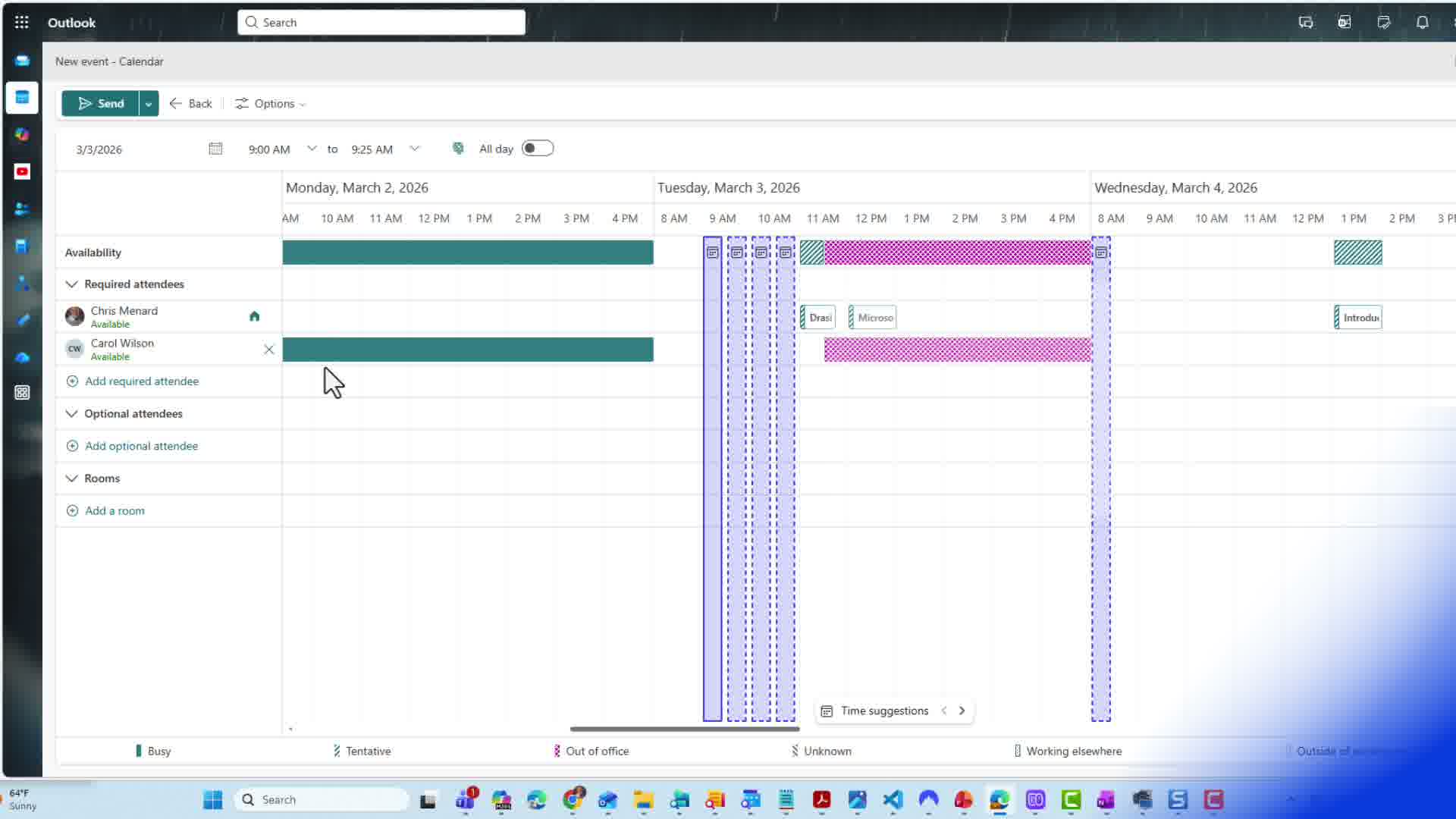
The Scheduler view is especially useful when you want to understand why certain times aren't suggested — you can see exactly which attendee has a conflict and adjust accordingly. This is similar to the calendar features available in Outlook on the web that the classic desktop version lacks.
Related guides
 Chris Menard
 Chris Menard
 Chris Menard
 Chris Menard
Want to learn more? Visit courses.chrismenardtraining.com for online training courses.