
MS Word: How to Convert Text to a Table (and Table to Text)


Microsoft Word has a built-in feature that converts plain text into a structured table — and vice versa. This is useful when you receive unformatted data (from an email, a PDF, or a text file) and need to organize it into columns and rows. In this tutorial, Chris Menard demonstrates both directions of conversion.
Converting Text to a Table
For the conversion to work, your text needs a consistent delimiter — a character that separates what should be in different columns. Common delimiters include tabs, commas, or special characters like the dollar sign ($).
- Select the text you want to convert
- Go to Insert > Table > Convert Text to Table
- In the dialog box, set the number of columns
- Under "Separate text at," choose your delimiter (Tabs, Commas, or Other)
- Choose an AutoFit option — "AutoFit to contents" usually works best
- Click OK
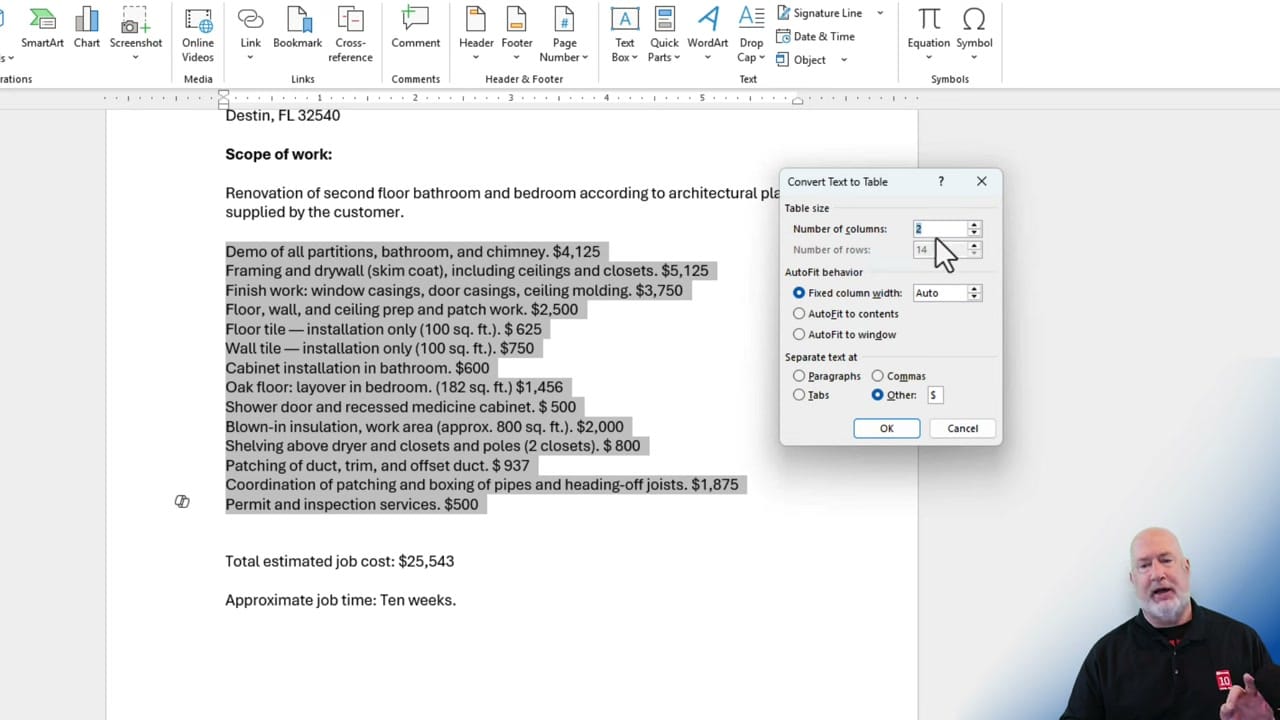
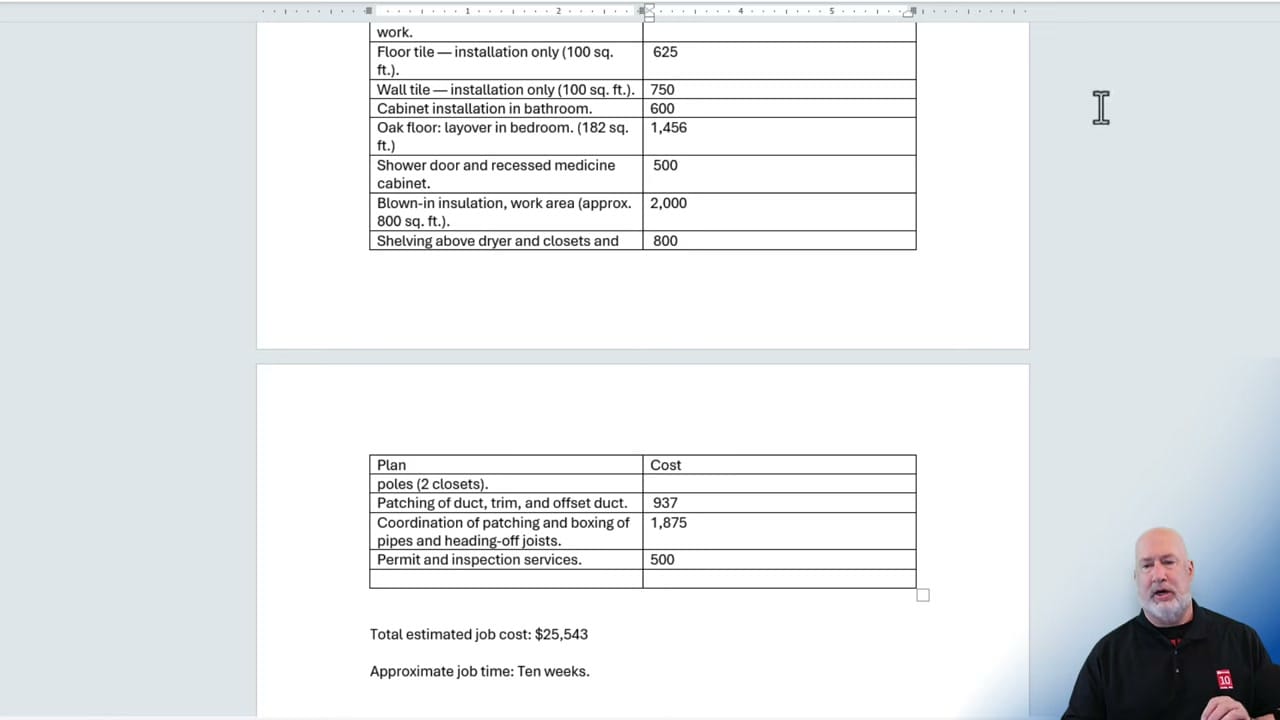
Chris demonstrates this with a list of renovation items and costs separated by dollar signs. Word recognizes the delimiter and splits the text into a clean two-column table.
Converting a Table Back to Text
You can also go the other direction. If you have a table that you need as plain text:
- Click inside the table
- Go to the Table Layout tab (or Layout under Table Tools)
- Click Convert to Text
- Choose how to separate the columns (tabs, commas, paragraph marks, or custom character)
- Click OK
This is handy when you need to paste table data into an email or a system that doesn't support tables.
Tips for Clean Conversions
- Make sure every row has the same number of delimiters — inconsistent delimiters create uneven columns
- If using "Other" delimiter, type the exact character in the box
- After converting, you can edit and format the table using Word's table design tools
- Use Show/Hide (¶) to see hidden characters like tabs before converting
Related guides
 Chris Menard
 Chris Menard
 Chris Menard
Want to learn more? Visit courses.chrismenardtraining.com for online training courses.



