Save Hours on Outlook Replies with Microsoft Copilot
Reply to email faster in Outlook with Copilot — use one-click suggested drafts for quick replies, or the Copilot task pane and Draft Assistant when you need to add details, cities, and venues the sender never mentioned.


If you spend a big chunk of your day answering email, Copilot in Outlook can hand back somewhere between 3.5 and 5 hours a week — just on your replies. I've been leaning on it daily, and in this guide I want to show you two ways to reply faster: the quick one-click suggested drafts, and the Copilot task pane for the times you need more control over what goes into the reply.
Before we start, this requires a paid Microsoft 365 Copilot license. I am working in the new Outlook for Windows, and everything here also works in Outlook on the web. I could not get it to work in classic Outlook desktop, so if a button is missing for you, check which version of Outlook you are running.
To set the scene, I have an email from Carol Wilson about our annual retreat. She listed three cities — Nashville, Austin, and Atlanta — and below that she gave me hotel and venue options for each one. I want to reply to her, and Copilot gives me two very different ways to do it.
Option 1: One-click Copilot suggested drafts
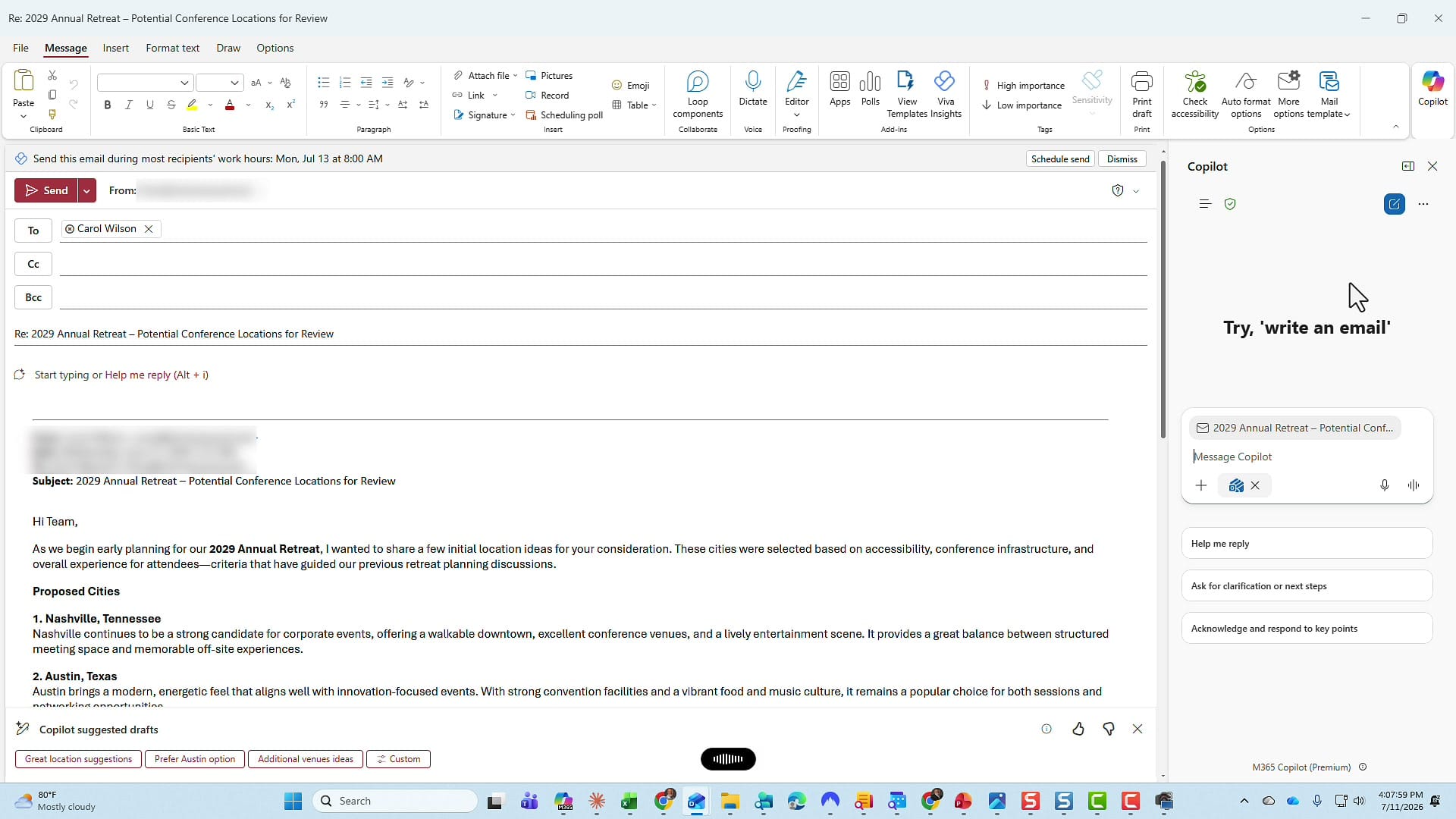
When I click Reply, Copilot reads the thread and offers a row of suggested reply drafts right under the message. In this case I get four of them, including Great location suggestions, Prefer Austin option, and Additional venues ideas. Each one is a complete, ready-to-send reply written from the context of Carol's email.
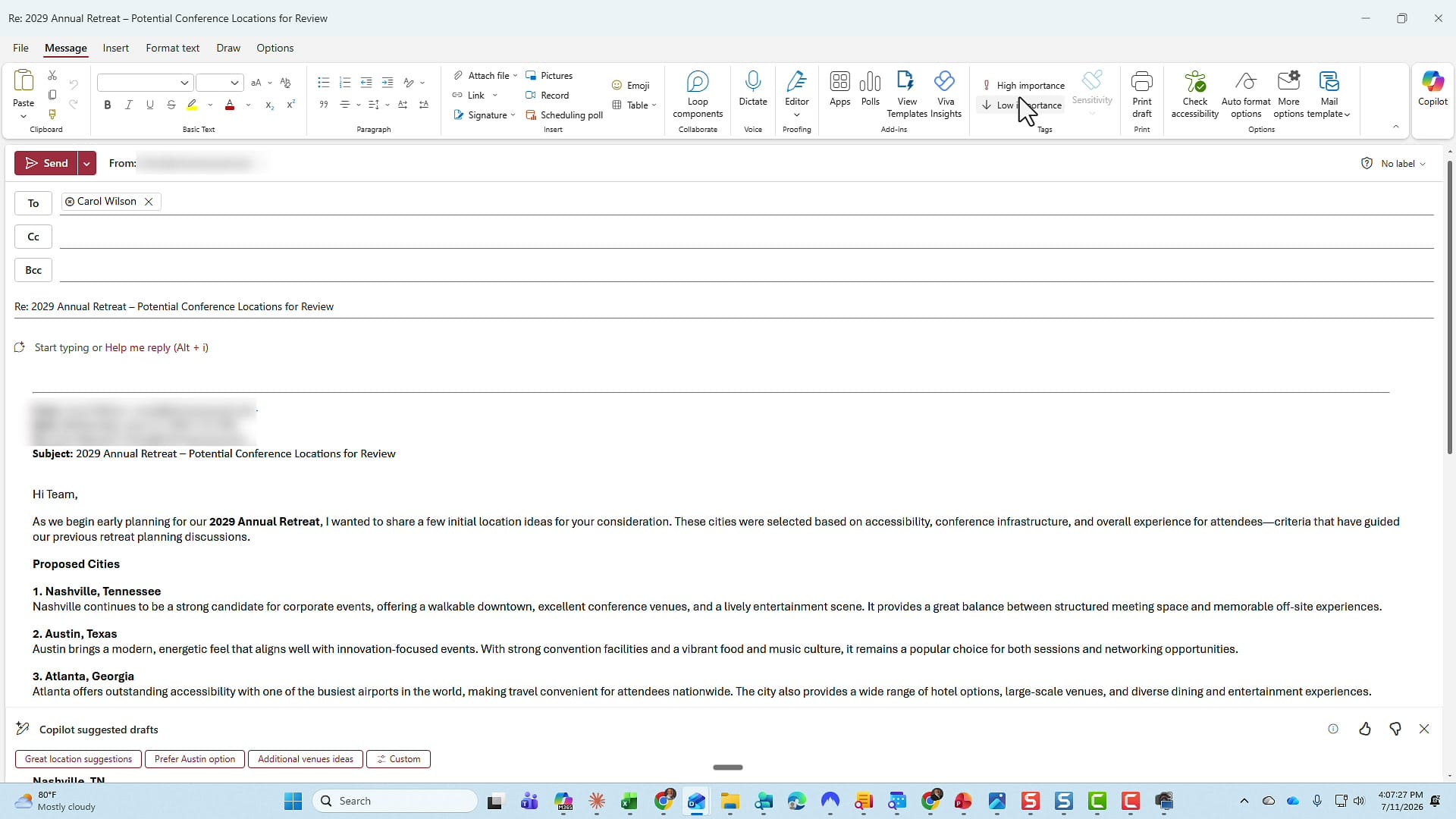
I click the draft I like — Great location suggestions — and Copilot drops that full reply into the email for me. From there I am not stuck with it as-is. I can use Make it longer or Make it shorter to change the length, and Copilot keeps every version, so I can step back to the previous draft or move forward to the next one and compare them.
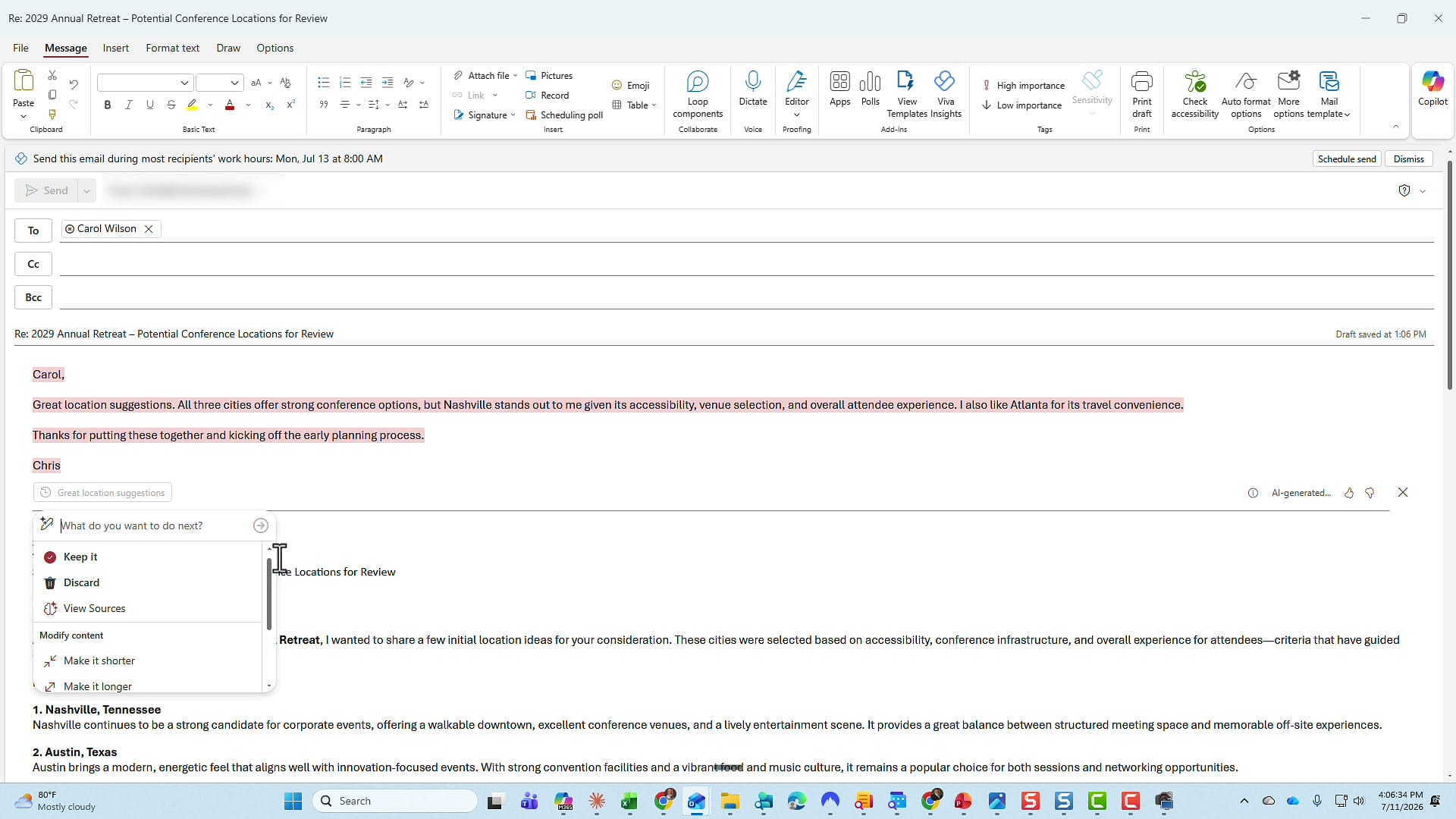
When I am happy with it, I choose Keep it. The draft stays in the email, and I can still edit it by hand before I hit Send. This is the feature I reach for most of the time, and it is perfect when the canned replies already say what you mean.
Option 2: The Copilot task pane, for replies that need more
Here is where it gets interesting. The suggested drafts are great, but they only know about what is already in the email. Say I want to push back on Carol and ask for two more cities she never mentioned — Scottsdale, Arizona and Orlando, Florida. The one-click drafts have no idea about those, so I need to give Copilot my own instructions.
I click Reply again, then go up to the Copilot icon in the top-right corner and click it. That opens the Copilot task pane on the right side of the screen. In the box, I type exactly what I want to say: "Great three cities you gave me, but I would like to see two additional locations, Scottsdale, Arizona and Orlando, Florida," and send it off.
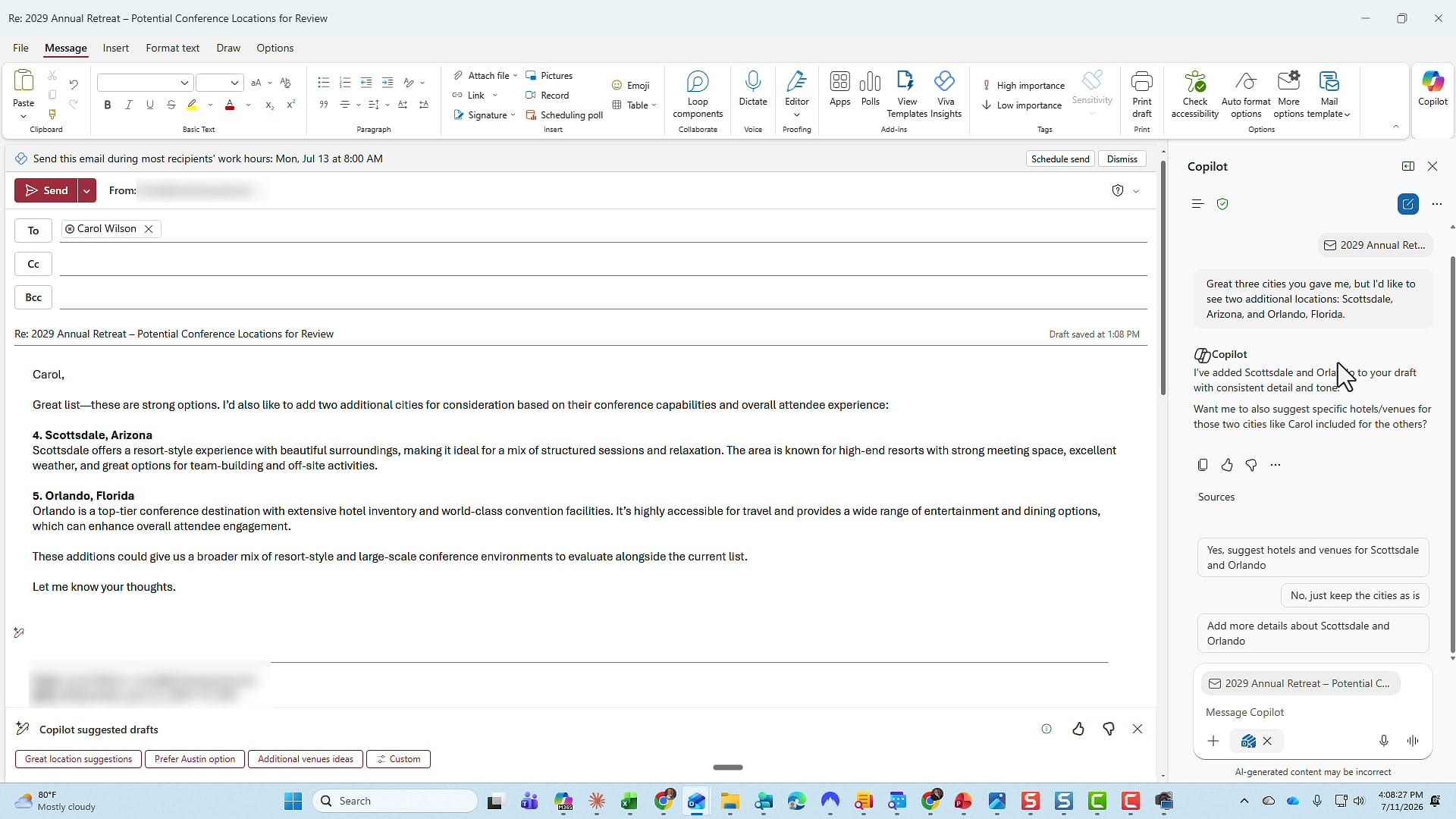
Copilot goes to work using the Outlook Draft Assistant, and even though I am typing in the task pane on the right, everything happens in the body of the email. It adds Scottsdale and Orlando as items four and five, matching the tone and detail of the original three, and it keeps them in the correct order. It also offers follow-up prompts under the reply so I can keep refining without retyping.
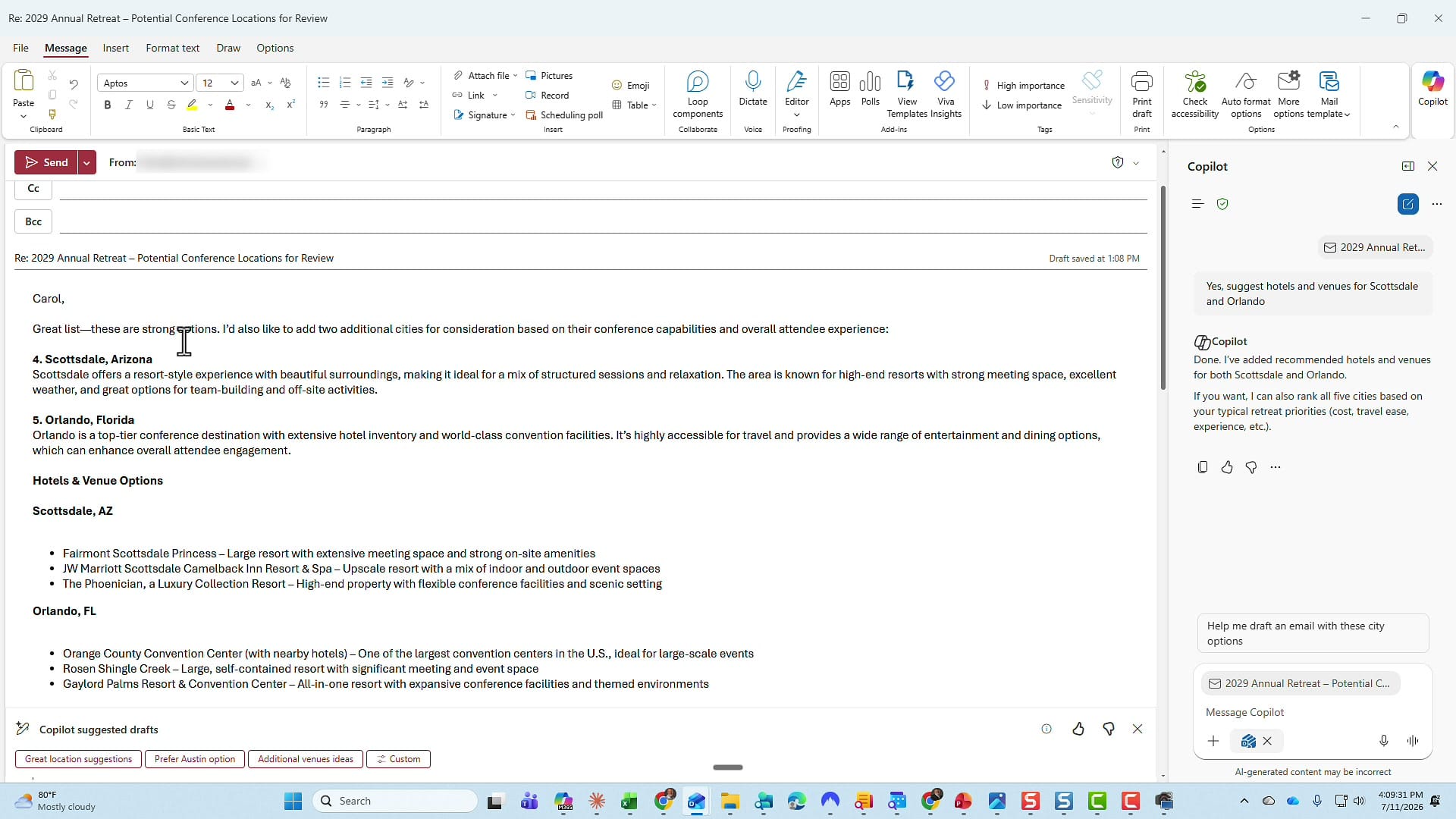
Now I keep the conversation going. Carol gave hotels and venues for her three cities, so I ask Copilot to suggest hotels and venues for Scottsdale and Orlando. It builds out a Hotels & Venue Options section with real, named properties for both cities.
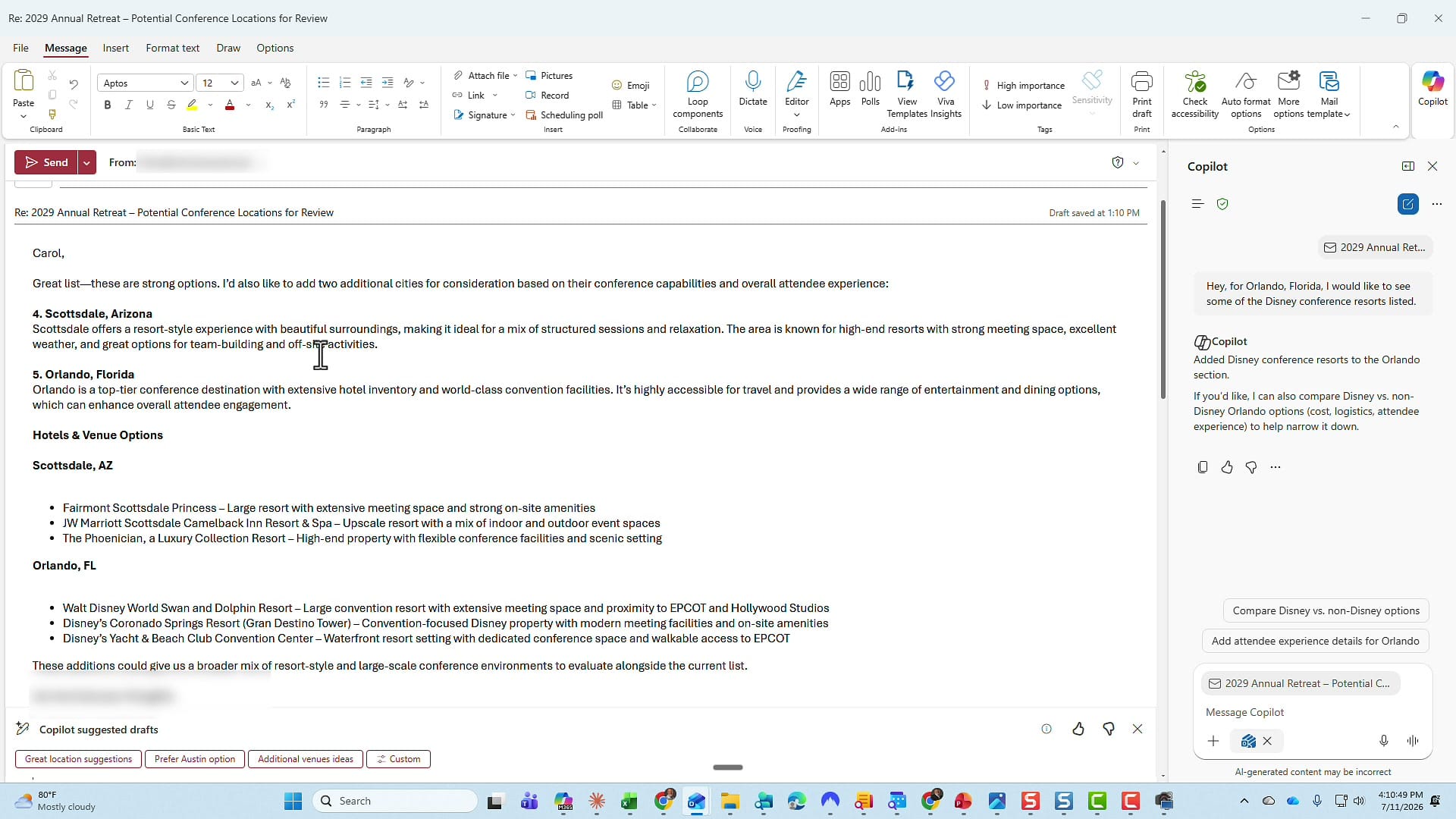
One more refinement to show how specific you can get. For Orlando, I ask Copilot to list some of the Disney conference resorts, and it adds the Walt Disney World Swan and Dolphin Resort, Disney's Coronado Springs Resort, and the Yacht & Beach Club Convention Center. If I wanted, I could follow up with "give me Disney and non-Disney options" and it would do that too.
When the reply looks right, I click Replace to drop Copilot's version into the email. Sometimes it replaces automatically; other times you click Replace once to confirm. After that, the finished reply is sitting in the message, ready for me to review and send to Carol.
Which one should you use?
Reach for the one-click suggested drafts when the reply is straightforward and the canned options already capture your point — it is the fastest path. Open the Copilot task pane when you need to add information the sender never mentioned, ask for specifics, or shape the reply through a back-and-forth. Between the two, most of my email replies get written in a fraction of the time they used to take, and that is where those hours come back each week.
Related guides