Add Prep and Buffer Time to Outlook Calendar Events with Copilot
Use Copilot in the new Outlook and Outlook on the web to add 30-minute prep blocks and 15-minute hold blocks around your calendar events — with one specific prompt.


I use Copilot in the new Outlook and Outlook on the web to add prep time and hold time — buffer time, if you prefer that name — around my calendar events. A prep block is time I set aside before a meeting to get ready. A hold block is time I keep open right after it, in case the meeting runs long, I need to answer questions, or I have follow-up work to finish.
Adding these by hand is tedious. I run five Copilot training sessions in a single week, and each one needs a prep block before it and a hold block after it. That is ten separate events I would have to create and position manually. Instead, I hand the whole job to Copilot with one specific prompt and confirm the results.
A training-heavy week
Here is my Outlook calendar for the week of July 19–25. I have a mix of events: an HR meeting, a budget meeting, a new hire meeting, and several trainings. Five of those events are Copilot trainings — Excel Copilot Training PT 1, Excel Copilot Training PT 2, PowerPoint Copilot Training, Word Copilot Training, and another Excel session.
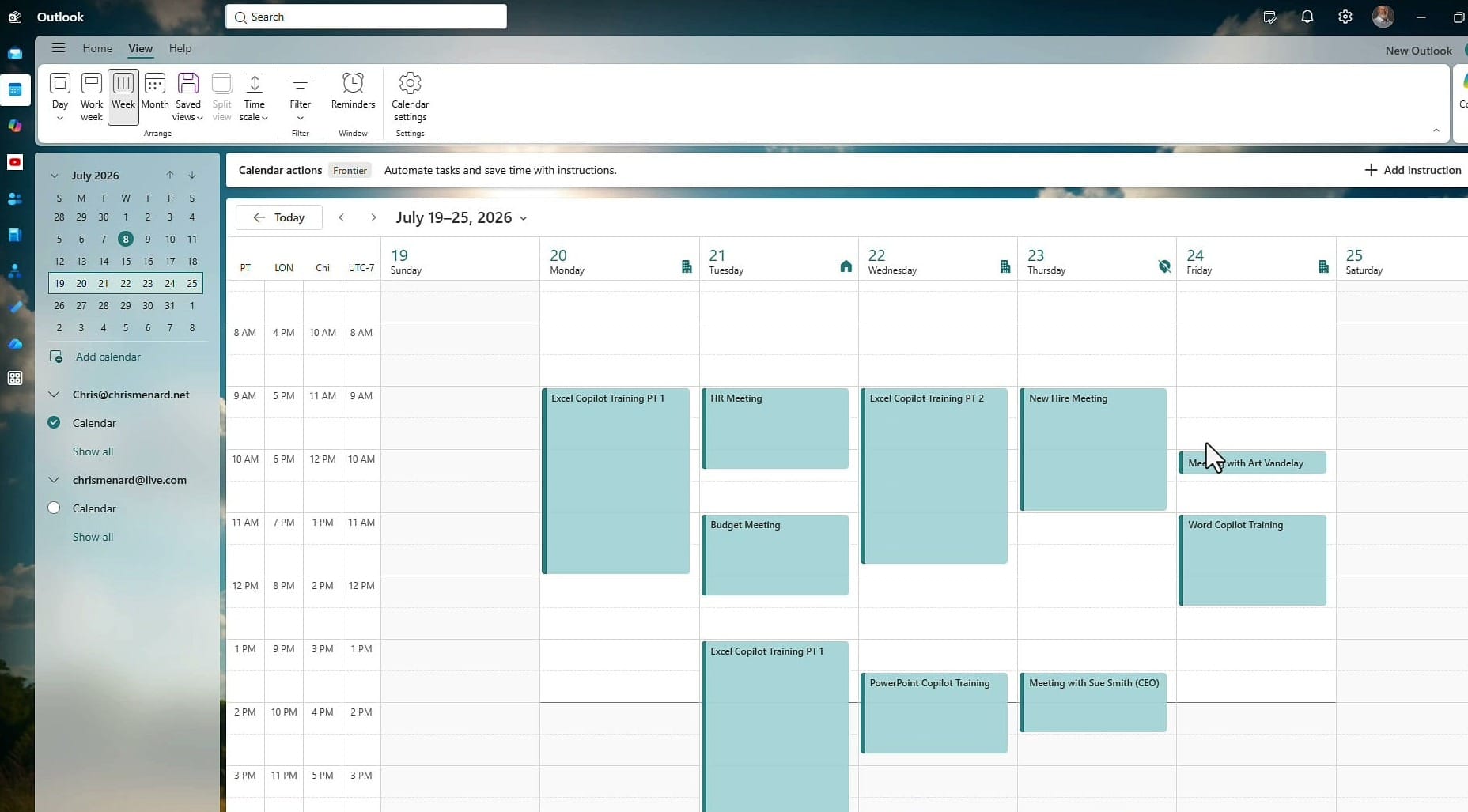
What I want is consistent: a 30-minute prep block before every Copilot training, and a 15-minute hold block after each one. Nothing added to the HR meeting, the budget meeting, or anything else. Doing that manually means creating and dragging ten events. Copilot can do it in one pass.
Open Copilot in Outlook
Open the Copilot pane in the new Outlook or Outlook on the web. You can type your request or click the microphone and dictate it — I dictate because the request is long. Two things matter more than how you enter it: be very specific, and give Copilot an example. Copilot follows a detailed instruction far more reliably than a vague one, and a worked example removes almost all of the guesswork.
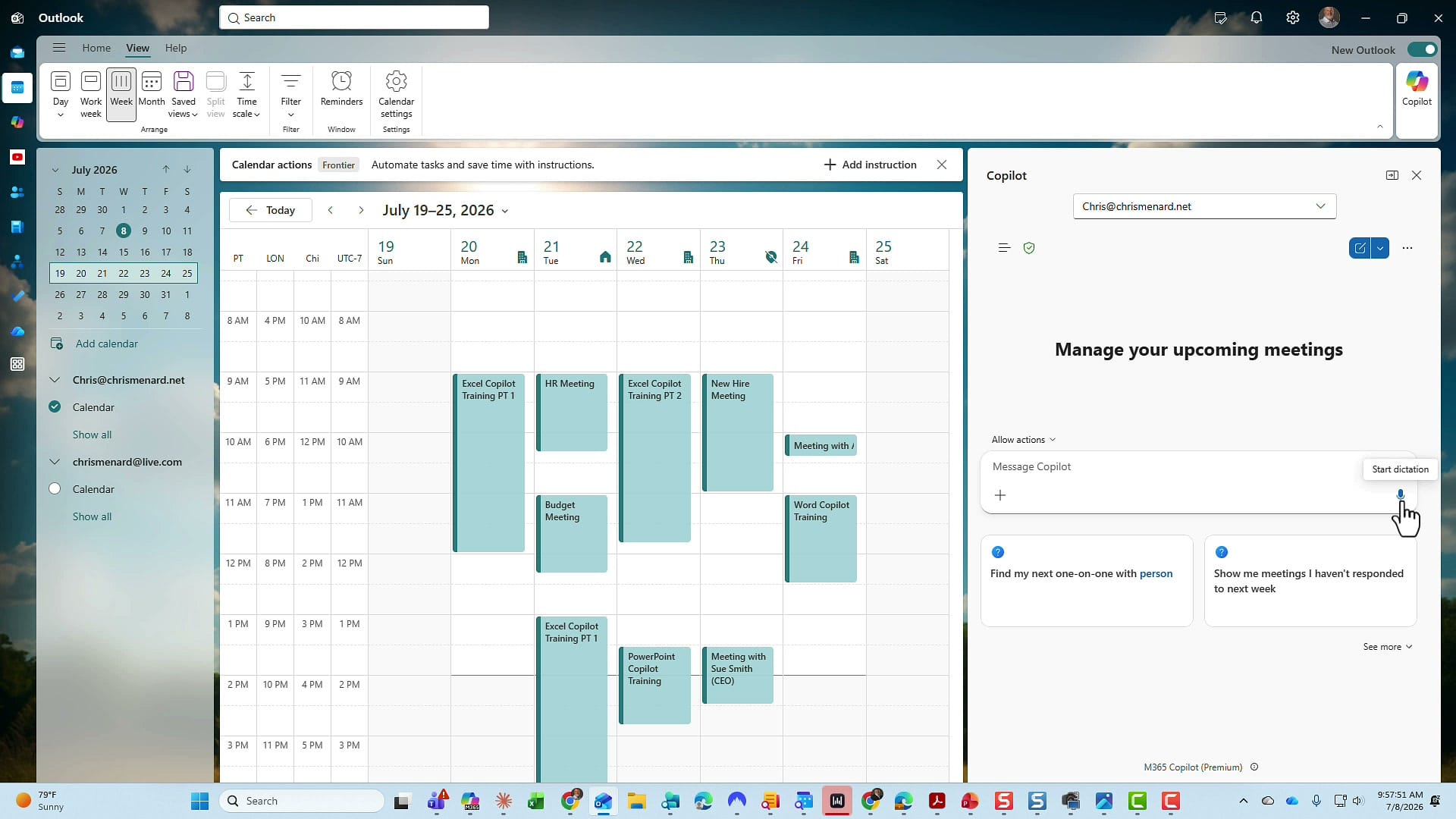
Write a specific prompt with an example
Here is the prompt I gave Copilot. Notice how much detail it contains — the date range, the exact condition that triggers a block, the durations, a concrete example, an explicit exclusion, and a request to confirm before anything is saved:
Look at my calendar for Monday the 20th through Friday the 24th. Anytime you see the word "training" and the word "Copilot," I need a prep block before that event. The prep block needs to be 30 minutes. After the event is over, I need a hold block, and the hold block needs to be 15 minutes.
As an example, on the 20th I should have a prep block from 8:30 AM, and a hold block starting at noon to 12:15. Do the same for the 21st — a prep block at 12:30 and a hold block right after the Excel Copilot training ends.
Do this for every Copilot training event this week. Do not do it for any other meetings — for example, the budget meeting on the 21st. Go ahead and add the blocks, but I would like to confirm each one. There are five different Copilot training sessions, which means there should be 10 blocks.
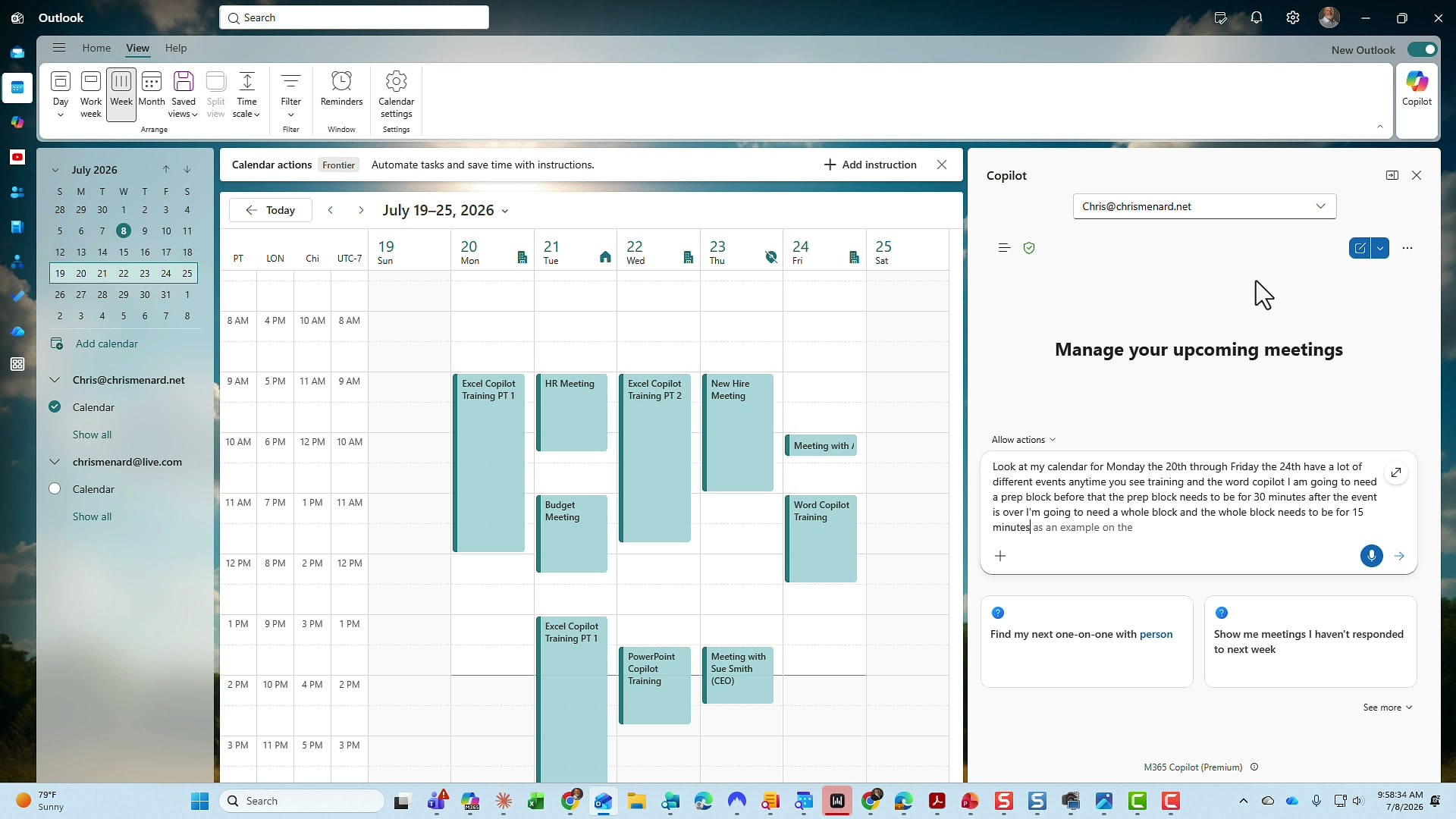
A few parts of that prompt are worth calling out. The condition — the words "training" and "Copilot" together — tells Copilot exactly which events qualify, so the HR and budget meetings are skipped. The example for the 20th and 21st shows the pattern in real times. The exclusion ("do not do it for the budget meeting") prevents overreach. And the closing sanity check — five sessions means ten blocks — gives Copilot a number to check its own work against.
Confirm before Copilot commits
I deliberately asked Copilot to confirm each block before saving it. On a task that creates ten calendar events, you want to review the plan before it touches your calendar. Copilot lays out what it intends to do and waits for your go-ahead, so nothing is added until you approve it.
When Copilot gets it wrong, ask it to fix it
On this run, Copilot made a mistake — and I was half hoping it would, because it is a good lesson. It stacked all ten blocks on Monday morning instead of spreading them across the week. The useful part is that Copilot caught the error itself. It reported what happened — ten duplicate prep blocks on Monday, and none of the other blocks created — and offered to delete the duplicates and build the blocks that were missing.
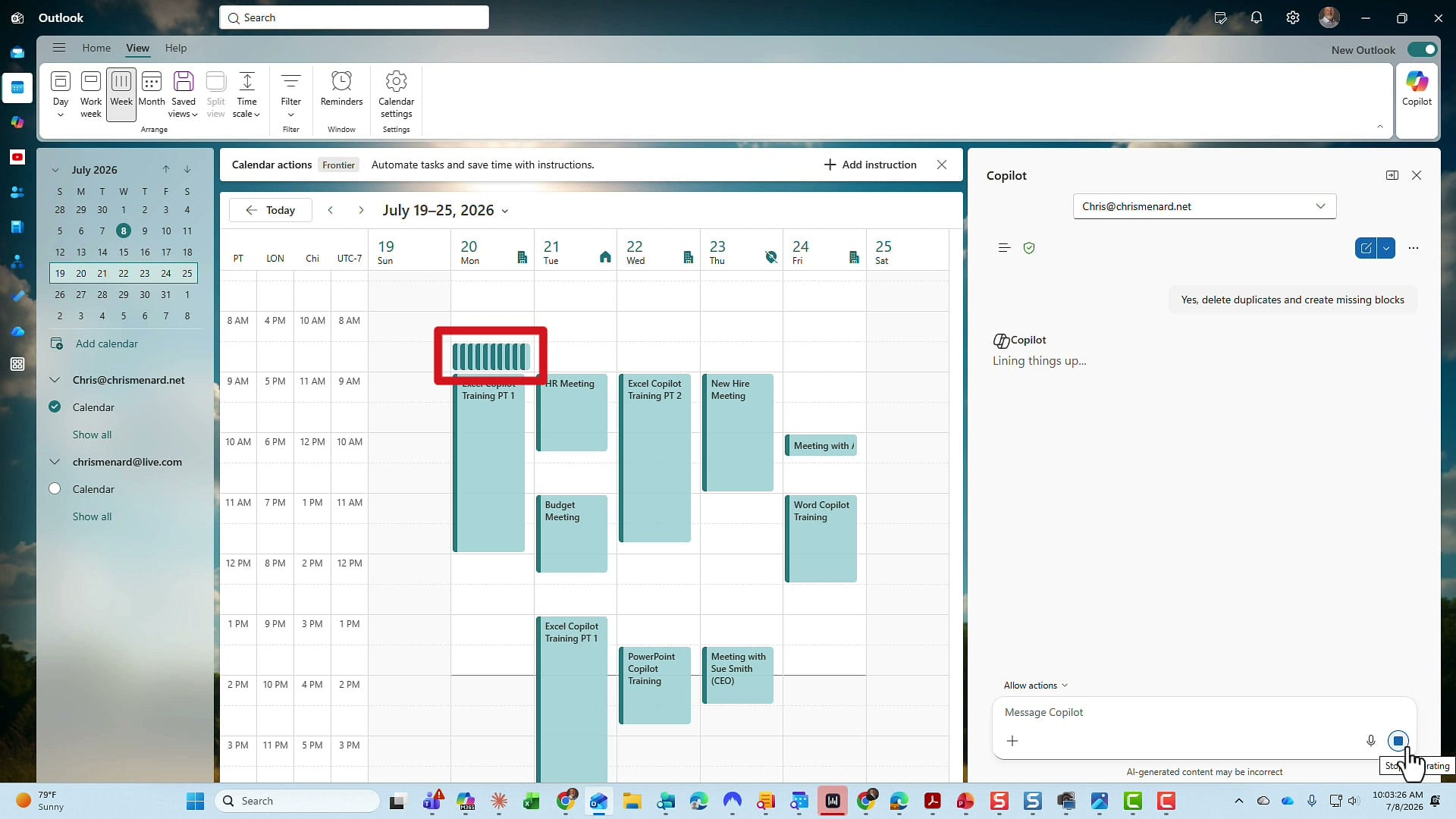
I said yes. This is why the confirmation step matters: because I reviewed before committing, fixing the error was a single reply rather than a cleanup of ten wrong events. If your first result is off, describe what is wrong or accept Copilot's proposed fix and let it try again.
Review the result
After the correction, the calendar looked exactly right. Each Copilot training now has a prep block before it and a hold block after it, and the HR and budget meetings were left untouched. On the 20th there is a prep block ahead of the training and a hold block once it ends; the 21st follows the same pattern, and so on through Friday.
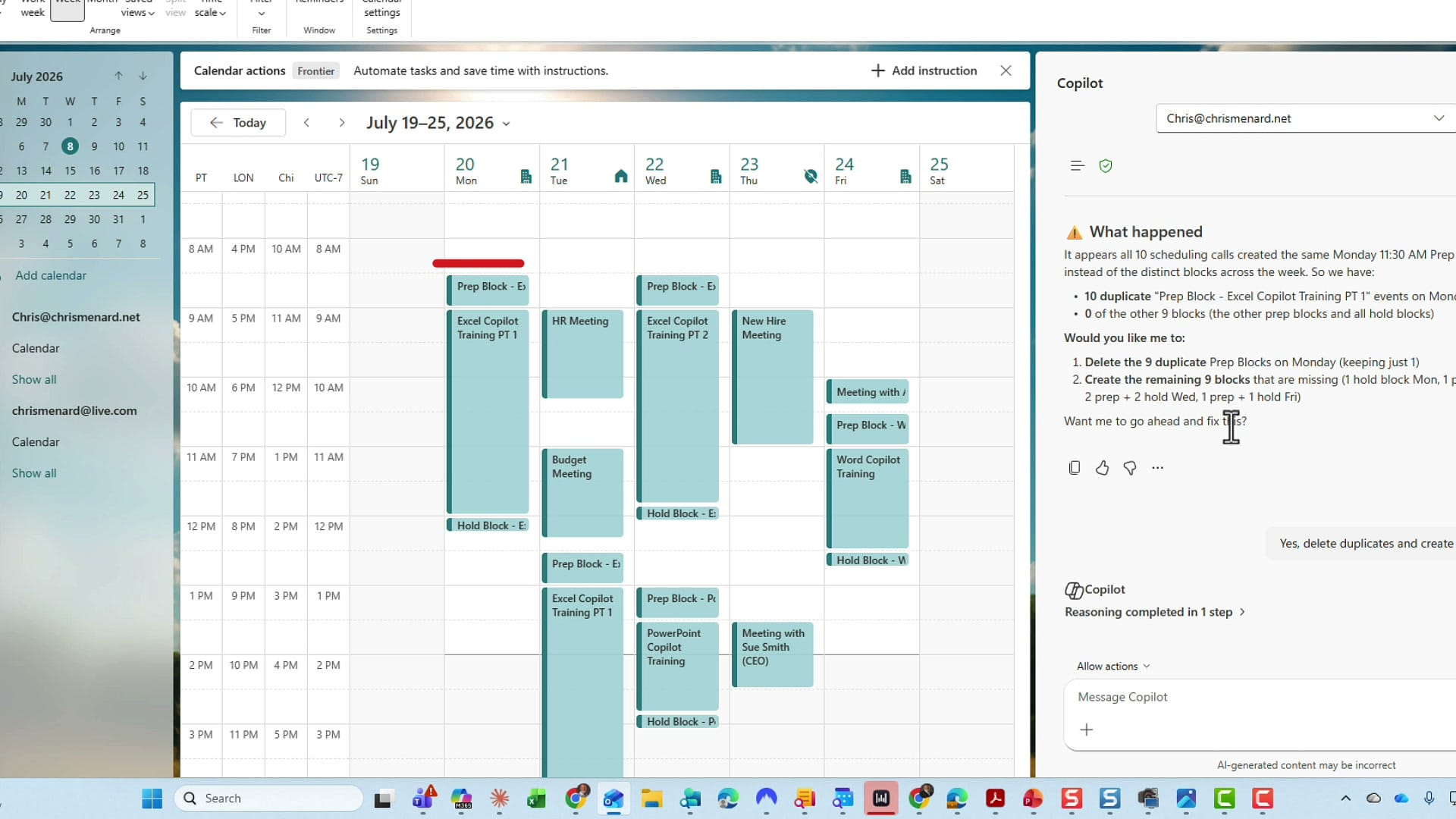
I did this for a single week, but the same prompt scales. You can ask Copilot to cover multiple weeks or an entire month in one go — the instruction does not change, only the date range.
Color-code the prep blocks
Now take it a step further. I am visual with my calendar, so I like my prep time to stand out. I asked Copilot to make the five prep blocks a different color — purple — and told it that if it needed to use an Outlook category to get that color, that was fine.
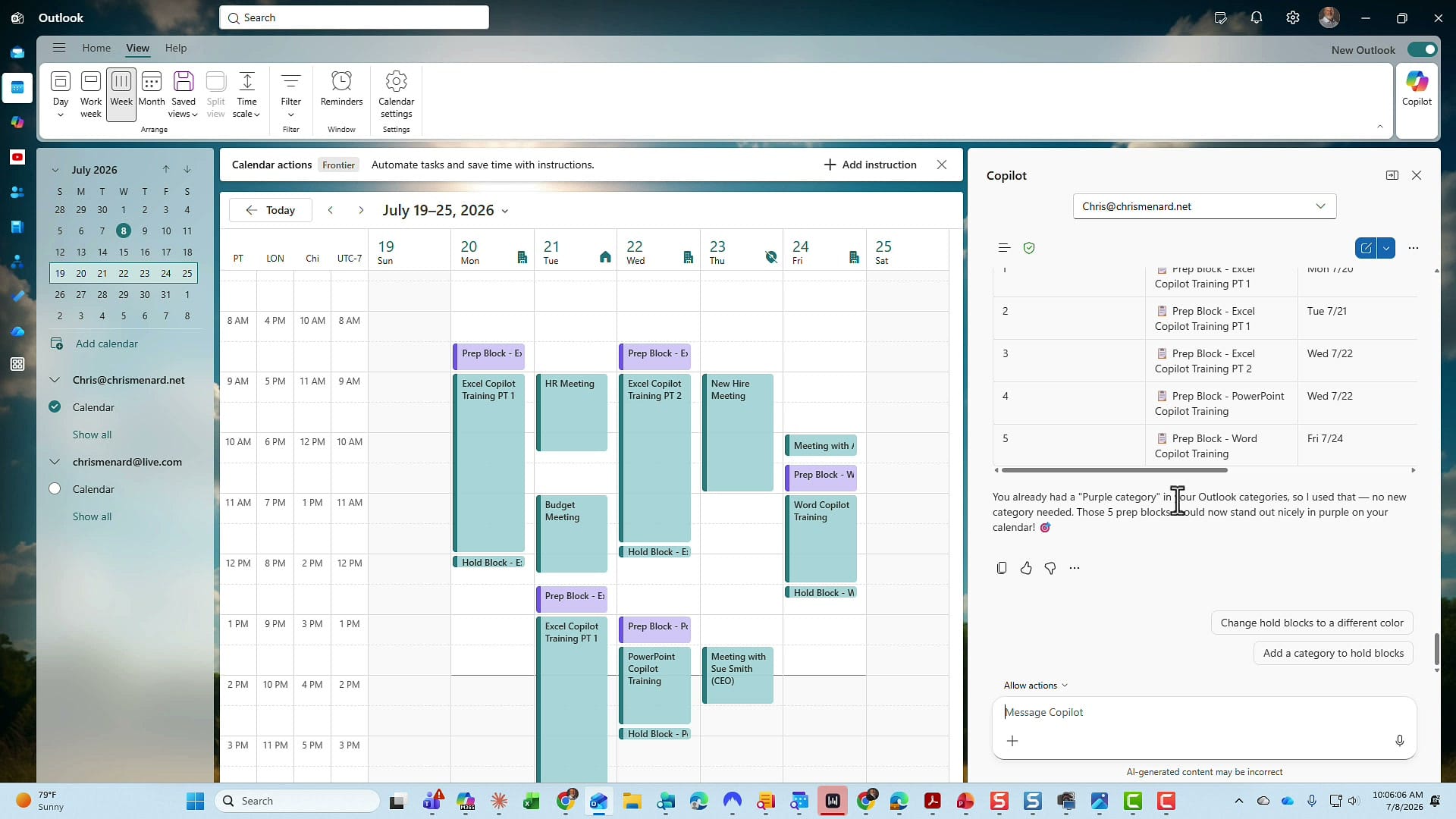
Copilot found the existing Purple category in my Outlook and applied it to all five prep blocks — no new category needed. Color-coding my calendar this way lets me tell at a glance whether I am prepping, in a training, or in an optional event. You could keep going and give the hold blocks their own color the same way.
Why this is worth doing
The pattern here works for far more than prep and hold blocks. Be specific, give a real example, name what to exclude, and ask Copilot to confirm before it commits — then check its count against a number you provide. That combination turns a tedious ten-event chore into a single instruction. Copilot already handles other calendar work the same way, like auto-rescheduling conflicting meetings and scheduling meetings straight from an email thread.
Related guides
 Chris Menard
 Chris Menard
 Chris Menard
 Chris Menard
 Chris Menard