Pin Any Website to Your Windows Taskbar Using Chrome


If you have a website you visit frequently, you can pin it directly to your Windows taskbar using Google Chrome. No extensions or third-party tools needed — just a few clicks.
Step 1: Open the Website
Start by navigating to the website you want to pin. Open it in Google Chrome so it's the active tab.
Step 2: Open the Chrome Menu
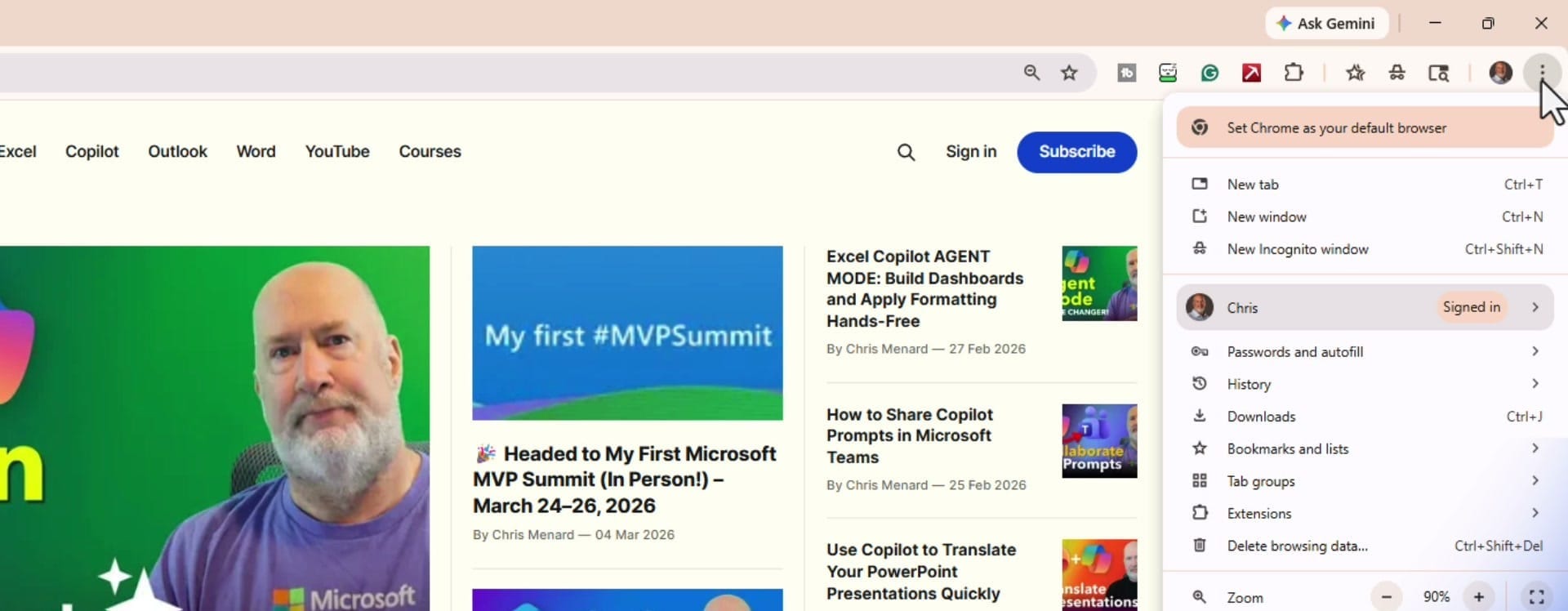
Click the three-dot menu in the top-right corner of Chrome (the Customize and control Google Chrome button).
Step 3: Create the Shortcut
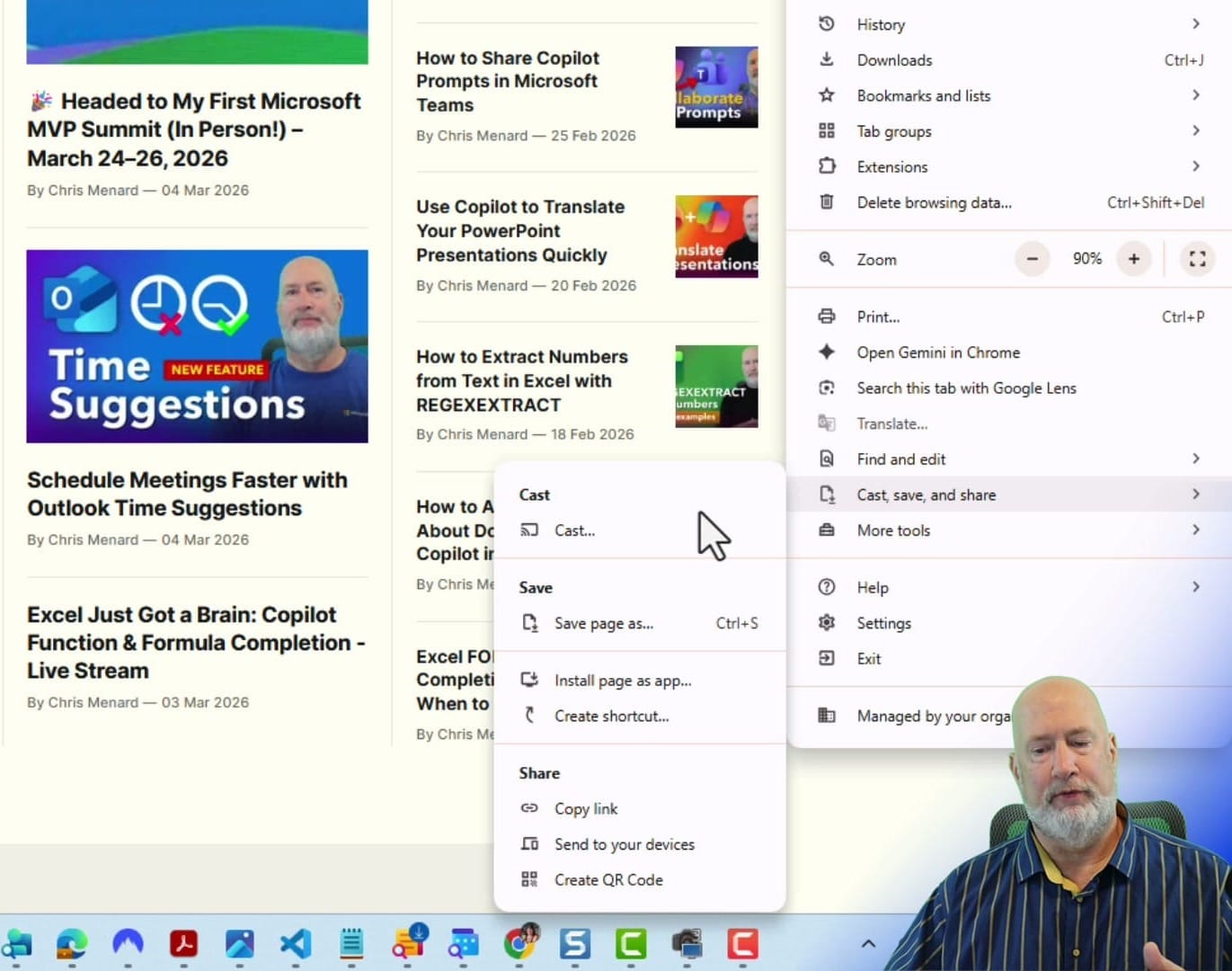
From the menu, hover over Cast, save, and share. In the submenu that appears, click Create shortcut.
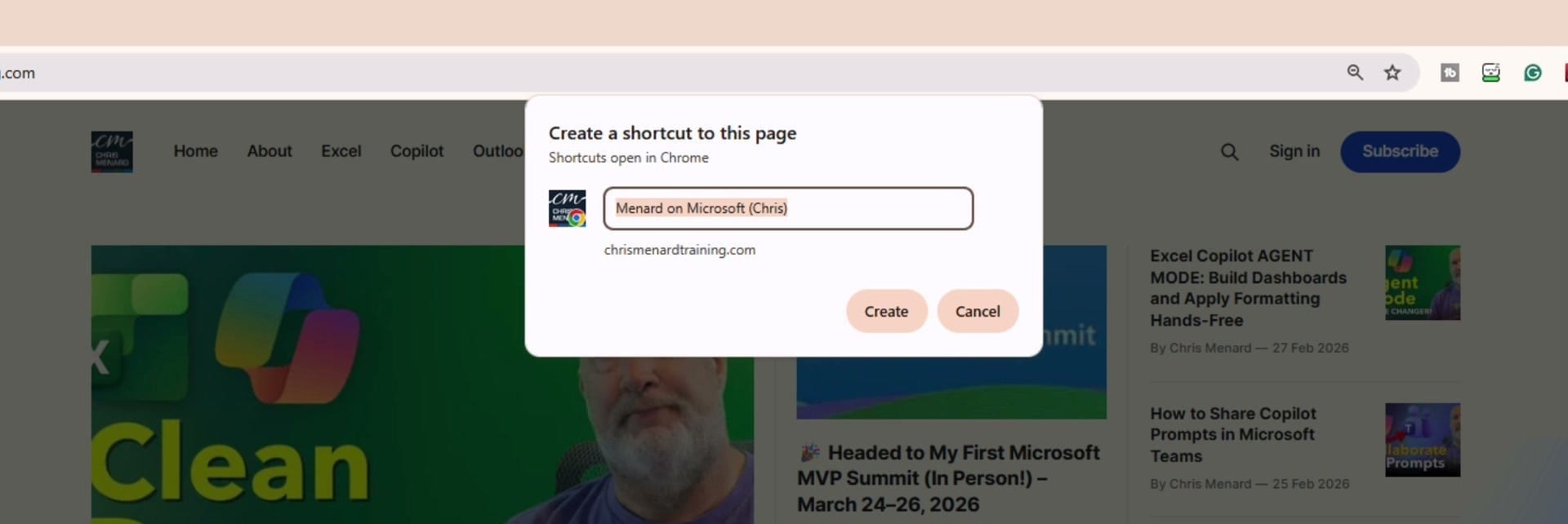
A dialog box appears with the website name pre-filled. You can change the name if you'd like, or leave it as-is. Click Create.
Step 4: Drag the Shortcut to Your Taskbar
After clicking Create, File Explorer opens automatically with the new shortcut already selected. Simply drag and drop it onto your Windows taskbar.
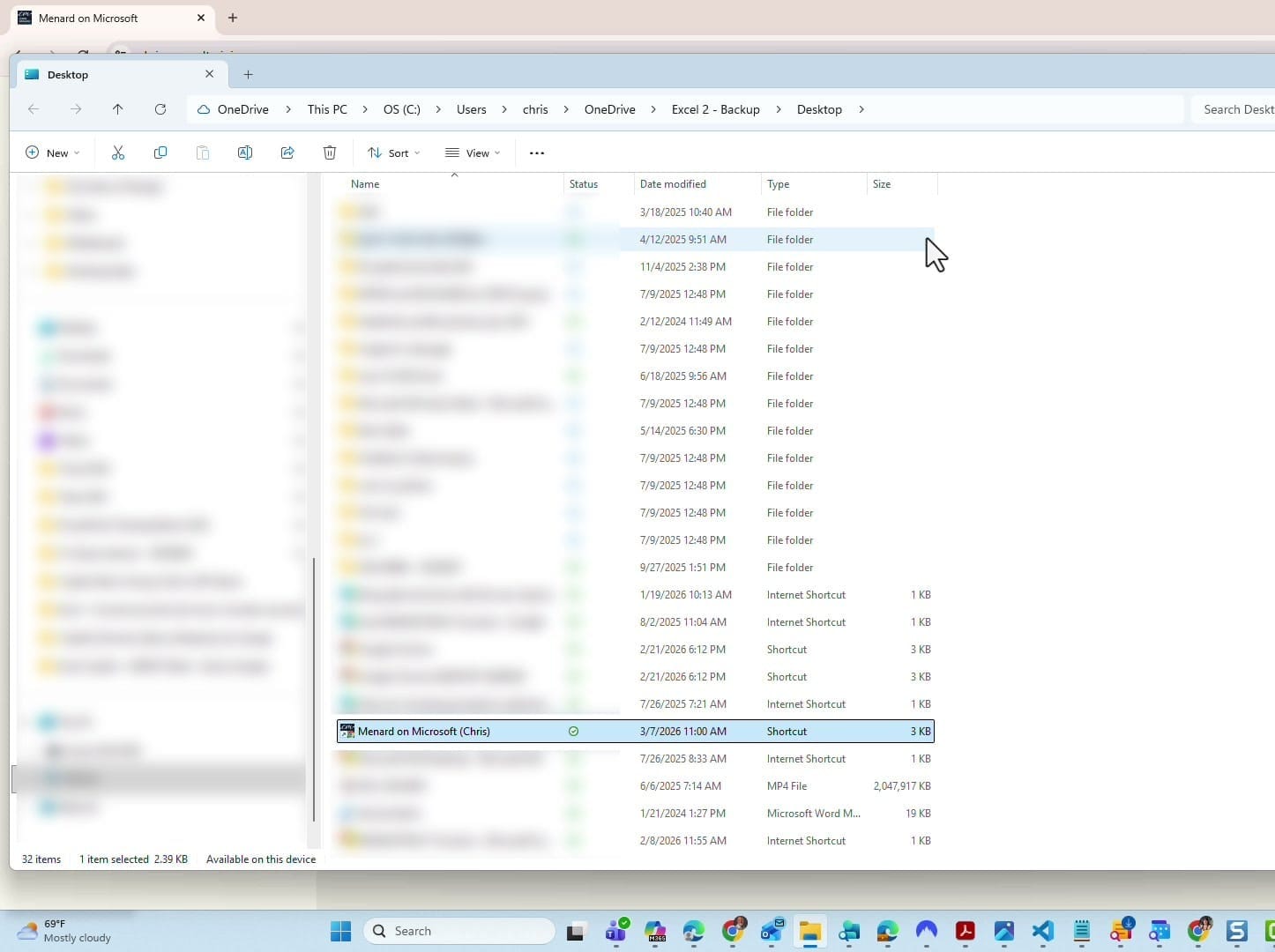
Close File Explorer when you're done.
Step 5: Test It
The website icon now sits on your taskbar. Click it to verify the website opens correctly.

That's all there is to it. One click from your taskbar launches the site instantly.
Want to learn more? Visit courses.chrismenardtraining.com for online training courses.
Related Google Chrome Tutorials
 Chris Menard
 Chris Menard
 Chris Menard
Want to learn more? Visit courses.chrismenardtraining.com for online training courses.