
How to Find Duplicates Across Excel Worksheets Using COUNTIF


When you have employee data, customer lists, or inventory records spread across multiple worksheets, identifying duplicates between them can be tricky. The COUNTIF function makes this straightforward — and with a few extra steps, you can add visual formatting and custom labels to make the results even clearer.
Understanding COUNTIF
Before jumping into the cross-worksheet approach, here's a quick refresher on how COUNTIF works. The syntax is simple:
=COUNTIF(range, criteria)
It counts how many cells in a range match the specified criteria. In this example, the formula =COUNTIF(H2:H6,G8) counts how many times "atlanta" appears in the city list — and returns 2.
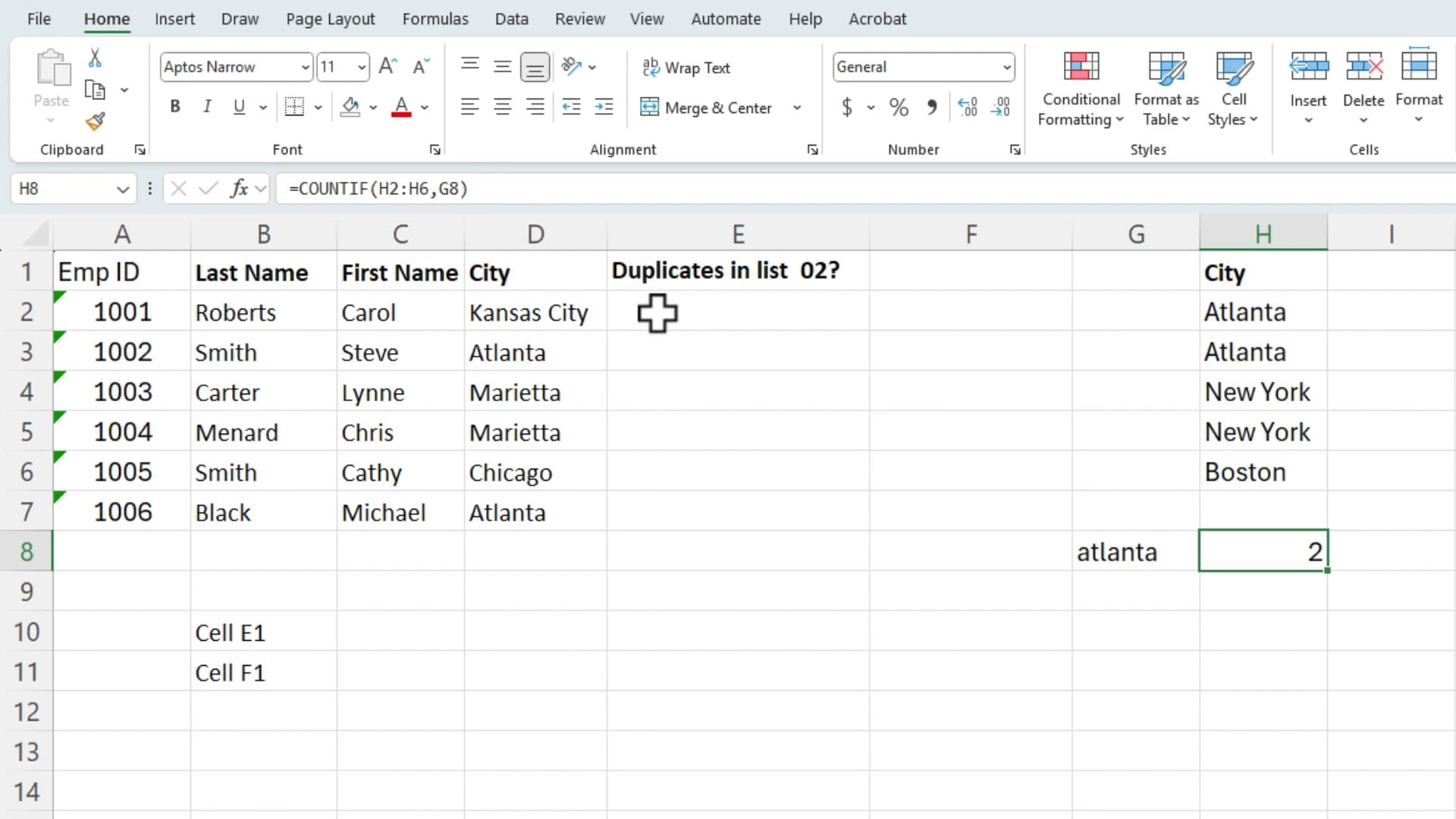
Notice that COUNTIF is not case-sensitive — "atlanta" in lowercase still matches "Atlanta" in the list.
Setting Up the Worksheets
For this example, there are two worksheets: List 1 and List 2. Each contains employee records with Emp ID, Last Name, First Name, and City. The goal is to check which Emp IDs from List 1 also appear in List 2.
List 1 contains Emp IDs: 1001, 1002, 1003, 1004, 1005, 1006. List 2 contains: 1001, 1002, 1003, 1005, 1007, 1009. Some overlap, some don't.
Using COUNTIF Across Worksheets
Start by switching to the List 2 worksheet and selecting column A (the Emp ID column). This is the range you'll search against.
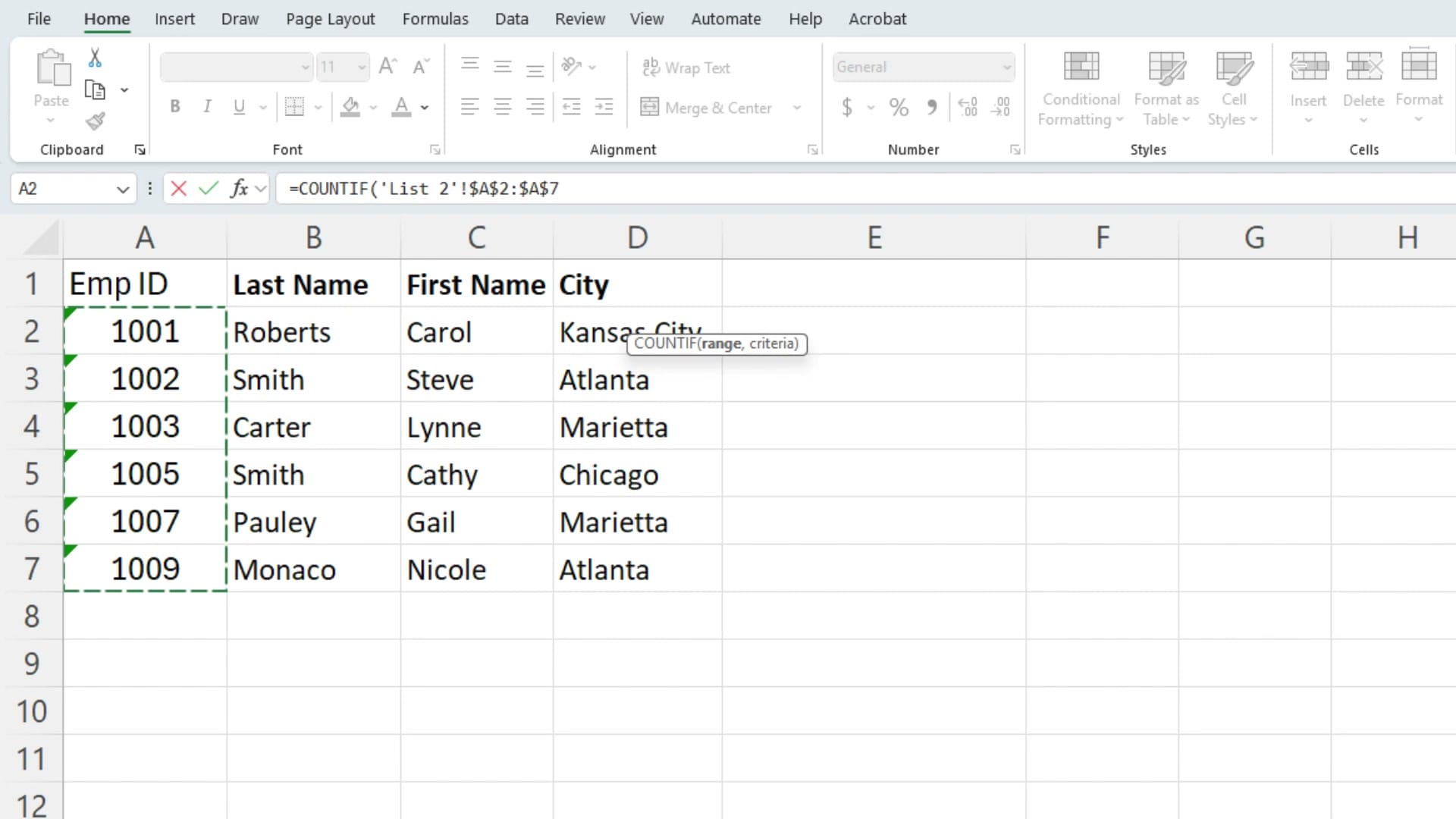
Back on List 1, the formula in cell E2 is:
=COUNTIF('List 2'!$A$2:$A$7,'List 1'!A2)
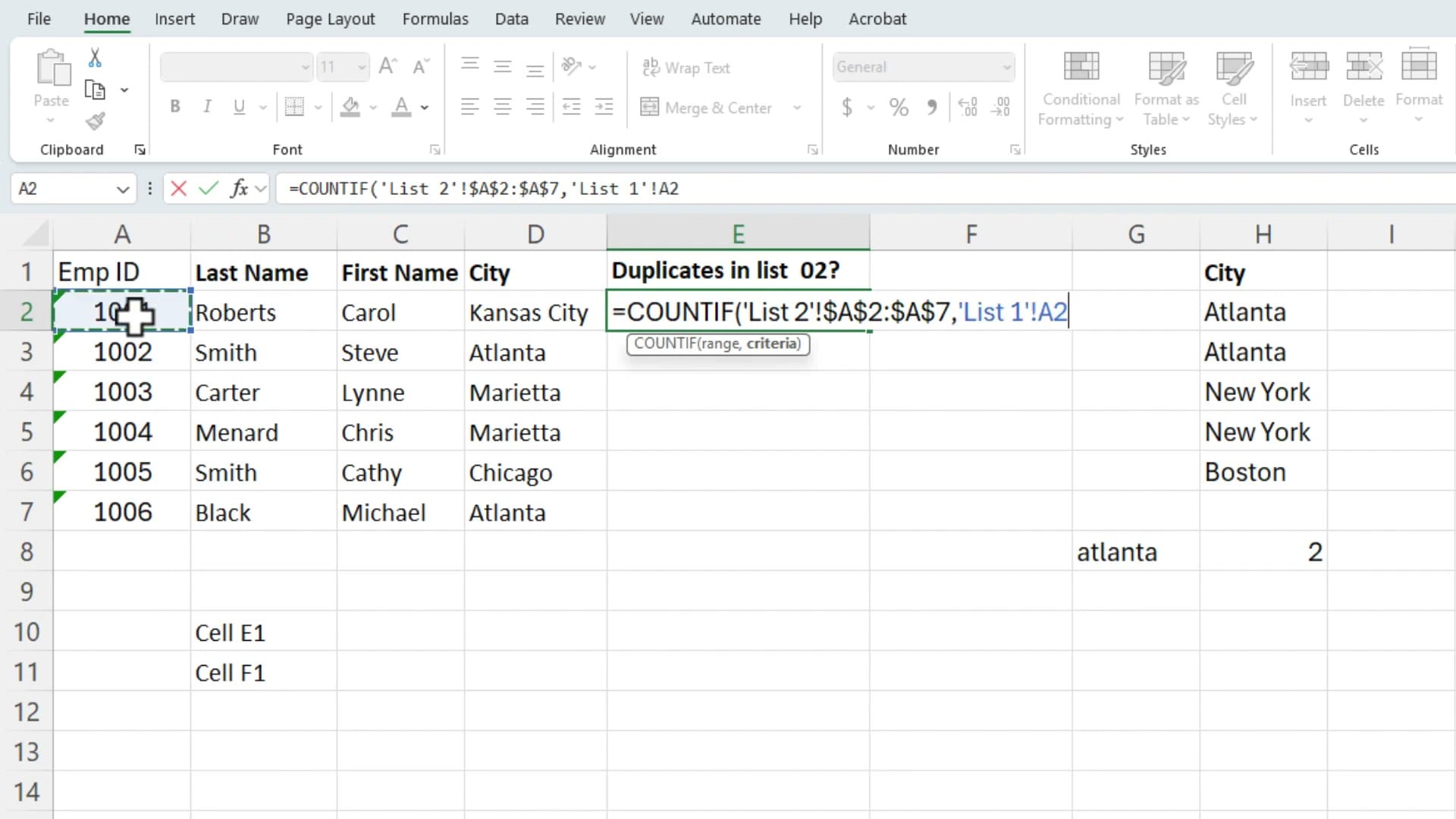
Two critical details in this formula:
- Absolute references on the range (
$A$2:$A$7) — The dollar signs lock the range so it doesn't shift when you copy the formula down. Without them, the range would move and give incorrect results. - Relative reference on the criteria (
A2) — This changes as you copy down, so each row checks its own Emp ID.
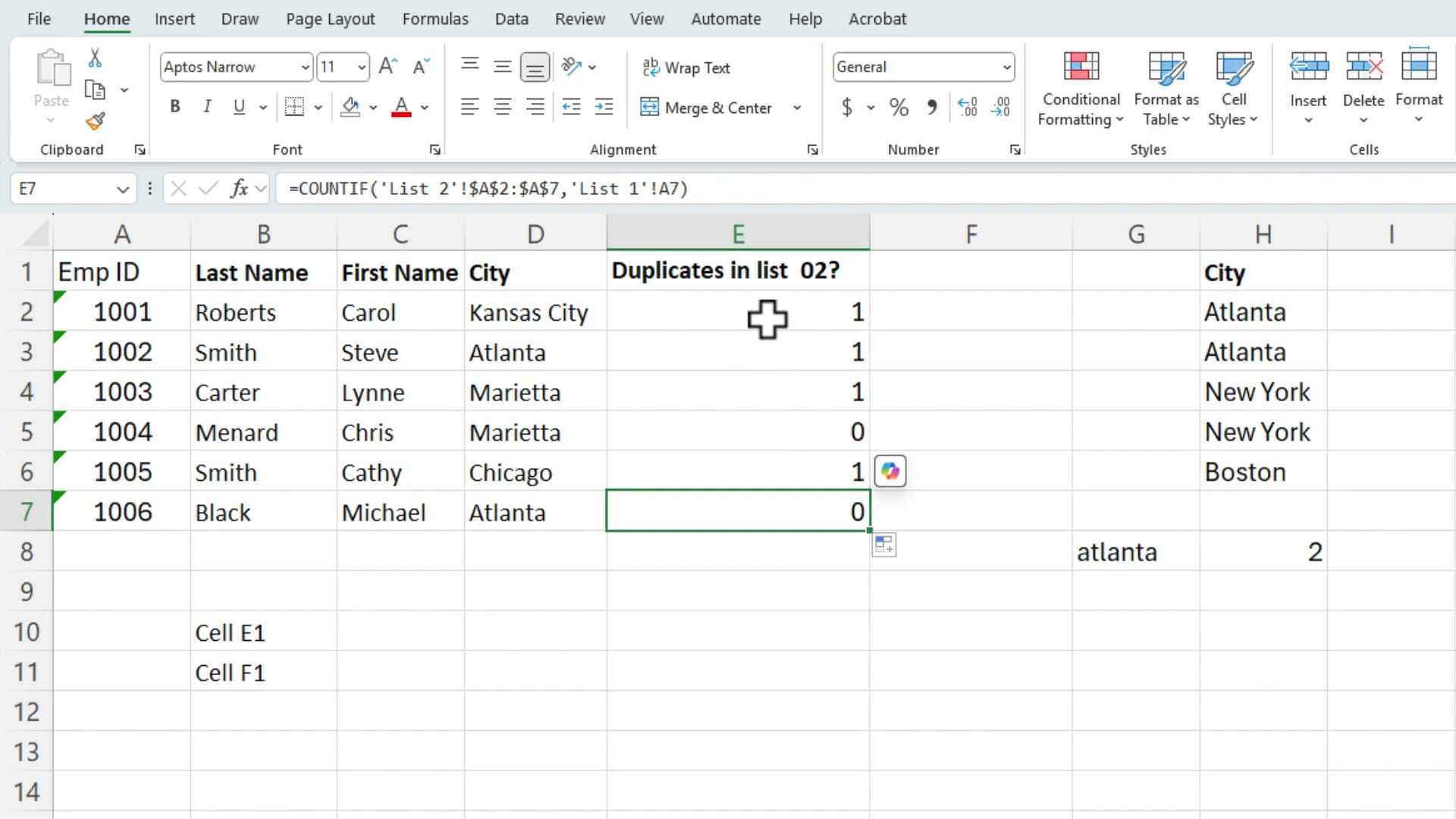
After entering the formula and copying it down through E7, each cell shows either 1 (found in List 2) or 0 (not found):
Converting Results to TRUE/FALSE
Numbers are fine, but TRUE/FALSE values are often easier to read at a glance. Add >0 to the end of the formula:
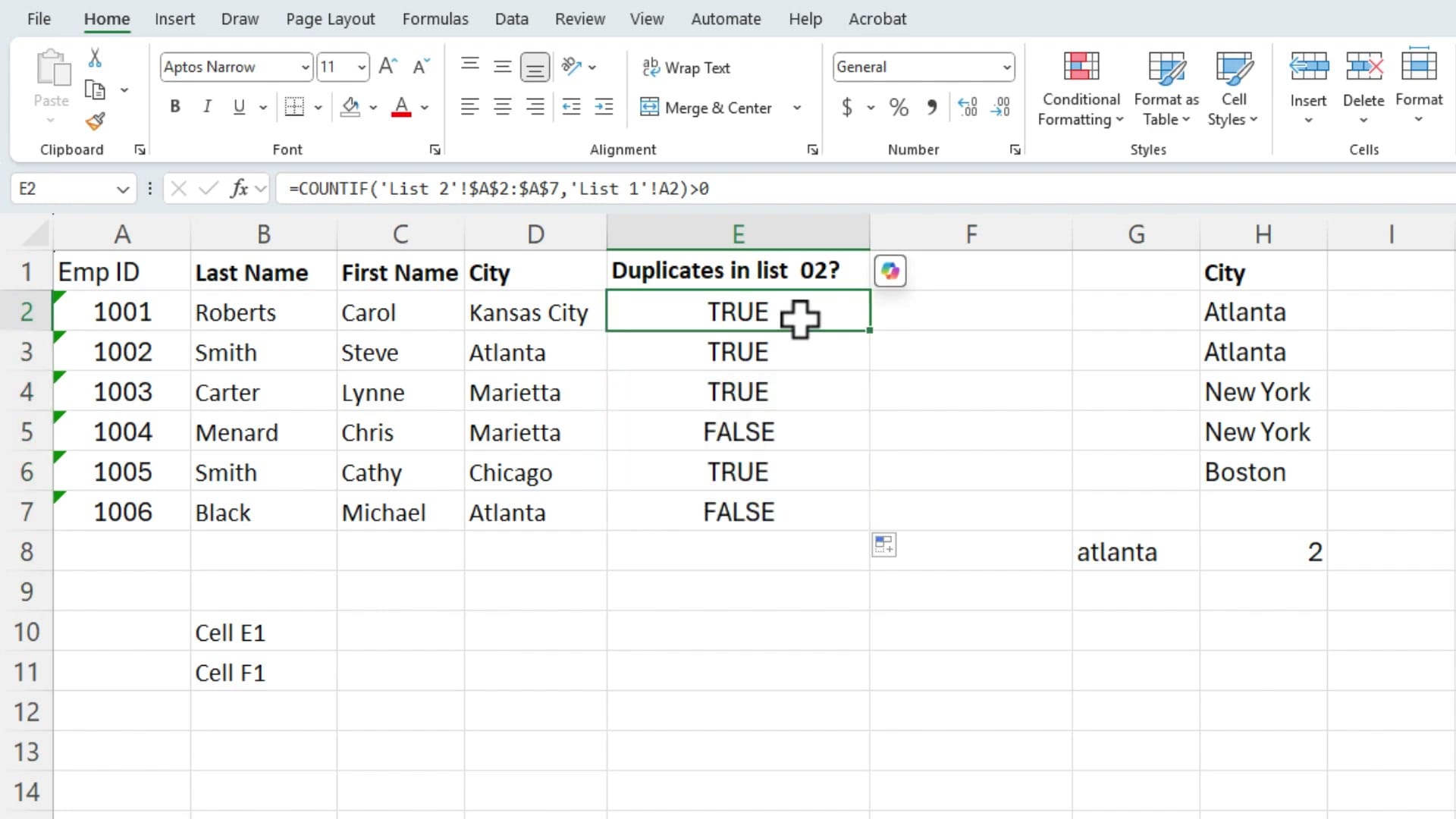
=COUNTIF('List 2'!$A$2:$A$7,'List 1'!A2)>0
This converts any count greater than zero to TRUE, and zero to FALSE.
Adding Conditional Formatting
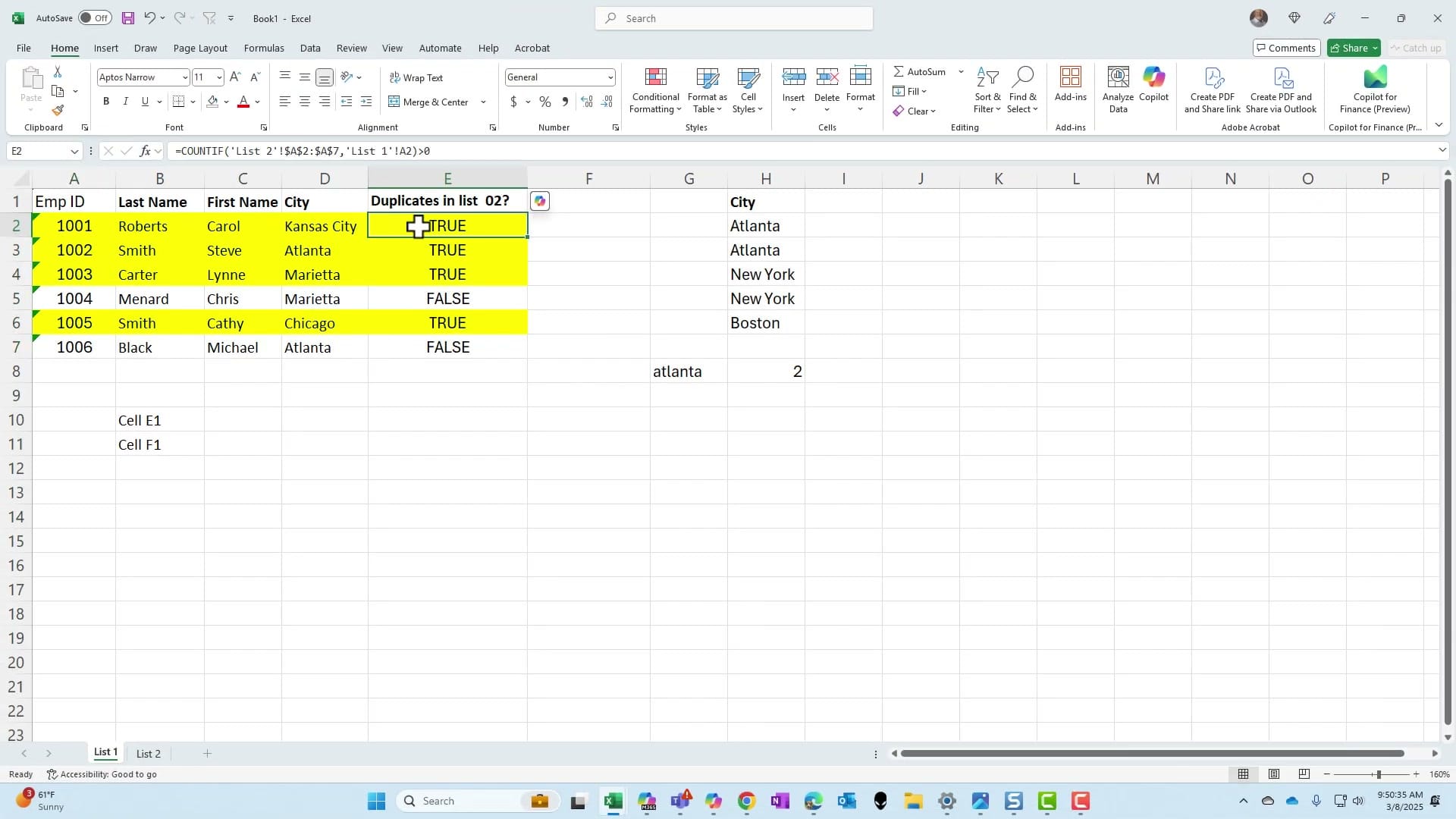
To make duplicates visually obvious, apply conditional formatting that highlights entire rows when column E shows TRUE.
- Select the data range (A2:E7)
- Go to Home > Conditional Formatting > New Rule
- Choose "Use a formula to determine which cells to format"
- Enter the formula:
=$E2=TRUE - Click Format and choose a fill color (yellow works well)
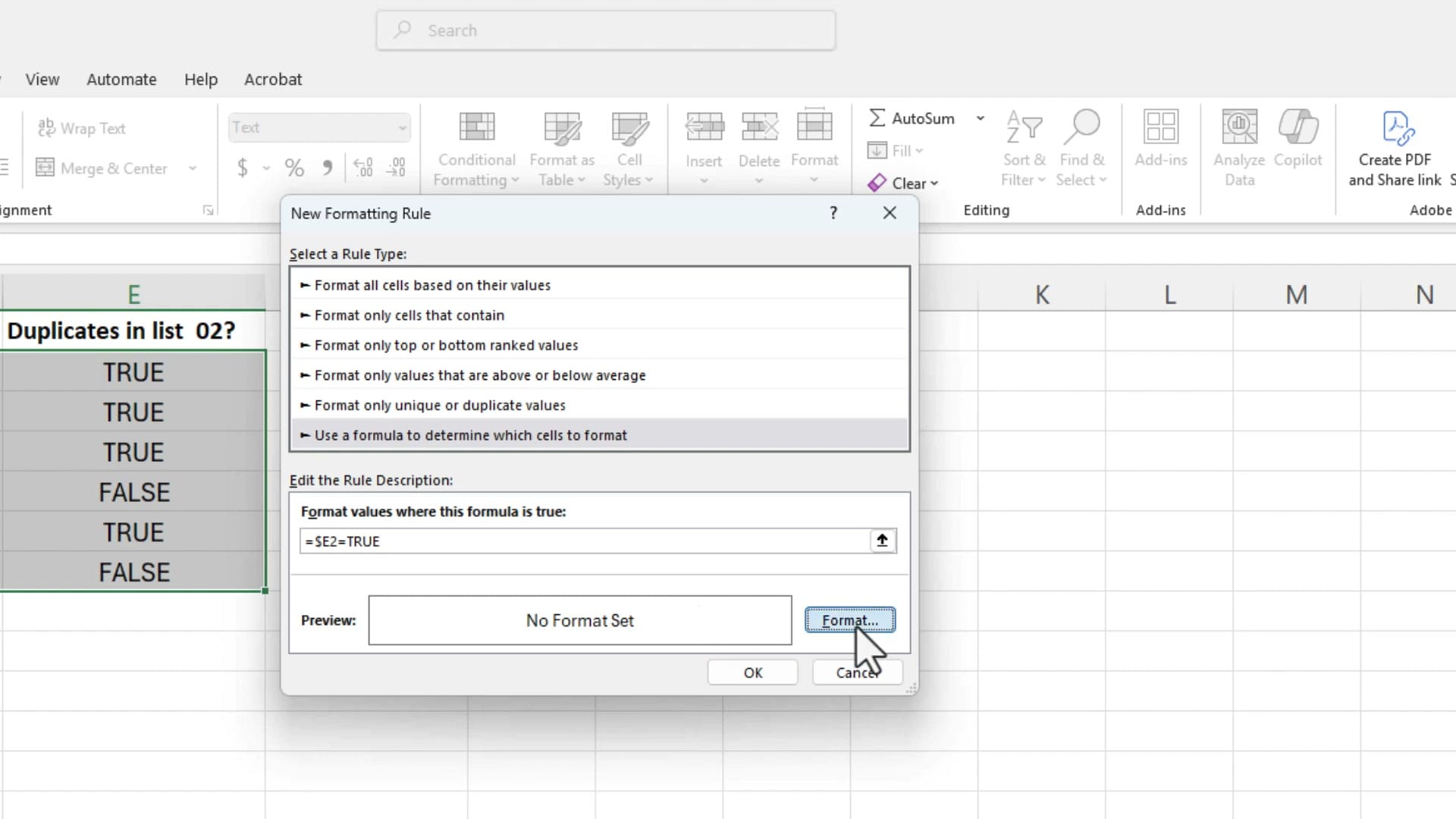
The dollar sign before E ($E2) is important — it locks the column reference to E while allowing the row to change. This way, the formatting checks column E for each row but applies the highlight across all columns.
Customizing Output with the IF Function
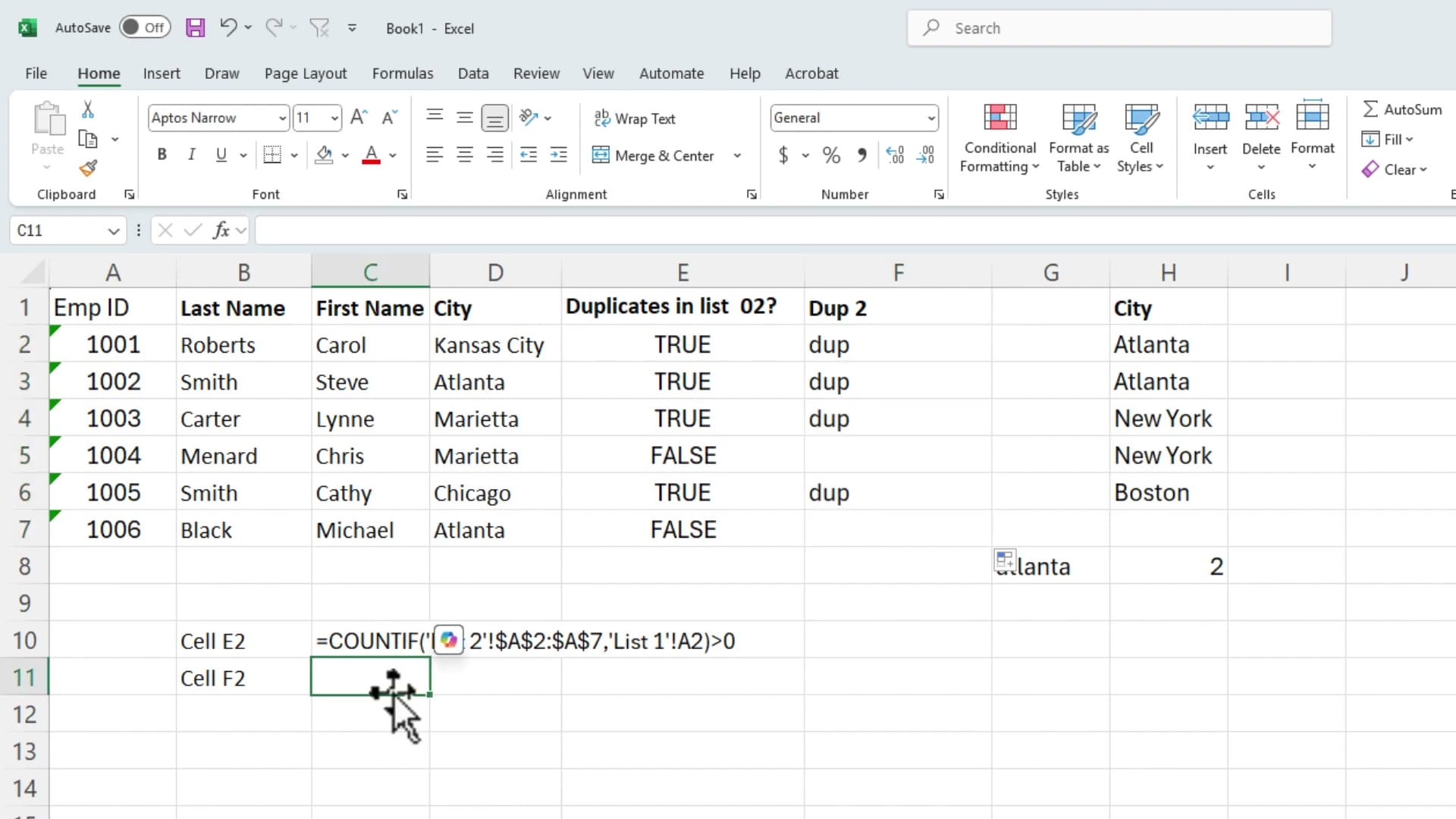
Instead of TRUE/FALSE, you might want a custom label like "dup" for duplicates. Wrap the COUNTIF formula inside an IF function:
=IF(COUNTIF('List 2'!$A$2:$A$7,'List 1'!A2)>0,"dup","")
This returns "dup" when a match is found and leaves the cell blank otherwise. You can also use FORMULATEXT to display the formula in a cell for documentation purposes — just point it at the cell containing the formula:
=FORMULATEXT(E2)
Key Takeaways
- COUNTIF across sheets — Use the syntax
=COUNTIF('Sheet'!$Range,Criteria)with absolute references on the range - TRUE/FALSE conversion — Append
>0to turn numeric counts into Boolean values - Conditional formatting — Use
=$E2=TRUEwith a locked column reference to highlight entire rows - Custom labels — Wrap in IF() to display "dup", "match", or any text you prefer
- FORMULATEXT — Display the formula from any cell as text for reference or documentation
Related Excel Tutorials
 Chris Menard
 Chris Menard
 Chris Menard
 Chris Menard
 Chris Menard
Want to learn more? Visit courses.chrismenardtraining.com for online training courses.



