Excel - Find & Highlight Duplicate Rows - 3 Methods | Conditional Formatting


Microsoft Excel can find duplicates easily with Conditional Formatting. The issue is Conditional Formatting finds duplicates based on the cell value, but I want to find duplicate rows. I use three methods in the video to find duplicate rows.
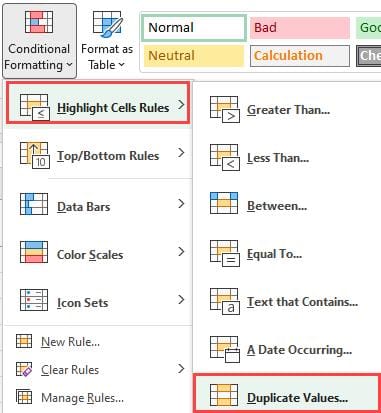
Excel conditional formatting - duplicates are based on cell value, not row values.
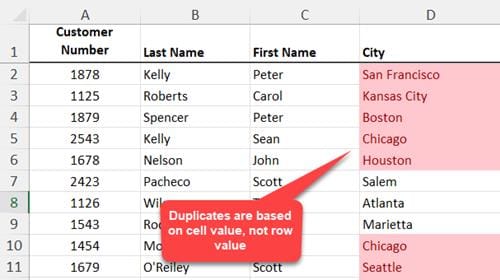
Duplicates cell values using Conditional Formatting in Excel
In the video below, I start off with CONCATENATE, then use the TEXTJOIN function, and finally COUNTIFS with no helper column. To highlight the rows I use Conditional Formatting using a formula.
YouTube video
Excel - Find & Highlight Duplicate Rows - 3 Methods | Conditional Formatting
CONCATENATE in EXCEL
_Method 1_
Use CONCATENATE, one of the text functions, to join two or more text strings into one string. You can use an ampersand also which I use in the video.
Example: cell A2 has Chris and cell B2 contains Menard. **=a2&" "&B2** will return Chris Menard in cells C2. Same example but using CONCATENTATE, you would type in cell C2, **=CONCATENTATE(A2," ",B2)** to get Chris Menard.
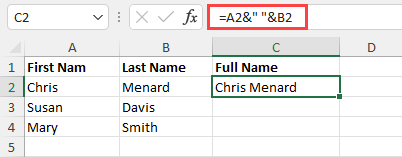
Concatenate using an ampersand in Excel
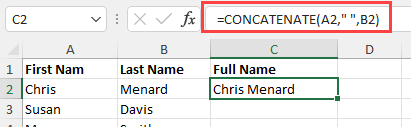
CONCATENATE Function
TEXTJOIN Function
_Method 2_
The TEXTJOIN function combines the text from multiple ranges and/or strings, and includes a delimiter you specify between each text value that will be combined. If the delimiter is an empty text string, this function will effectively concatenate the ranges.
Who has TEXTJOIN Function in Excel?
- Office 2019 Windows - Office 2019 Mac - Microsoft 365 subscriber
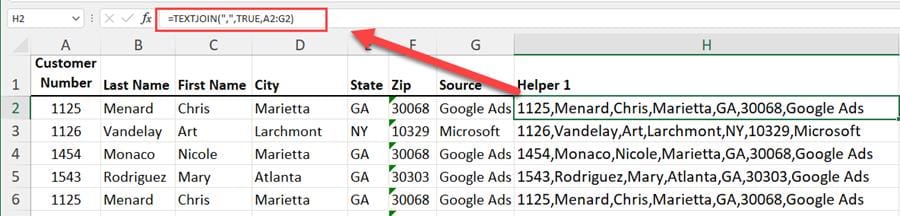
TEXTJOIN Function in Excel
Conditional Formatting with COUNTIFS Function
_Method 3_
The two methods I used earier - CONCATENTATE and TEXTJOIN - required a helper column. This 3rd method uses Conditional Formatting with the COUNTIFS function. This is the longest method, but a helper column in not required.
The formula I wrote for COUNTIFS inside on Conditional Formatting is
=COUNTIFS($A$2:$A$15,$A2,$B$2:$B$15,$B2,$C$2:$C$15,$C2,$D$2:$D$15,$D2,$E$2:$E$15,$E2,$F$2:$F$15,$F2,$G$2:$G$15,$G2)>1
Steps
1. Select **A2 to G15** or the range. 2. Click **Conditonal Formatting - New Rule**. 3. Select **Use a formula to determine which cells to format**. 4. Type the function above or copy and paste it. 5. Click **Format** and pick a color. 6. Click **OK** twice.
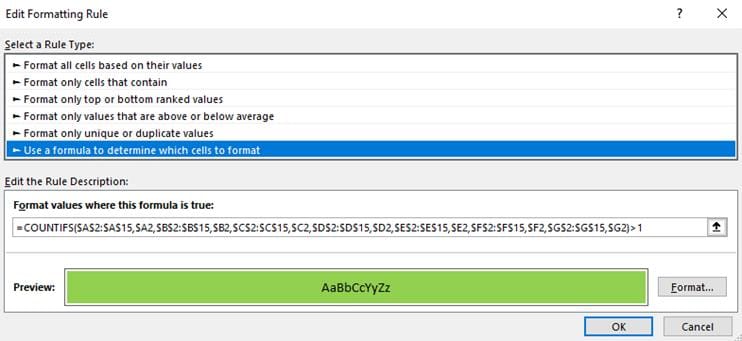
Conditional Formatting with COUNTIFS for Duplicate Rows|