4 Most Popular New Outlook Features from 2024

Share
4 Most Popular New Outlook Features from 2024


According to Microsoft 365 Insider, these are four of the most popular features that rolled out in Outlook during 2024. All four are available to Microsoft 365 subscribers using the new Outlook or Outlook on the web. Three of the four do not work in classic Outlook.

1. Shorten Meeting Duration Automatically

Give everyone a buffer between meetings. Go to Settings → Calendar → Events and Invitations. Check Shorten duration for all events and choose End events early or Start events late.
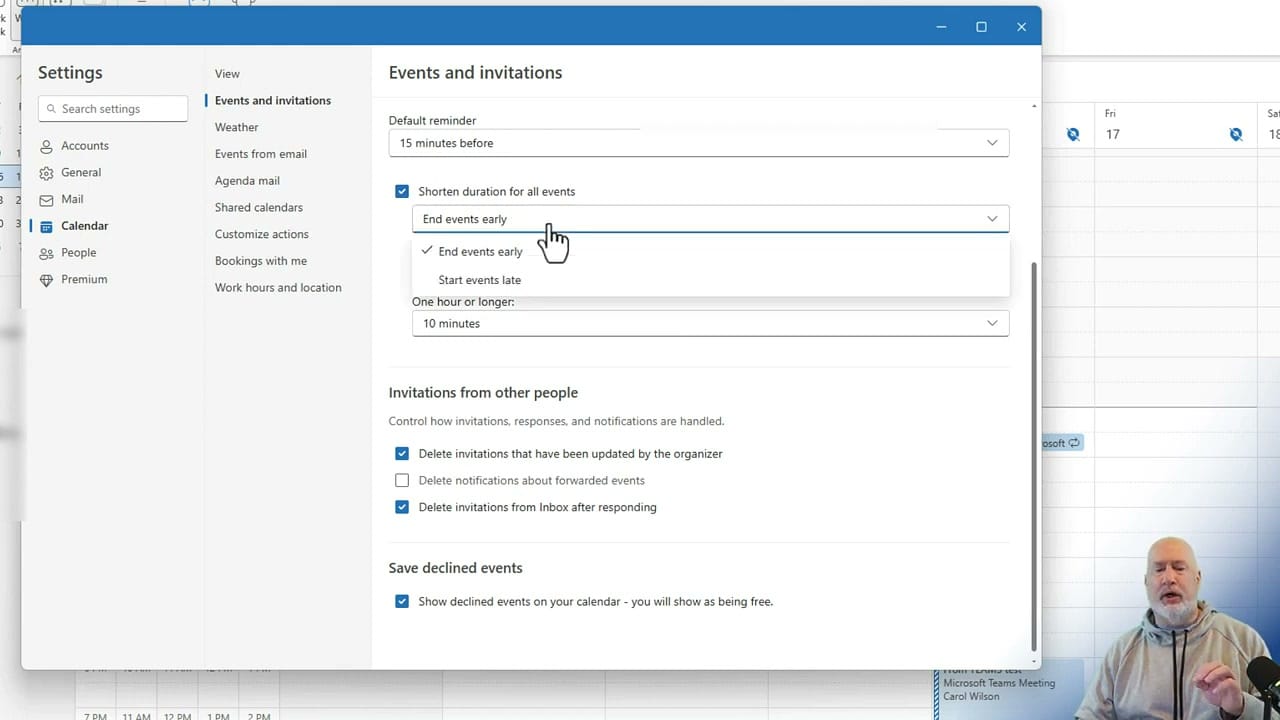
Outlook Events and Invitations settings with Shorten duration and End events early dropdown
Choose to end events early by 5, 8, or 10 minutes — separate settings for meetings under and over an hour

A 30-minute meeting at 11:00 would automatically end at 11:25. For longer meetings, you get additional duration options. People appreciate the buffer time to grab coffee or prepare for the next meeting.

If you use "Start events late" instead, consider adding a note at the top of the meeting invite so attendees know the actual start time.

2. Keep Declined Meetings on Your Calendar

Ever decline a meeting but still want to keep track of it? Go to Settings → Calendar → Events and Invitations and scroll to the bottom. Enable Show declined events on your calendar.
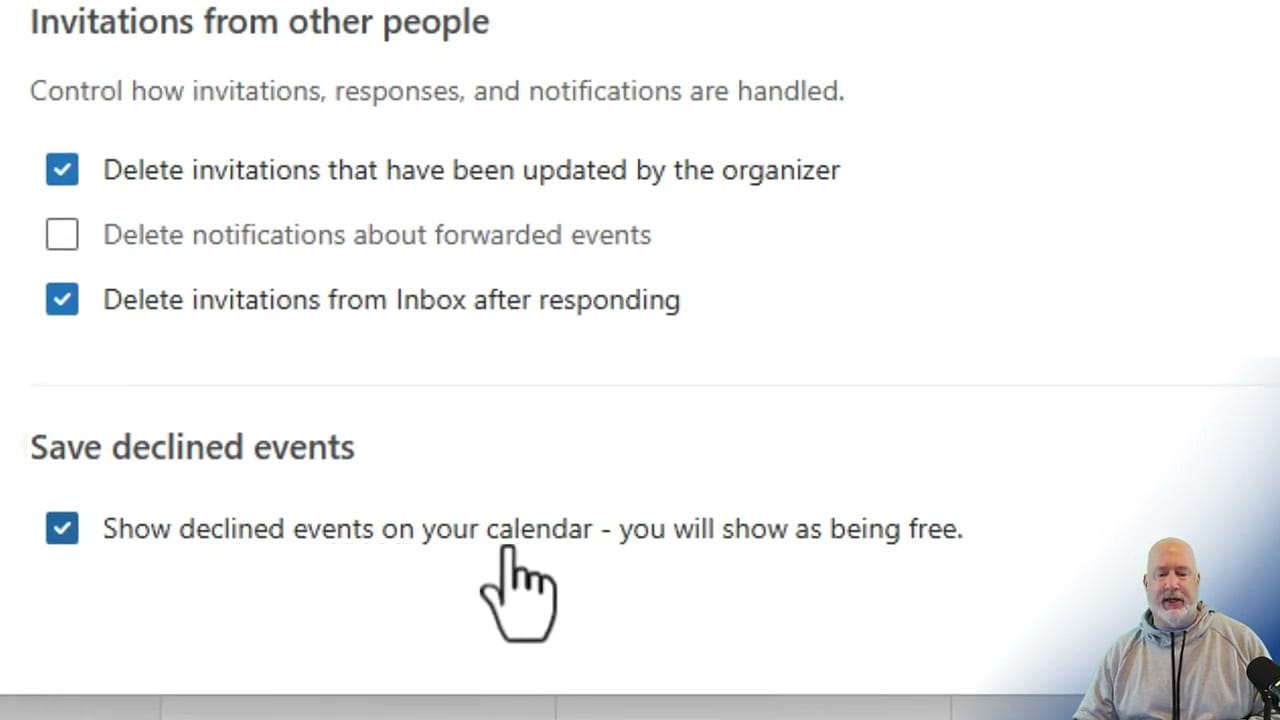
Outlook setting to show declined events on calendar while showing as free
Enable this setting to keep declined meetings visible — your status remains Free

Declined meetings still appear on your calendar but your status stays Free. This works whether you decline from Outlook or Microsoft Teams — the declined event syncs across both apps.

3. Edit Recurring Meetings — This and All Following Events

In classic Outlook, changing a recurring meeting's time would change all occurrences, including past ones — messing up your calendar history. The new Outlook adds a third option: This and all following events.
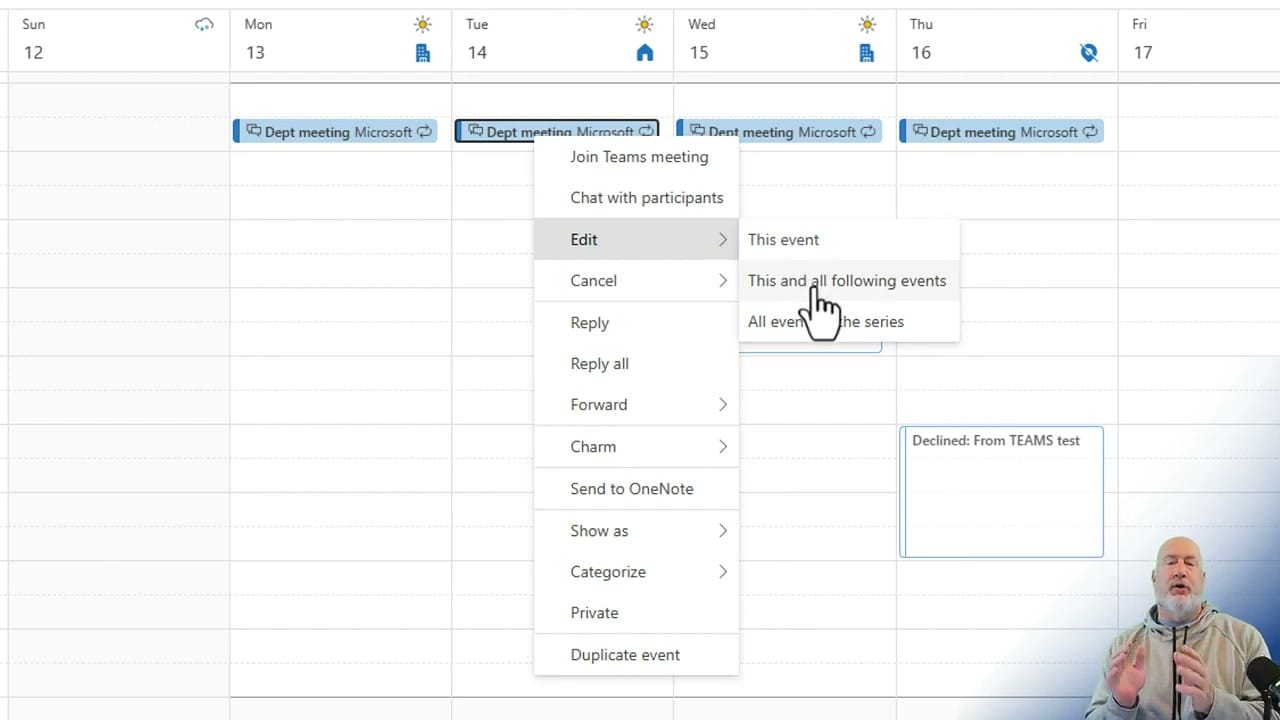
Outlook recurring meeting context menu showing This and all following events option
Right-click a recurring meeting → Edit → choose This event, This and all following events, or All events in the series

Move a weekly meeting to a new time starting next week without affecting past meetings. Previous occurrences keep their original times, preserving your calendar history accurately.

4. Share Your Work Location

Let colleagues know whether you are working from the office or remotely. Go to Settings → Calendar → Work Hours and Location. Pick your work days and set each one to Office or Remote.
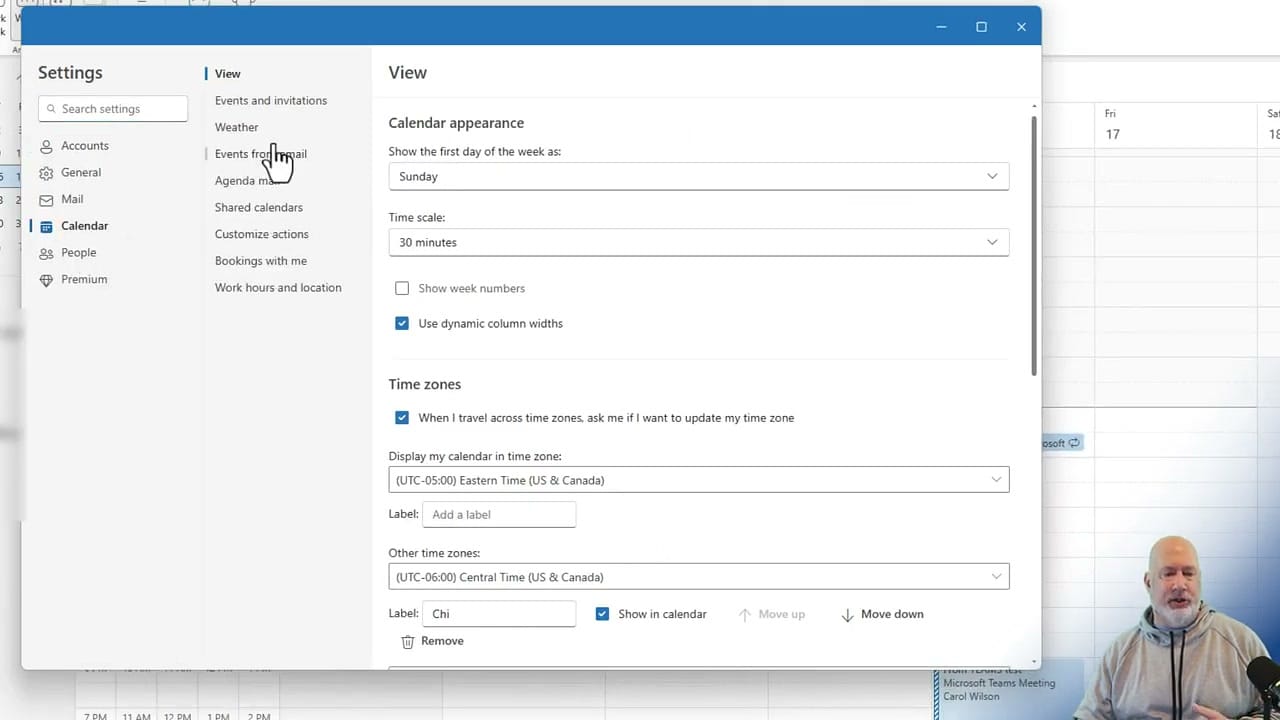
Outlook Calendar settings showing Work Hours and Location option in sidebar
Navigate to Settings → Calendar → Work hours and location

This matters because Outlook now supports scheduling in-person meetings alongside Teams meetings. When people see your location, they know whether a face-to-face meeting is an option that day.

Want to learn more? Visit courses.chrismenardtraining.com for online training courses.

Outlook Calendar - Meetings vs. Appointments
In Outlook we live in our calendar. We have three different types of calendar items - Meetings, Appointments, and Events. When do you use each?
Outlook Calendar Meeting Template
Need a great time saving Outlook tip? Use Outlook calendar meeting templates. Calendar meeting templates are a great way to schedule meeting that happen frequently, but do not have a recurring pattern.
Follow a Meeting" Feature in Microsoft Outlook
The "Follow a Meeting" option allows users to indicate that they cannot attend a meeting but still want to receive information about it. This feature is particularly useful for staying in the loop on important discussions and decisions without physically being present in the meeting.
Scheduling Meetings with Copilot in Microsoft Outlook: A Game-Changer for Productivity
I was thrilled to discover a fantastic new feature in Microsoft Outlook: scheduling meetings with Copilot. This AI-powered tool is revolutionizing how we manage our inboxes and organize meetings. Let me walk you through my experience with this impressive feature.
NEW feature: Teams - Send Individual Channel Meeting Invites to Members
Teams Channel Meetings - Send Invites to members - Now, in meetings for channel members, you can control when users get emails with the meeting invite.

Read more

Copilot Skills in PowerPoint - Live Stream on October 20, 2026

Copilot Skills in PowerPoint - Live Stream on October 20, 2026

𝗠𝗼𝘀𝘁 𝗣𝗼𝘄𝗲𝗿𝗣𝗼𝗶𝗻𝘁 𝘂𝘀𝗲𝗿𝘀 𝗸𝗻𝗼𝘄 𝗖𝗼𝗽𝗶𝗹𝗼𝘁 𝗰𝗮𝗻 𝗰𝗿𝗲𝗮𝘁𝗲 𝘀𝗹𝗶𝗱𝗲𝘀. 𝗙𝗮𝗿 𝗳𝗲𝘄𝗲𝗿 𝗸𝗻𝗼𝘄 𝗮𝗯𝗼𝘂𝘁 𝘁𝗵𝗲 𝟴 𝗯𝘂𝗶𝗹𝘁-𝗶𝗻 𝗖𝗼𝗽𝗶𝗹𝗼𝘁 𝗦𝗸𝗶𝗹𝗹𝘀 𝘁𝗵𝗮𝘁 𝗰𝗮𝗻 𝗰𝗼𝗺𝗽𝗹𝗲𝘁𝗲𝗹𝘆 𝗰𝗵𝗮𝗻𝗴𝗲 𝗵𝗼𝘄 𝘆𝗼𝘂 𝗯𝘂𝗶𝗹𝗱, 𝗶𝗺𝗽𝗿𝗼𝘃𝗲, 𝗮𝗻𝗱 𝗽𝗿𝗲𝘀𝗲𝗻𝘁 𝗮 𝗱𝗲𝗰𝗸. Join me live on October 20, 2026, at Noon Eastern as I demonstrate each Copilot Skill and show practical ways to use them in your presentations. PDF of the 8 Copilot Skills in Pow

By Chris Menard