
Outlook Calendar Meeting Template


Need a great time-saving Outlook tip? Use Outlook calendar meeting templates. Calendar meeting templates are a great way to schedule meetings that occur frequently but do not have a recurring pattern. With templates, you can put in as much detail as you want and never have to retype it.
For example, if you are always scheduling an interview or training session with no set date or time, a calendar template would save you a lot of time. Even if there was a set date and time, but the invitees change, a calendar template is best. You can add details to a calendar template. You may need to add a link to directions to your office, a link to download files, and other important information.
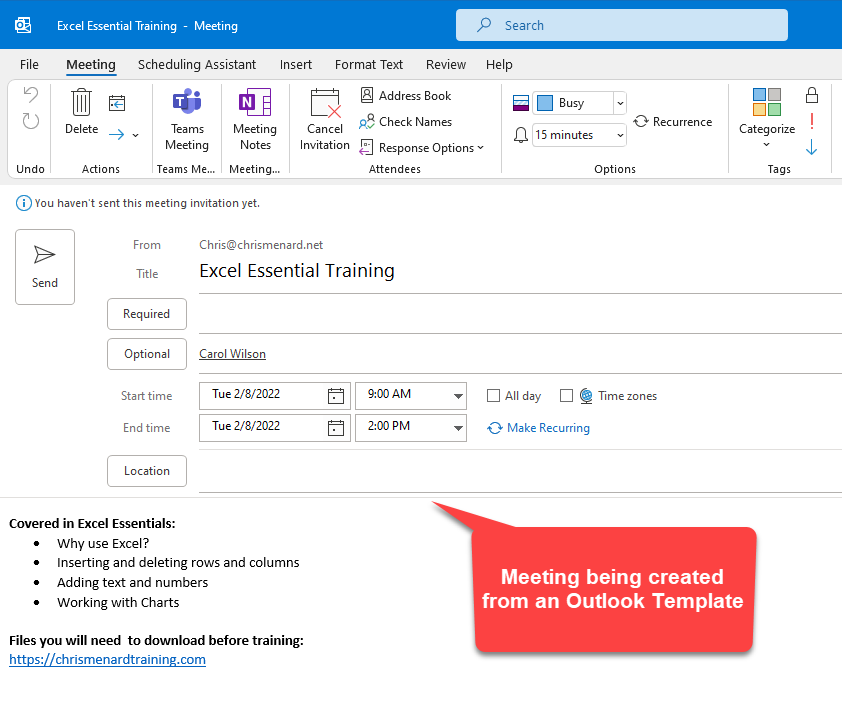
**Outlook meeting templates**
YouTube video
Outlook Calendar Meeting Template
How to add create a meeting template
1. Start Outlook on the desktop 2. Go to **Calendar** 3. Create a new meeting request. You can right-click your calendar and select New Meeting Request. 4. Fill in the information. Most likely the Required will not be filled in. Don't worry about the date and time. We will cover that later. 5. Click **File**\- **Save As** 6. Save as type: **Outlook Template (\*oft)** see screenshot 7. Change the file name if necessary 8. Click **Save** 9. Close and select **Don't Save** then **OK**.
**Important Note**: When you save as an Outlook Template, the location should change to C:\\Users\ _username_\\AppData\\Roaming\\Microsoft\\Templates
For example: C:\\Users\\chris\\AppData\\Roaming\\Microsoft\\Templates as shown in the screenshot below.
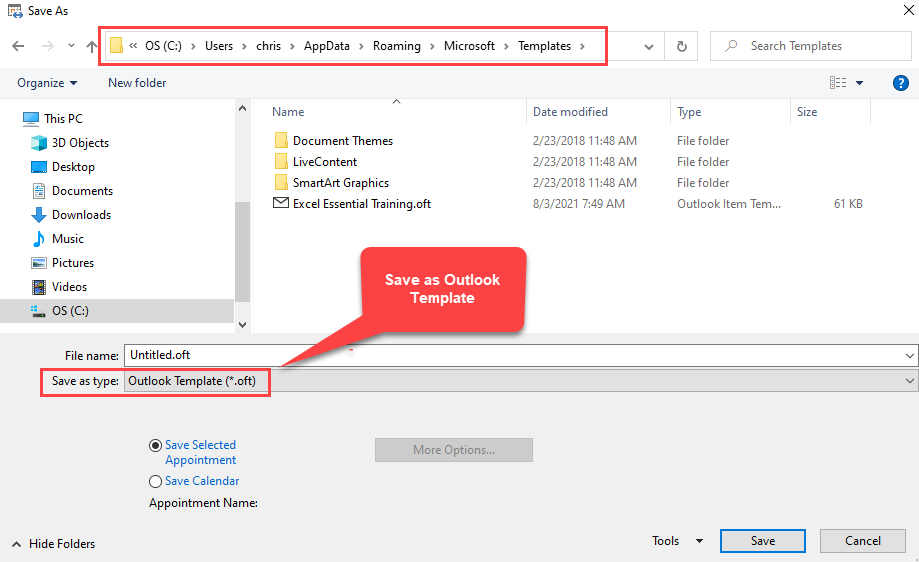
**Save meeting as Outlook template**
How to use an Outlook calendar template to schedule a meeting
1. Start Outlook on the desktop 2. Go to **Calendar** 3. On the **Home** tab, select **New Items**, **More Items**, and click **Choose Form**. See screenshot below. 4. Change _Look in_ to **User Templates in File System** see screenshot below 5. Select the form and click **Open** 6. Add the necessary fields, change the date and time, and **Send** the invite.
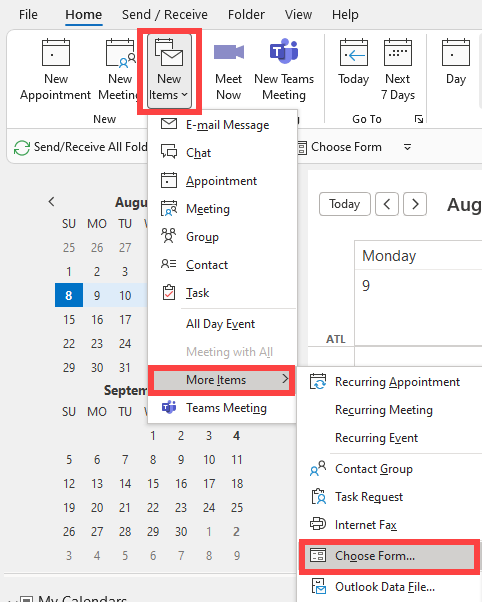
**Choose Form in Outlook**
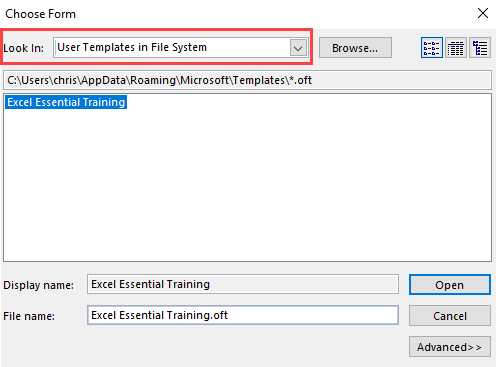
User Template in File System



