Zoom Meetings Registration | Top 10 questions answered | Zoom Registration Tutorial

Scheduling a Zoom meeting that requires registration will allow participants to register with their email, first name, last name, and other questions. Registration allows you to capture more information about your attendees. Once this is scheduled, you can manage your registrants, resend confirmation emails, and generate meeting registration reports if you want to download a list of registered people.
Why use Registration for a Zoom meeting?
Despite the registration function being used mostly for webinars, having it on for regular meetings helps with polls (among other things). If you have registration turned on for meetings, you have the participant's name when they answer any polls you run in your meeting. The info will also be available when you run your poll report for that meeting.
Here are some good reasons to have registration on for your meetings:
1. Capture information about your attendees. There are a lot of questions you can ask your attendees using registration. 2. Polling, if used, will capture the name and email of those that voted. 3. You may want to know if anyone signed up for your meeting a couple of days in advance. Possibly you have a lot of work to do a couple of days before the meeting, and if no one is signed up, you may want to cancel or postpone the meeting.
Is the Registration feature available for Free or Basic Zoom accounts?
Zoom registration feature only works with Paid or Licensed accounts.
Will Registration work with your Personal Meeting ID?
No. Zoom Registration only works with Generate Automatically meeting IDs.

Zoom only works with Generate Automatically IDs. It will not work with Personal Meeting ID
How to set up Zoom registration for a meeting?
Setting up Zoom registration only works on the web, at [zoom.us](http://zoom.us/). It doesn't work in the Zoom app.
To schedule a meeting:
1. Browse to [zoom.us](http://zoom.us/) and log in to your account 2. Go to **Meetings >** **Schedule a meeting**. 3. On the meeting set up screen, scroll down and you'll find ' **Registration required**' with a checkbox.
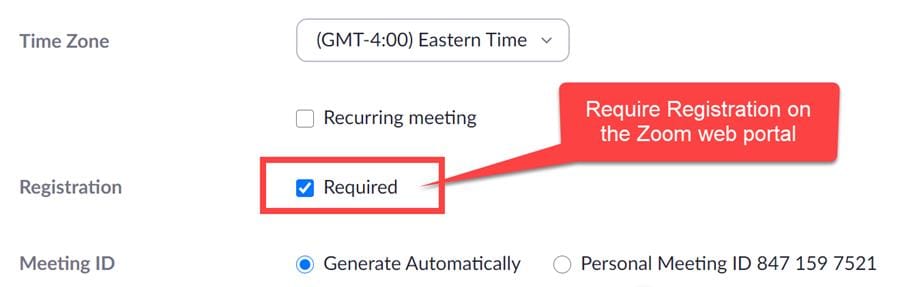
How to **make registration required** for a Zoom meeting, when you schedule it.
Where is the registration info located?
You have to finish setting up your meeting to get the registration info. After you've configured everything and you save the meeting, you'll have a section at the bottom of the meeting info page called "Registration".
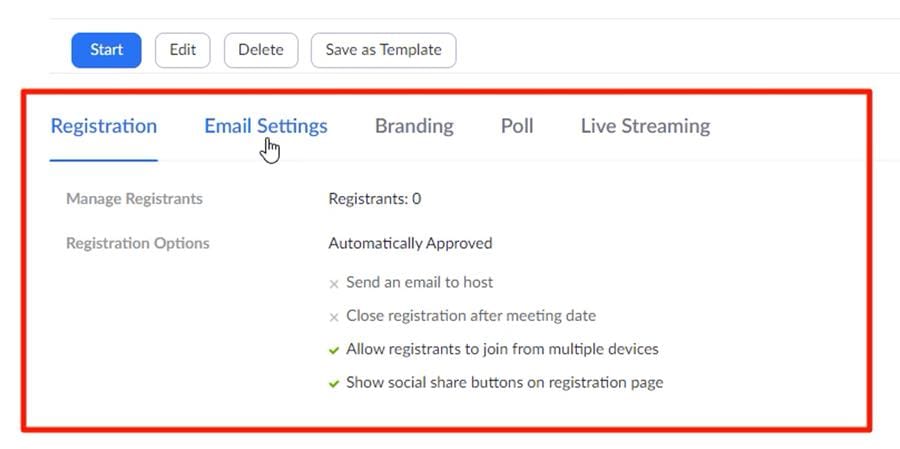
The registration info for a Zoom meeting is **at the bottom of the screen** after you've saved your meeting
What questions can I ask on my Registration form?
The two required fields for registration are email and first name. You can make other questions available, and you can also make them required.
01. Last Name 02. Address 03. City 04. Country/Region 05. Zip/Postal Code 06. State/Province 07. Phone 08. Industry 09. Organization 10. Job Title 11. Purchasing Time Frame Role in Purchase Process 12. Number of Employees 13. Questions & Comments
How do I add other Registration questions?
1. Click the **Registration** tab. 2. In the **Registration Options** section, click **Edit**. 3. Click the **Questions** tab. 4. Check the Field(s) you would like to include on your registration page. 5. (Optional) Check the **Required** box if you want to make that field required. 6. Click **Save All**.
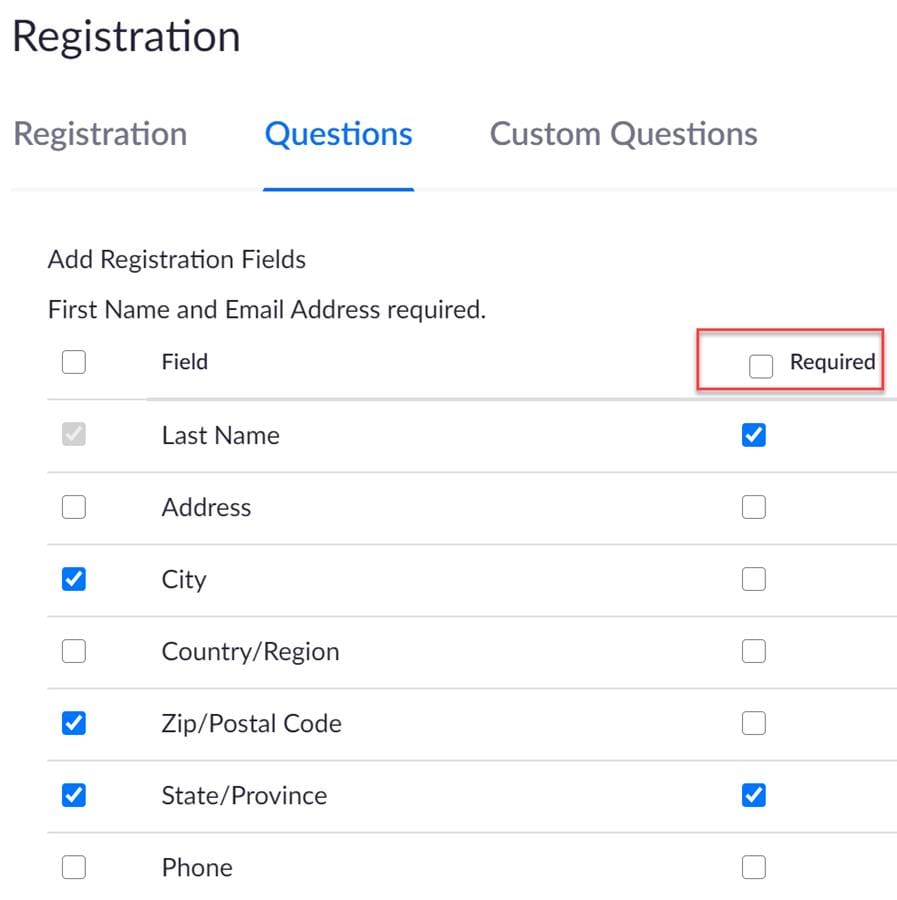
Zoom Registration - required questions and other registration fields
Can someone register after the meeting starts?
Yes. In the Registration section, after you've saved the meeting, on the right side you'll find registration 'Edit'.
In the registration options you have an option to " **Close registration after the event**". Enabling this will disable registration after the meeting has ended. However, before the meeting starts and also during the meeting, participants will still be able to register, even though this option is on.
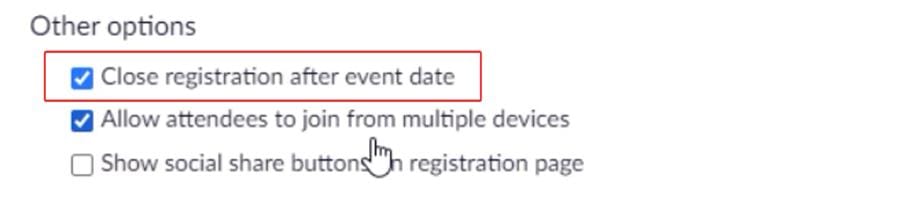
**Closing the registration** after the Zoom meeting/event date prevents other participants from registering
How can I test the registration?
You can copy the registration link from the meeting page (after you've saved it). Open that link in a new browser window and fill in the registration information yourself. If you've enabled automatic approval, it will automatically send the meeting link to that person. If manual approval is enabled, the email will only be sent to the participant once you've manually approved them.
Can someone join the meeting without having registered?
Officially, no. You have to register to join a meeting that has registration on. You then get a unique link, just for you.
However, if a participant receives their approval email, with the meeting link, they could forward that email to someone else and that person could join the meeting using the link that was forwarded to them. In that case, they would appear to join as the person that registered. So you could end up with two people in your meeting by the same name, having joined from the same link.
You can try preventing this by asking your participants not to share the invite email or link. You can add this text to your invitation confirmation email.
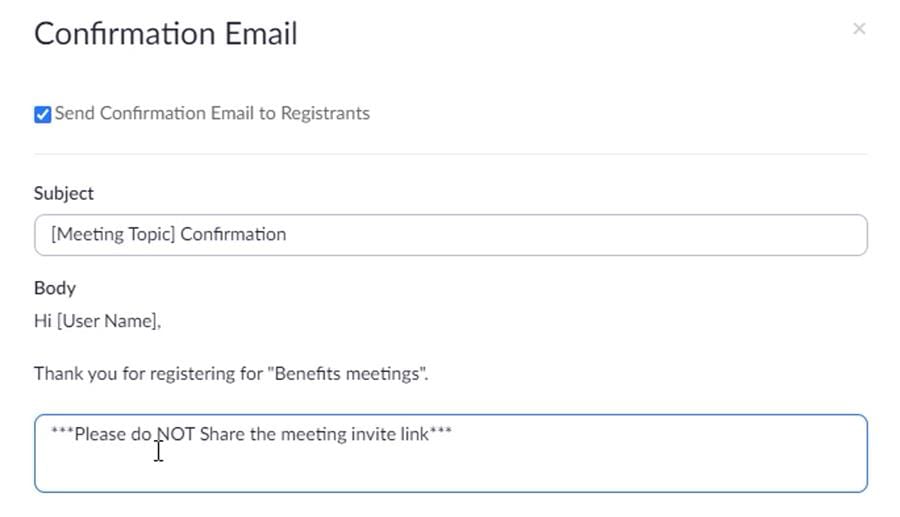
You can **add custom text** to the Zoom registration confirmation emails
Watch the video
Zoom Meetings Registration | Top 10 questions answered | Zoom Registration Tutorial