
Why Excel's Merge and Center Is EVIL (And How to Fix It)


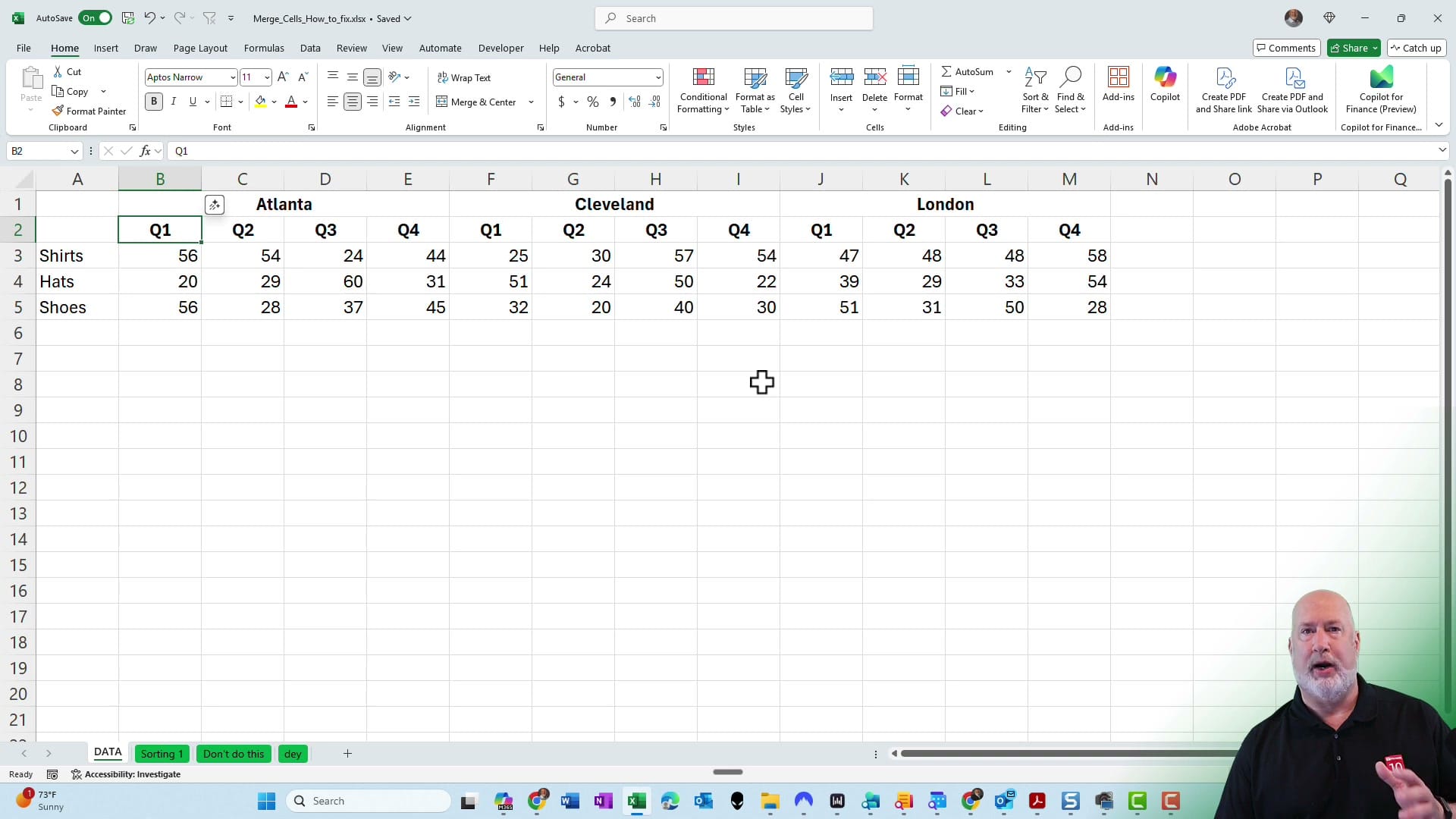
Merge and Center is one of Excel's most misused features. It looks great for formatting headers, but it breaks sorting, filtering, copying, and pasting. In this tutorial, Chris Menard explains exactly why Merge and Center causes problems and shows you the better alternative: Center Across Selection.
Watch the full tutorial:
Why Merge and Center Is a Problem
When you merge cells, Excel combines multiple cells into one. This causes several issues:
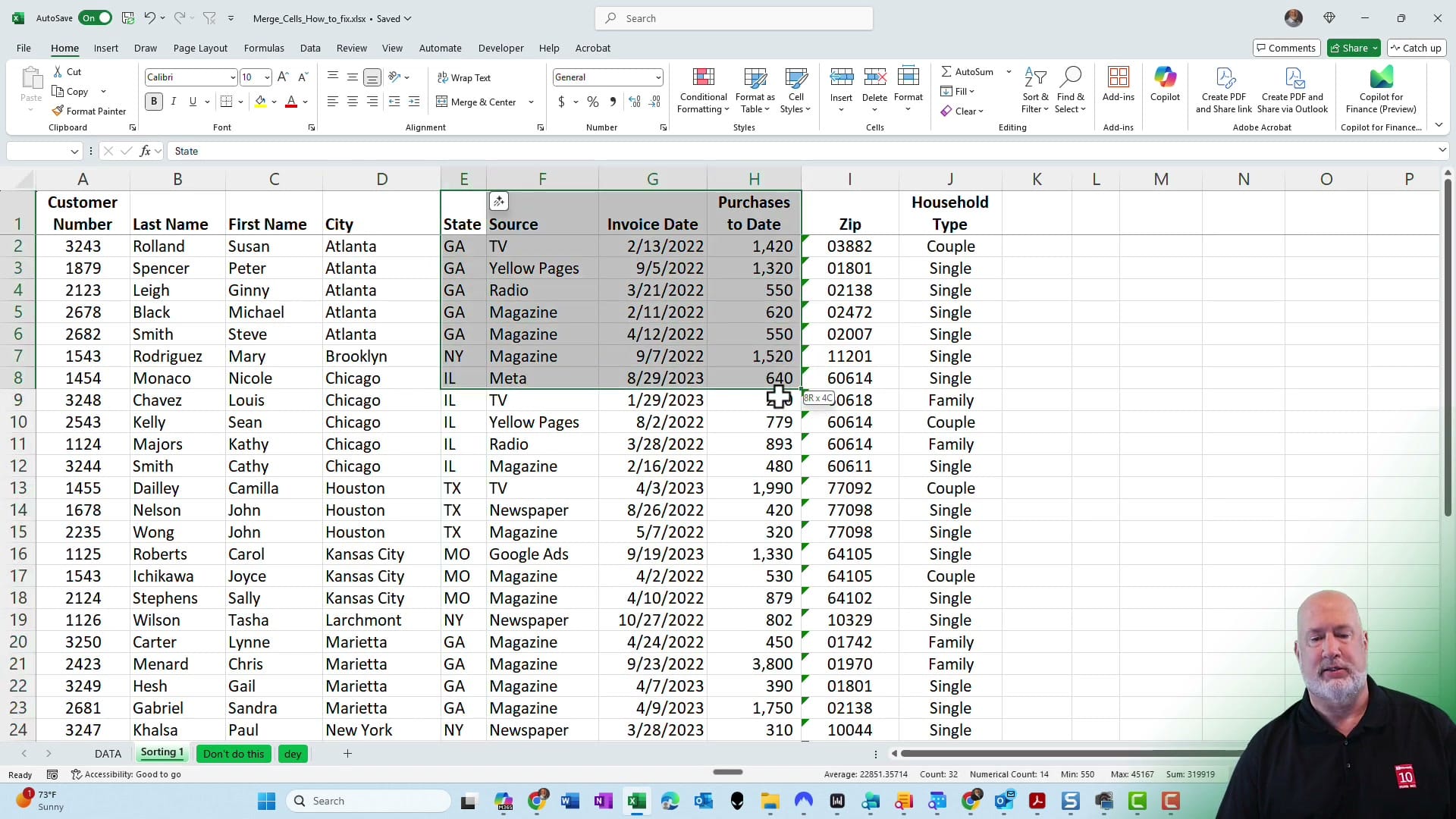
- Sorting breaks — Excel cannot sort a range that contains merged cells. You'll get an error: "To do this, all the merged cells need to be the same size"
- Filtering breaks — Filters skip rows that are part of a merged cell range
- Copy and paste breaks — You can't paste data into a range that partially overlaps with merged cells
- Data loss risk — When merging cells that contain data, Excel keeps only the upper-left cell's value and deletes everything else
How to Find All Merged Cells
If you've inherited a spreadsheet full of merged cells, here's how to find them all:
- Press Ctrl+H to open Find and Replace
- Click Options to expand the dialog
- Click the Format button next to the "Find what" field
- Go to the Alignment tab
- Check the Merge cells checkbox
- Click Find All to see every merged cell in the workbook
How to Fix It: Unmerge and Use Center Across Selection
The fix is a two-step process:
Step 1: Unmerge All Cells
- Select the entire range with merged cells (or press Ctrl+A for the whole sheet)
- Go to Home > Merge & Center dropdown
- Click Unmerge Cells
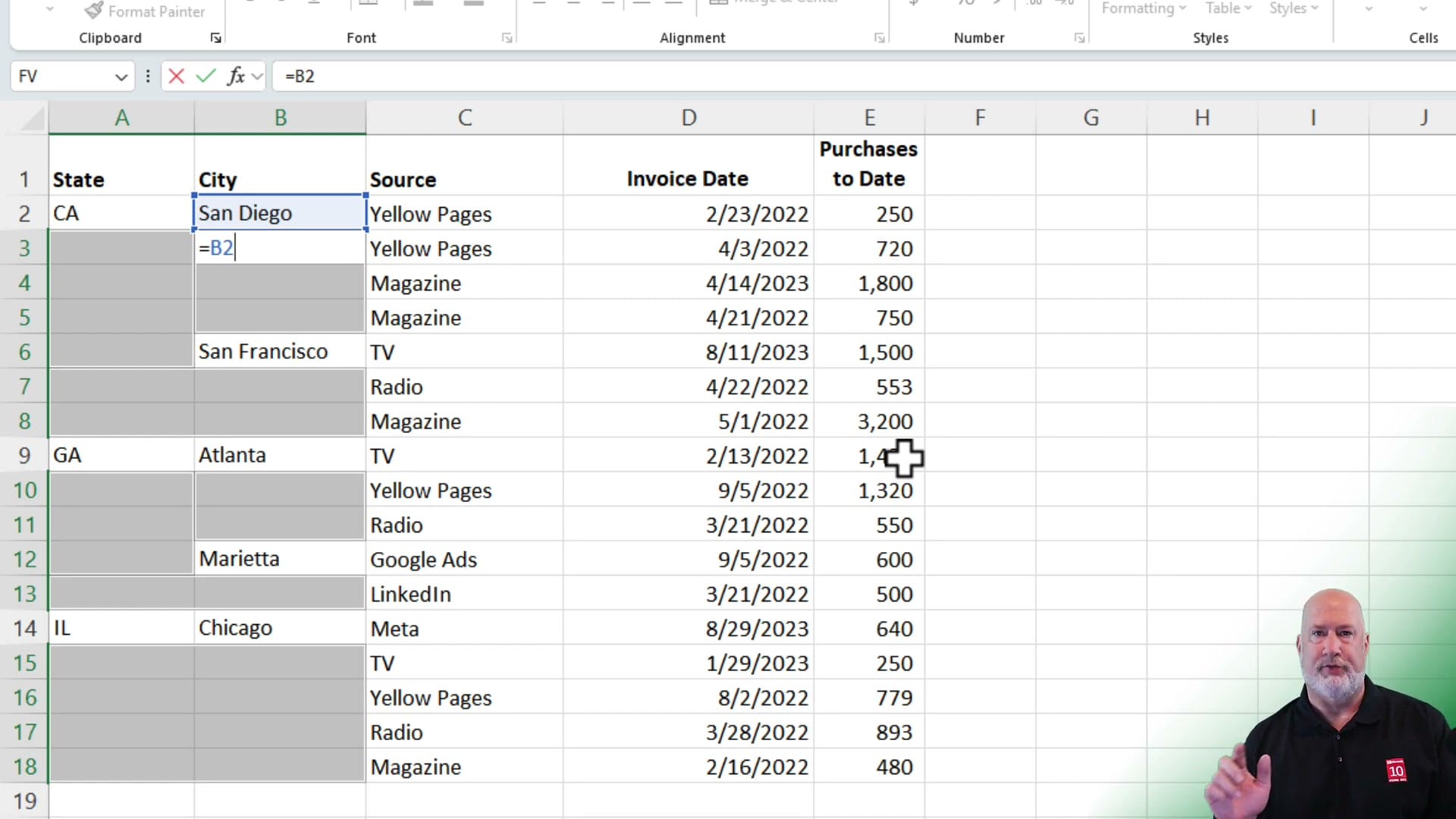
- The data will now be in the top-left cell of each formerly merged range, with blank cells beside it
Step 2: Apply Center Across Selection
- Select the cells you want the text centered across
- Press Ctrl+1 to open Format Cells
- Go to the Alignment tab
- Under Horizontal, choose Center Across Selection
- Click OK
The result looks identical to Merge and Center, but the cells remain individual. Sorting, filtering, and copy-paste all work perfectly.
Related guides
- Merge and Center in Excel
- Excel Essential Skills - Rows & Columns and the EVIL Merge and Center
- How to SORT Data in Excel | 7 Tips
Want to learn more? Visit courses.chrismenardtraining.com for online training courses.



