Teams Meetings - Move Presenter Toolbar When Sharing

Posted on: 06/09/2024
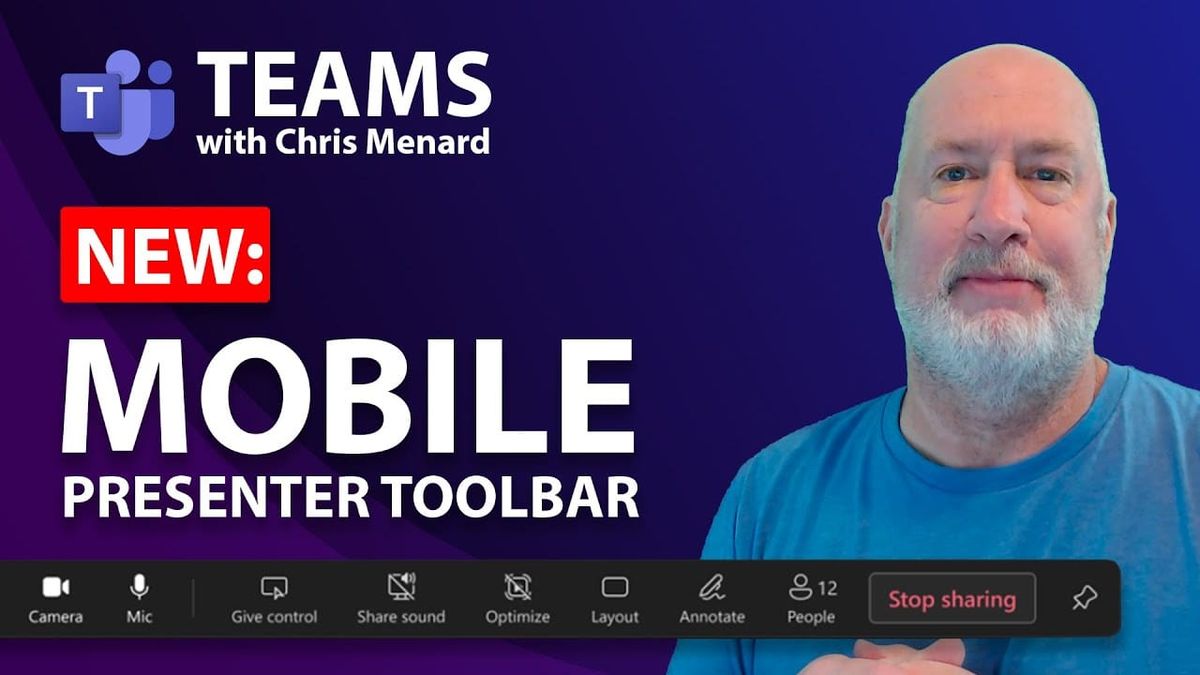
Now, during a Teams meeting, when you share your screen, you have the flexibility to reposition the Presenter toolbar anywhere on your screen. Yes, we now have a draggable Presenter toolbar. This convenient feature allows you to adapt the toolbar’s location according to the layout of the shared content, ensuring that you can maintain visibility of critical screen areas.

Presenter toolbar in Teams Meeting
YouTube Video
Move Meeting Controls: NEW Teams feature - Drag the Presenter toolbar - YouTubHow to move the Presenter toolbar?
Use the drag handle on the left of the Presenter toolbar to move the toolbar. You can move the toolbar anywhere on your screen, including another monitor. Another great feature is if you need to stop sharing and share again, Teams will remember where the Presenter toolbar was last placed.
If you end a meeting and start another meeting, the Presenter toolbar will be in the default location - the top of the screen in the middle.
How to test the draggable Preenter toolbar?
1. On Teams desktop, click **Calendar**. 2. Click **Meet Now**. 3. Start a meeting. No need to invite anyone. 4. Share your screen. 5. Drag the toolbar around.
Availability
To use these new features, you must be a member of the Teams Public Preview or Microsoft 365 Targeted release and use the new Teams client for Windows or macOS. Other meeting participants aren’t required to be members of the Teams Public Preview. This feature should be available to General Availability and Targarted Release late June or July 2024.
Teams Roadmap
- Feature ID: 394270 - Added to roadmap: 4/22/2024 - Last modified: 6/3/2024 - Product(s): Microsoft Teams - Cloud instance(s): GCC, Worldwide (Standard Multi-Tenant), DoD, GCC High - Platform(s): Mac, Desktop - Release phase(s): General Availability, Targeted Release