
Teams - How do I Delete Chat Files?


Updated: December 10, 2022
You can now delete an entire chat for one-on-one chats and group chats.
In Teams, it is easy to add files in a chat. In a chat, you click the paperclip for attaching files, select your files, and click Send. The files show up in the Files tab. The question I was asked is "How do I delete files?"
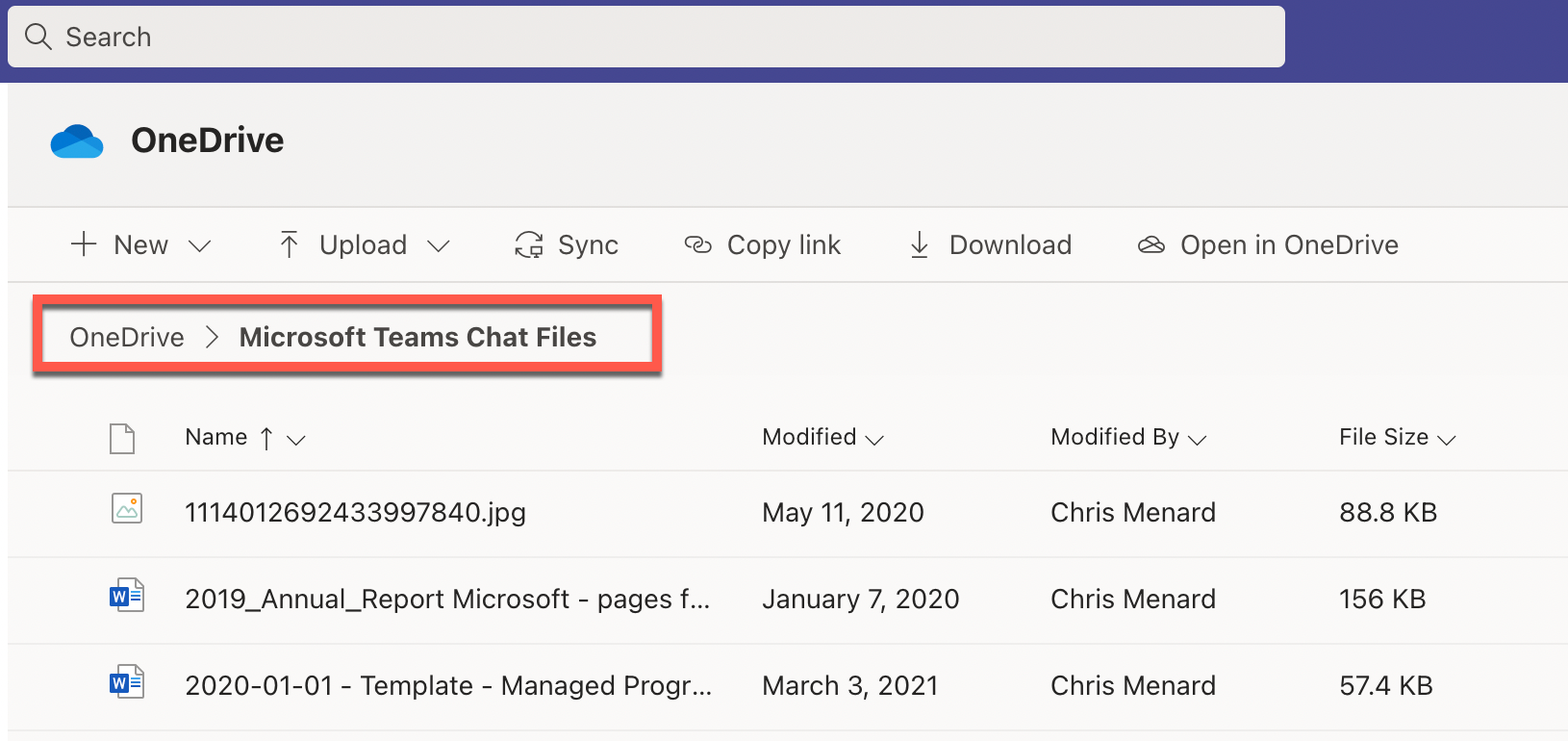
Teams delete files from chat conversations
You would think you would delete them from the Files tab, but you can't. Files in Chats are stored in OneDrive. You can delete them in the OneDrive app, or you can delete them from Teams using the Files app. They are stored in a folder called Microsoft Teams Chat Files.
YouTube Video - Delete Chat Files
Teams - How do I Delete Chat Files?
Delete Chat Files in Teams
1. Click **Files** in the navigation pane on the left. If you don't see Files, click More Apps and search for Files. 2. Click **OneDrive** 3. Click the folder **Microsoft Teams Chat Files**. This is the folder your chat files are stored in. 4. Select the file or files to delete and click **Delete**
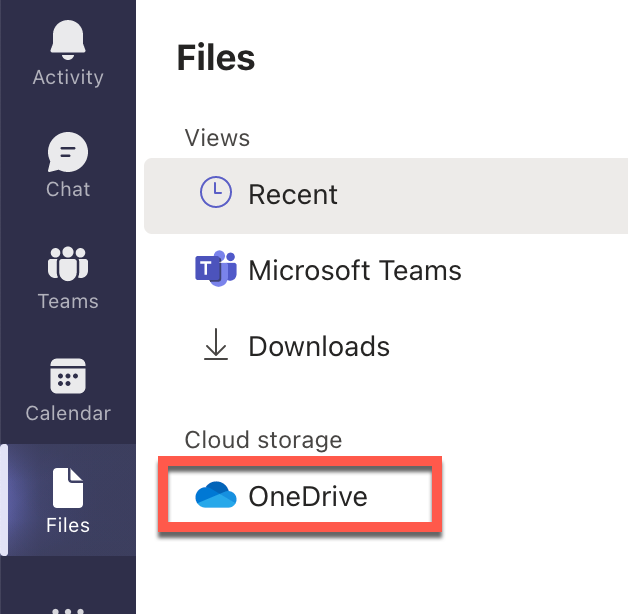
Teams - Files - OneDrive
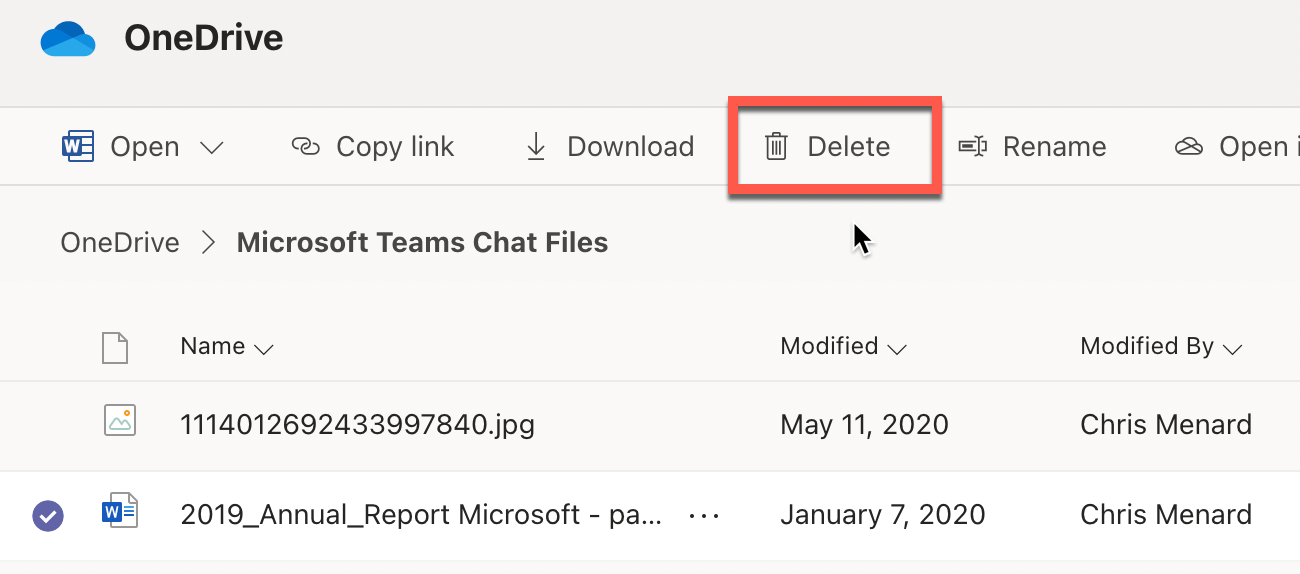
Delete files icon in Teams - OneDrive icon



