Send an email to a channel in Microsoft Teams


You can send an email to a channel in Teams, by using the channel email address. The email and any attachments become part of the channel conversation. Anyone can reply to it to start a conversation. The replies stay within the Team and the original sender of the email does not receive replies; unless the sender is a member of the Team.
Example of why you would want to send an email to a channel
You received a quote with attachments by email from a vendor that the Marketing Team needs to review. You have a channel in the Marketing Team named Vendor Quotes. After emailing the quote to the channel, the Marketing Team can have a conversation about the quote. All the attachments are in the Files tab for the channel.
Steps to get the channel email address:
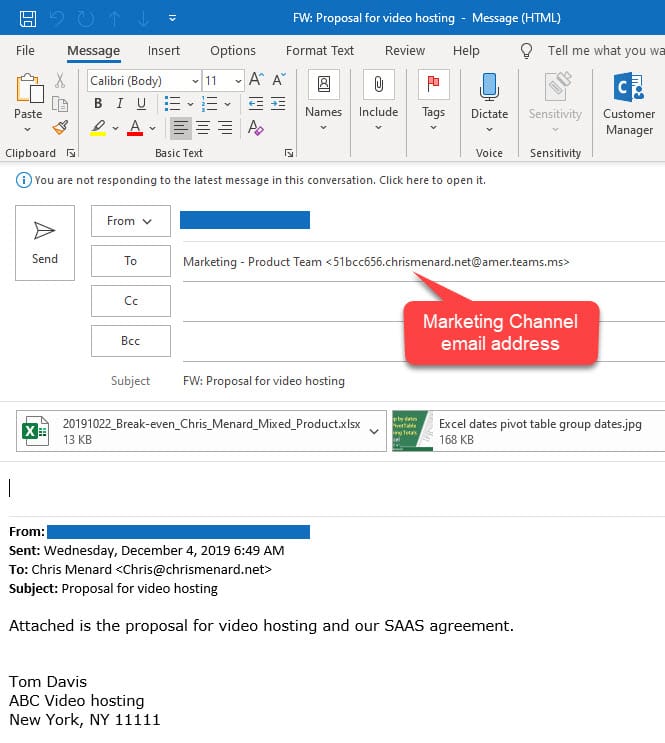
1. Select More options for the channel. More options is the three horizontal dots next to the channel name.
2. Click Get email address
3. Click Copy
To send an email to a channel
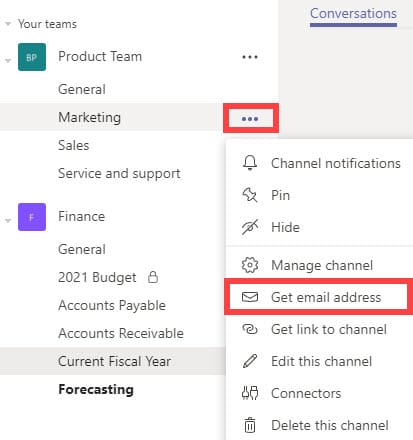
1. Open your email client. In my example, I'm using Outlook.
2. Forward the email.
3. Paste the email address in the To field.
4. Send the email.