Preview: Excel COPILOT() Function and Formula Completion in Action
Live Stream on M365 Copilot Function and Formula Completion in Excel. Registration is NOT required. Just join at noon ET on 03/18/2026


Two of the most exciting features coming to Microsoft Excel with Copilot are the COPILOT() function and Formula Completion. Both are rolling out soon, and they will change how you build formulas and extract information from your spreadsheets. Here is a quick preview of what each one can do. I will cover these in detail on my LIVE session this Wednesday:
Watch on YouTube | Watch on LinkedIn
 Chris Menard
Questions from the Live Session on 3/18/2026
Q. My auto calc isn't working. I've googled how to fix this and updated my settings from manual to automatic, but still nothing. Also, my formats are general. Any suggestions?
A. Does Automatic Calculation not work even on a file created from scratch?
- File - New
- In A1, type in 8, and in A2 type in 4. In A3, click AutoSum. Should get 12.
- Change A2 to 6, and A3 should automatically change to 14. Does that work? Pls let me know.
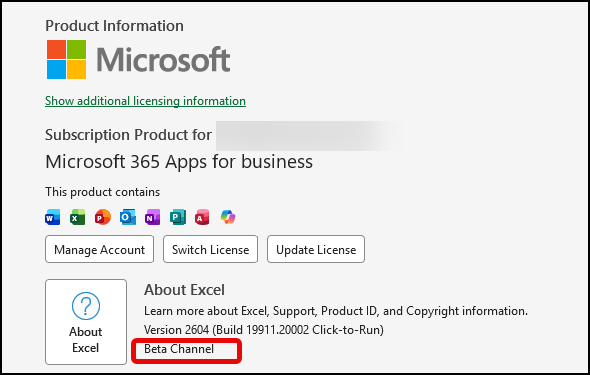
Q. In Word or Excel desktop, I clicked File > Account, and I see my channel. What are the different channels and when do they get releases?
A. See the table and image below
📅 Feature Update Cadence
| Channel | Feature Updates | Security Updates |
|---|---|---|
| Beta Channel | Weekly (or more frequently) | Monthly |
| Current Channel | Monthly (no set release date) | Monthly |
| Monthly Enterprise Channel | Monthly (2nd Tuesday) | Monthly |
| Semi-Annual Enterprise Channel | January and July | Monthly |
Chris Menard was using the Beta Channel during his live stream. Users on Monthly or Current channel should be getting Formula Completion and the COPILOT Function soon.
📊 Microsoft 365 Apps for Enterprise – Update Channel Comparison
| Update Channel | New Feature Release Timing | Stability Level | Support Duration | Best For | Copilot Features Arrive |
|---|---|---|---|---|---|
| Beta Channel | Weekly (or more frequently) | Lowest | Not supported by Microsoft | IT testing, developers | First |
| Current Channel | As soon as ready (no set schedule – often monthly) | Medium | Until next version releases | Knowledge workers, early adopters | Early |
| Monthly Enterprise Channel | Monthly (2nd Tuesday) | High | Approximately 2 months per version | Most enterprise users | Delayed slightly |
| Semi-Annual Enterprise Channel | January and July | Highest | Approximately 8 months | Shared devices, automation, regulated environments | Latest |
The COPILOT() Function
The COPILOT() function is a brand-new Excel function that lets you ask Copilot a question directly inside a cell. You type =COPILOT("your prompt", cell_reference) and Excel returns an AI-generated answer right in the cell.
Example 1: Look Up Company Headquarters
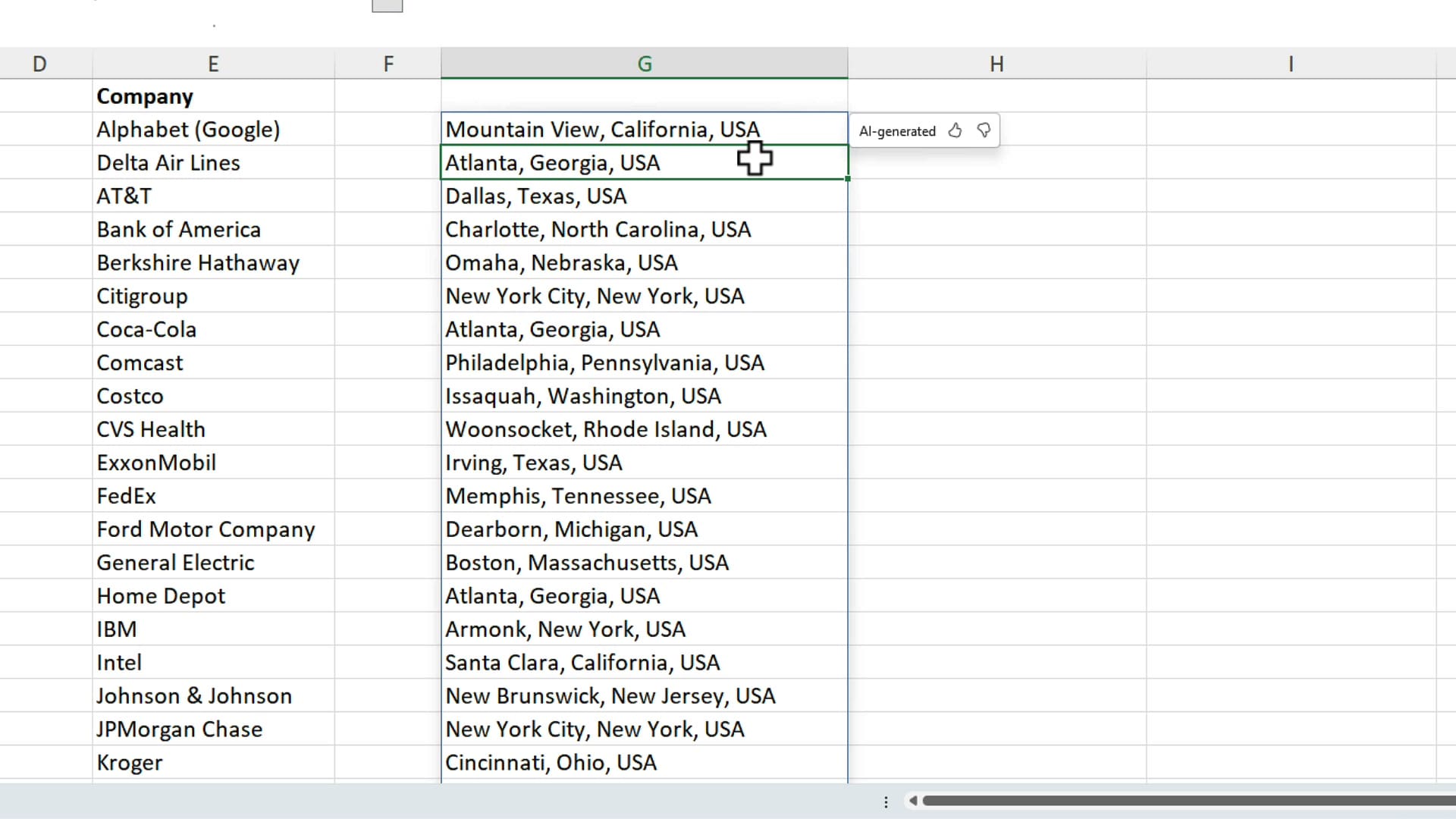
Imagine you receive a spreadsheet with a list of major companies — Alphabet, Amazon, AT&T, Bank of America, and so on — but no headquarters information. Instead of looking up each one manually, you can use the COPILOT() function.
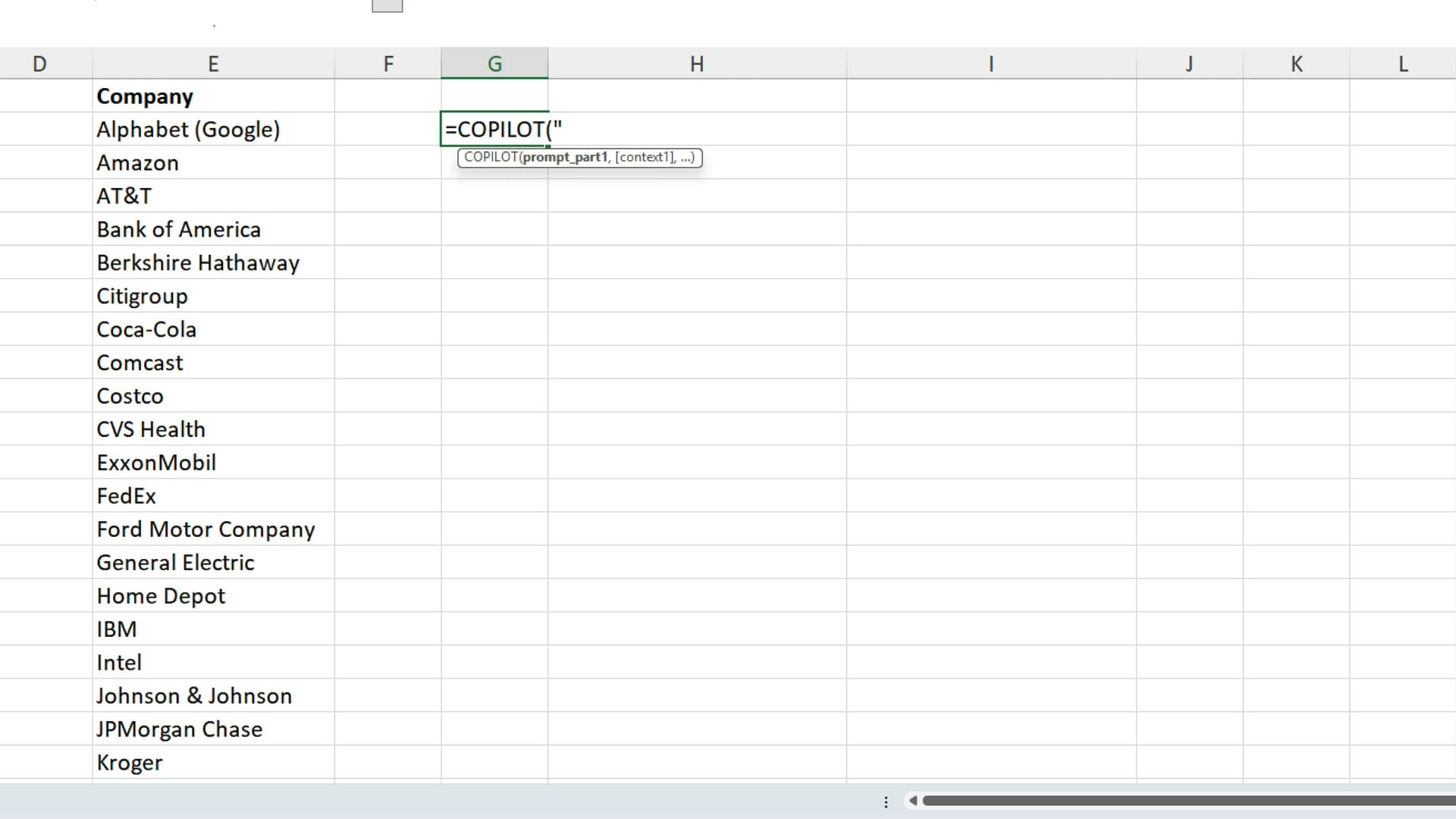
In this example, I typed =COPILOT("Give me the HQ headquarters for these companies", E2:E21) and pressed Enter. Excel returned the headquarters for every company in the list — Mountain View for Alphabet, Seattle for Amazon, Dallas for AT&T, and so on.
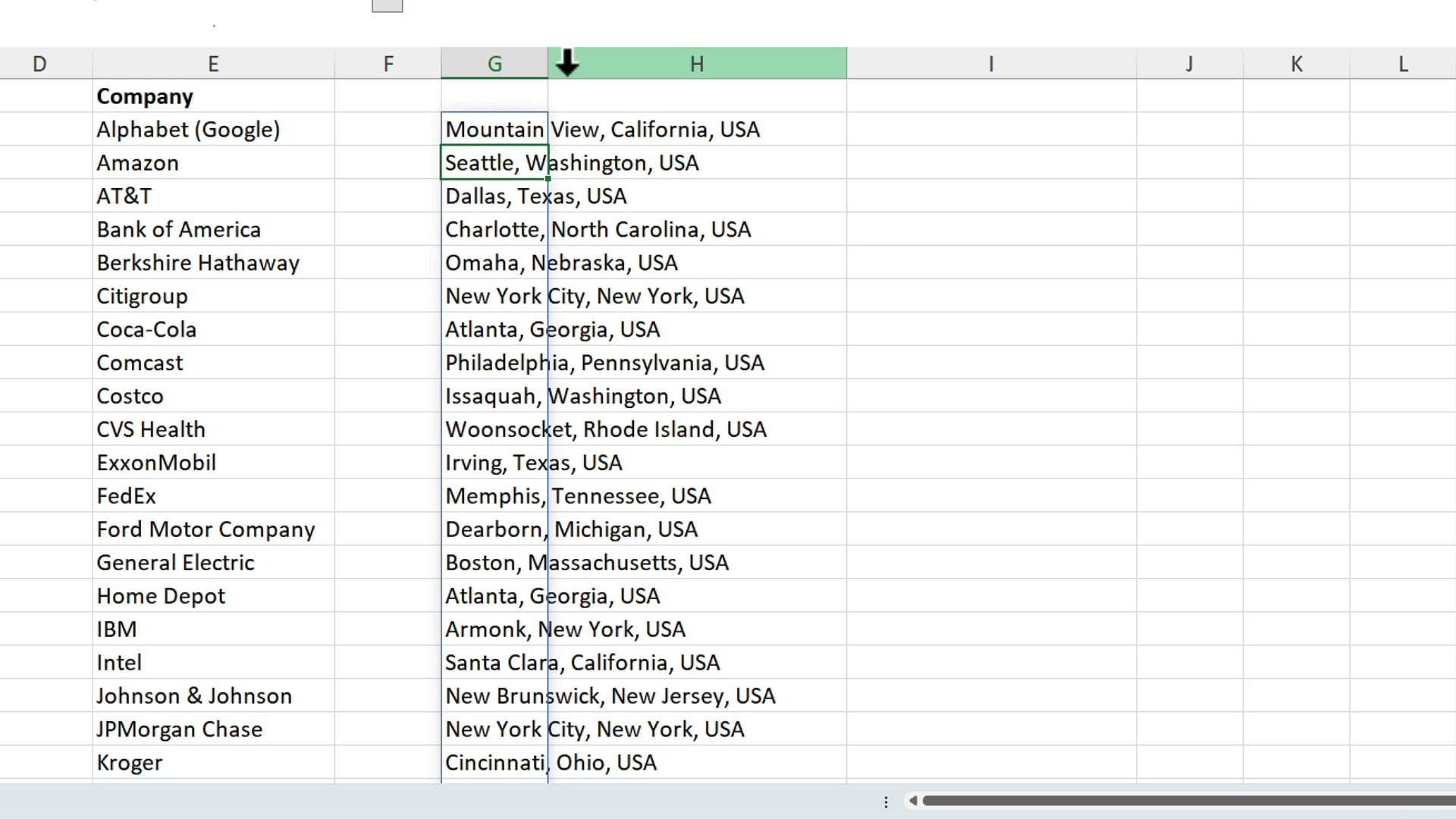
To verify it updates dynamically, I changed "Amazon" to "Delta Air Lines" in cell E3. After a moment, the headquarters updated to Atlanta, Georgia. Notice the AI-generated badge that appears next to the result — Excel clearly labels these as AI-produced values.
Example 2: Extract Department Names from Sentences
Here is a more practical scenario. You have a spreadsheet of employees where column C contains full sentences like "Works in HR" or "Assigned to Accounting last month" instead of clean department names. You need to extract just the department.
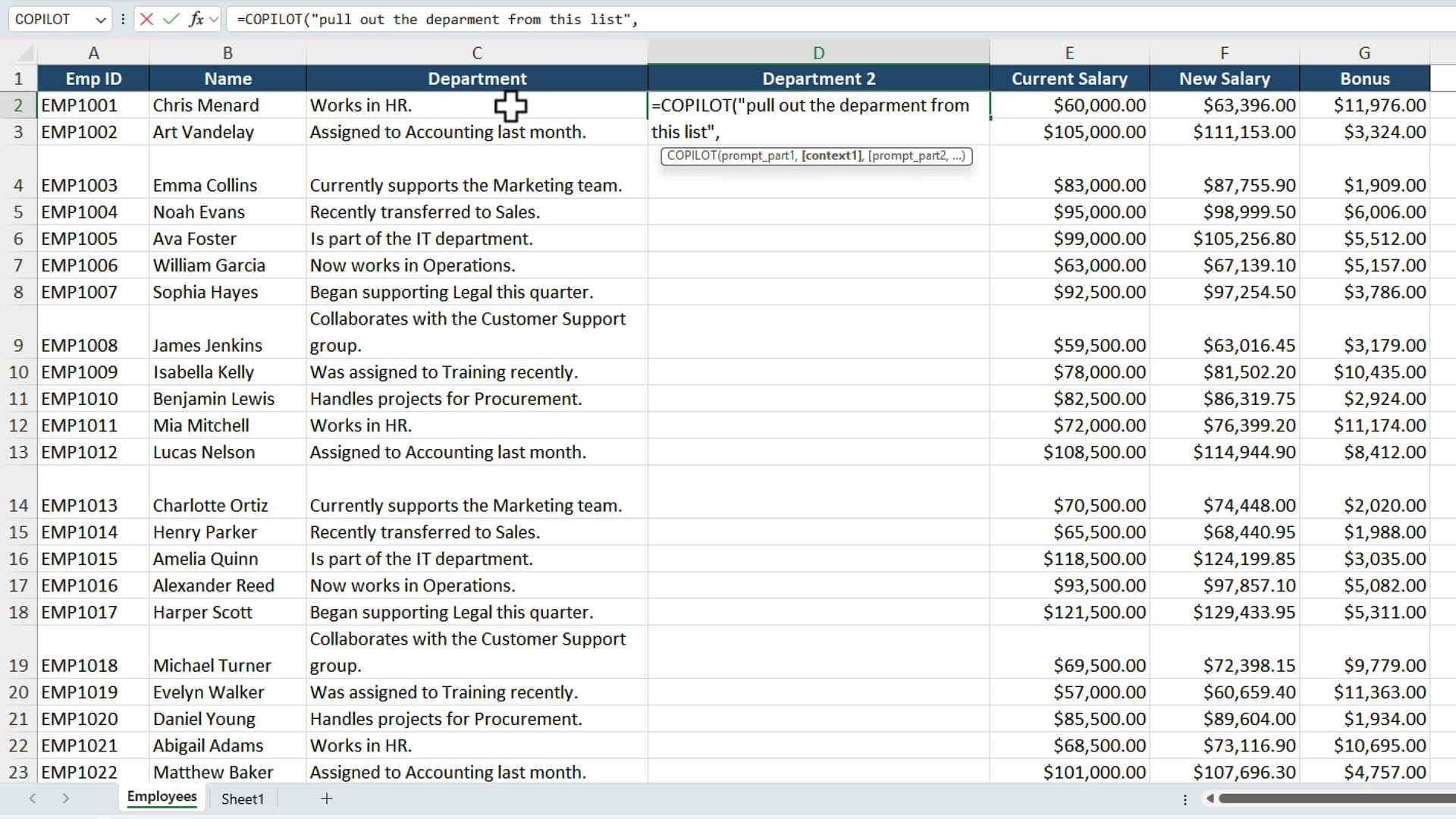
I created a new column called "Department Two" (always use a unique header — never duplicate an existing one). Then I entered =COPILOT("pull out the department from this list", C2:C25). Copilot correctly extracted HR, Accounting, Marketing, and every other department from those sentence descriptions.
Important: Always check the results when Copilot gives you an answer. It is a huge time saver, but you should verify the output is correct.
Formula Completion
Formula Completion is a separate feature that predicts what formula you want based on your column headers and data context. You just type the equals sign (=) and Excel suggests the entire formula. No prompt needed — it reads your headers and figures out what you are trying to calculate.
Example 1: Salary Dollar Difference
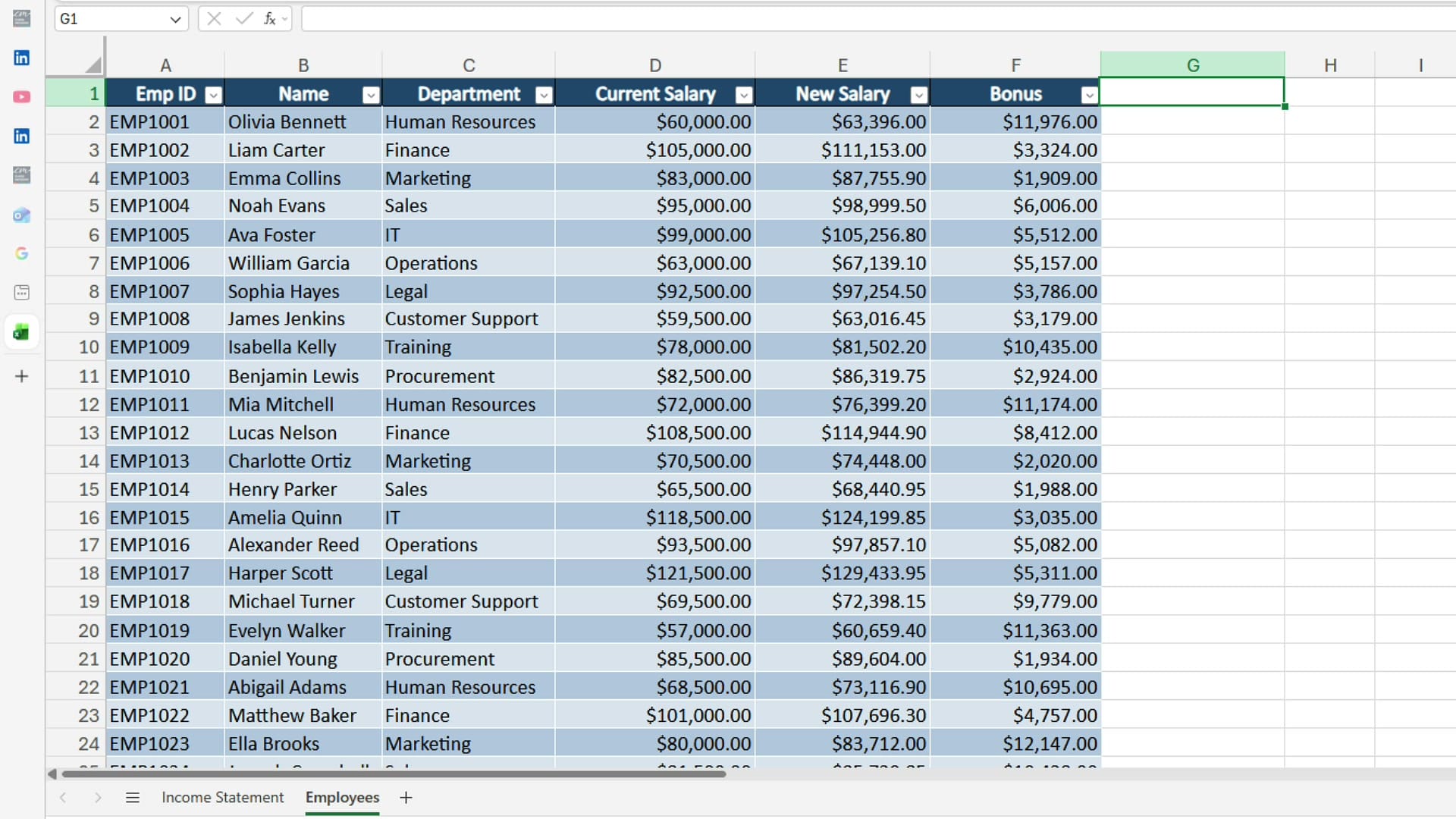
I have a table with employee names, departments, Current Salary, New Salary, and Bonus columns. I want to calculate the salary difference. I added a new column header: "Salary Dollar Difference."
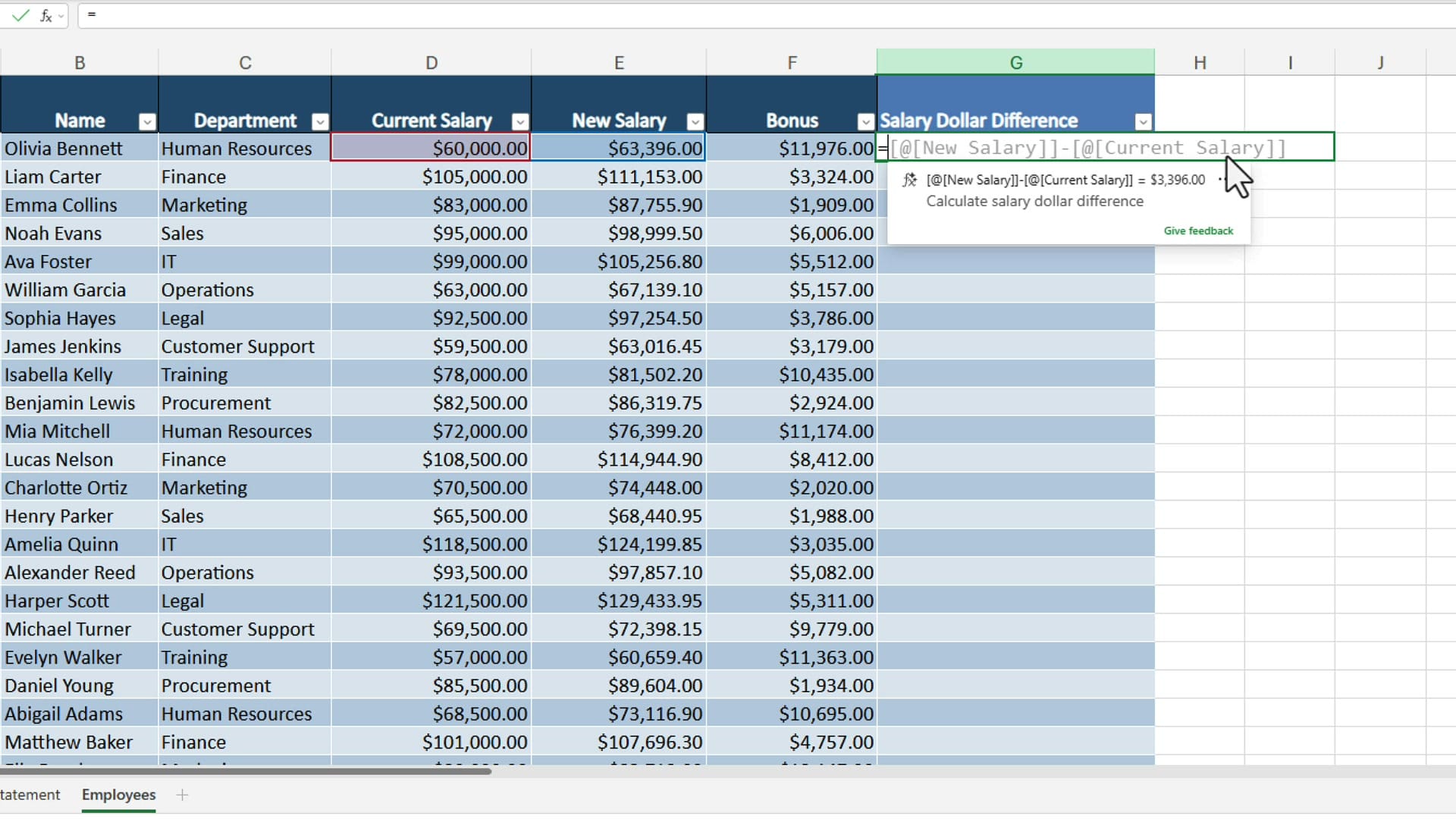
All I did was type = in the first cell. Formula Completion immediately suggested =[@[New Salary]]-[@[Current Salary]]. Because the data is in an Excel table, it used structured references (named ranges). I pressed Enter, and the calculated column filled in for every row automatically.
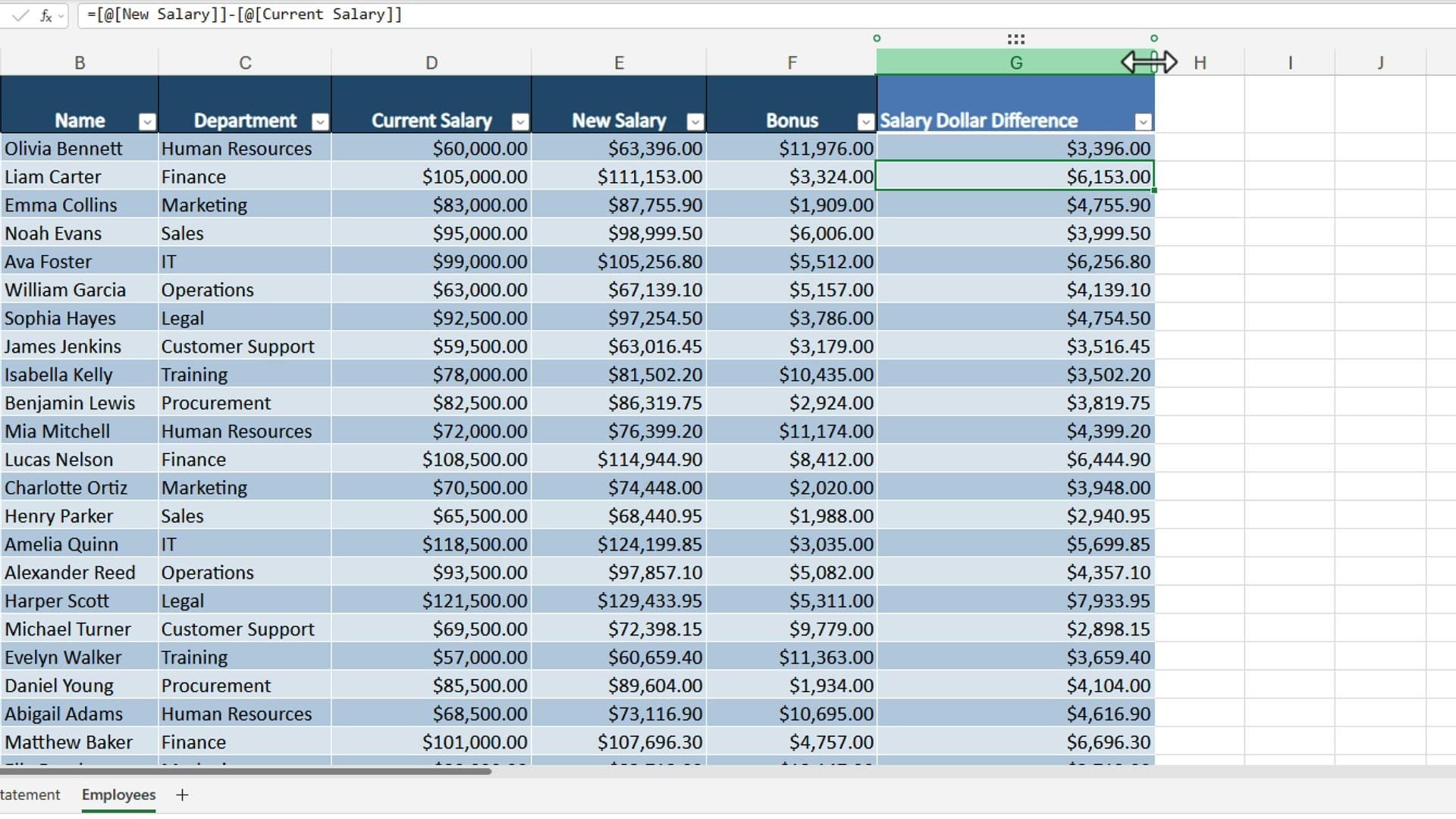
Notice it correctly chose New Salary minus Current Salary — not the other way around, and not including the Bonus column. The header name mattered: "Salary Dollar Difference" gave Excel enough context to pick the right columns.
Example 2: Income Statement Percentages
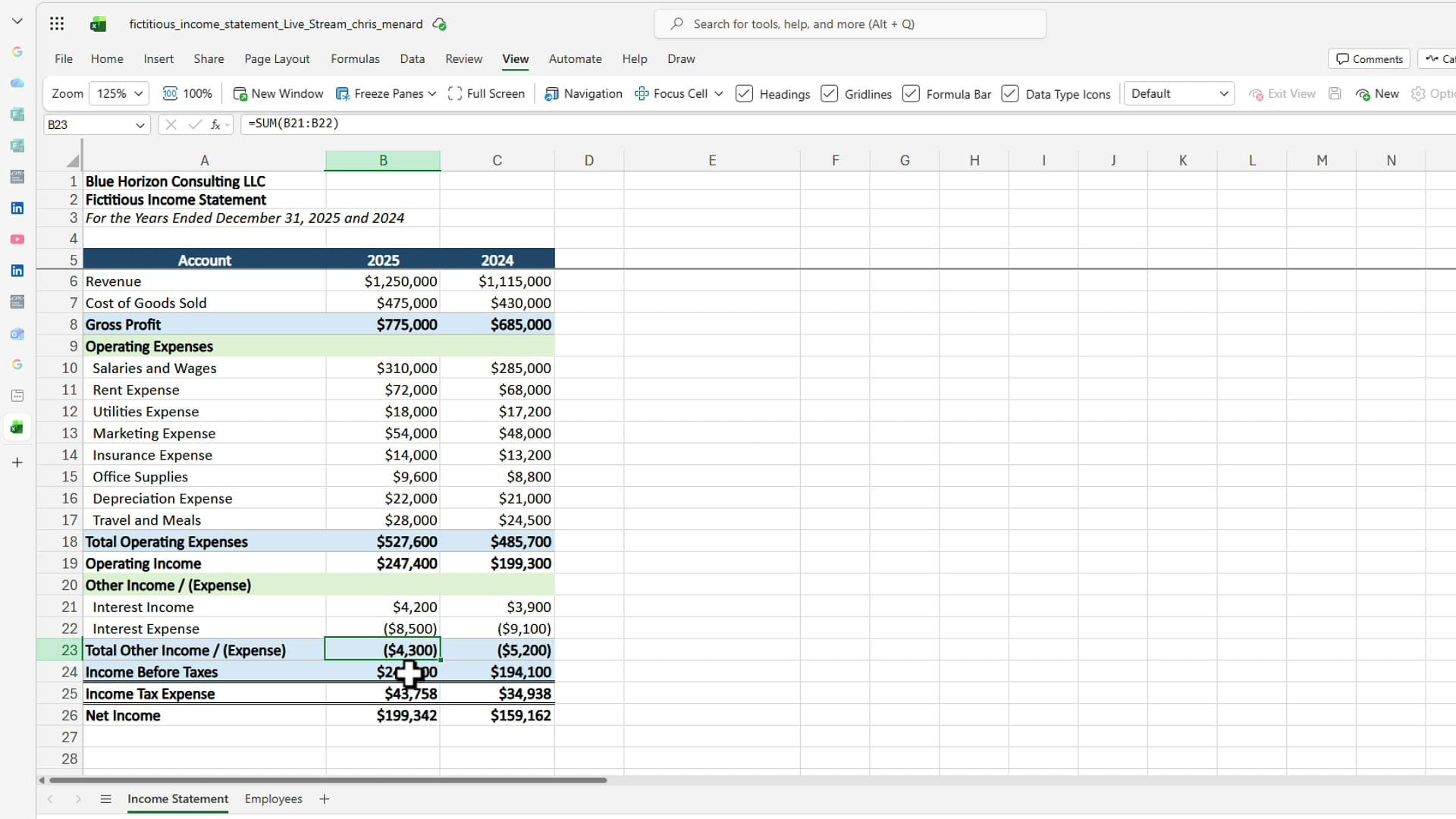
For a more advanced example, I used a fictitious income statement for Blue Horizon Consulting LLC, with Revenue of $1,250,000, Cost of Goods Sold of $475,000, Gross Profit of $775,000, and various operating expenses.
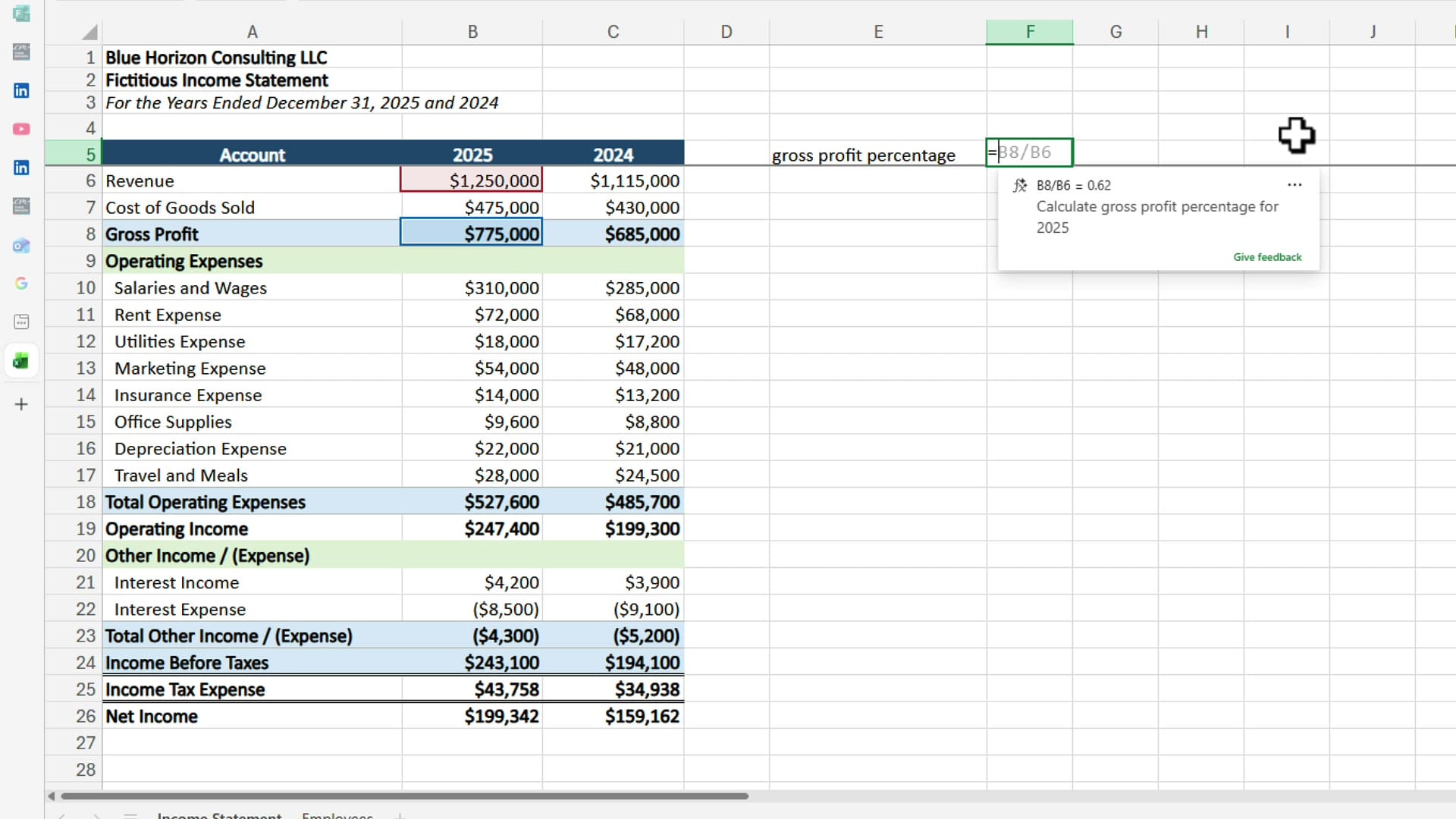
I typed "Gross Profit Percentage" as a label, then typed = in the cell next to it. Formula Completion suggested =B8/B6 — which is Gross Profit divided by Revenue. The tooltip confirmed it: "B8/B6 = 0.62 — Calculate gross profit percentage for 2025." It even picked the correct year without me specifying it.
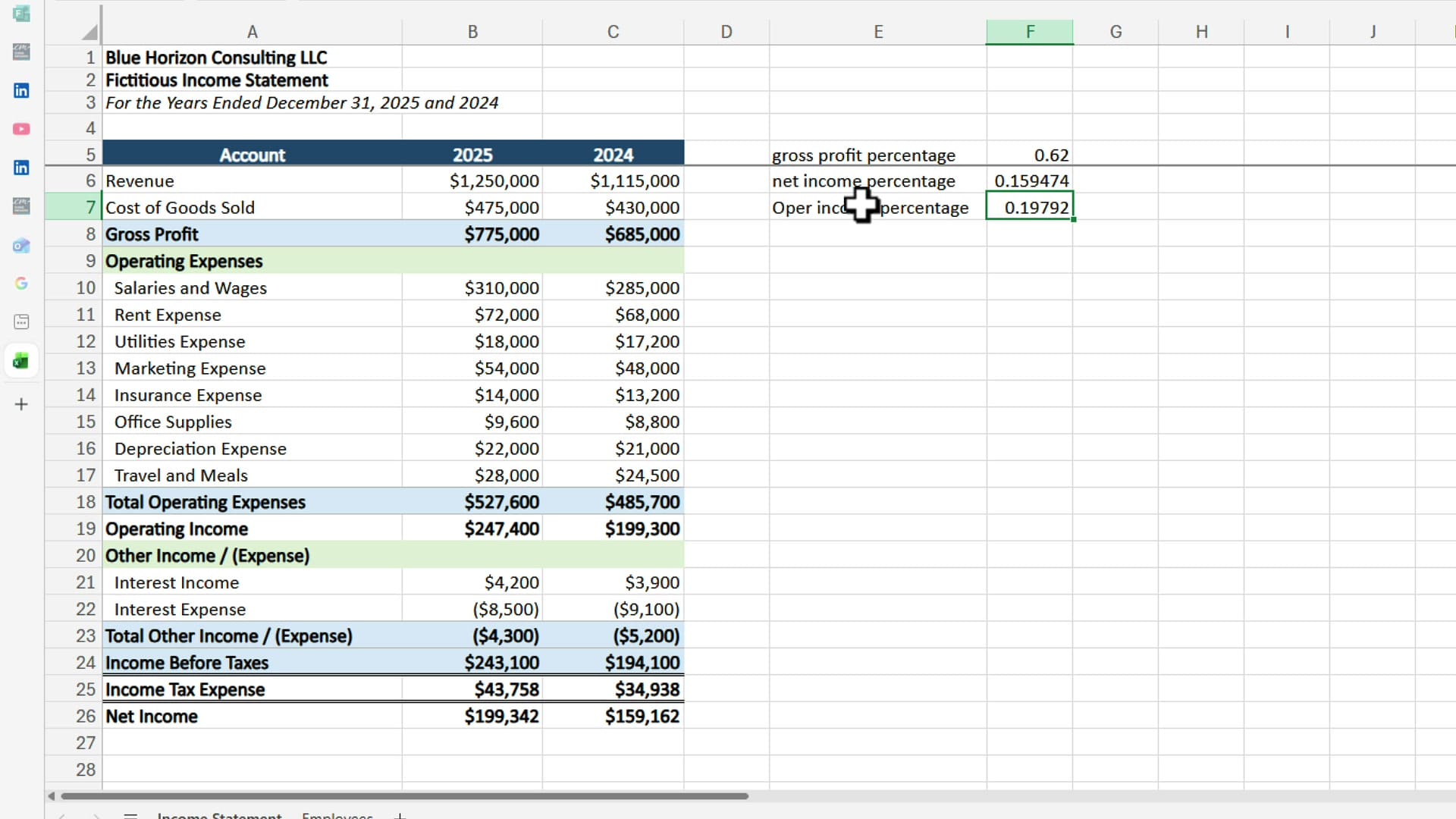
I then added "Net Income Percentage" and "Operating Income Percentage" labels. For each one, I just typed = and Formula Completion nailed the correct formula:
- Net Income Percentage:
=B26/B6(Net Income ÷ Revenue = 0.159) - Operating Income Percentage:
=B19/B6(Operating Income ÷ Revenue = 0.198)
Key Takeaways
- The COPILOT() function lets you query AI directly inside a cell using
=COPILOT("prompt", cell_range). It is excellent for lookups, data extraction, and transforming messy text into clean values. - Formula Completion predicts your intended formula based on column headers and context. Just type
=and accept the suggestion. Be specific with your header names — the more descriptive they are, the better the suggestions. - Both features are rolling out to Excel users soon. Always verify AI-generated results before relying on them for critical work.
Want to learn more? Visit courses.chrismenardtraining.com for online training courses.
Related Excel Tutorials
 Chris Menard
 Chris Menard
 Chris Menard
 Chris Menard
 Chris Menard