Microsoft Teams: View Only Channels


Microsoft Teams is a powerful collaboration tool, but navigating through numerous teams and channels can sometimes be overwhelming. In this guide, we'll explore how you can streamline your experience by focusing on channels alone, without the clutter of team names. This is particularly useful for users who want a more organized and efficient workflow. Let's dive into how you can achieve this with a few simple steps.
Introduction to Viewing Only Channels
If you're a Microsoft Teams user, especially one who manages multiple channels within a team, you might find it helpful to view only the channels without the distraction of team names. This feature can enhance your productivity by allowing you to focus solely on the conversations and tasks that matter most. Whether you're using the Combined view or the Separate view, this functionality is available to streamline your Microsoft Teams experience.
Hiding Team Names: Display Channels Only
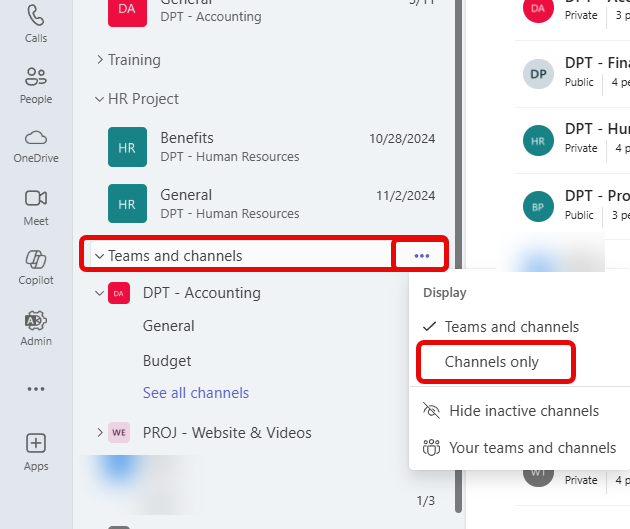
To view only channels, navigate to the Teams and Channels section.
1. Click the three dots
2. Click Channels Only
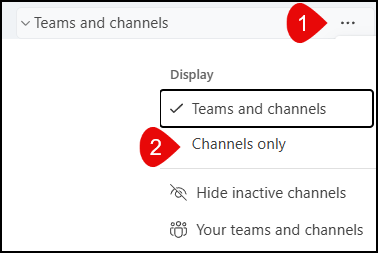
For the General Channel, which you could have a lot of channels named General, the Team name shows.