Microsoft Teams: March 2021 Update: New features, New look

**Microsoft Teams March 2021 update includes a few great features, most of them have to do with the New Look of Teams which not only brings a slight color scheme change, but also convenience and streamline enhancements.**
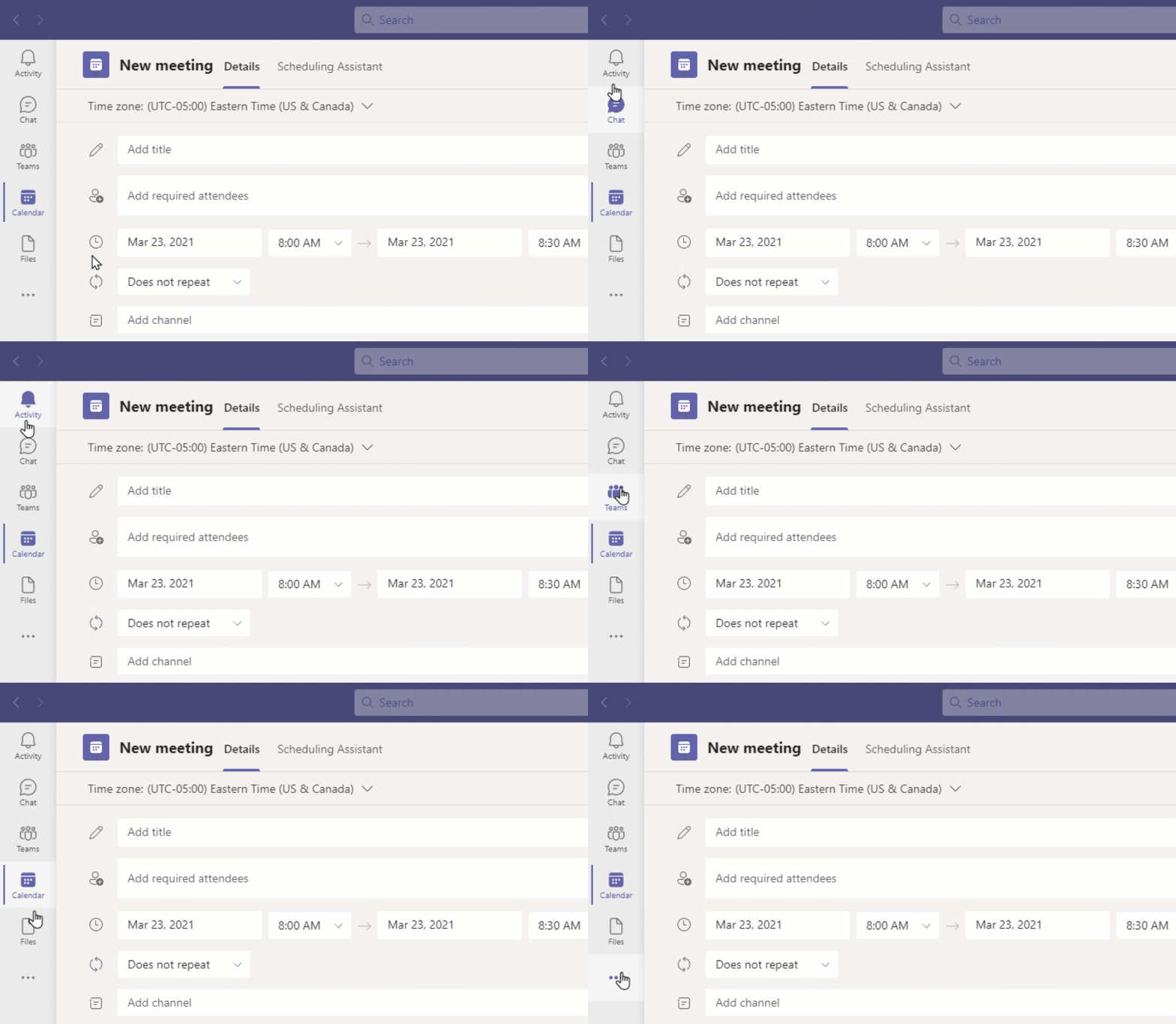
If you recall, the previous versions of Teams had a kind of blue background. The new look features a lighter theme, still within the blue hues, but it's easier on the eyes, at least in my opinion. One example is the left sidebar which is now light background with blue icons:
Make sure you have the latest version of Teams
Just to make sure you get the latest version, make sure you go to the top-right hand corner and check for updates. If you need to, update Teams and then restart it. I've had it in the past when simply singing out and singing in after an update didn't refresh everything so you need to actually quit Teams, from the bottom-right notification area in Windows, click the Teams icon and Quit. Then restart it and you should have the latest edition with the new look. The version I'm using in this video is 1.4.00.7174 from 3/18/2021.
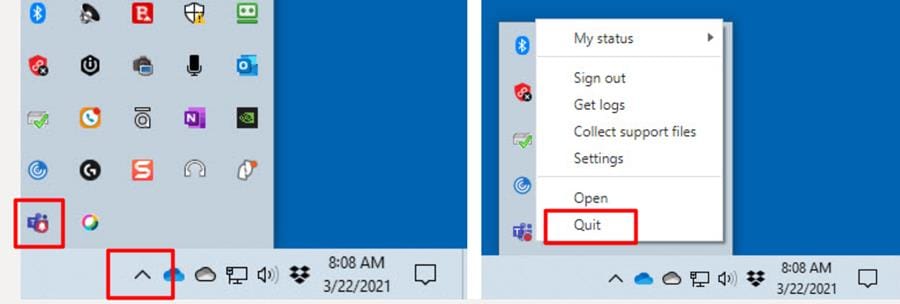
Sometimes you have to quit Microsoft Teams instead of just signing out, in order to apply the updates
Back and forward buttons added
When I work in Teams during the day, I jump around to various areas, teams, sections, calendars, tabs, chat windows and so on. It can get hard to figure out where you are or where you've been. Now Teams added 'back' and 'forward' navigation arrows in the top-left corner of the window.

Teams has back and forward arrows to help with navigation through your history
Clicking these arrows moves you **back and forward** but if you don't want to click multiple times, you can just hover these arrows and Teams will show you a **recent history of places you've been in Teams** so you can just jump directly to them:
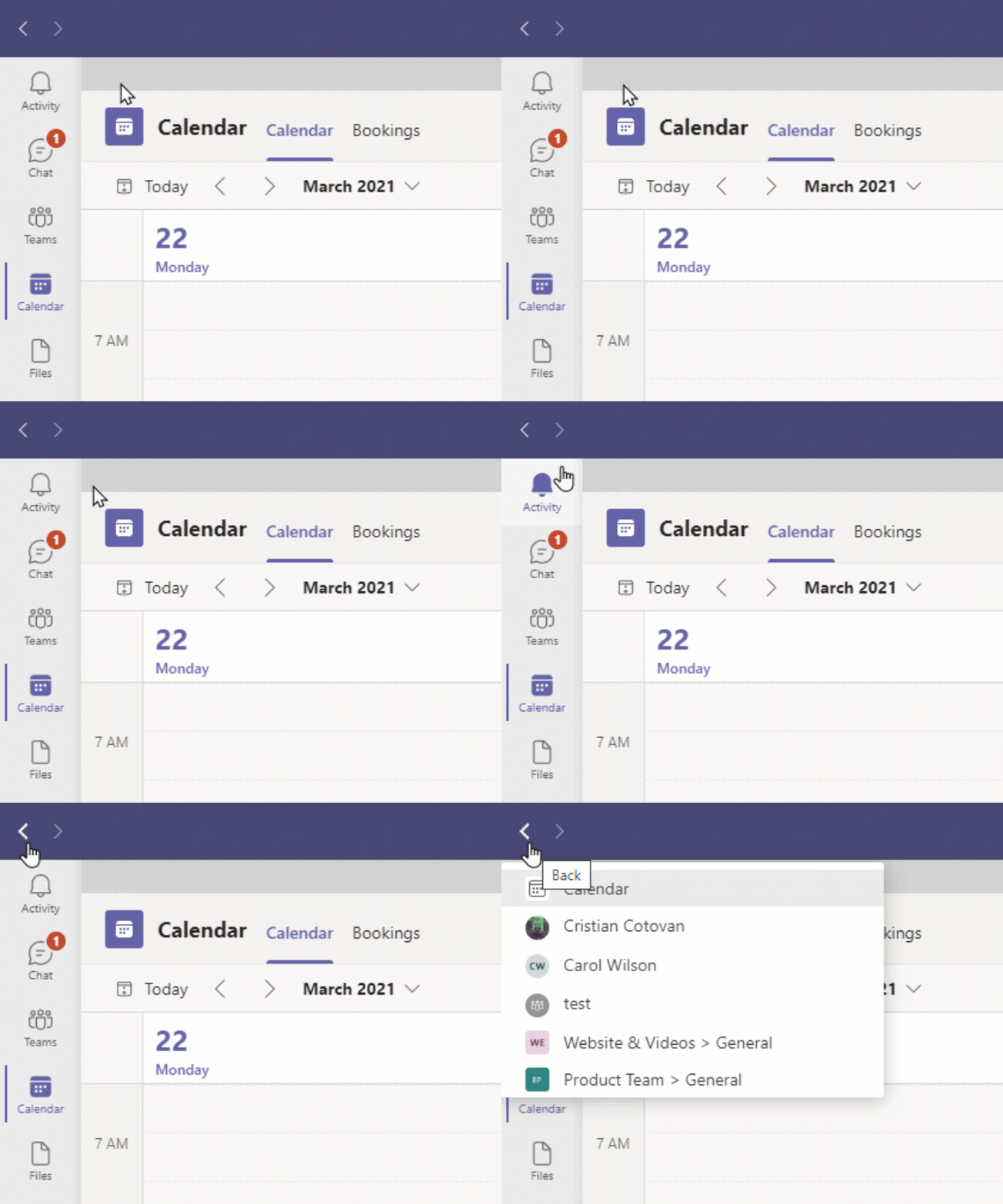
Easy access to organizations you're part of
If you've been invited to various organizations, there used to be a drop-down next to your name and profile picture in Teams, so you can switch to other organizations. But now, that list has been moved inside the top-right menu, under 'Accounts & organizations'. Clicking this menu item will show a list of companies or organizations you're part of so you can easily switch between the organizations you're a member of.
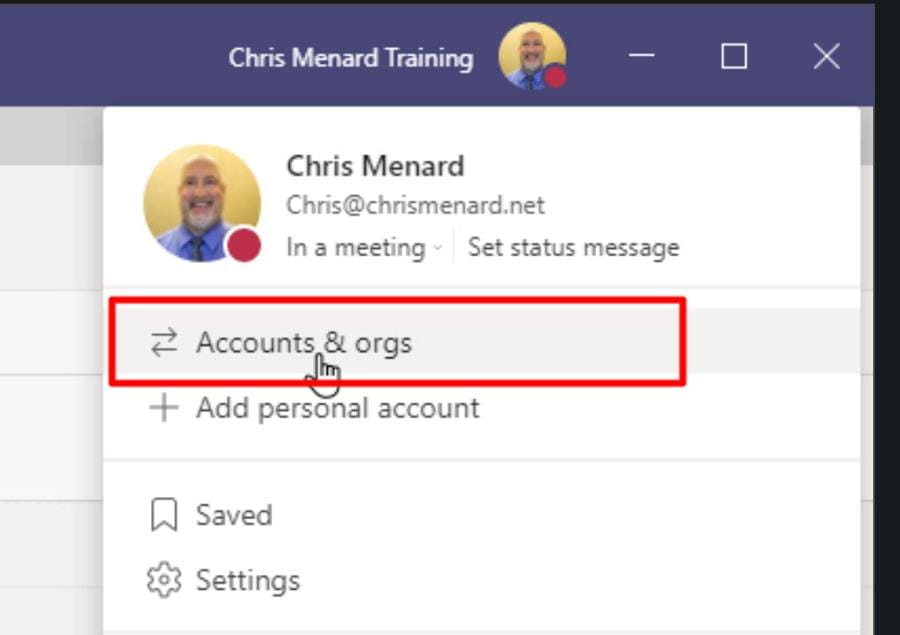
**Accounts and organizations** in Teams has been moved under the profile menu
Meetings and calendar integration with Outlook
You have the 'Meet now' button if you are in the calendar, on the top-right hand side. But if you're in Outlook on the desktop and you go to Calendar, the 'Meet now' button there is the same.
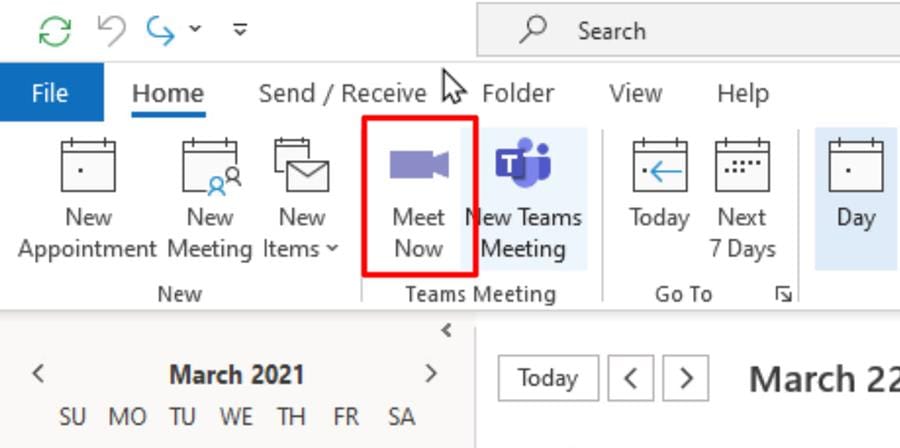
Meet Now button in Outlook Calendar has the same functionality as the Calendar view in Teams
Pre-meeting screen invite options
If you start a meeting, either from Teams 'Meet now' or Outlook 'Meet now', you get an 'Invite' pane after you choose your meeting options (such as microphone, camera, etc.).
This Invite pane allows you to invite other people to join your meeting, right before you start it.
- You can copy the meeting link - Add participants by name or email - Send an invite via email, right from this start screen ahead of your meeting.
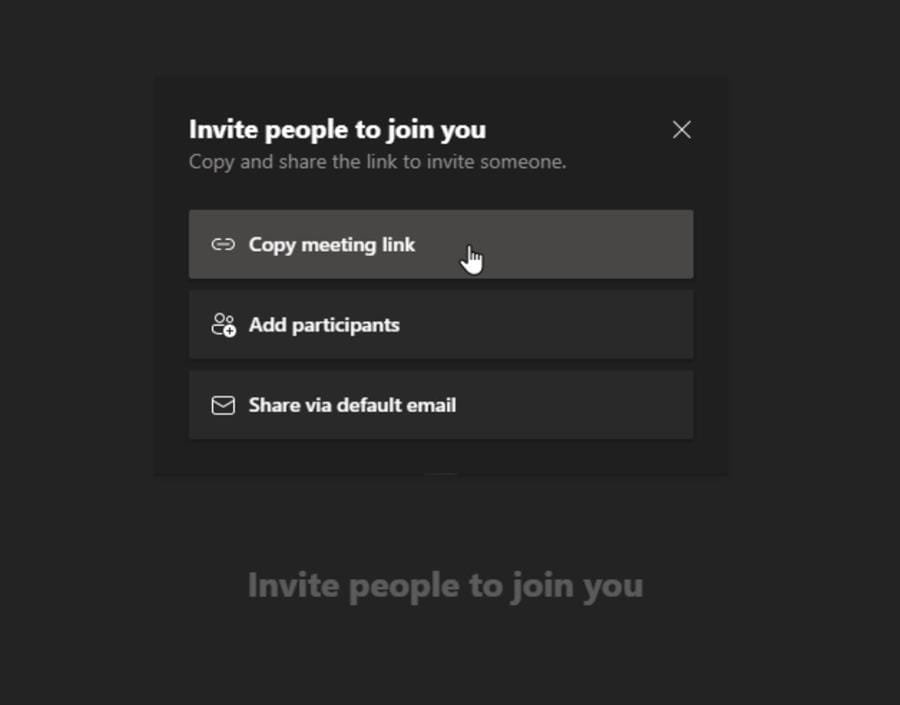
Invite others to your meeting right before starting your Teams meeting
Add online meeting to all meetings in Outlook automatically
If you're using Outlook for the desktop, you can start a meeting manually or from the calendar, but if you find that you want to add online meetings to all your calendar meetings, you had to do it manually.
To activate "Add online meeting to all meetings":
1. Go to Outlook **Options** 2. Switch to the **Calendar Options** group 3. Tick the box next to " **_Add online meeting to all meetings_**"
As soon as you activate that, every meeting you schedule will have an online meeting request created for it automatically, so you won't have to click meeting every time.
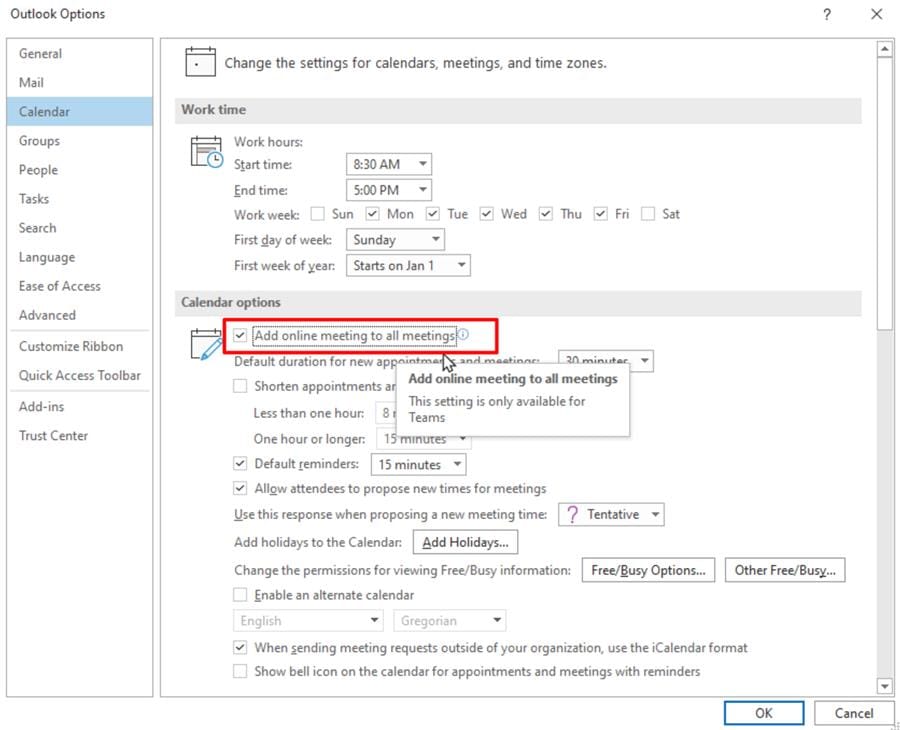
"Add online meeting to all meetings" is now an option in Outlook Calendar
Even if you have this option activated, suppose you have a meeting that you don't want to have an online meeting for, from the meeting invite screen, you can click " _Settings_" and " _Don't Host Online_", which will remove the online meeting invitation from your meeting.
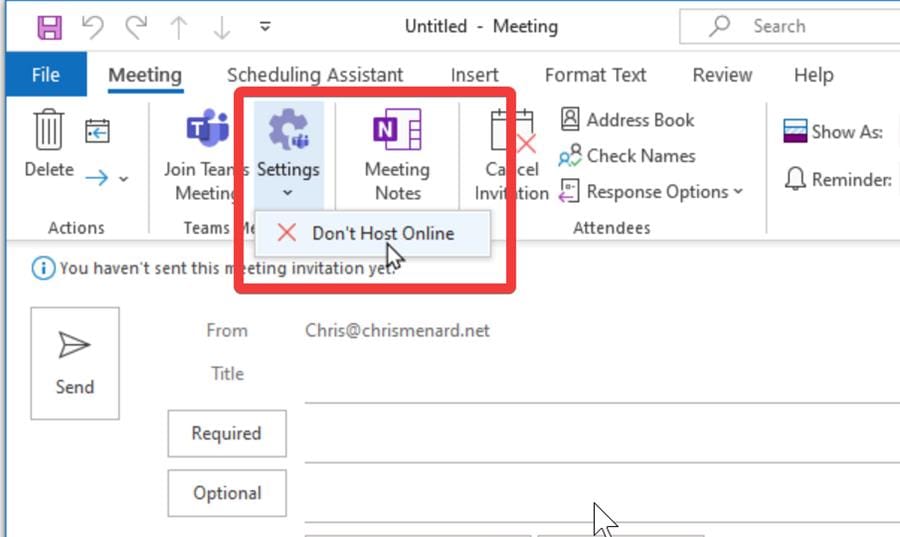
Make an exception from ' _Always meet online_' by switching off Teams Meeting when you schedule a new one in Outlook Calendar
Improved dark and high-contrast mode
Finally, with this new Microsoft Teams look, you also get updated themes for Dark and High contrast.
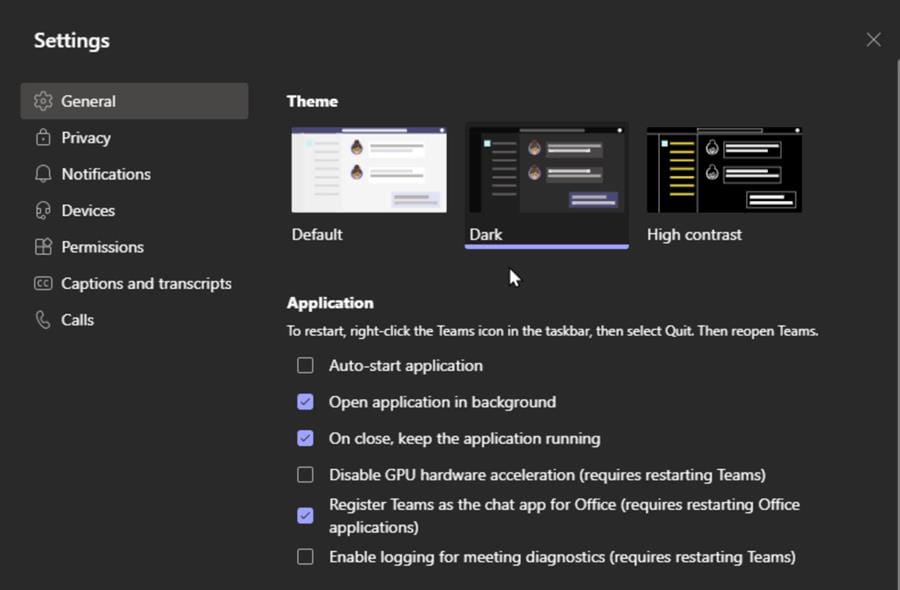
Dark mode and High contrast mode in Microsoft Teams have also changed slightly with the new look
Watch these updates demonstrated in my video belowwhere I have a lot of tutorials, tips and tricks and updates.
Microsoft Teams LATEST UPDATES, new features in new look | MARCH 2021
|