How to Split Date and Time in Excel with the INT Function: Chris Menard Training

In this blog post, we'll explore how to separate the date and time in Microsoft Excel when they're combined in a single cell. We'll use the powerful INT function to extract the date and time components, providing a step-by-step guide to help you master this useful Excel technique.
Introduction to Separating Date and Time in Excel
Splitting date and time in Excel is a common task for many professionals. Whether you're analyzing logs, scheduling, or simply organizing data, understanding how to separate these two components can significantly enhance your Excel skills.
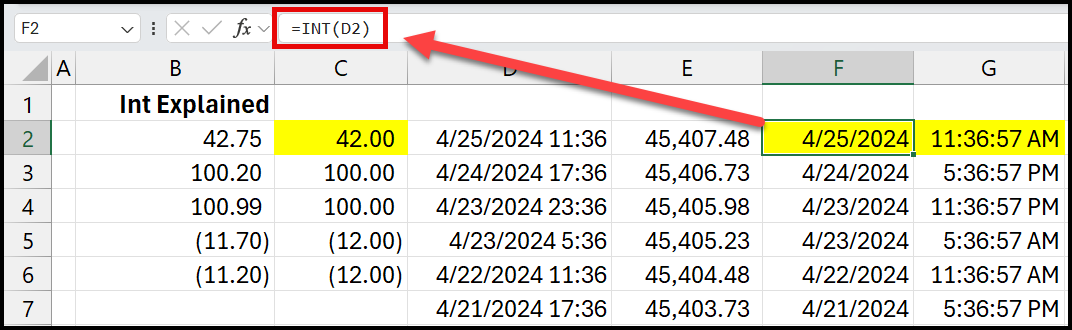
Spilt date and time in Excel - Date is in F2
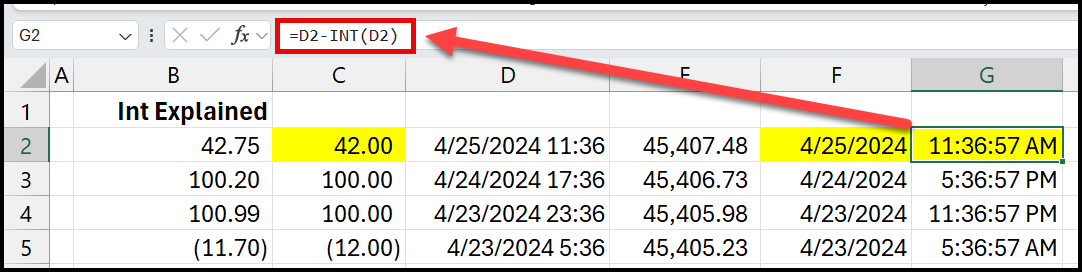
Split date and time in Excel - time is in cell G2
Understanding the INT Function
The INT function is a powerful tool in Excel that rounds down a number to the nearest integer. This function plays a crucial role when we need to extract just the date from a date-time combination.
How the INT Function Works
The INT function takes a decimal number and truncates it to a whole number. This feature is particularly useful because Excel stores dates as whole numbers. For instance, the integer part of a date-time value represents the date, and the fractional part represents the time.
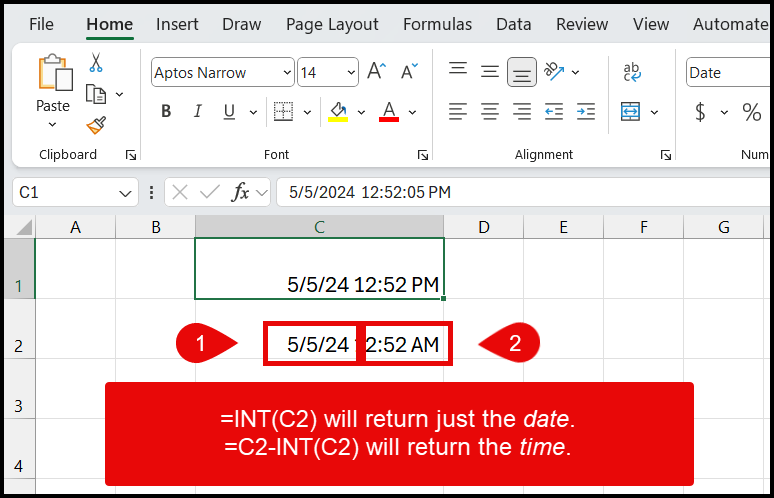
**INT Function for Date and Time**
Video - Split date and time with INT Function in Excel
How to Split Date and Time in Excel with the INT Function
INT Function to extract the date
Extracting dates from a date-time combination in Excel is straightforward with the INT function. Let's dive deeper into how to accomplish this.
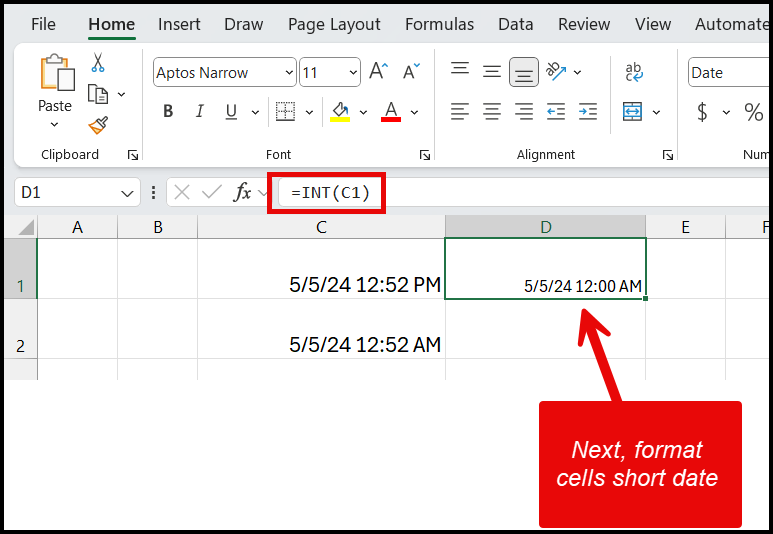
INT Function to get the date
If the date and time are in cell C1, in D1 type =INT(C1). The date will show with the time as 12:00 am, which is OK. Click drop-down in the number group and selecr Short Date.
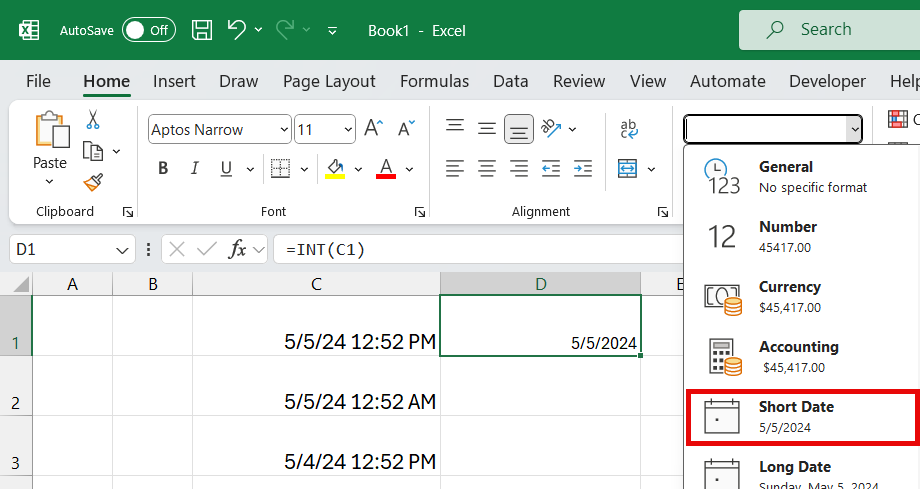
Short Date
INT function to Extract the Time
After successfully extracting the date, you might wonder how to isolate the time component. The process involves a similar use of the INT function but with a slight twist.
To extract time, we utilize the decimal part of the date-time number. Since time in Excel is represented by the fractional part of a number, subtracting the integer (date) part from the original date-time value leaves us with just the time.
1. Start with the original date-time value. 2. Subtract the INT of that value to isolate the time. 3. Format the result as a time to display it correctly.
This method ensures that you can separate time from the date-time combination efficiently, which is useful for time-specific analyses or scheduling tasks.
If the date and time are in cell C1, in E1 type =C1-INT(C1). The date will show with the time Format the time.|