How to Handle Excel Data with Manual Totals Using PivotTables and GROUPBY


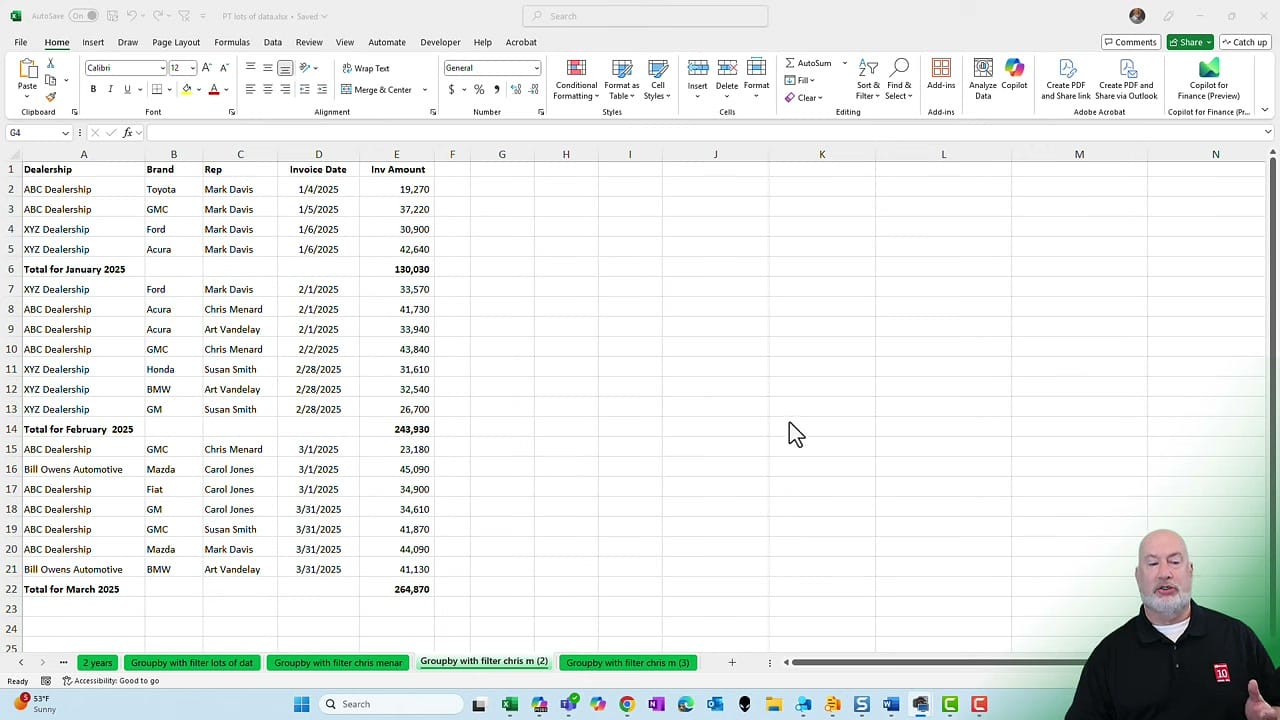
If someone sends you Excel data where they have manually added total rows for each group, it causes real problems with PivotTables, sorting, and filtering. Here are three ways to handle it.
YouTube Video
Method 1: PivotTable with Filtering
Insert a PivotTable from the data (Insert → PivotTable). Add Rep to Rows and Invoice Amount to Values. The PivotTable initially picks up blank rows generated by the manual totals, inflating the numbers.
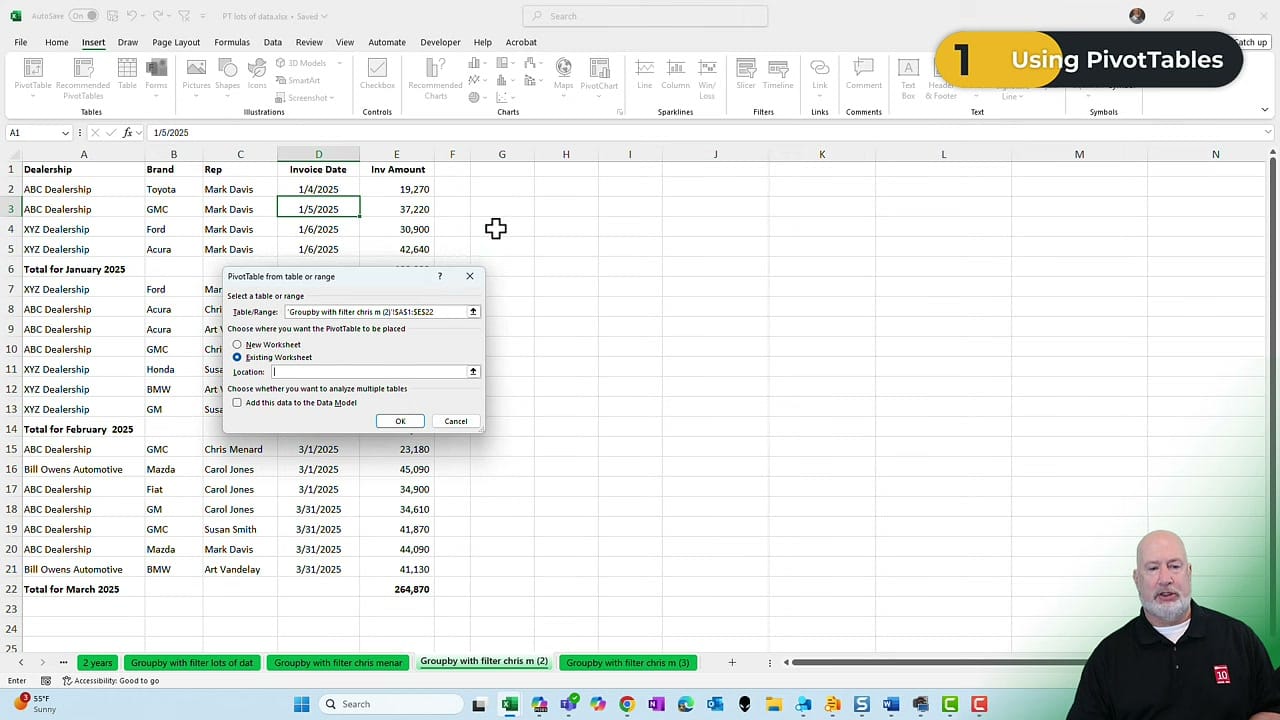
To fix this, filter the PivotTable: click the Row Labels dropdown, uncheck (Blanks), and click OK. The totals are now correct because the blank/total rows are excluded. You could also use a slicer to achieve the same filtering.
Method 2: GROUPBY Function with Filter
The GROUPBY function groups data and applies an aggregate. The basic syntax requires three arguments: =GROUPBY(row_fields, values, function). Without filtering, it produces the same inflated Grand Total of 638,830.
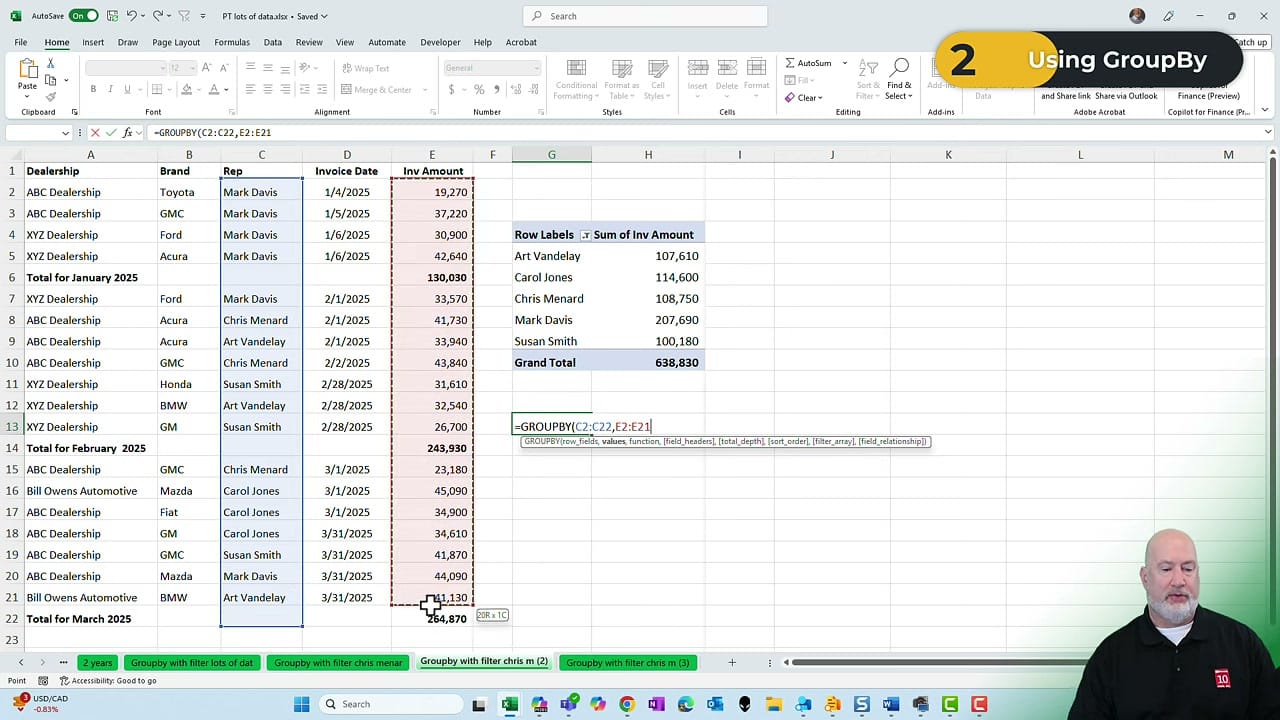
To filter out blanks, use the optional filter_array argument (the 6th parameter). Skip arguments 4 and 5 with commas, then add C2:C22<>"" to exclude rows where the Rep column is blank. The filtered GROUPBY produces the same correct totals as the filtered PivotTable.
Bonus: Remove the Total Rows Entirely
The cleanest approach is to eliminate the manual total rows before doing any analysis. Make a copy of the worksheet first, then:
- Select the Invoice Amount column (the one with the SUM formulas).
- Go to Home → Find & Select → Formulas. This selects only cells containing formulas.
- Press Ctrl+Minus on the main keyboard and choose Entire row.
- Click OK — all the manual total rows are deleted.
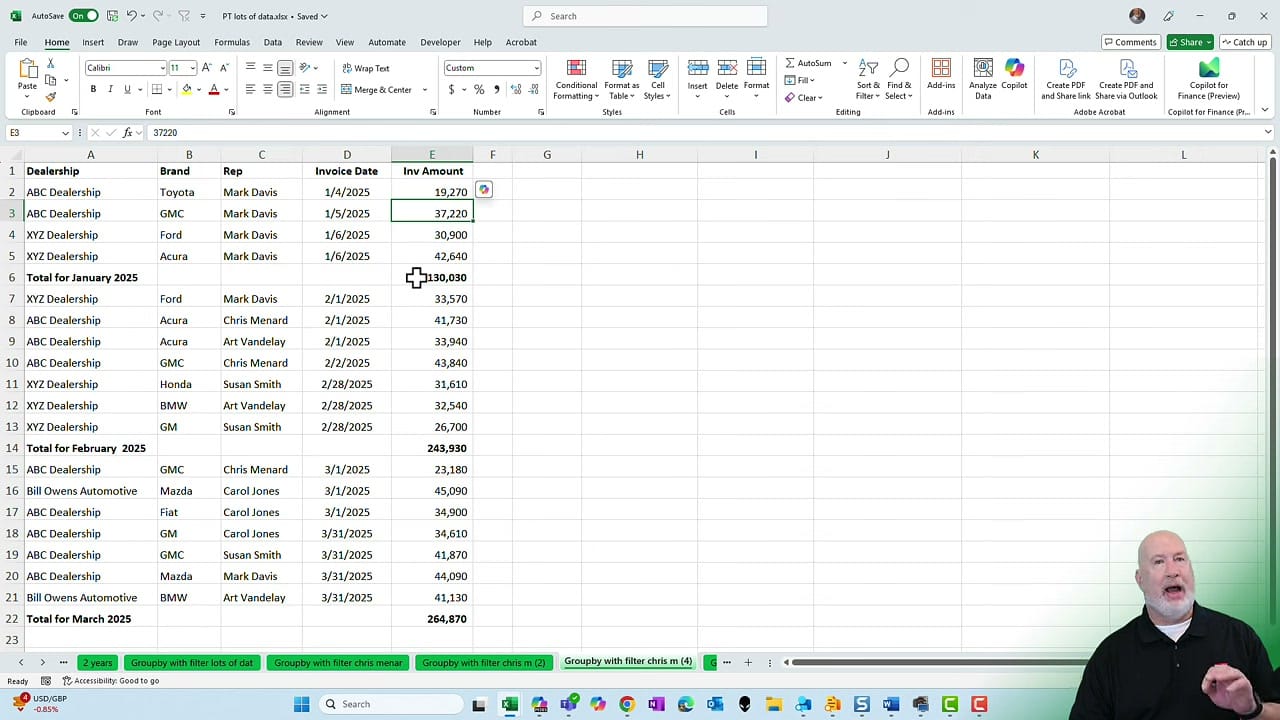
Now PivotTables and GROUPBY work correctly without any filtering, and you can safely sort and filter the data.
Why Manual Totals Cause Problems
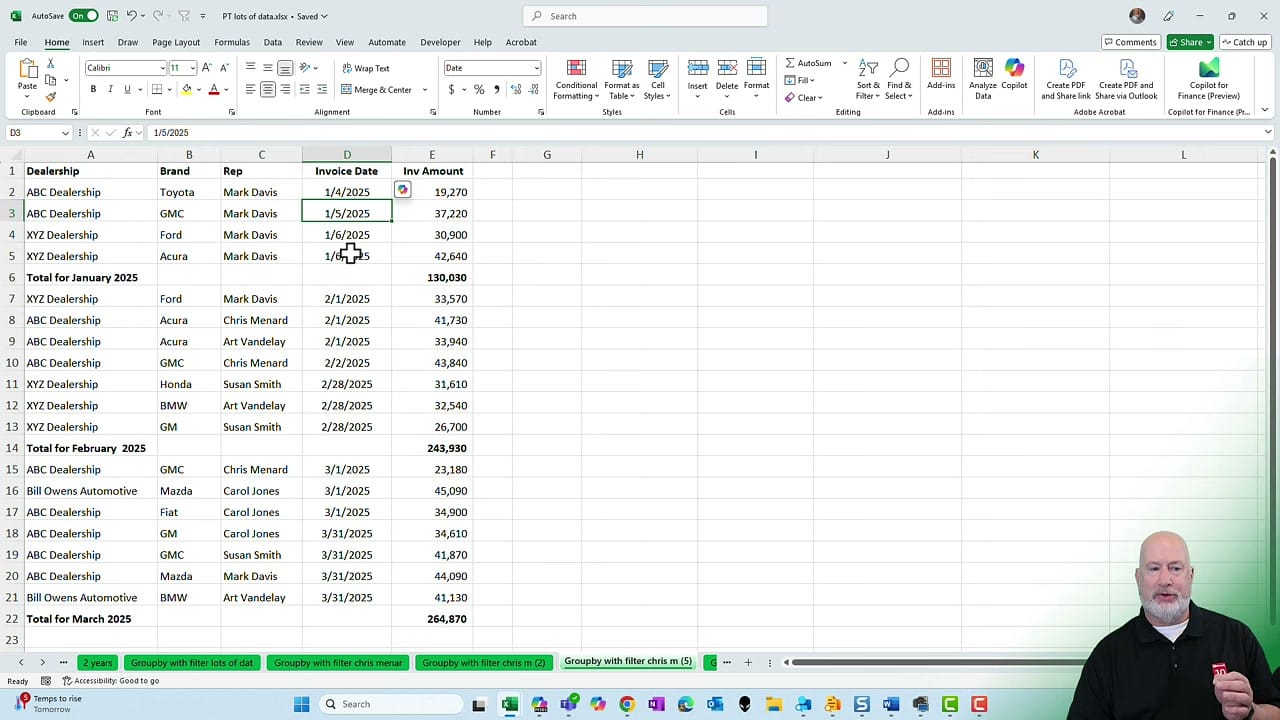
When you sort data that contains embedded total rows, the SUM formulas no longer reference the correct cells — all totals become wrong. Filtering also exposes unwanted blank rows. Cleaning the data up front avoids both issues.
Want to learn more? Visit courses.chrismenardtraining.com for online training courses.
Popular Articles
 Chris Menard
 Chris Menard
 Chris Menard