
How to Export and Import Quick Access Toolbar Settings in Word, Excel, and PowerPoint


If you've spent time customizing your Quick Access Toolbar in Word, Excel, or PowerPoint, you should back it up. Microsoft Office updates can occasionally reset your toolbar, and without a backup you'll have to rebuild it from scratch. The export/import feature lets you save your customizations to a file and restore them whenever needed.
Accessing the Quick Access Toolbar Settings
Click the small dropdown arrow at the end of the Quick Access Toolbar and select More Commands... This opens the customization dialog where you can add, remove, and reorder commands. With over 1,700 commands available in Word alone, a customized toolbar is a significant time investment worth protecting.
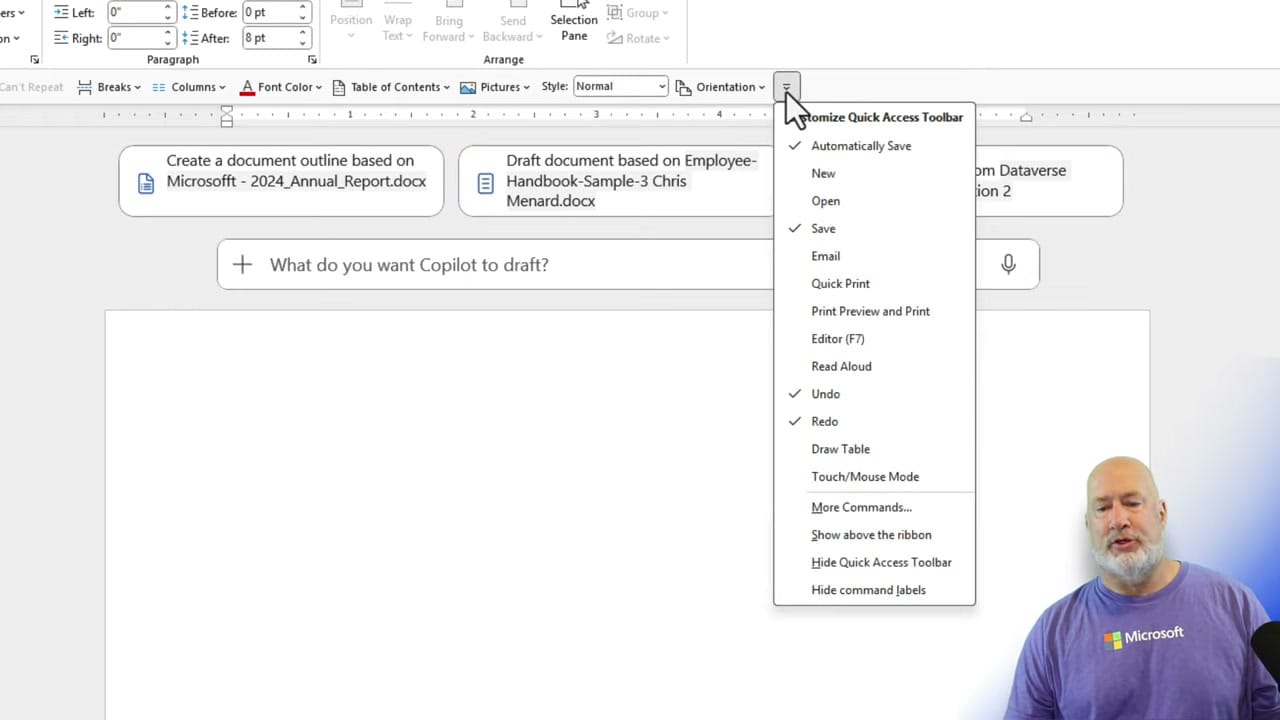
Customizing Your Toolbar
The Word Options dialog shows all available commands on the left and your current toolbar on the right. Click Add >>> to move commands to the toolbar, or << Remove to take them off. You can also reorder commands using the up/down arrows.

Exporting Your Customizations
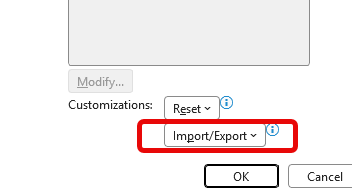
At the bottom of the customization dialog, click Import/Export and choose Export all customizations. This saves a .exportedUI file containing your toolbar and ribbon customizations. Save it to OneDrive for the safest backup — that way, you can access it from any machine.
Importing (Restoring) Your Customizations
To restore, go back to the same Import/Export menu and select Import customization file. Browse to your saved .exportedUI file and click Open. Your toolbar is instantly restored.
If you ever want a fresh start, click Reset to return to the default toolbar, then import your saved file.
Important Notes
- Each app is separate — You need to export from Word, Excel, and PowerPoint individually. Each has its own Quick Access Toolbar settings
- Save to OneDrive — Storing the backup file in the cloud means you can restore it on a new machine or after a reinstall
- Ribbon customizations included — The export file saves both toolbar and ribbon customizations
- Desktop only — This applies to the desktop versions of Word, Excel, and PowerPoint, not the web apps
Related guides
 Chris Menard
 Chris Menard
 Chris Menard
Want to learn more? Visit courses.chrismenardtraining.com for online training courses.



