
How to Customize the Windows System Tray: Keyboard Shortcuts and Settings

The Windows system tray (notification area) sits in the bottom-right corner of your taskbar, and most people never customize it. By default, many useful icons are hidden behind the caret (^) arrow, making them harder to access. With a few quick changes, you can keep your most-used apps visible and use keyboard shortcuts to access notifications and quick settings instantly.
YouTube Video
What Lives in the System Tray
The system tray displays icons for background applications and system functions. You'll typically see icons for:
- Network/Wi-Fi — Connection status and network settings
- Volume — Audio output control
- Battery (laptops) — Power status
- OneDrive — Cloud sync status
- VPN — Connection status (NordVPN, etc.)
- Date and time — Click to open the calendar widget
Click the caret (^) arrow to see hidden icons. Any icon you use frequently should be promoted to always-visible status.
Keyboard Shortcuts for the System Tray
Two keyboard shortcuts give you fast access to the system tray area:
- Windows + N — Opens the Notification Center (calendar and notifications panel)
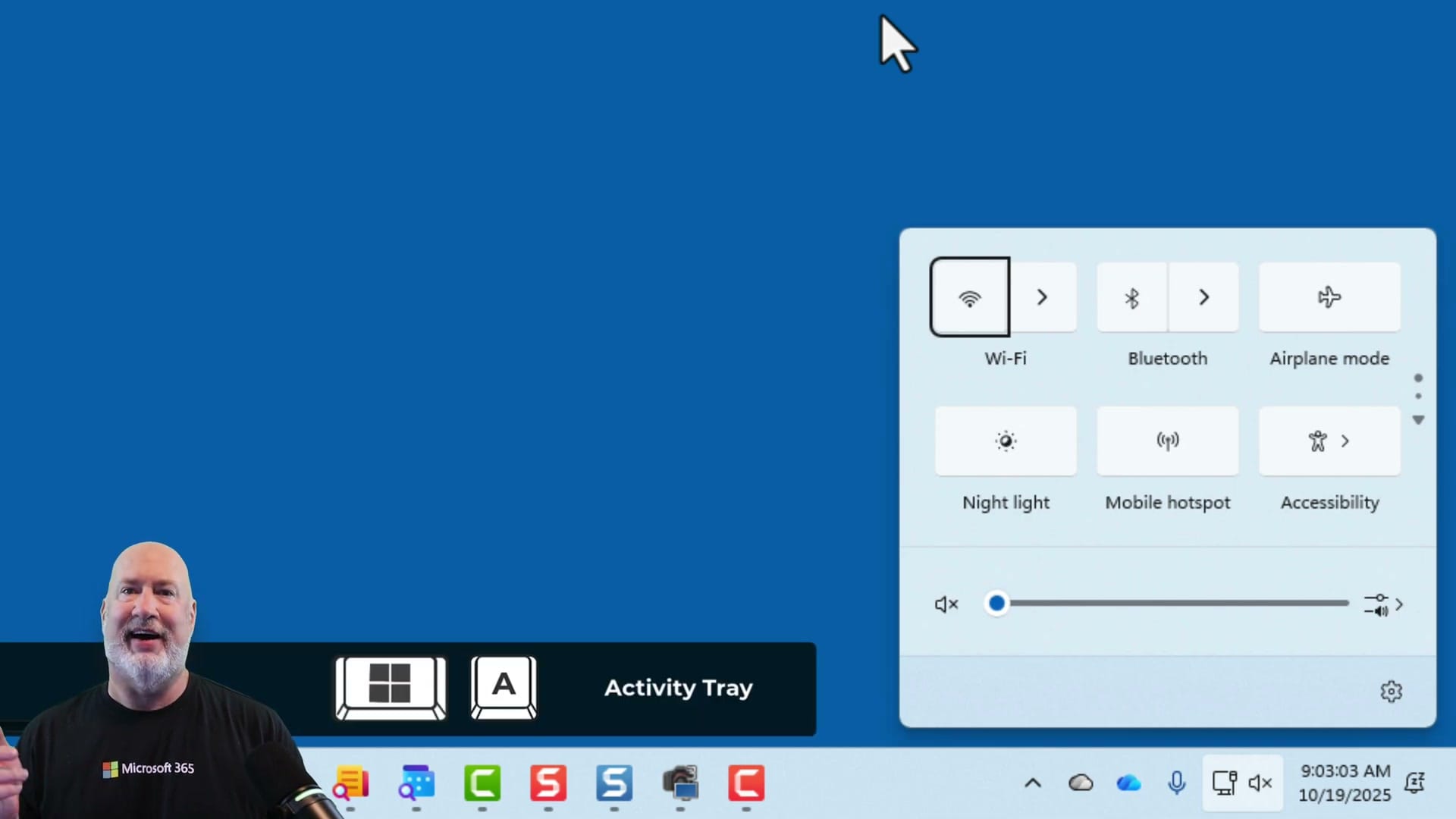
- Windows + A — Opens Quick Settings (Wi-Fi, Bluetooth, Airplane mode, Night light, volume slider)
Customizing System Tray Icons in Settings
To control which icons appear in the system tray, right-click the taskbar and select Taskbar settings. Scroll down to the System tray icons section, then expand Other system tray icons.
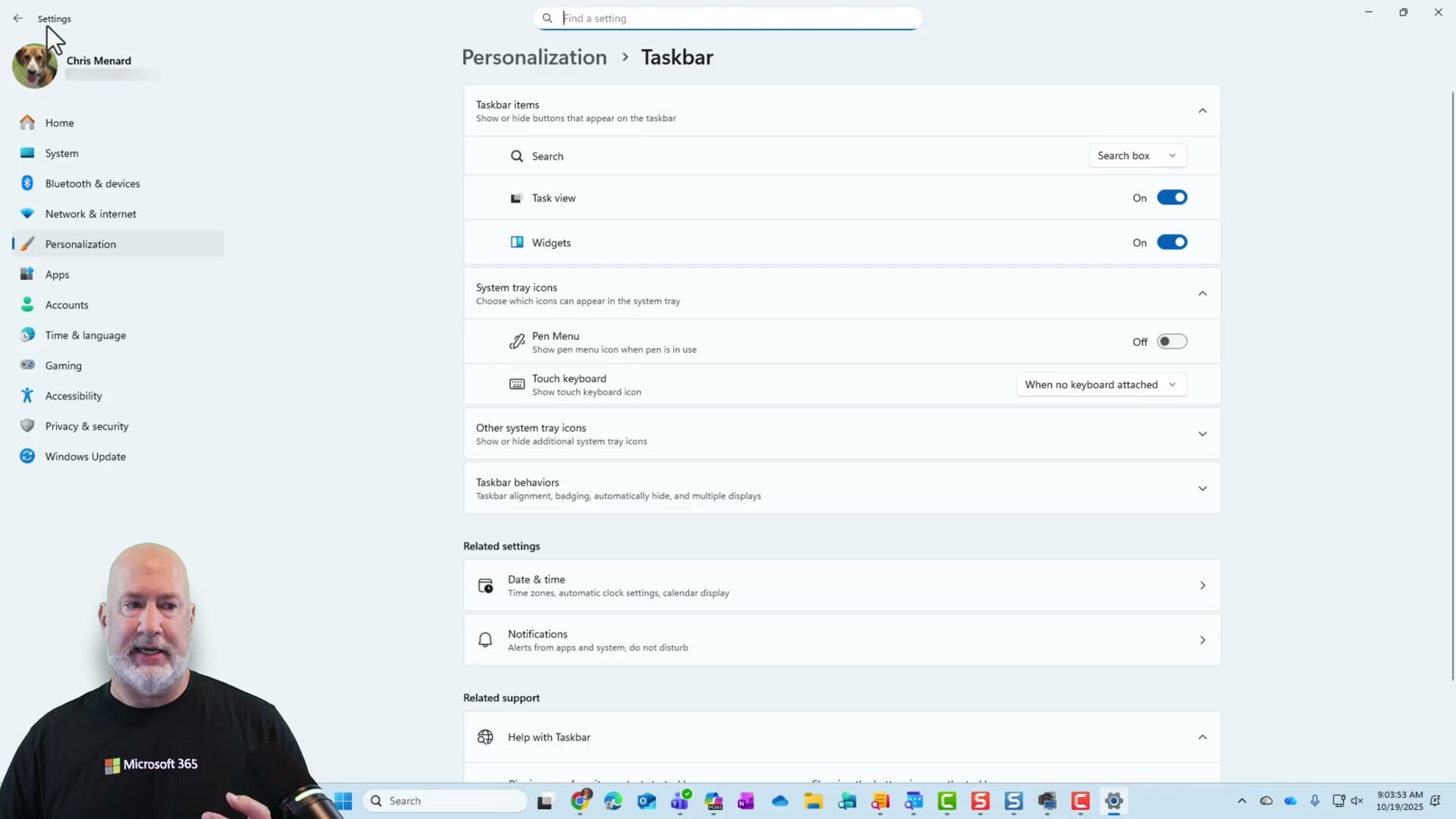
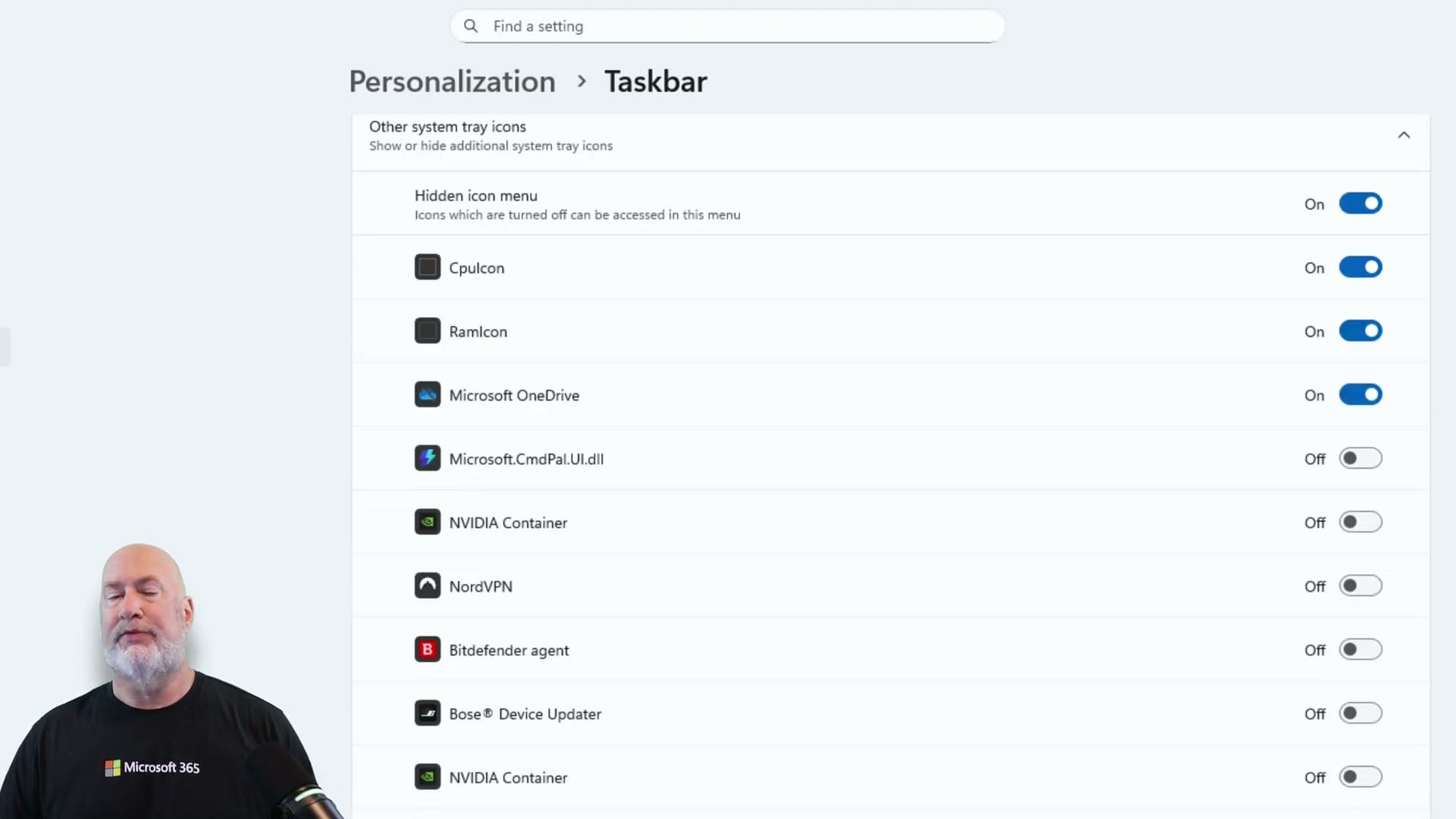
Here you'll see a list of all applications that can show icons in the system tray. Toggle each one On or Off:
Drag and Drop Method
There's an even faster way to customize the system tray: drag and drop. Click the caret (^) to reveal hidden icons, then drag any icon from the hidden area directly onto the visible system tray. To hide an icon, drag it back to the hidden area. This is quicker than navigating through Settings for a single change.
Tips for an Organized System Tray
- Keep OneDrive visible if you use cloud storage — the sync status icon helps you know when files are uploading
- If you use a VPN, keep its icon visible so you can quickly see connection status
- Hide icons for apps you rarely interact with directly (GPU monitoring, updaters, etc.)
- The Hidden icon menu toggle in Settings controls whether the caret (^) appears at all — turn it Off to show every icon in the tray
 Chris Menard
 Chris Menard
 Chris Menard
 Chris Menard
Want to learn more? Visit courses.chrismenardtraining.com for online training courses.



