How to Clean Messy Data in Excel with Agent Mode and One Prompt


Excel's desktop version now has Agent Mode in Copilot, and it is incredible. I've already used it to build a complete dashboard automatically, and now I want to show you how it can clean messy data with a single prompt.
Identify the Data Problems
In this example, I have a Customers worksheet with 35 records, and the data has several issues that need fixing:
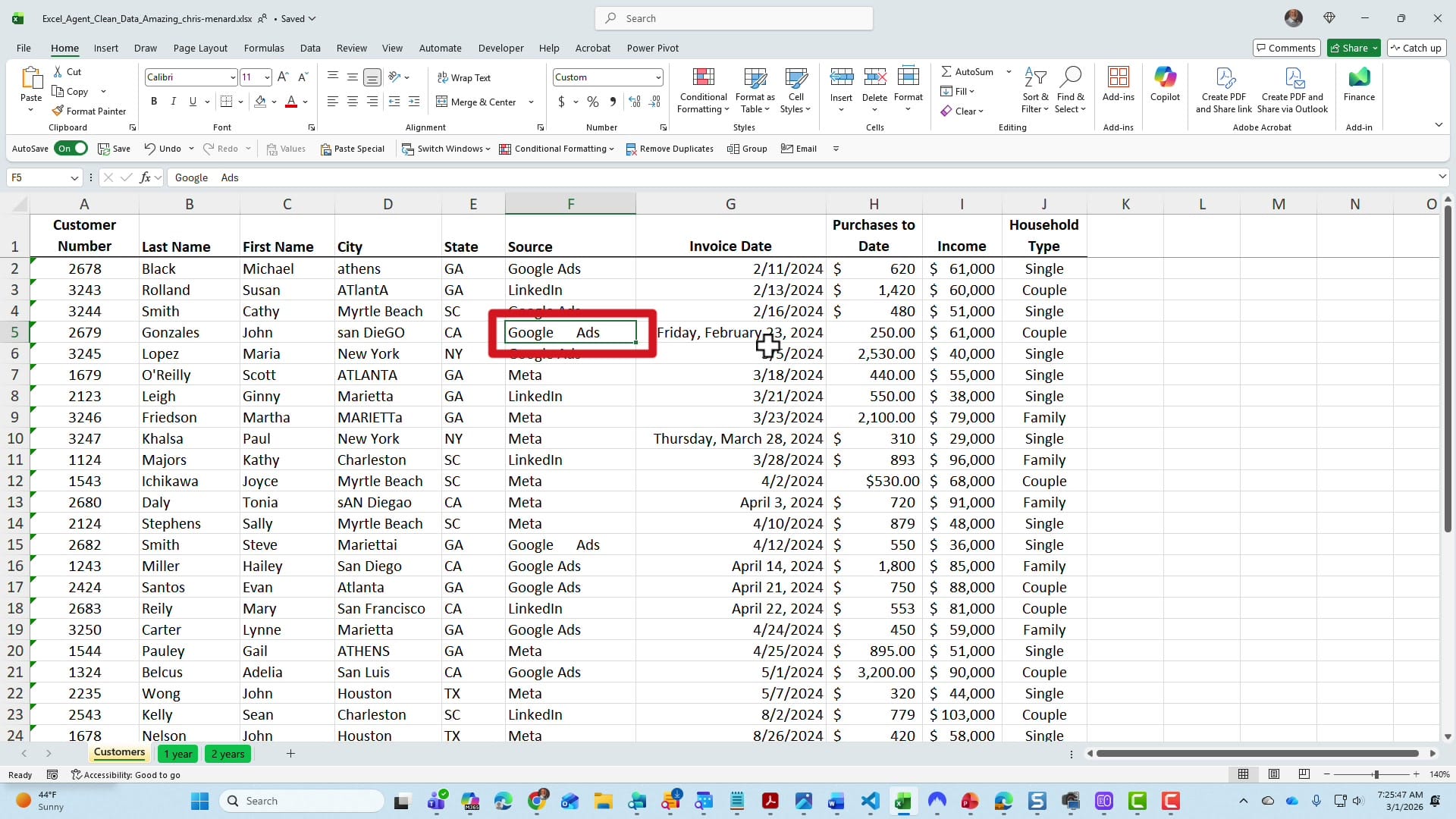
- Inconsistent capitalization in the City column — a mixture of all caps (ATLANTA), all lowercase (athens), and mixed case. The goal is proper case for every city.
- Misspelled city names — for example, San Diego is misspelled in cell D13 as "sAN Diegao," and Marietta appears as "MARIETTa."
- Extra spaces in the Source column — "Google Ads" and "LinkedIn" have extra spaces between and after the words.
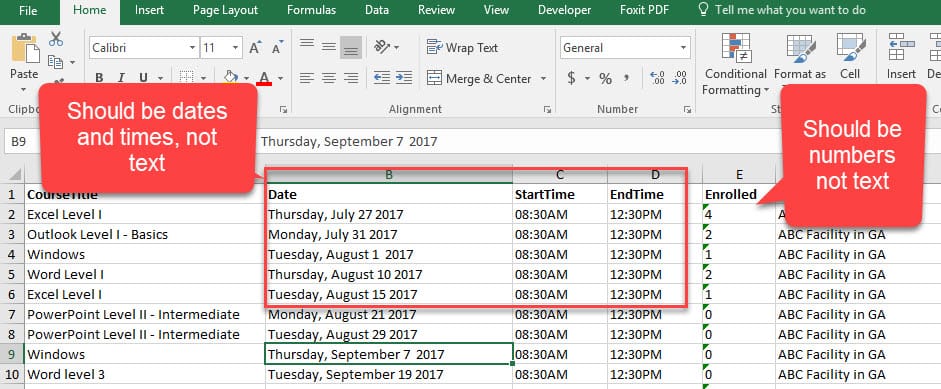
- Inconsistent date formats in Invoice Date — three different formats are mixed together: short dates like 2/11/2024, long dates like "Friday, February 23, 2024," and others like "Thursday, March 28, 2024."
- Unformatted numbers in Purchases to Date — the values need accounting format with zero decimal places.

Open Agent Mode via Copilot
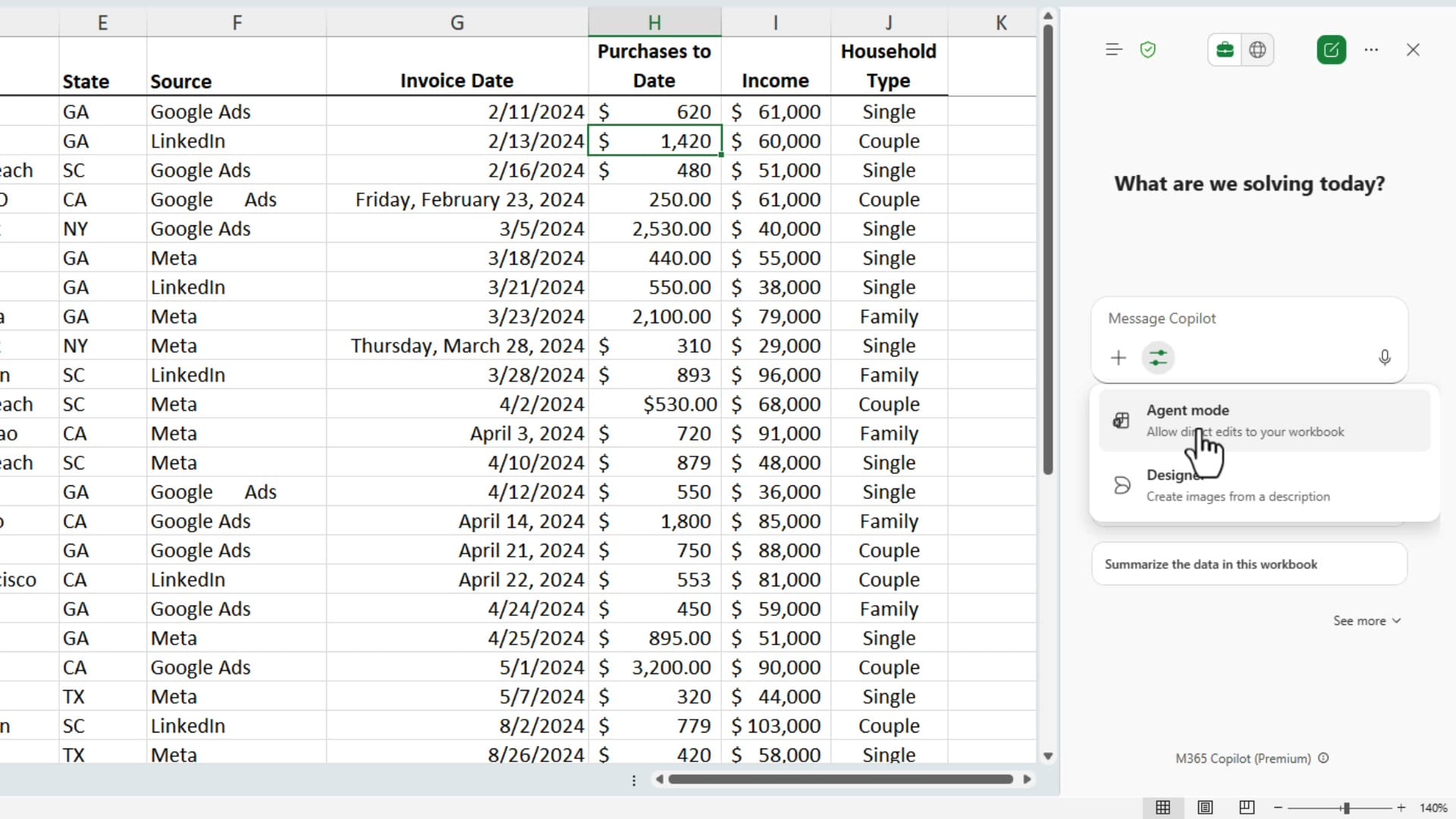
To access Agent Mode, click Copilot in the ribbon. When the Copilot pane appears on the right side, click Tools, then select Agent Mode. This gives Copilot the ability to make edits directly to your workbook — it's not just answering questions, it's actually doing the work.
Write the Prompt
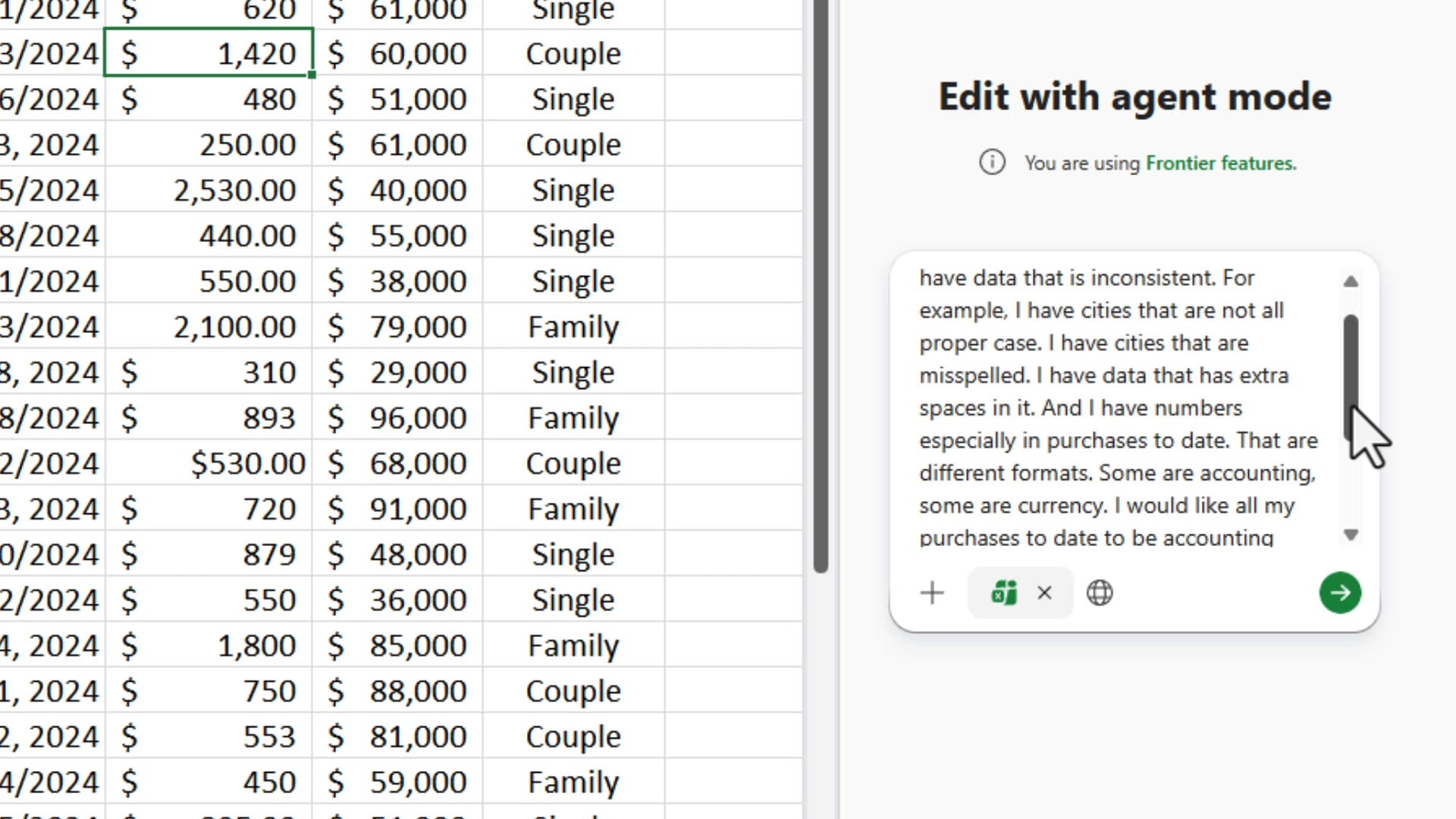
With Agent Mode active, I wrote a single prompt describing all the problems and what I wanted fixed:
On the worksheet called Customers, I have inconsistent data. I have cities that are not all proper case. I have cities that are misspelled. I have data that has extra spaces in it. And I have numbers especially in Purchases to Date that are different formats. Some are accounting, some are currency. I would like all my Purchases to Date to be accounting format with zero decimal places.
The key is to be specific about what's wrong and what you want. Mention the worksheet name, describe each problem, and state the desired format. Then click Send.
Review the Results
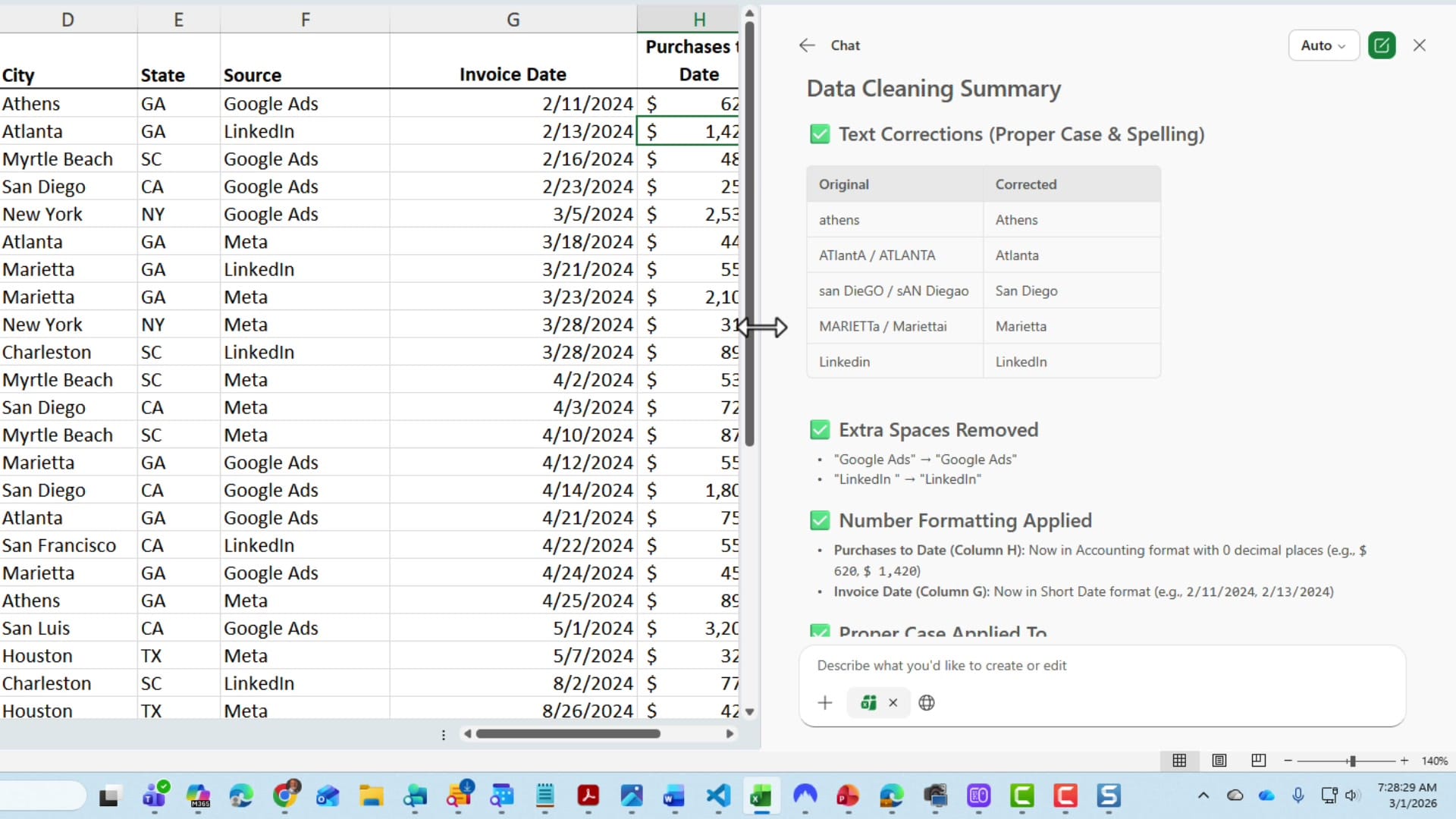
Agent Mode processes everything and provides a Data Cleaning Summary in the task pane. You can widen the pane and expand the reasoning to see exactly what it did. Here's what it accomplished:
- Text Corrections (Proper Case & Spelling) — It shows a table with the original value in the left column and the corrected value in the right column. "athens" became "Athens," "AtlantA / ATLANTA" became "Atlanta," "sAN DieGO / sAN Diegao" became "San Diego," and "MARIETTa / Marietta" was fixed to "Marietta."
- Extra Spaces Removed — "Google Ads" became "Google Ads" and "LinkedIn " (with trailing space) became "LinkedIn."
- Number Formatting Applied — Purchases to Date (column H) now uses accounting format with zero decimal places.
- Invoice Date (column G) — Standardized to short date format (e.g., 2/11/2024, 2/13/2024).
All 35 records were cleaned and standardized in one pass.
Compare Before and After
The difference is dramatic. Every city is now properly capitalized and correctly spelled, all extra spaces are gone from the Source column, dates follow a consistent short format, and the Purchases to Date numbers are in clean accounting format.
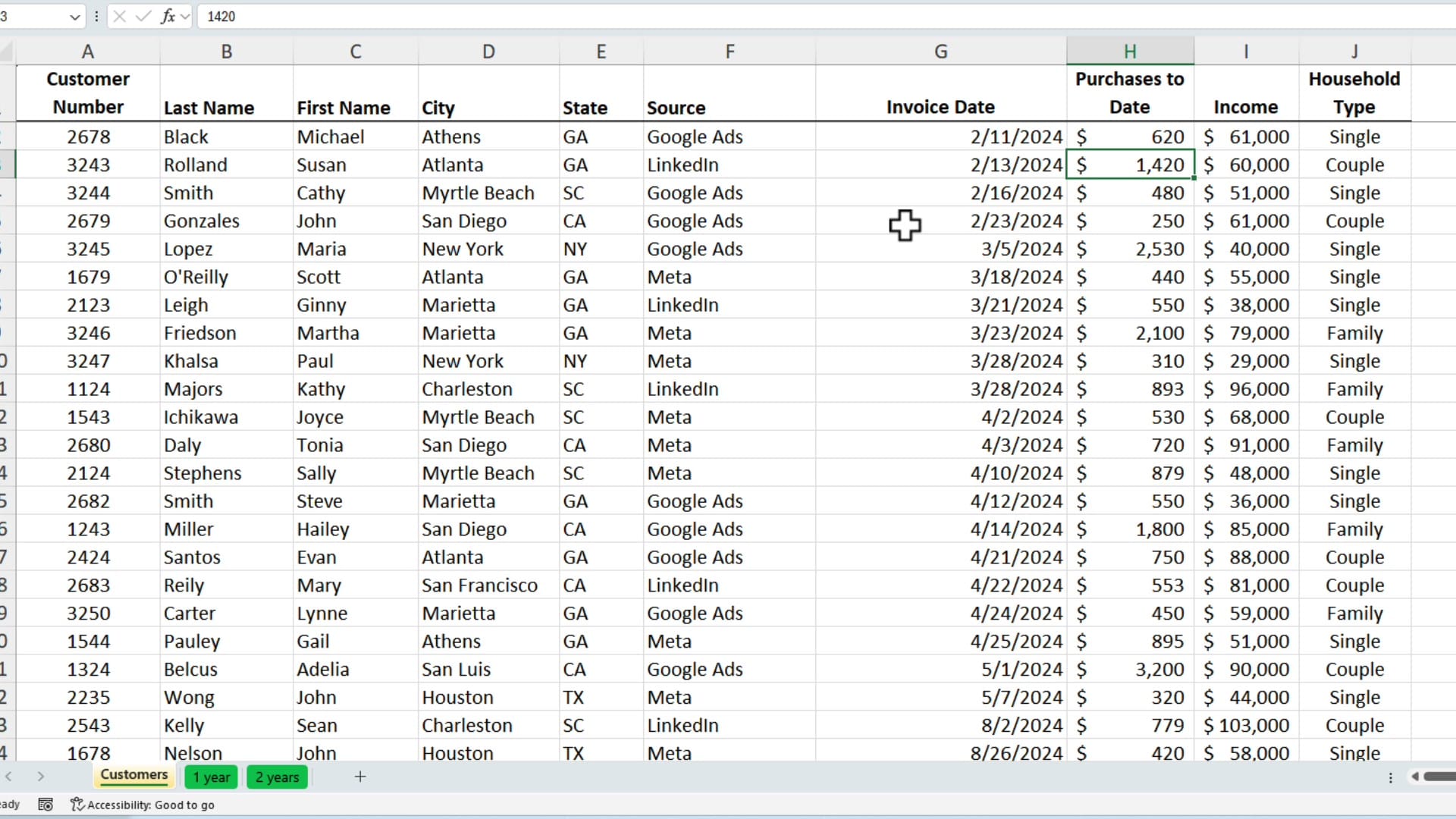
Agent Mode is fantastic for data cleanup tasks like this. Instead of writing multiple formulas or using Find & Replace across several columns, one well-written prompt handles everything at once.
Want to learn more? Visit courses.chrismenardtraining.com for online training courses.
Related Excel Tutorials
 Chris Menard
 Chris Menard
 Chris Menard
 Chris Menard
 Chris Menard