Excel Copilot Now Works on Local Files (Edit with Copilot)

Excel Copilot Now Works on Local Files (Edit with Copilot)


Microsoft 365 Copilot in Excel just received a meaningful update. What was previously called Agent mode is now called Edit with Copilot — and the big news is that it now works on local Excel files, not just files stored in OneDrive or SharePoint.

Open Edit with Copilot in Excel

Start by opening your spreadsheet in the desktop version of Excel. Click Copilot in the ribbon, then click Tools. You will see the option formerly known as Agent mode is now labeled Edit with Copilot. This renaming applies across Excel, Word, and PowerPoint — not just Excel.
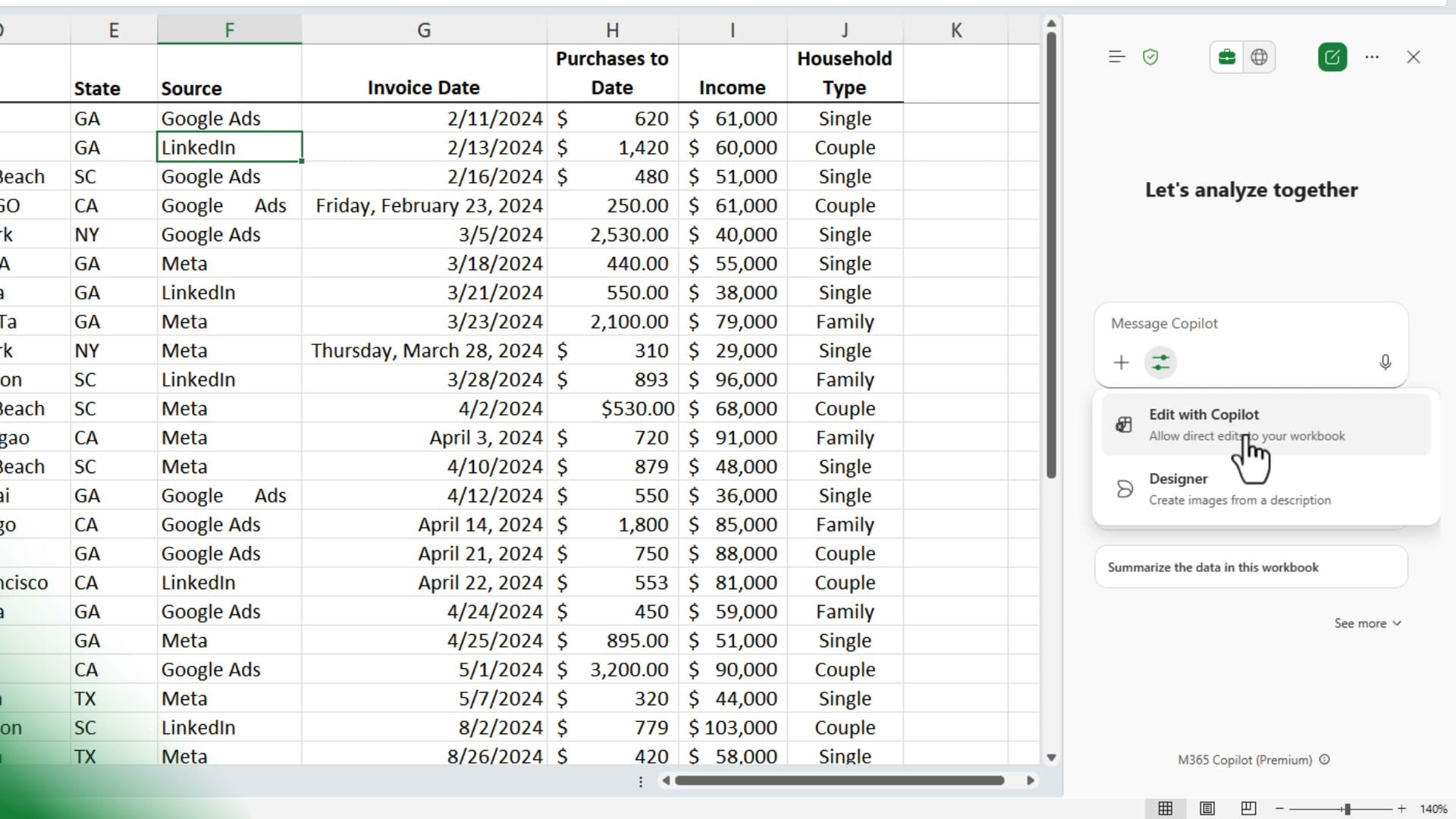
Copilot pane in Excel showing Edit with Copilot option that allows direct edits to workbook
Click Copilot in the ribbon, then select Edit with Copilot under Tools. This replaces what was previously called Agent mode.

Write a Data Cleanup Prompt

For this example, the worksheet has several data quality issues that need fixing: names in all uppercase (column C), inconsistent date formats including long-form dates like "Friday, February 23, 2024" (column G), purchase amounts that need accounting format with zero decimal places (column H), extra spaces in the Source column (column F), and misspelled words throughout.
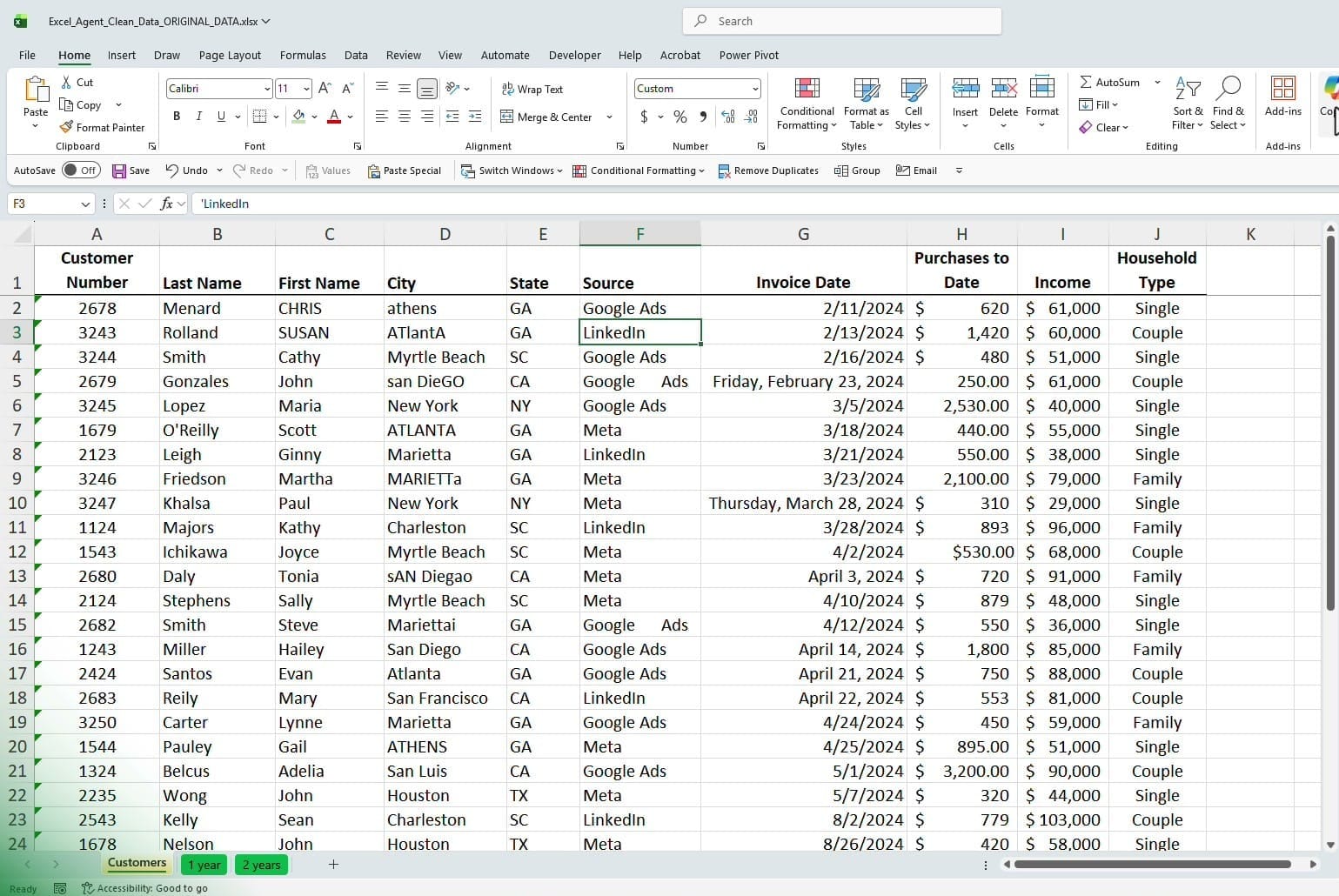
Excel spreadsheet with messy data including uppercase names, inconsistent date formats, extra spaces, and misspelled words
The original spreadsheet has several data quality issues: uppercase names, inconsistent date formats, extra spaces in the Source column, and misspelled words.

Rather than fixing each issue separately, you can write a single prompt that addresses everything at once. The prompt used here asks Copilot to convert text to proper case, standardize all dates to short date format (MM/DD/YYYY), format purchases as accounting with zero decimals, clean up extra spaces, and fix misspelled words.
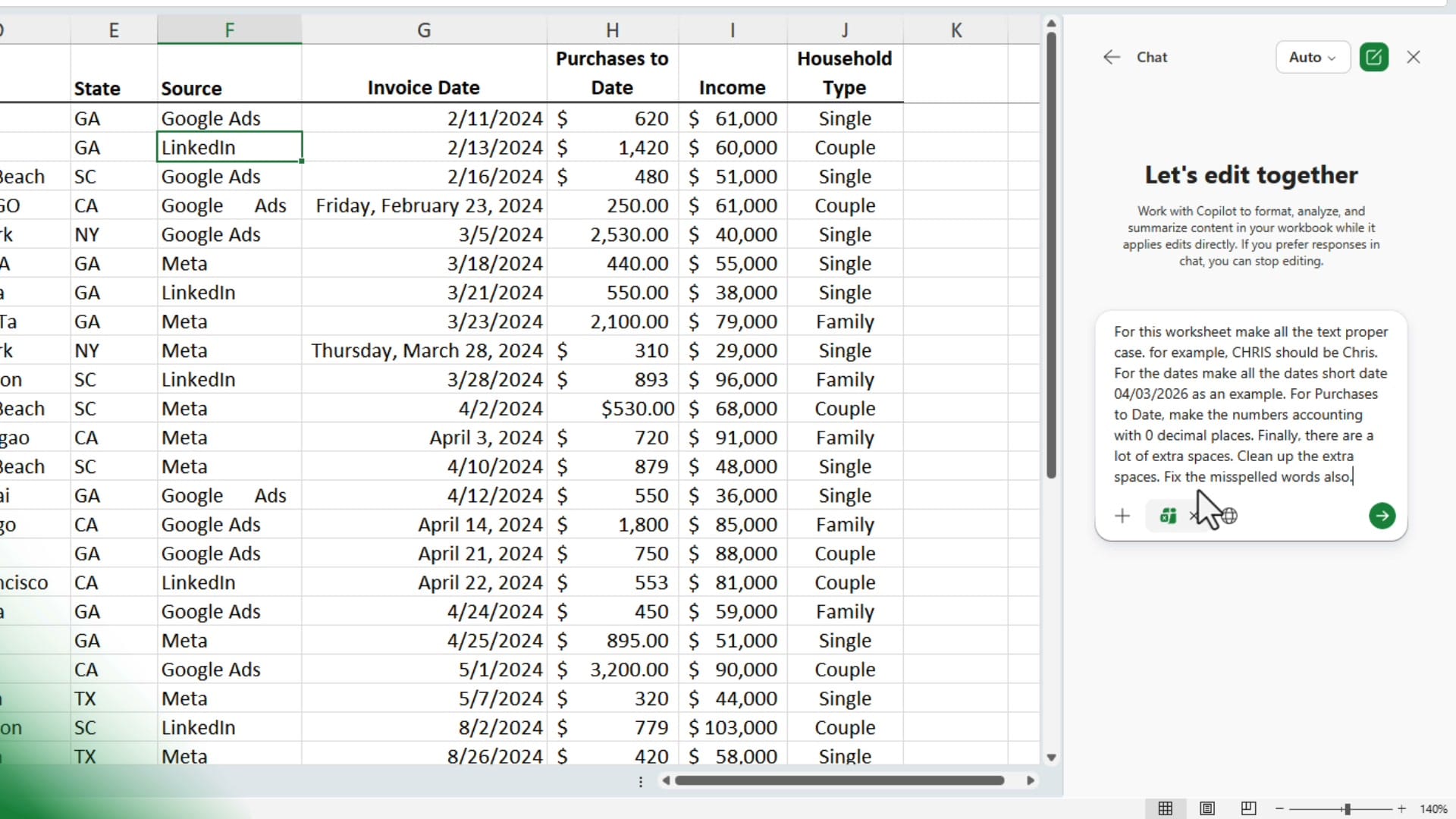
Copilot chat pane showing a data cleanup prompt requesting proper case, short dates, accounting format, and misspelling fixes
A single prompt handles multiple cleanup tasks: proper case for names and cities, short date format, accounting with zero decimals, extra space removal, and misspelled word correction.

Choose a Model and Run the Prompt

Before sending the prompt, you can choose which AI model Copilot uses. The model selector offers Auto (lets Copilot decide), GPT-5.2 from OpenAI, or Claude Opus 4.6 from Anthropic. For most tasks, leaving it on Auto works well.
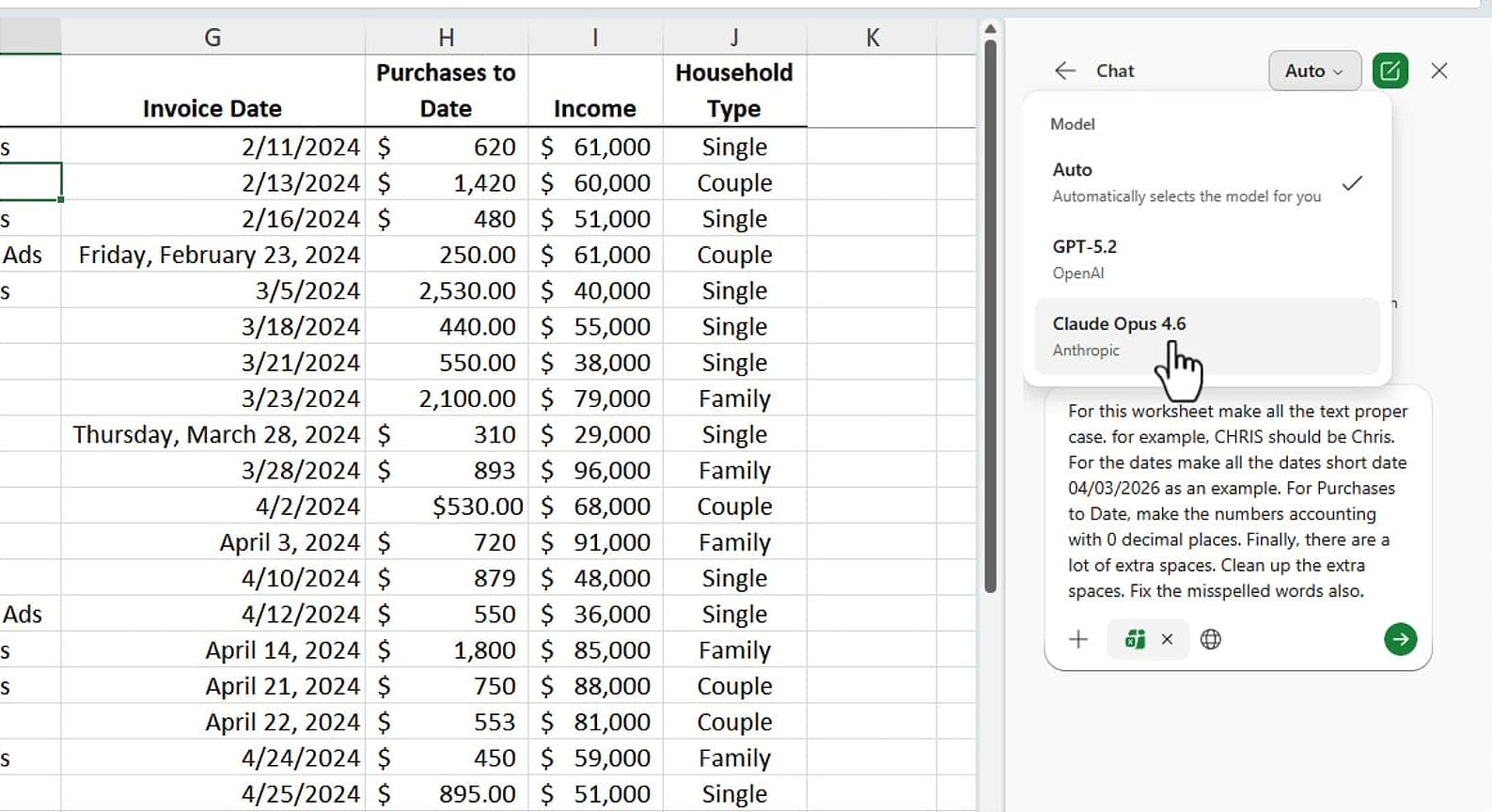
Copilot model selector dropdown showing Auto, GPT-5.2, and Claude Opus 4.6 options
You can choose between GPT-5.2 and Claude Opus 4.6, or leave it on Auto to let Copilot pick the best model.

After sending the prompt, Copilot may ask you to continue without saving — this is normal when working with Edit with Copilot, since it needs to make direct changes to your worksheet.

Review the Results

Copilot applies all the changes and provides a detailed summary of what it did. In this case, it fixed proper case for first names and cities (CHRIS → Chris, ATLANTA → Atlanta), standardized all date formats to short dates, applied accounting format with zero decimals to the Purchases to Date column, and corrected misspelled words throughout the worksheet.
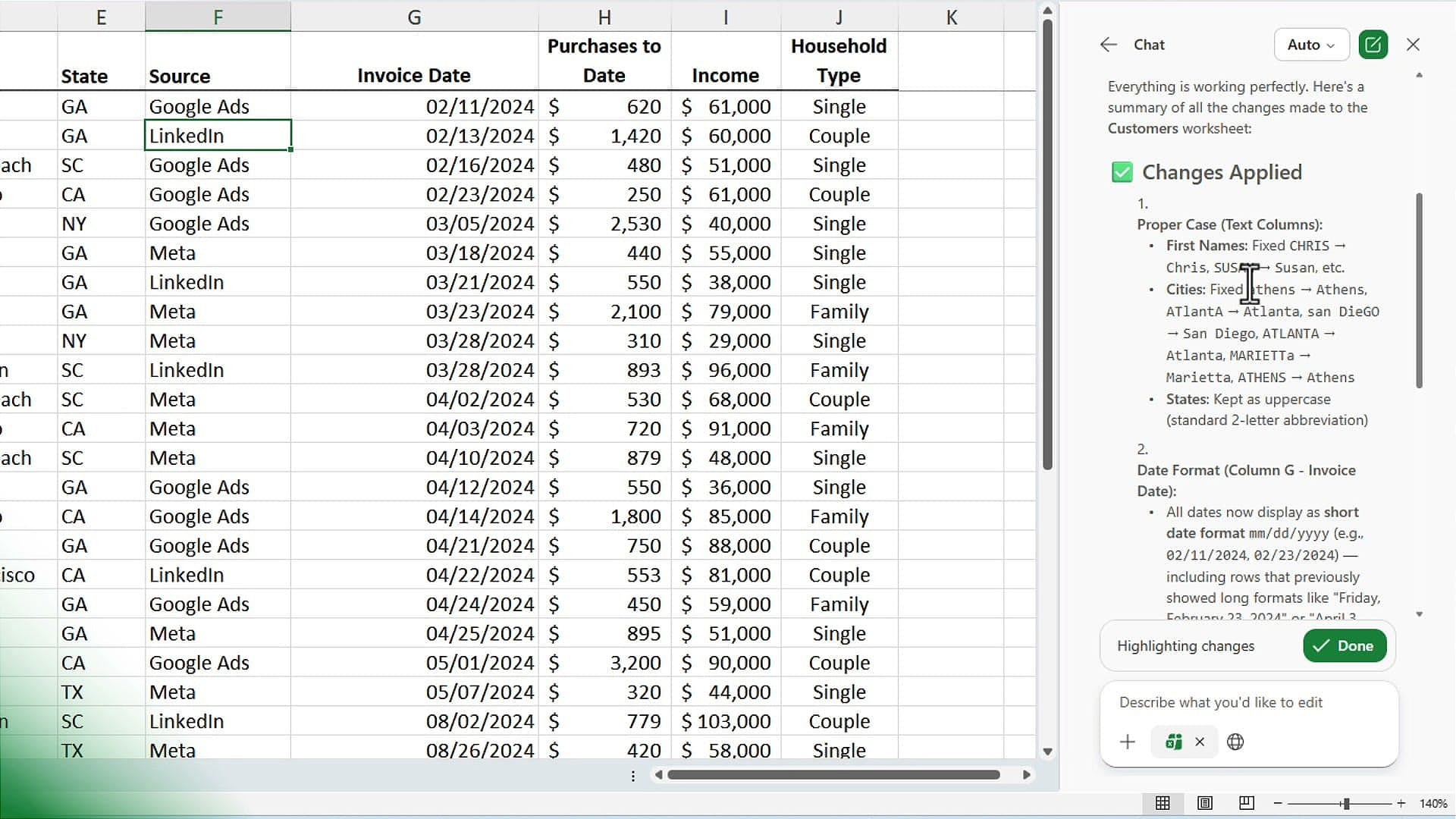
Copilot showing Changes Applied summary with proper case, date format, and accounting fixes highlighted, plus a green Done button
Copilot lists every change it made — proper case, date formatting, accounting format, and spelling corrections. Click Done to accept.

Review the changes, and when everything looks correct, click the green Done button to accept all edits.

The Big Update: Edit with Copilot Works on Local Files

Here is the key takeaway. When you click Save and check the file location, this spreadsheet is not saved in OneDrive or SharePoint. It is sitting in the local Downloads folder on the computer — a completely local file.
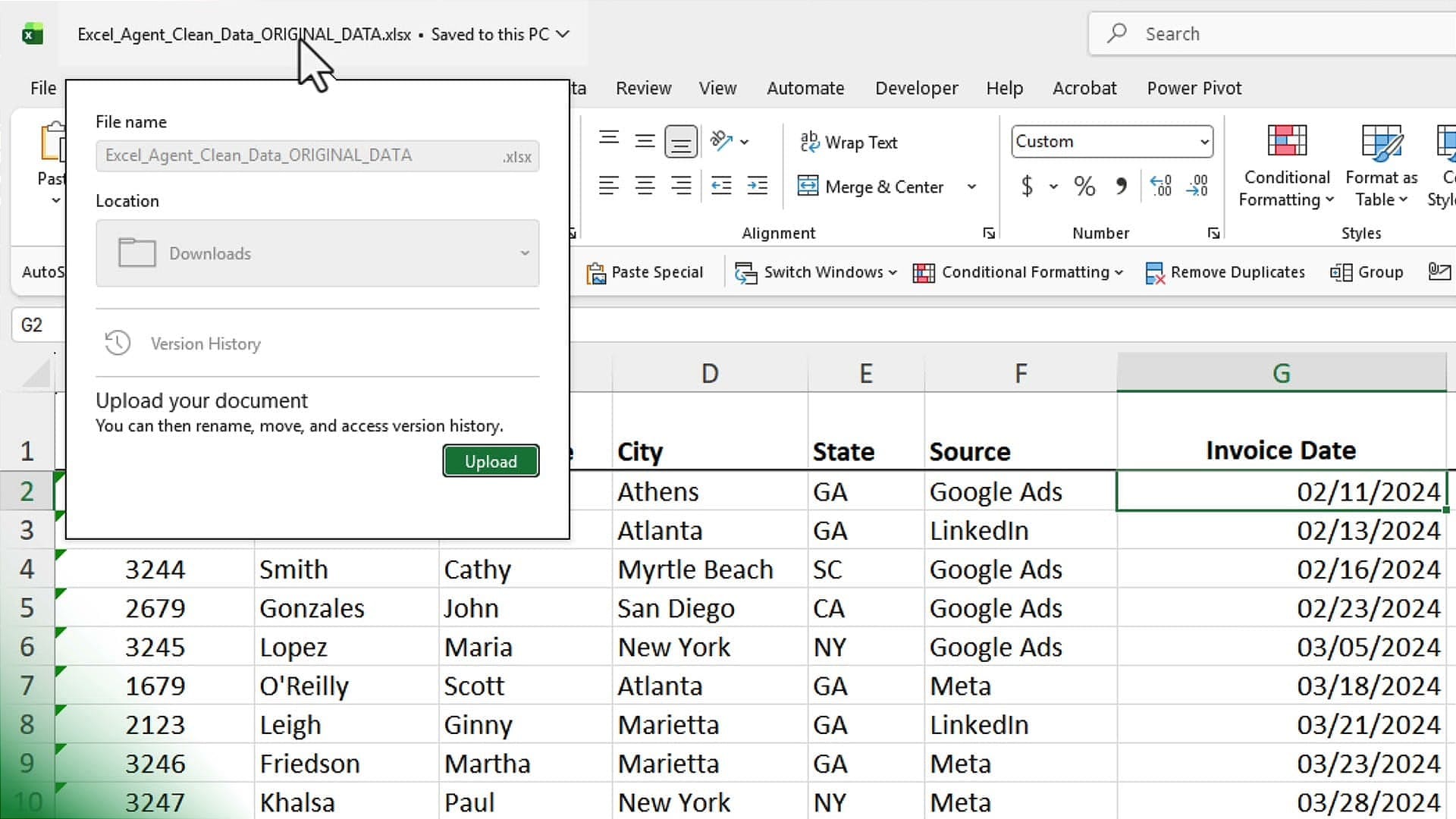
Excel Save dialog showing file saved to Downloads folder locally, not OneDrive or SharePoint
The file is saved in the local Downloads folder — no OneDrive or SharePoint required. Edit with Copilot now works on local files.

Previously, Edit with Copilot (Agent mode) required your file to be stored in OneDrive or SharePoint. That restriction is now gone. You can use Edit with Copilot on any local Excel file sitting in your Documents, Downloads, or Desktop folder — no cloud storage required.

Quick Summary

Excel Copilot AGENT MODE: Build Dashboards and Apply Formatting Hands-Free
Microsoft is rolling out Agent Mode for Copilot in Excel, and it represents a major step forward from the standard Copilot experience. Agent Mode doesn't just suggest changes—it executes them directly, without requiring you to click Apply after every action. In this guide, we walk through where to find it, how to enable it, and what it can actually do with a real dataset of over 2,000 rows. Where to Find Copilot in Excel On Excel for the web, click the Copilot button in the ribbon. You'll see
Excel FORMULA Completion vs COPILOT(): When to Use Each Feature
I use both Formula Completion and the Copilot function in Excel every week. They require a paid Microsoft 365 Copilot license. They solve different problems, and when you combine them, you can move from repetitive calculations to higher-level text analysis and data cleanup in minutes. Below, I explain what each tool is best suited to, provide practical examples, and share a few tips to save time and reduce errors. At a glance: which tool for which job * Formula Completion is perfect for nume
Financial Ratios - Formula Completion in Excel using Copilot
Writing formulas in Excel can be time-consuming and challenging, even for experienced users. Selecting the right function, referencing the correct cells, and ensuring proper syntax often slows down workflows and leads to errors. Many users spend extra time troubleshooting mistakes, searching for examples, or trying to recall the exact formula structure. Formula completion in Excel, powered by advanced AI, solves these challenges by suggesting and autocompleting formulas as soon as you type “=”.
Excel Copilot Formula Completion Now Available on Desktop
Excel's Copilot-powered Formula Completion is now available on the desktop app — not just Excel for the Web. Type an equals sign, and Excel suggests complete formulas based on your data context. Here are three examples showing how it works. Extracting First Names With a "Rep Name" column containing full names like "Chris Menard," type = in a "First Name" column. Formula Completion suggests =LEFT(C2,SEARCH(" ",C2)-1) — a formula that finds the space and extracts everything before it. Press Tab
  • Agent mode has been renamed to Edit with Copilot across Excel, Word, and PowerPoint
  • Write a single prompt to fix multiple data issues at once — proper case, dates, number formatting, spacing, and spelling
  • Choose between GPT-5.2, Claude Opus 4.6, or Auto for model selection
  • Edit with Copilot now works on local files — no OneDrive or SharePoint required