Microsoft Excel: 3 Cool methods to extract text from the beginning of a text string


We frequently need to extract part of a text string in Microsoft Excel. We are going to extract the first part of a text string. Examples of text string parts you would extract include product numbers, employee IDs, and accounting numbers.
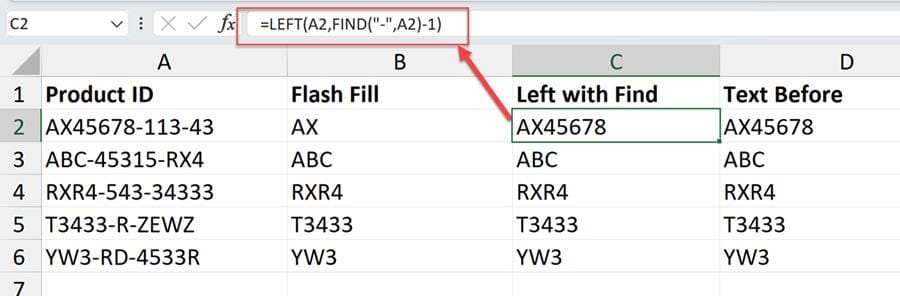
**Excel Left and Find Function**
For example, the product number GA-205-Atl or the accounting number 0012346-00123. Any number that is broken up by some delimiter and you need to remove part of the number qualifies. The three methods we're going to use will include the following. Flash fill, the left function combined with the Find function, and finally, a great function in Excel called Textbefore.
YouTube video
Excel - 3 Cool methods to extract text from the beginning of a text string
Flash Fill
Flash Fill looks for a pattern in Excel data. When it picks up a pattern, it automatically fills in the data. An example of Flash Fill is first and last names are in column A. You can flash fill the first name in column B and the last name in column C.
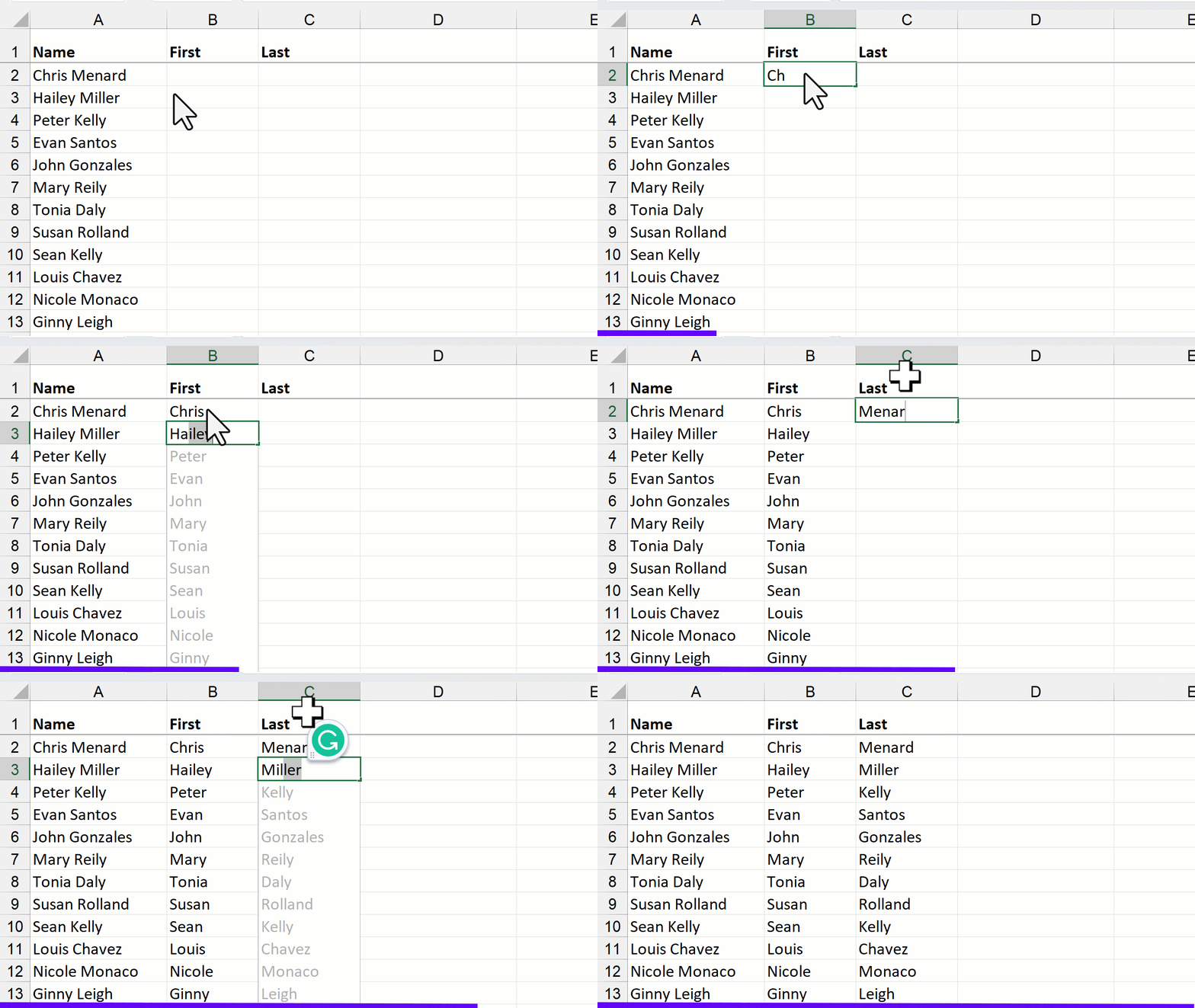
Flash Fill in Excel
Flash Fill Video
Excel Flash Fill - Getting Started with 4 Awesome Examples
Left Function
The LEFT function is a text function. It has two arguments. It pulls text starting on the left and the number of characters.
LEFT(text, [num_chars])
If A2 contains ABC-123, the LEFT function =LEFT(A2,3) would return ABC.
Find Function
The Find function has three arguments. FIND(find_text, within_text, [start_num])
- Find_text Required. The text you want to find. - Within_text Required. The text containing the text you want to find. - Start_num Optional. Specifies the character at which to start the search. The first character in within_text is character number 1. If you omit start_num, it is assumed to be 1.
TEXTBEFORE Function
The TEXTBEFORE function will return the text that occurs before a given character or substring (delimiter).
For example, if A2 contains R4T2-AB3-GA44, TEXTBEFORE(A2,"-") returns R4T2
=TEXTBEFORE(text,delimiter,[instance_num], [match_mode], [match_end], [if_not_found])