Analyzing 50+ Years of Mortgage Rates in Excel: Insights and Trends


Understanding mortgage rates is crucial for anyone looking to buy a home or refinance their existing mortgage. In this comprehensive analysis, we'll dive deep into over 50 years of mortgage rate data using Microsoft Excel. We'll explore historical trends, calculate key statistics, and examine how changes in interest rates impact monthly payments. By the end of this article, you'll have a clearer picture of the mortgage rate landscape and some valuable Excel skills to apply to your own financial analysis.
This video was created after the Federal Reserve cut rates by 50 basis points on September 18, 2024. This was the first rate cut in over four years, lowering the benchmark short-term rate. Before the rate cut on September 18, 2024, the last time the Federal Reserve cut interest rates was in March 2020. This cut was part of the emergency measures taken in response to the economic impact of the COVID-19 pandemic.
Obtaining and Preparing the Data
Our journey begins with data collection. Here's how we gathered and prepared the mortgage rate information:
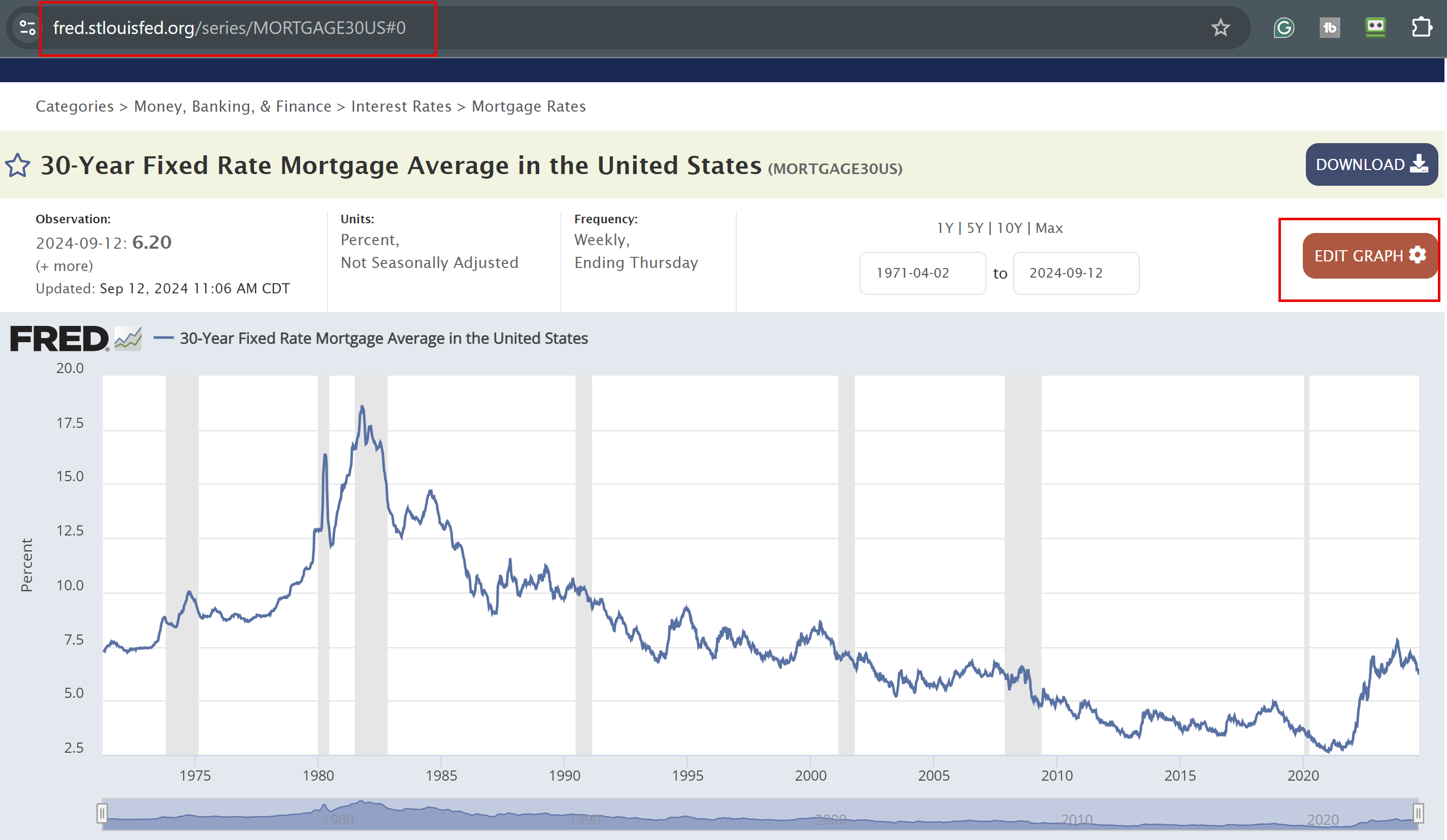
1. Visit the Federal Reserve Bank of St. Louis website ( [https://fred.stlouisfed.org/series/MORTGAGE30US#0](https://fred.stlouisfed.org/series/MORTGAGE30US#0)) 2. Select "MAX" to view the full historical dataset (over 53 years) 3. Change the frequency to "Monthly" in the graph settings 4. Download the data in Excel format 5. Open the file and enable editing 6. Convert the file from compatibility mode to the full .xlsx format 7. Create a copy of the worksheet for analysis
YouTube Video - Mortgage Rates from 1971 to 2024.
Over 50 years of mortgage rates analyzed in Excel - YouTube
Mortgage Rates over 50 years
Excel file from the Federal Bank with over 50 years of Mortgage Data. Two worksheets. One worksheet to follow along with the video. The second sheet shows the chart and analysis.
Formatting the Data in Excel
To make our data more usable, we'll perform some basic formatting:
- Remove unnecessary rows (1-10)
- Rename column headers to "Date" and "30 Year Mortgage Rate"
- Format the date column as desired (e.g., short date format)
- Convert the data into an Excel table for easier manipulation (Ctrl + T)
Creating a Visual Representation
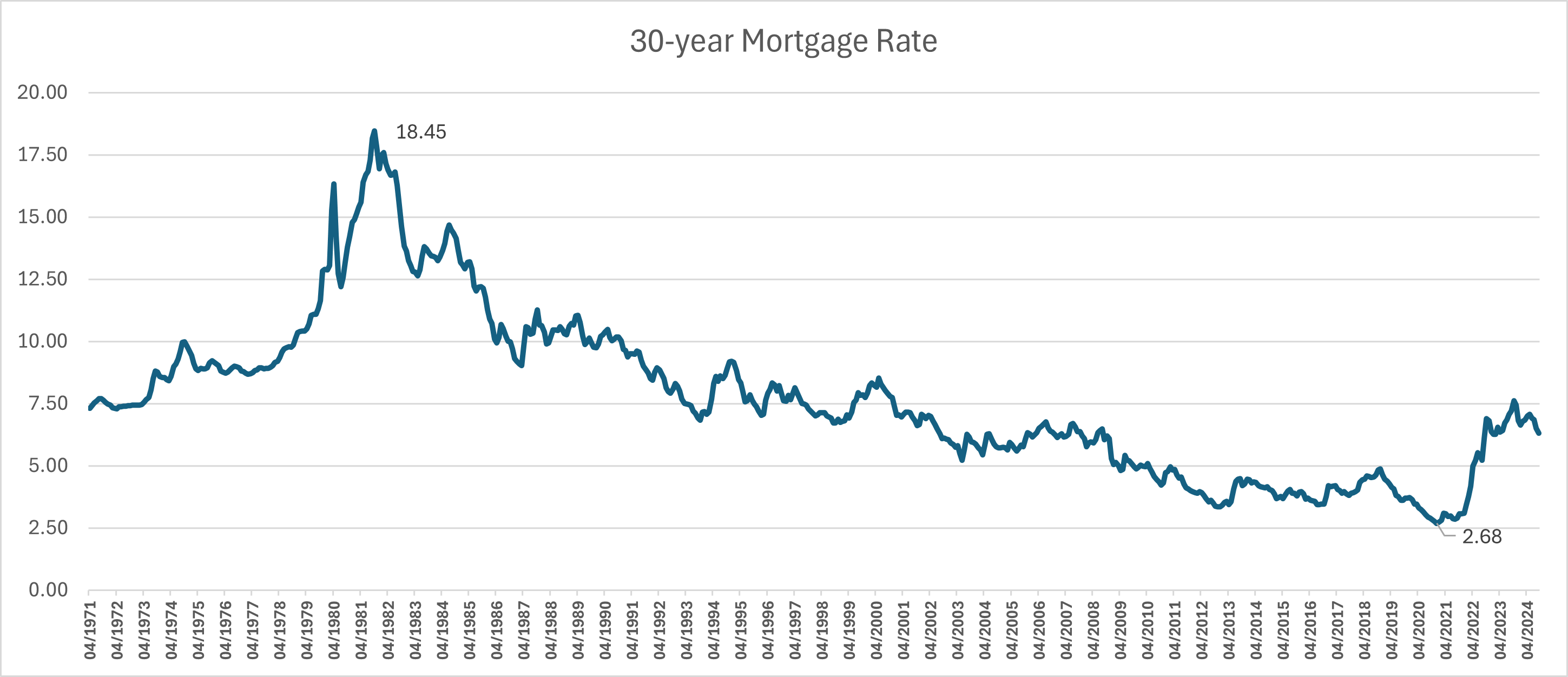
A chart can help us quickly grasp trends in the data. Here's how to create an effective visualization:
1. Select the entire data range 2. Go to Insert > Recommended Charts 3. Choose a line chart option 4. Adjust the vertical axis to start at 2.5% for better visibility 5. Customize colors and styles as desired
Analyzing Mortgage Rate Data
Now that our data is organized and visualized, let's calculate some key statistics:
Basic Calculations
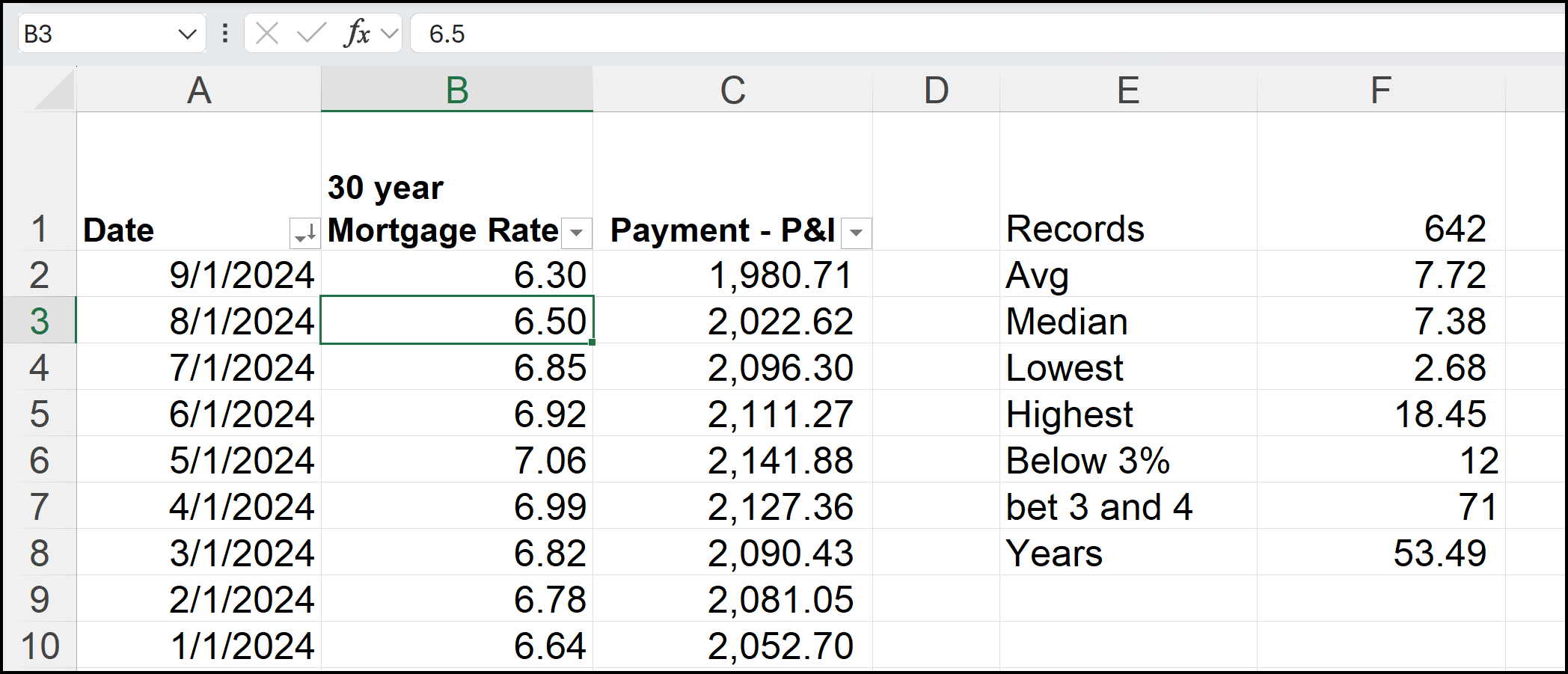
- Total Records: 642 (as of September 2024)
- Average Mortgage Rate: 7.723%
- Median Mortgage Rate: 7.38%
- Lowest Rate: 2.684%
- Highest Rate: 18.454% (likely in the 1980s)
- Interest Rate Distribution
To better understand the frequency of different rate ranges:
- Rates below 3%: 12 occurrences (2% of all records)
- Rates between 3-4%: 71 occurrences (11% of all records)
Using Conditional Formatting
We can visually highlight these rate ranges in our data:
- Select the rate column
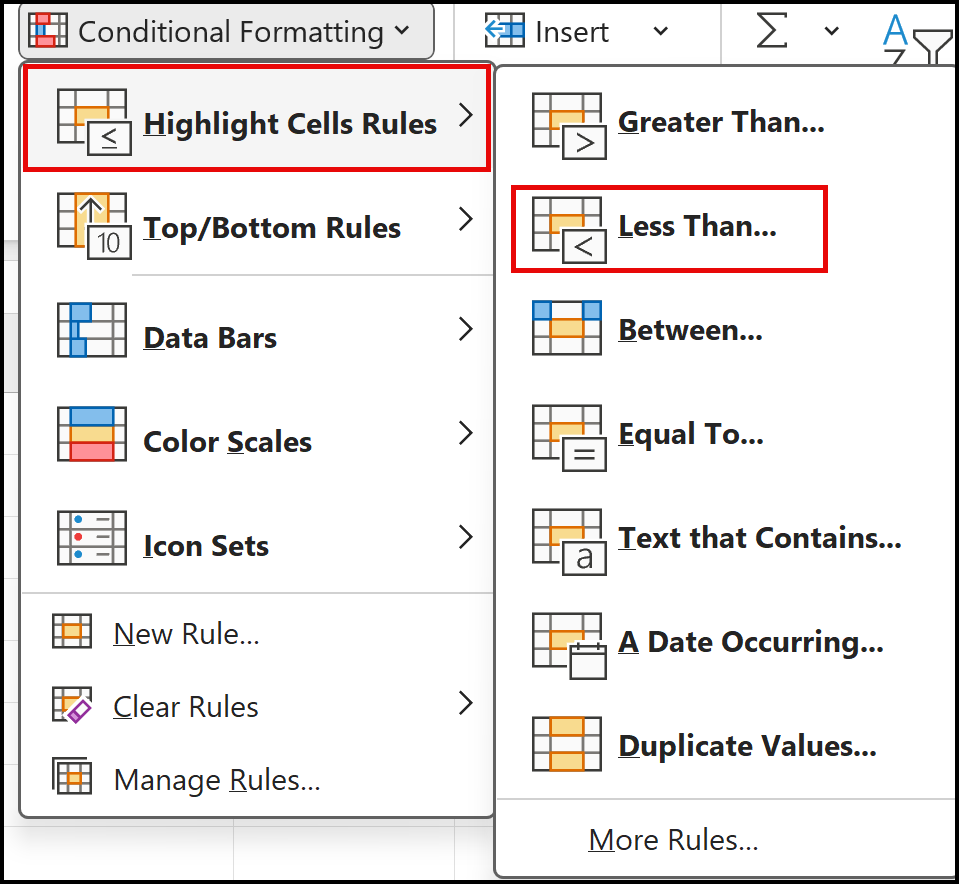
- Use Conditional Formatting > Highlight Cell Rules
- Set green fill for rates below 3%
- Set yellow fill for rates between 3-4%
Calculating Mortgage Payments
To understand the practical impact of changing rates, let's calculate monthly payments for a typical home loan:
Assumptions
- Median home price: $400,000
- Down payment: 20% ($80,000)
- Loan amount: $320,000
- Loan term: 30 years
Payment Calculation
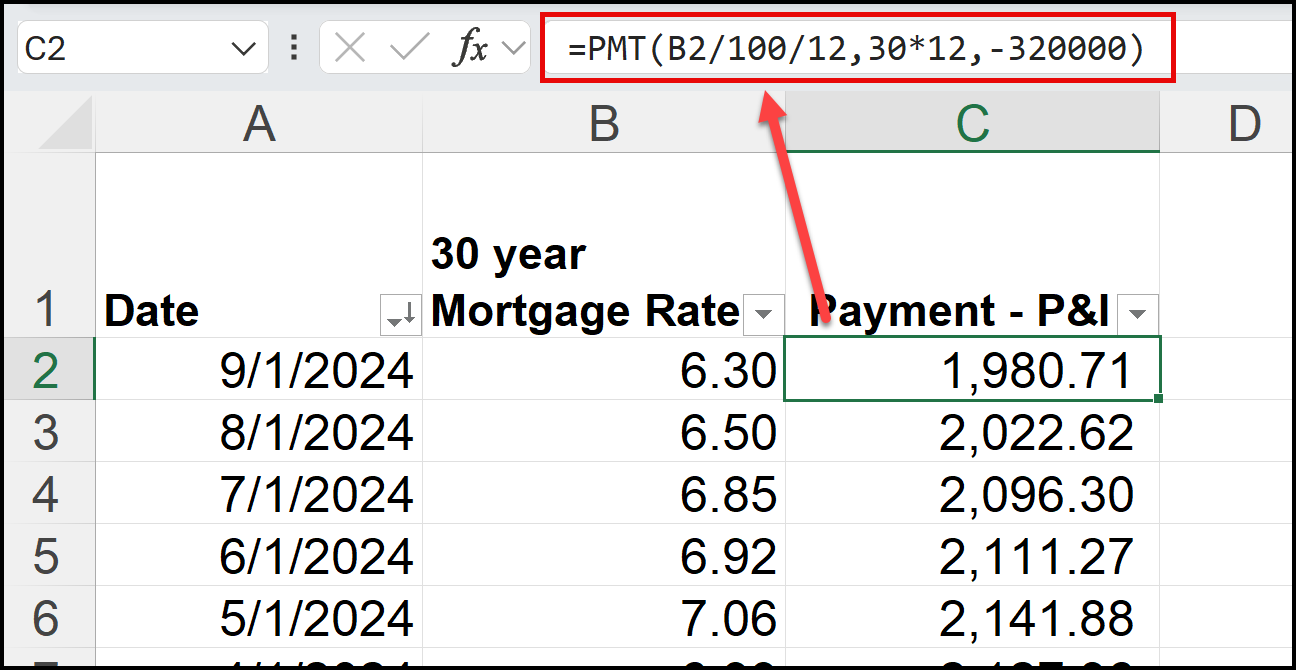
Use the PMT function in Excel to calculate the monthly principal and interest payment:
Formula: =PMT(B2/100/12, 360, -320000)
This formula takes into account:
- Monthly interest rate (annual rate divided by 12)
- Total number of payments (30 years * 12 months)
- Loan amount (as a negative number)