
7 reasons to enable the New Meeting Experience in Teams

Microsoft Teams now has the new Meeting Experience. Meetings and calls will open a separate window with the new Meeting Experience. Turning this on will require restarting (quitting) Teams. I will walk you through all the steps you need to do and give you seven reasons to use the new experience.
Turn On the New Meeting Experience
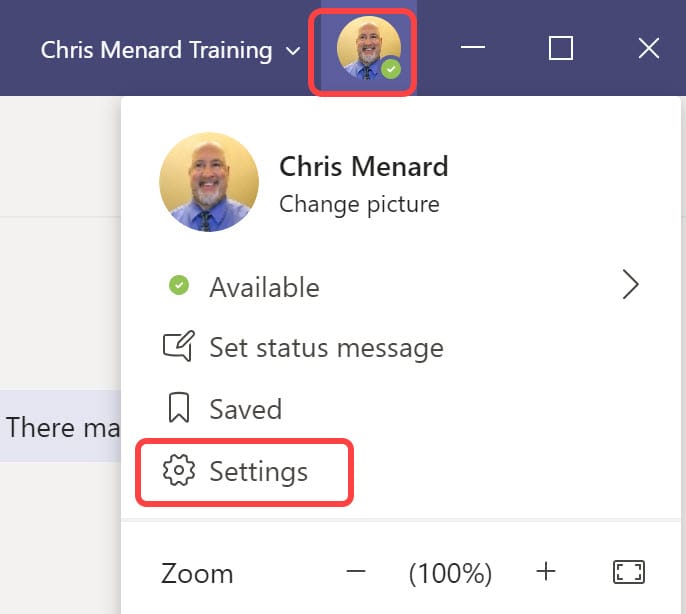
1. Go to the top right corner, click on your profile picture and go to **Settings.**
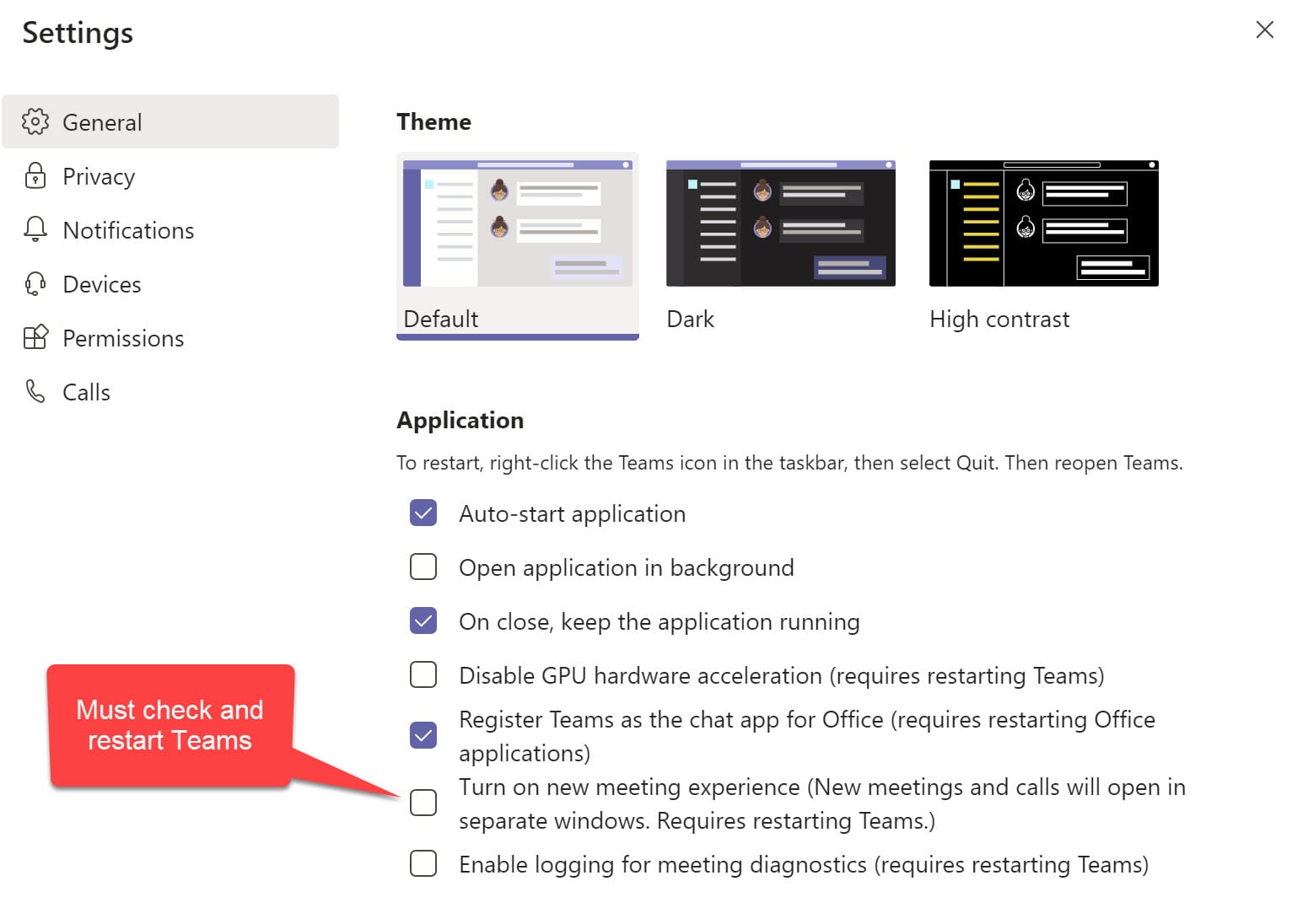
2. On the **General** tab under **Application**, select **Turn on new meeting experience**. Then close **Settings**(select the X).
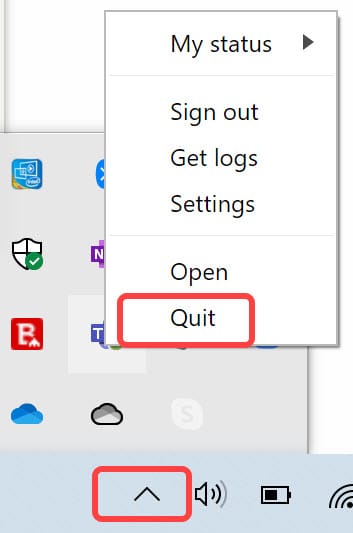
3. Finally, restart Teams so the changes take effect.
- On Windows, right-click the Teams icon in the taskbar > **Quit**. Then open Teams again.
- On Mac, Ctrl+click the Teams icon > **Quit**. Then open Teams again.
_Note_: If you want to switch back, unselect the setting, then quit and restart Teams.
7 reasons to use the New Meeting Experience in Teams
7 reasons to turn on the New Meeting Experience.
**Reason 1 -** if you start a new meeting, this will pop-out and happen in **a separate window.**
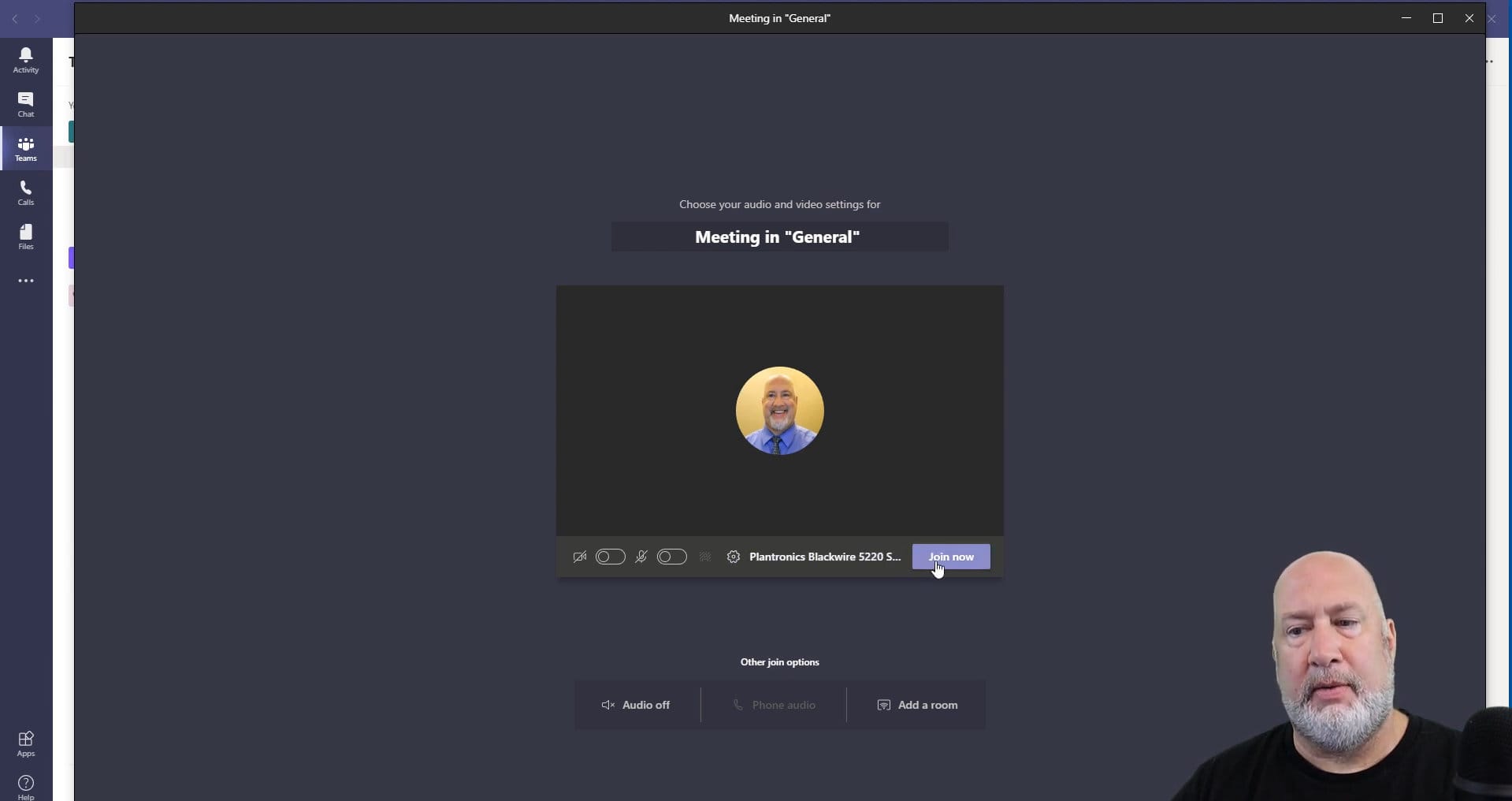
You will notice that the **Join Now** window will also look slightly different.
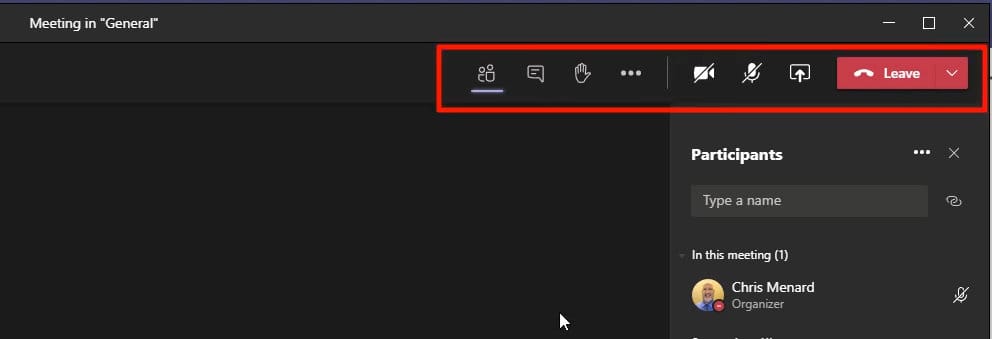
**Reason 2 -** Meeting and call controls are at the top right instead of the bottom. The meeting controls are docked.
**Reason 3** \- **Large gallery** \- you now have multiple different views you can use with the new meeting experience. There is a **Large gallery (preview)** that will show up to 49 people in your meeting.
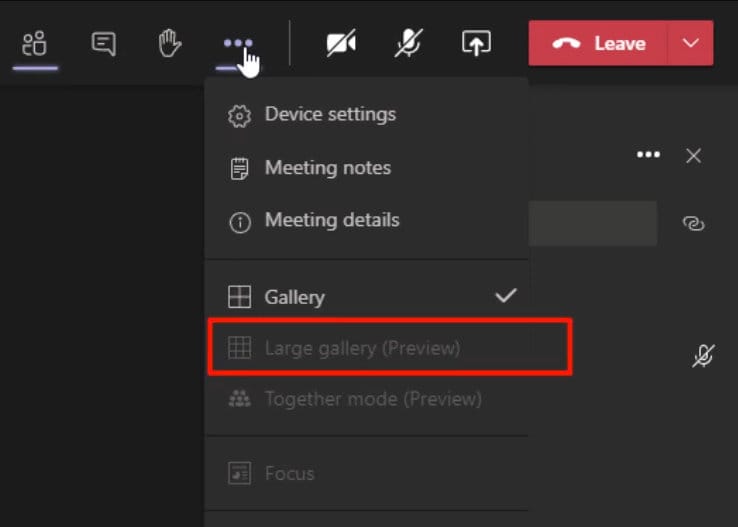
Large gallery becomes available when the 10th person with their camera turned on is in the meeting. Large gallery does a 7 by 7 grid.
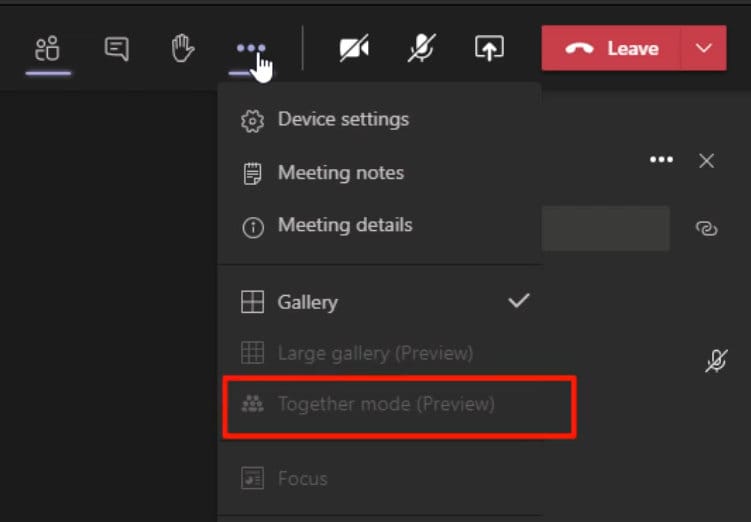
**Reason 4 -** **Together mode** is when it shows people in the same shared space with everyone in the meeting, and that happens when the 5th person joins your meeting with the camera on.
Instead of seeing all the users in a rectangular grid separately, you see them together in a virtual space. **Together Mode** is designed to build a virtual live avatar of all members of the team and negate their backgrounds.
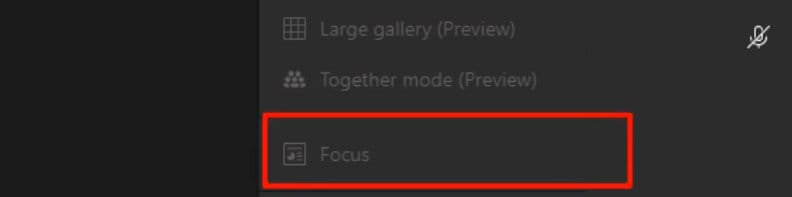
**Reason 5 - Focus mode** happens if someone shows a slide deck while everyone's video is displaying, you can hit **focus mode,** and you will not see everyone's video. You will be focused on what you're being presented.
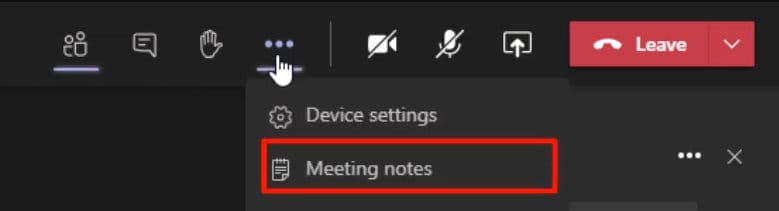
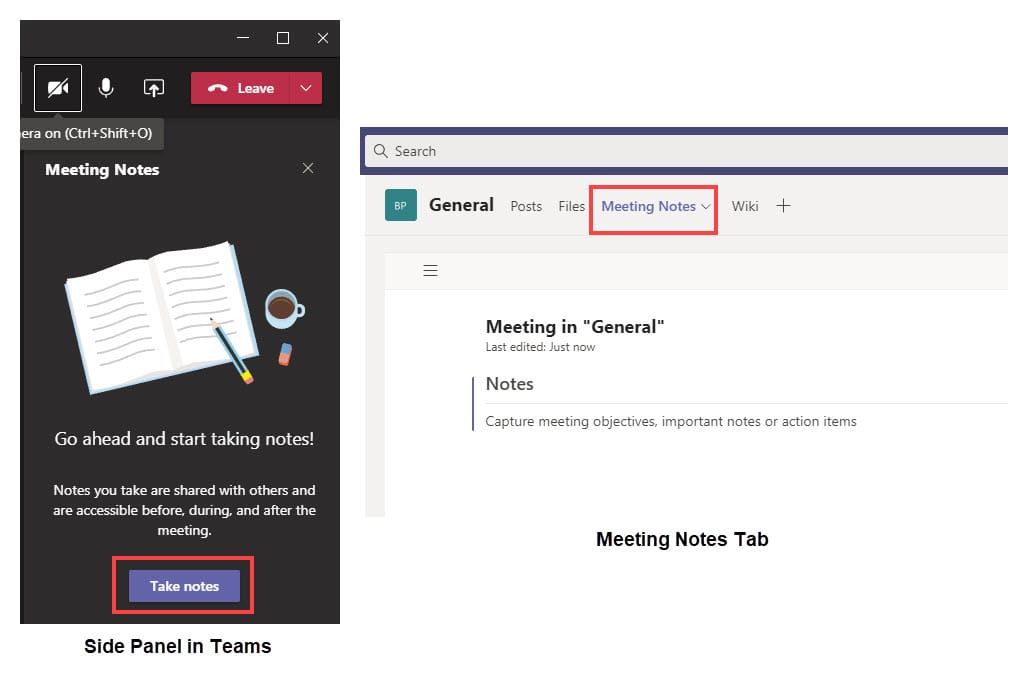
**Reason 6 -** if you want to take meeting notes, they now happen in the **meeting notes tab** for your meeting, which is a cool feature. To access or take notes from within the meeting window, select **More options (…)** > **Show meeting notes,** and you’ll see the usual side panel come up.
In the panel, there is a **Take notes** button that brings you to the Meeting notes tab.
**Reason 7 -** this is about the **Live Captions** feature. We have made a video and experienced a bit with this feature, and you can watch the video [here](
If you don't have the **new meeting experience** turned on, you can still see the live captions, but the issue is you don't know who's speaking.



