Zoom update: Filters, Lighting, and PowerPower as a background
Zoom has released a major update on August 4, 2020. It is Zoom's best update for 2020.

Zoom has released a major update on August 4, 2020. It is Zoom's best update for 2020. Zoom update is version 5.2.0 is now out and it contains changes to existing features including passwords now being called passcodes:
for meetings and webinars. Other changes with the August 2020 update include eleven new and enhanced features for meetings/webinars.
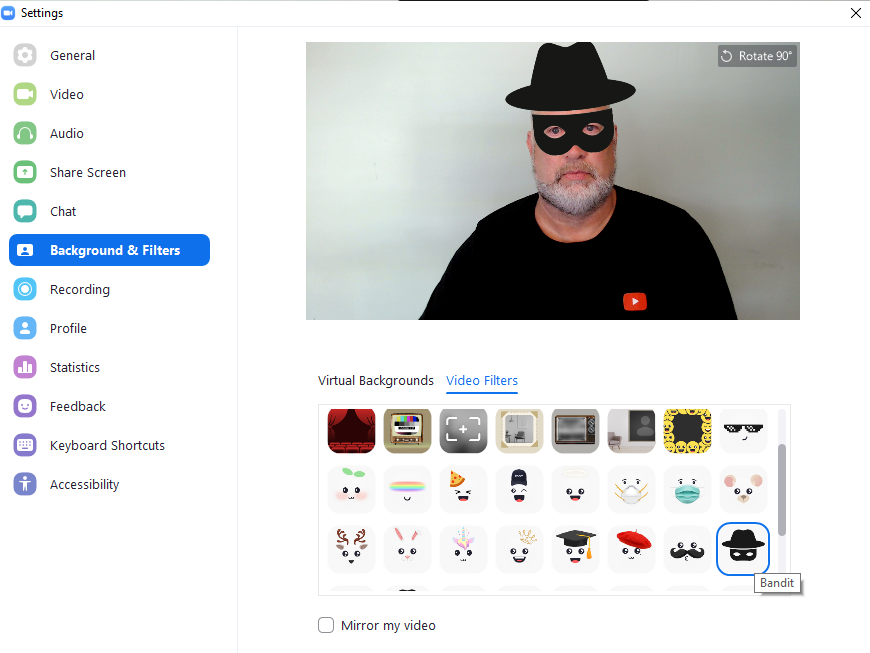
Screenshot of Video Filters in Zoom
In this blog post and the video below, I'm covering three of the major changes for Zoom Meetings
1. Video Filters - detailed steps below and screenshots
2. Adjust for low light - detailed steps below and screenshots
3. PowerPoint as virtual background
Here is a list of the new / enhanced meeting/webinar features in Zoom
01. Video Filters 02. Adjust for low light - video brightness 03. Share PowerPoint as a Virtual Background in Beta 04. Share files with Microsoft SharePoint 05. Improved Waiting Room notifications 06. Adjust Touch up my Appearance 07. Additional meeting reactions 08. Improved background noise suppression 09. Settings for hardware acceleration for screen sharing and whiteboard 10. Support for Virtual Background on additional processors 11. Support for gallery view for 49 participants on additional processors
Video Filters
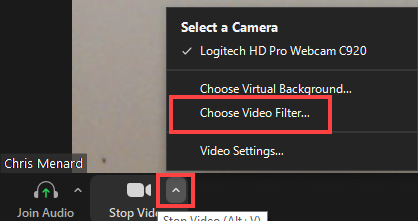
Steps to use video filters
1. In a Zoom meeting, click the **upward arrow** (^) next to Start/Stop Video.
2. Click **Choose video filter**.
3. Select a video filter
4. Close the Setting window.
PowerPoint as a virtual background
In Beta mode, but it is working! You can use a PowerPoint deck or presentation as your virtual background. This is one virtual background you do not use by going to virtual backgrounds. You share your screen to use this feature.
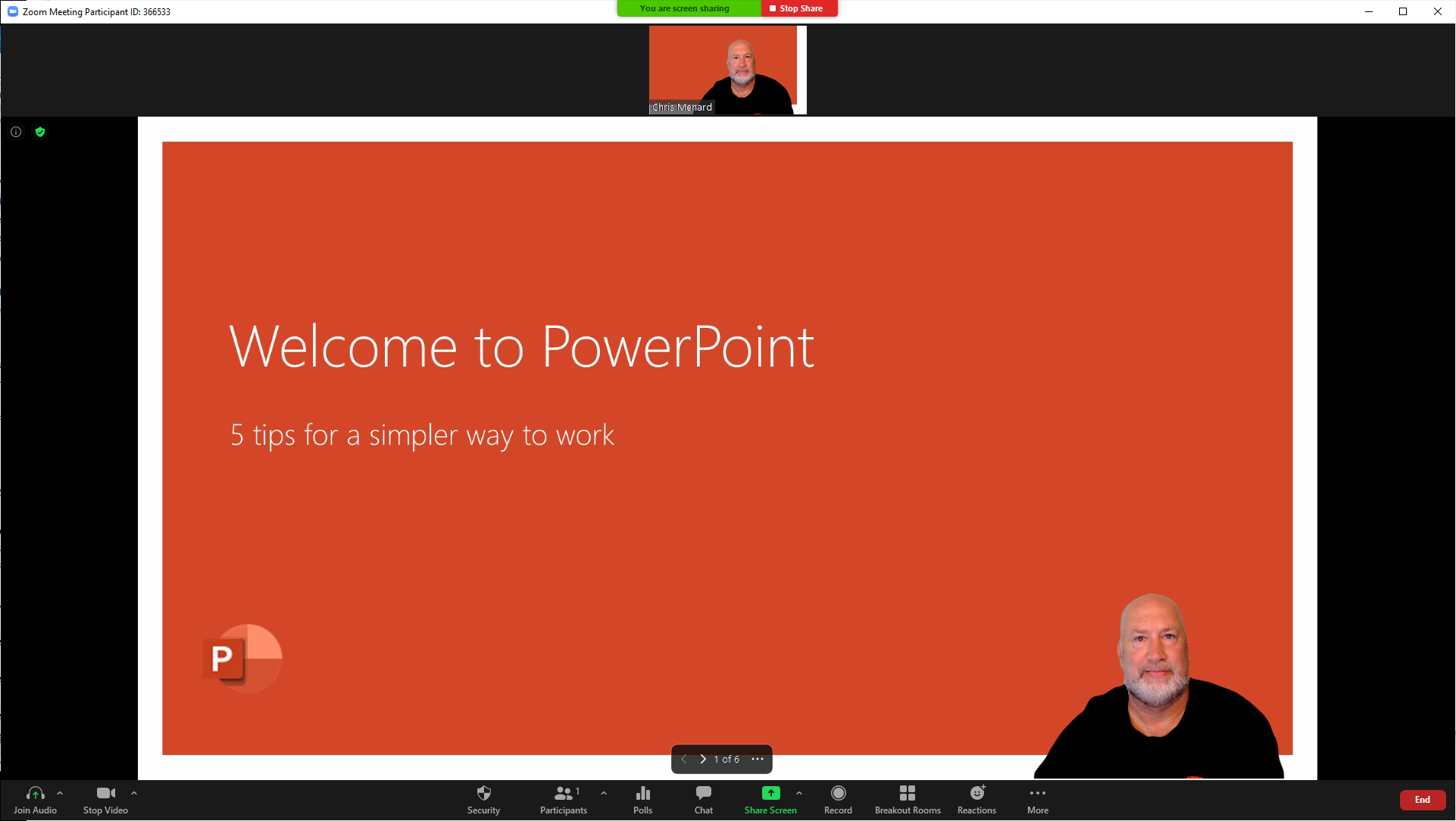
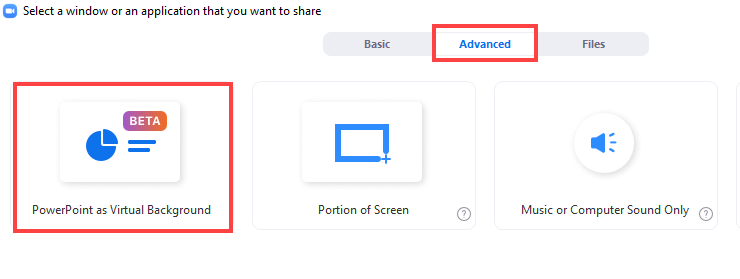
Steps to use PowerPoint as a Virtual Background
1. Click Share Screen
2. Click Advanced
3. Click PowerPoint as Virtual Background
4. Select your PowerPoint deck or slide show
5. Click Open.
6. You can resize and move your image if you want
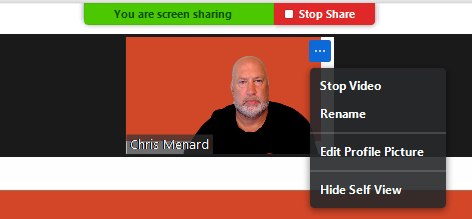
Tip - you can Hide Self view. Notice I'm on the screenshot above in the lower right corner, which I want, but I'm also on top fo the PowerPoint slide presentation, which I may not want.
To Hide Self View, click the three dots and select Hide Self View.
Zoom - Adjust for low light
Another new feature in the August update is the ability to adjust for low light.
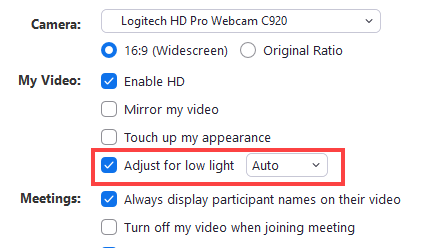
Steps to adjust for low light
1. In a Zoom meeting, click the **upward arrow** (^) next to Start/Stop Video.
2. Click Video Settings and you are on video.
3. Make Adjust for low light either Auto or Manual. If Manual, you can adjust the slider
4. You can also uncheck Adjust for low light.