
XLOOKUP function in Excel


XLOOKUP is the latest function for Microsoft Excel. It came out on **August 28, 2019**. If you like VLOOKUP and Index/Match, you are going to love the XLOOKUP function. There are over 450 functions in Excel. Rarely does a new function come out that is a game-changer. XLOOKUP is a game-changer.
**Question**: When will I get XLOOKUP? **Answer**: XLOOKUP is only available to some Office 365 insiders. As soon as it is optimized, Microsoft will release it to all Office 365 subscribers. Office 2019 users will not get XLOOKUP.
XLOOKUP at its simplest
XLOOKUP at its simplest using the three required arguments. Notice, unlike VLOOKUP, XLOOKUP doesn't need any useless cells. It looked up the value E001 in cells A2, from the array A6:A17, and returned Administration from E6:E17. VLOOKUP would use the range A6:E17
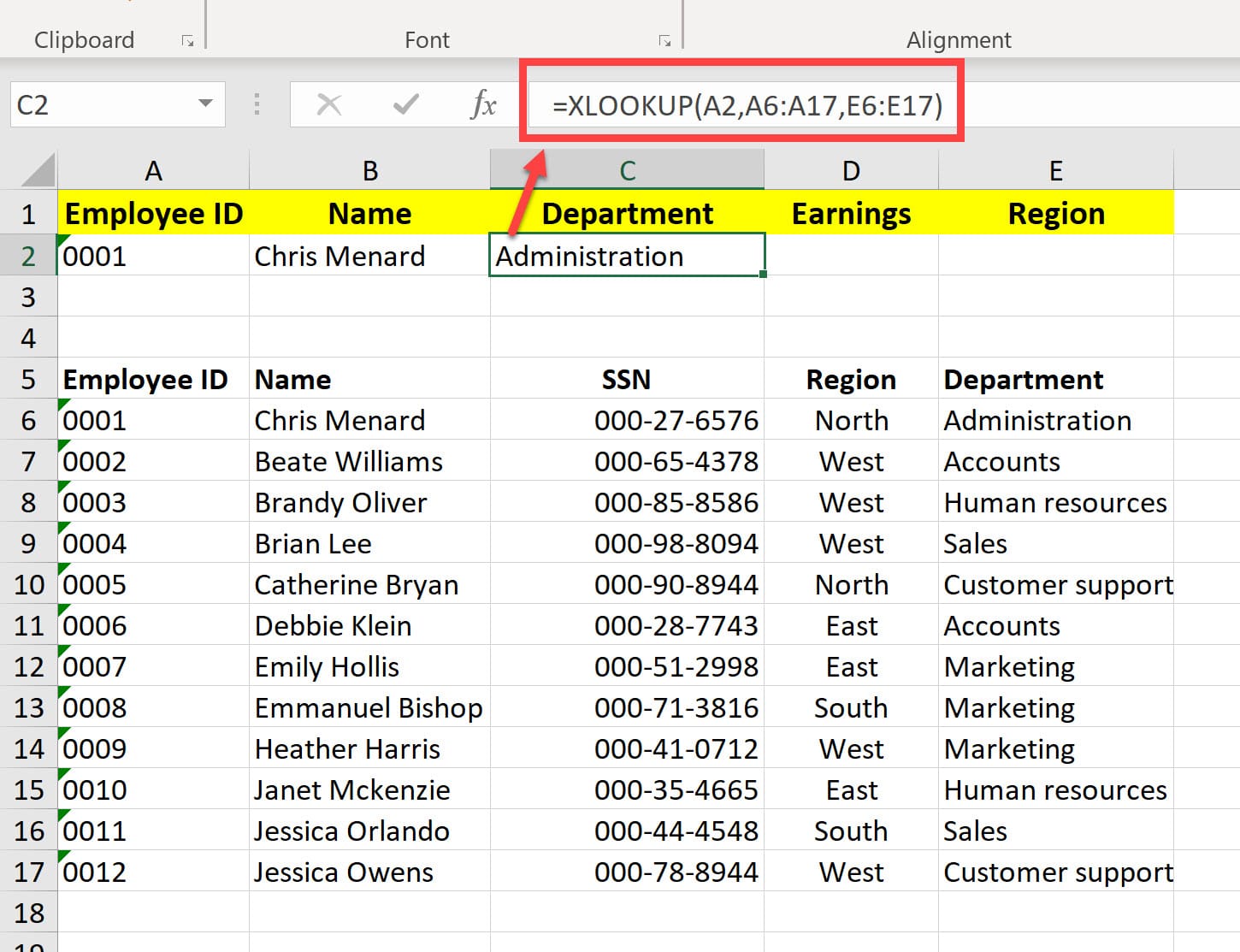
XLOOKUP Arguments:
XLOOKUP has five arguments, but only three are required. The three required are
1. lookup\_value: What you are looking for 2. lookup\_array: Where to find it 3. return\_array: What to return
> XLOOKUP(lookup\_value, lookup\_array, return\_array, \[match\_mode\], \[search\_mode\])
The two optional arguments are:
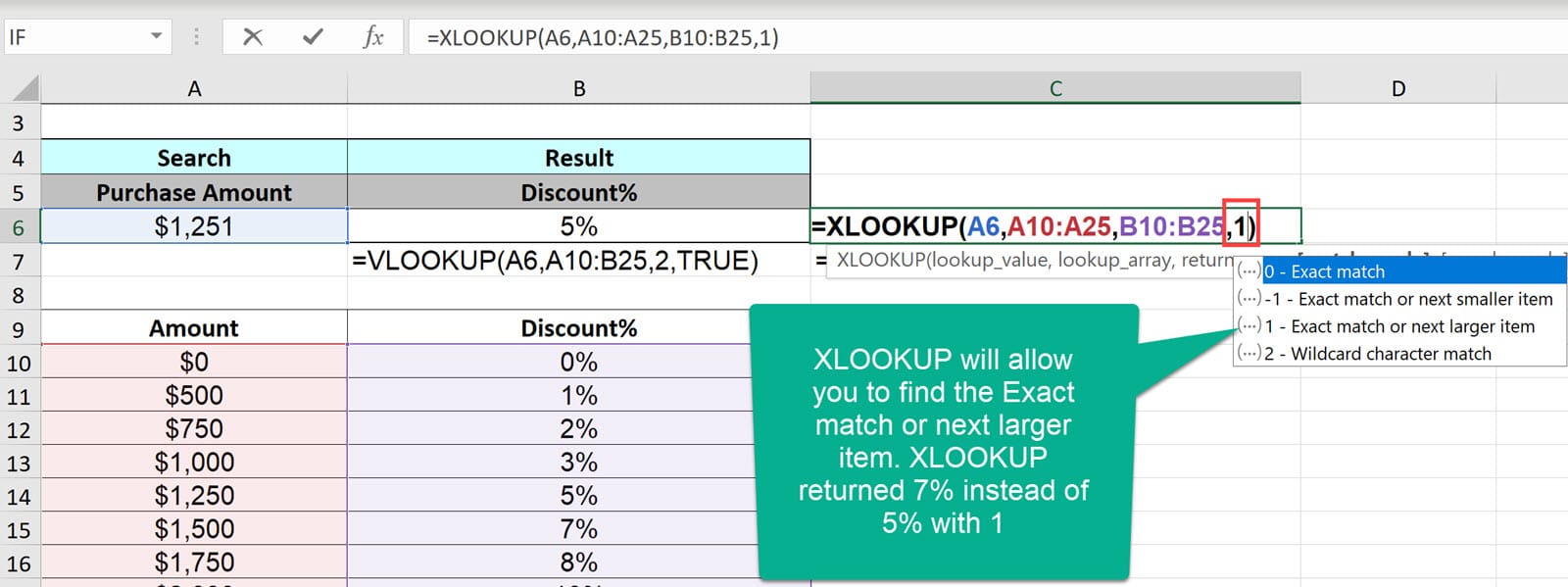
1. Match mode, the fourth argement, is the true-false argument for XLOOKUP, but it also allows you to match the next highest, which VLOOKUP will not do. VLOOKUP, when used as true, will search down to the next value, but will not search up to the next value. 2. Search mode, the fifth argument, allows you to search from the bottom of a range to the top of the range. VLOOKUP will not do this. With data sorted, you may want the last value for an item instead of the 1st value.
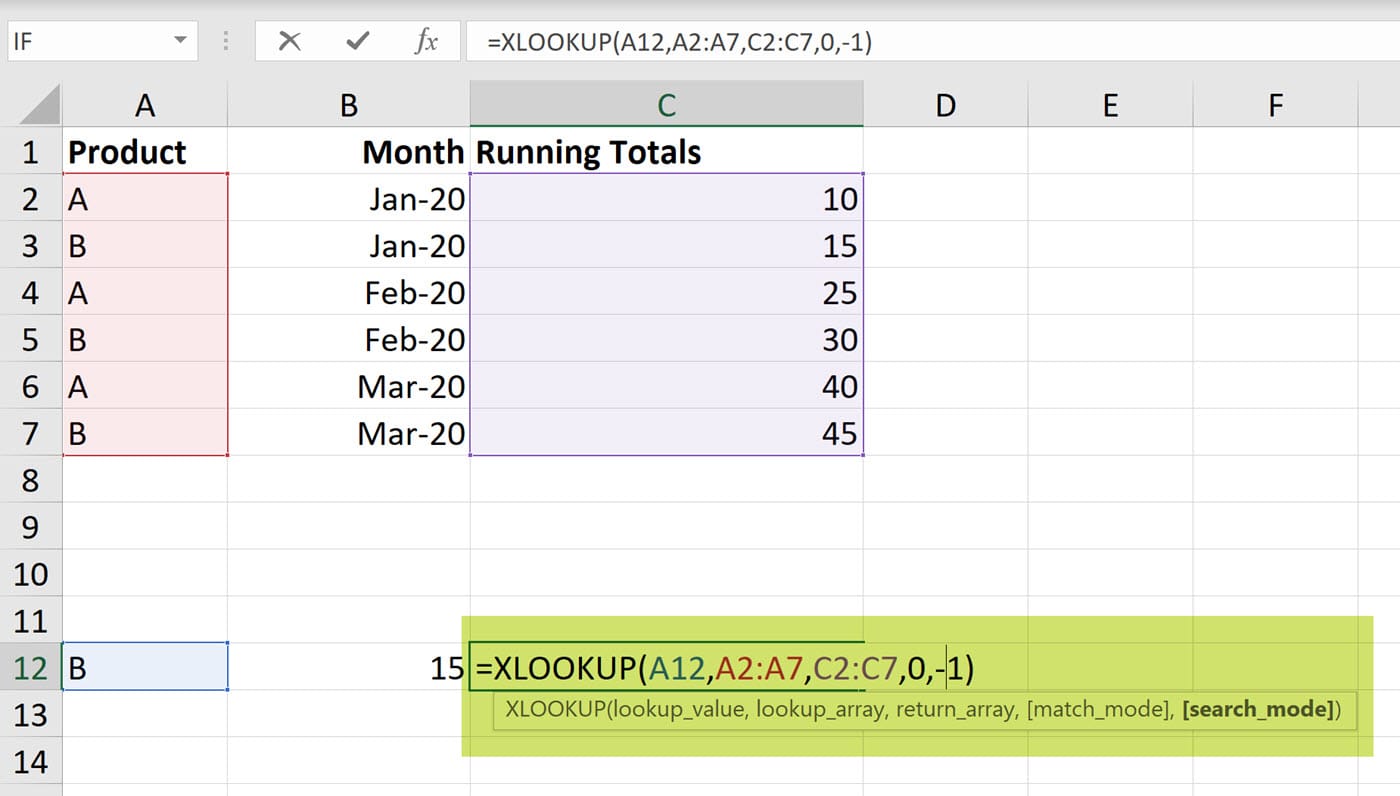
Six differences between VLOOKUP vs. XLOOKUP
VLOOKUP does the following:
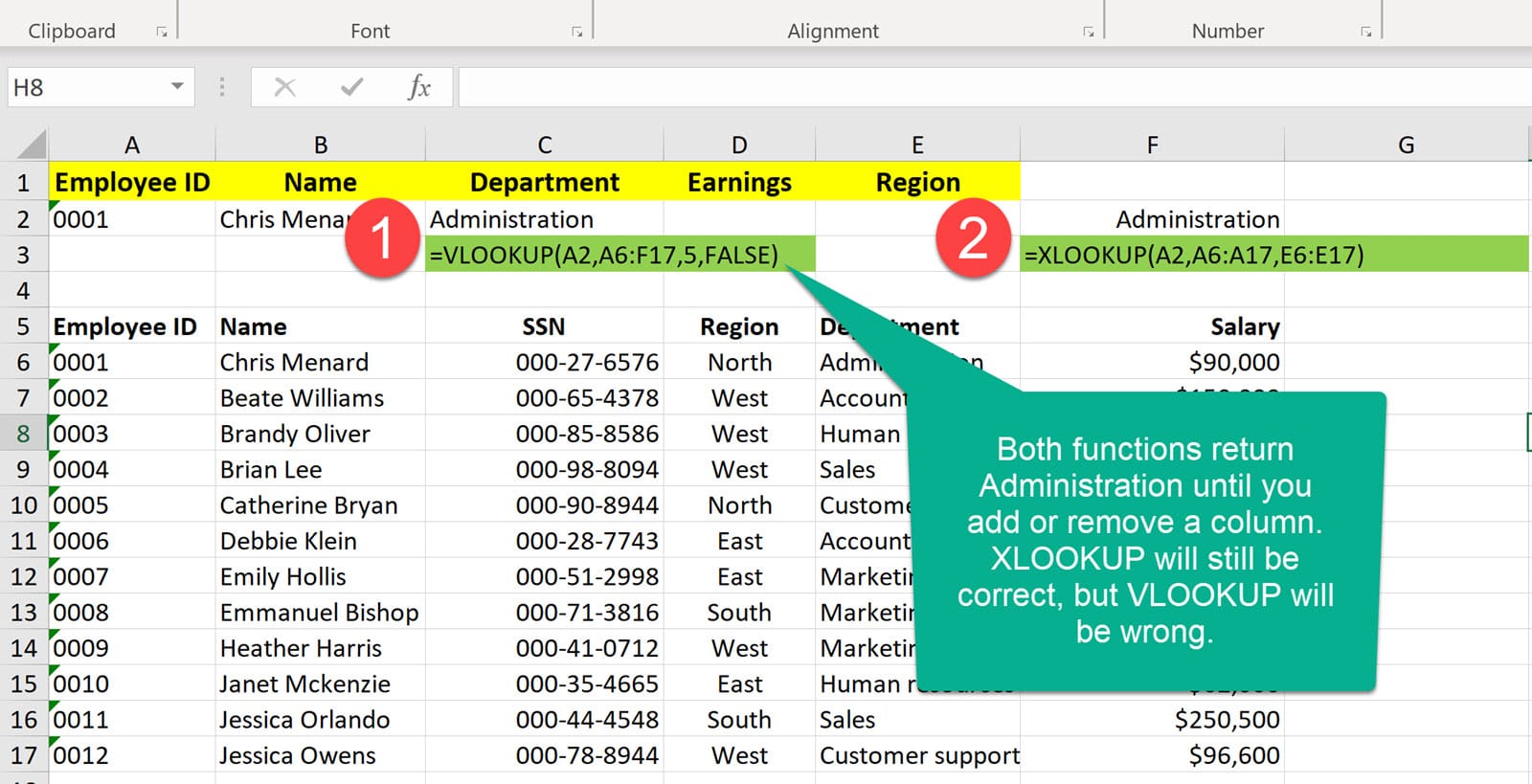
1. Defaults to an “approximate” match. Most VLOOKUPs are an exact match. With XLOOKUP, the default is an exact match. 2. VLOOKUP does not support column insertions/deletions. With VLOOKUP, when you insert or delete a column, it breaks the VLOOKUP due to the third argument being the columns number. Example: =VLOOKUP(A2,E2:E20,5,FALSE). The number 5, the third argument is wrong with an insertion or deletion. XLOOKUP, handles insertions and deletions with no problem."
In the screenshot below, Administration is returned in both cells C2 and F2. C2 is VLOOKUP and F2 is XLOOKUP. If the range C5 to C17 is selected and a column in inserted or deleted, VLOOKUP is now wrong, but XLOOKUP is still correct. VLOOKUP will be wrong since the formula, which I showed in C3, is showing the 5th column as the 3rd argument.
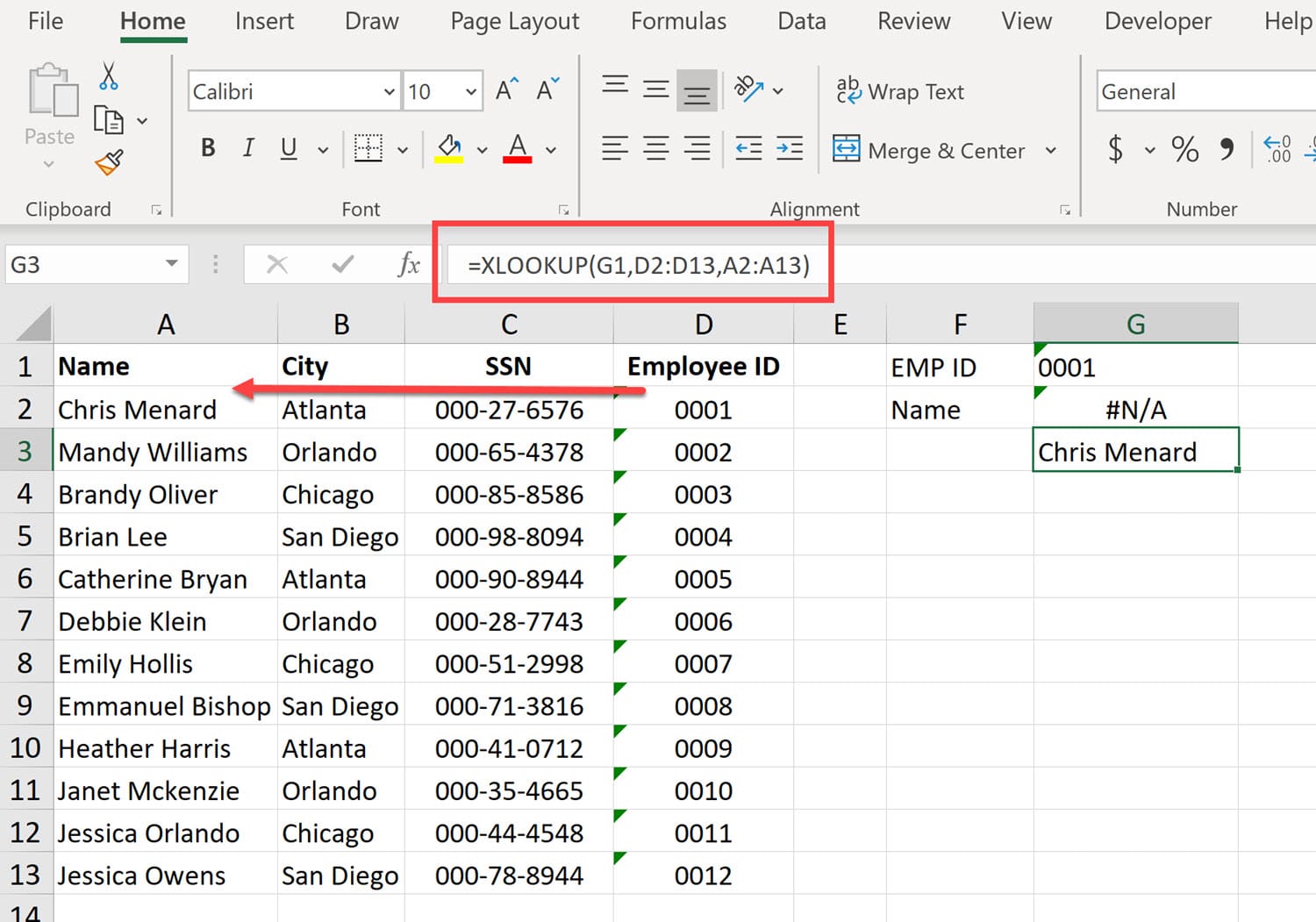
3. Cannot search from the back. XLOOKUP will allow you to search from the back forward. VLOOKUP does not have this feature. 4. Cannot look to the left. One of VLOOKUP biggest issues is can only look right. With XLOOKUP you can look left and right. In the screenshot below, in G2 is the VLOOKUP function. It returns #N/A since it can't look to the left. In cell G3, is XLOOKUP looking left. XLOOKUP is finding G2 and looking left to A2 to return Chris Menard.
5. Cannot search for next larger item. VLOOKUP, when using true, can't find the next larger item. XLOOKUP, the 4th argument handles that. In the example below, we give customers a discount based on their order total. With VLOOKUP, if you order over $1,250, cell A6, you get a discount of 5%. VLOOKUP, when TRUE, can only look back. With the new XLOOKUP, with true, you can look back but you can also find the next larger item. We may have decided that over $1,250 to give the next discount up, 7%, instead of looking back and getting 5%.
6. References more cells than necessary. VLOOKUP needs the entire range. XLOOKUP only needs the columns you are searching in.
Microsoft tech community page XLOOKUP:
[https://techcommunity.microsoft.com/t5/Excel-Blog/Announcing-XLOOKUP/ba-p/811376](https://techcommunity.microsoft.com/t5/Excel-Blog/Announcing-XLOOKUP/ba-p/811376)
Microsoft support page for XLOOKUP
[https://support.office.com/en-us/article/XLOOKUP-function-B7FD680E-6D10-43E6-84F9-88EAE8BF5929](https://support.office.com/en-us/article/XLOOKUP-function-B7FD680E-6D10-43E6-84F9-88EAE8BF5929)
YouTube Video on XLOOKUP
XLOOKUP - Excel's new awesome function by Chris Menard




