Microsoft Word Copilot Agent: Create Full Documents in Minutes

Microsoft is making major updates to Copilot, and one of the most significant changes is how you create new documents in Word. There are now two distinct Copilot experiences: Edit with Copilot for modifying existing content, and the Word Agent in M365 Copilot chat for creating brand-new documents from scratch. Here is how both work and when to use each one.
Edit with Copilot: For Modifying Existing Documents
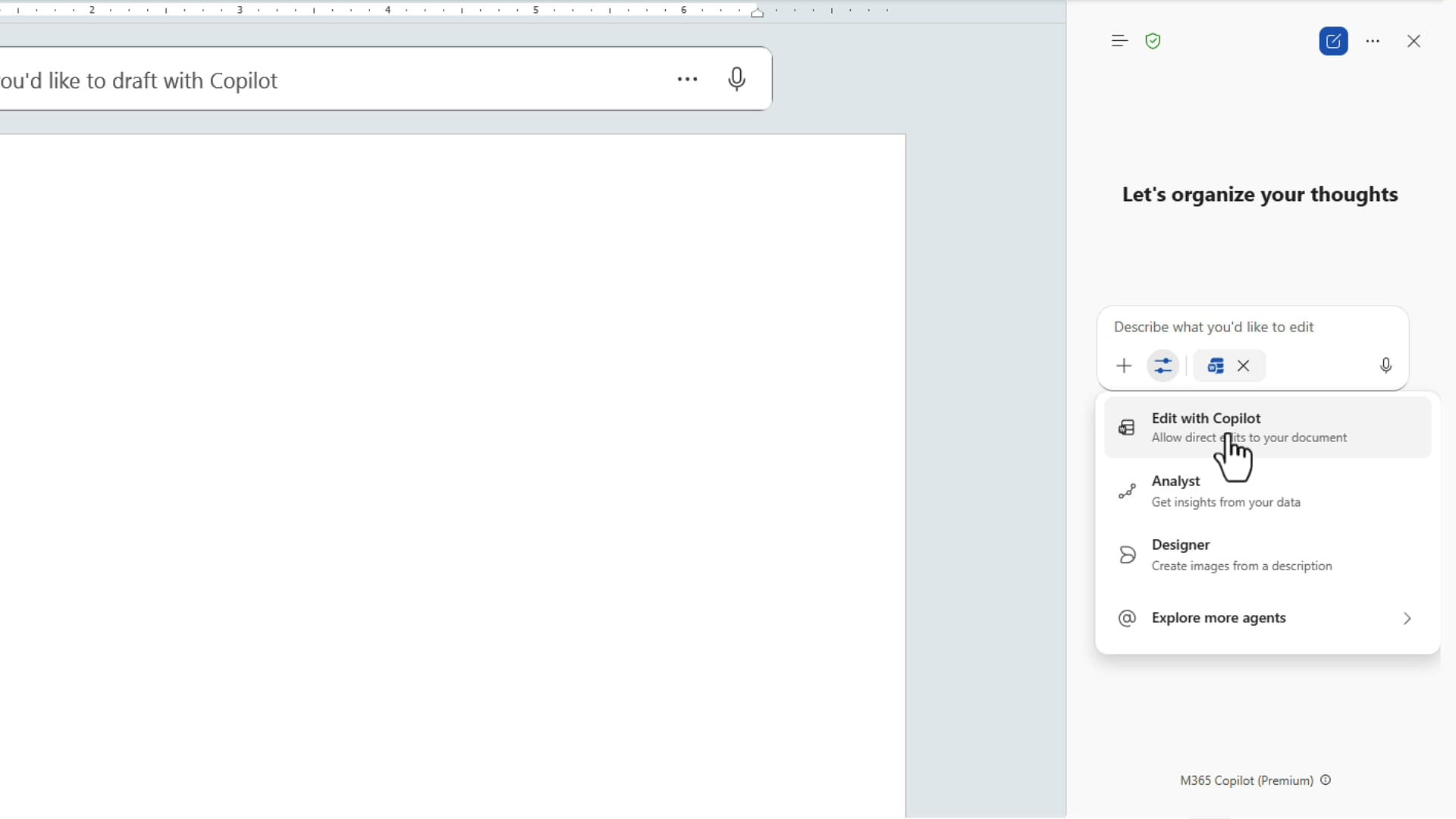
In the Word desktop app or Word for the web, click Copilot in the ribbon. This opens Edit with Copilot, which is the renamed version of what used to be called Agent Mode.
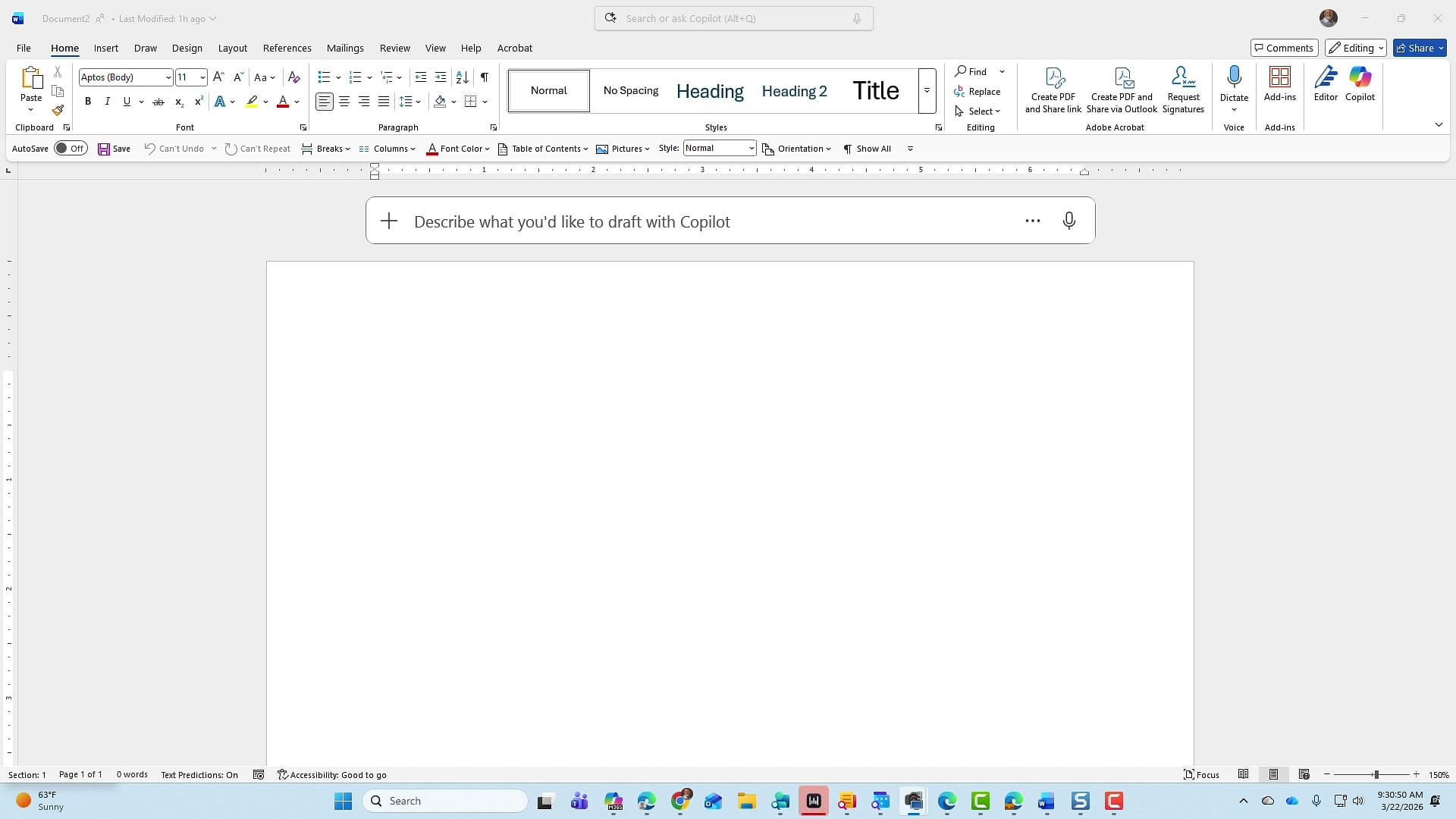
The key word here is edit. This is not the place to create new content from scratch. Use Edit with Copilot when you need to rewrite paragraphs, convert bullets into tables, adjust tone, or restructure existing text. If you click the settings icon, you can see the available modes including Edit with Copilot, Analyst, and Designer.
Word Agent in M365 Copilot Chat: For Creating New Documents
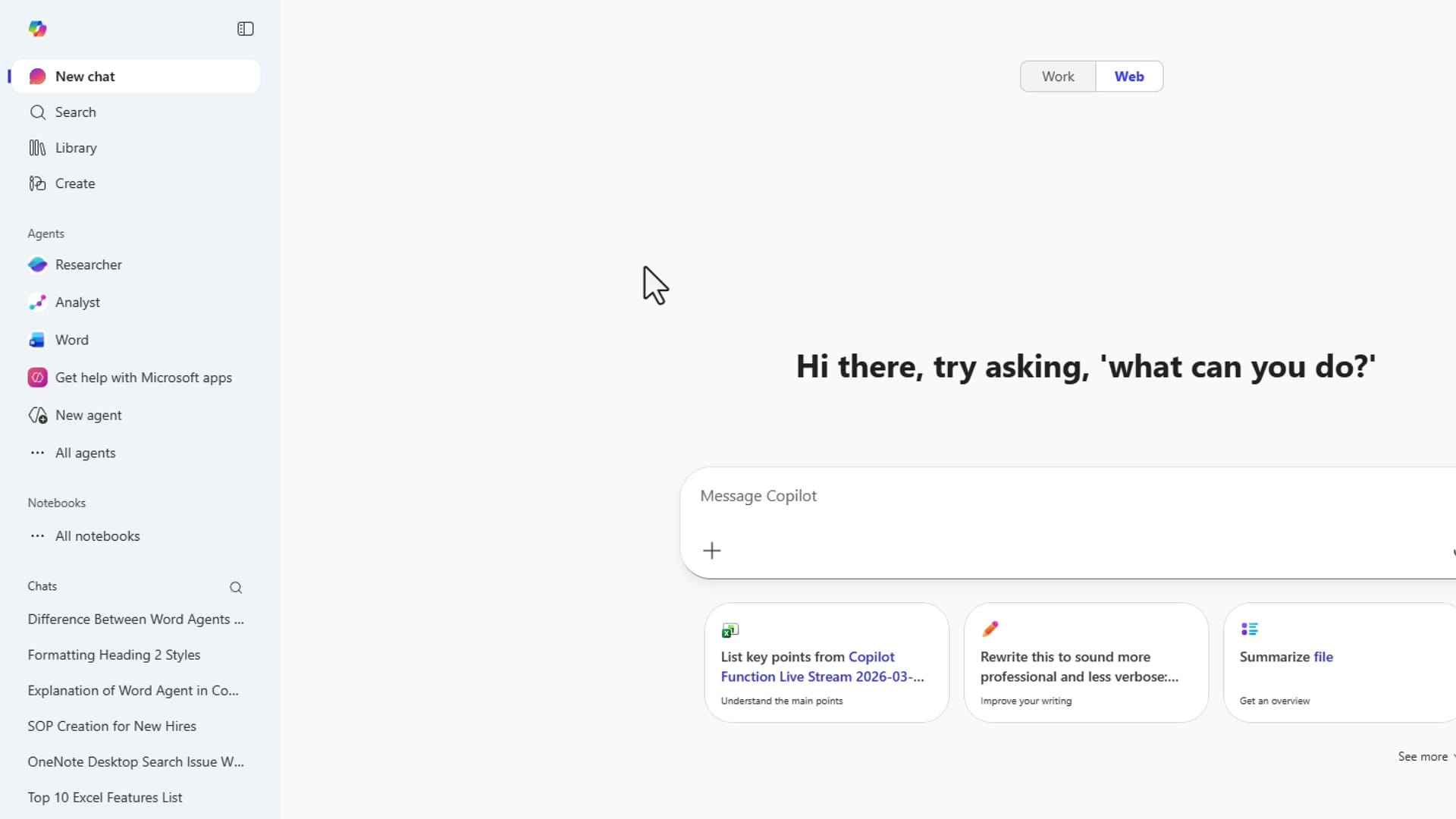
To create documents from scratch, open M365 Copilot chat. On the left side, under Agents, you will see Researcher, Analyst, and now Word. Click on Word to launch the Word Agent.
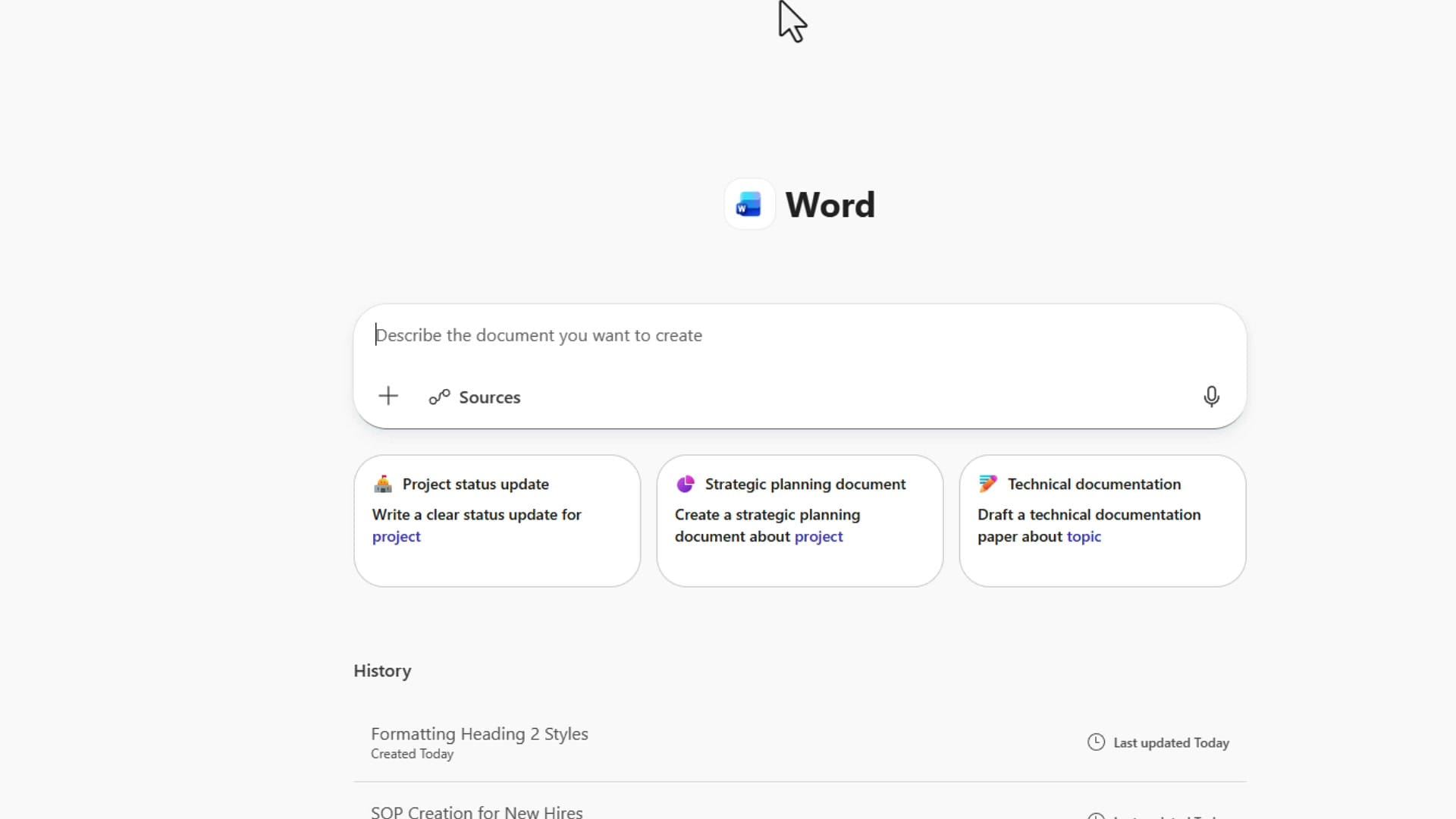
When you click on Word, the interface changes. The Work and Web toggles disappear, and you get a prompt that says "Describe the document you want to create." You also get template suggestions like Project status update, Strategic planning document, and Technical documentation.
Example: Creating an SOP for New Hires
To demonstrate the Word Agent, I typed a simple prompt: "Create an SOP for new hires." I could have been more descriptive — specifying the audience, department, or scope — but I kept it simple on purpose.
The Word Agent came back and asked two clarifying questions:
- Who is this for? I replied that it was for new hires and HR managers.
- What time period should it cover? The options were day one, first week, first thirty days, first sixty days, or ninety days. I chose ninety days.
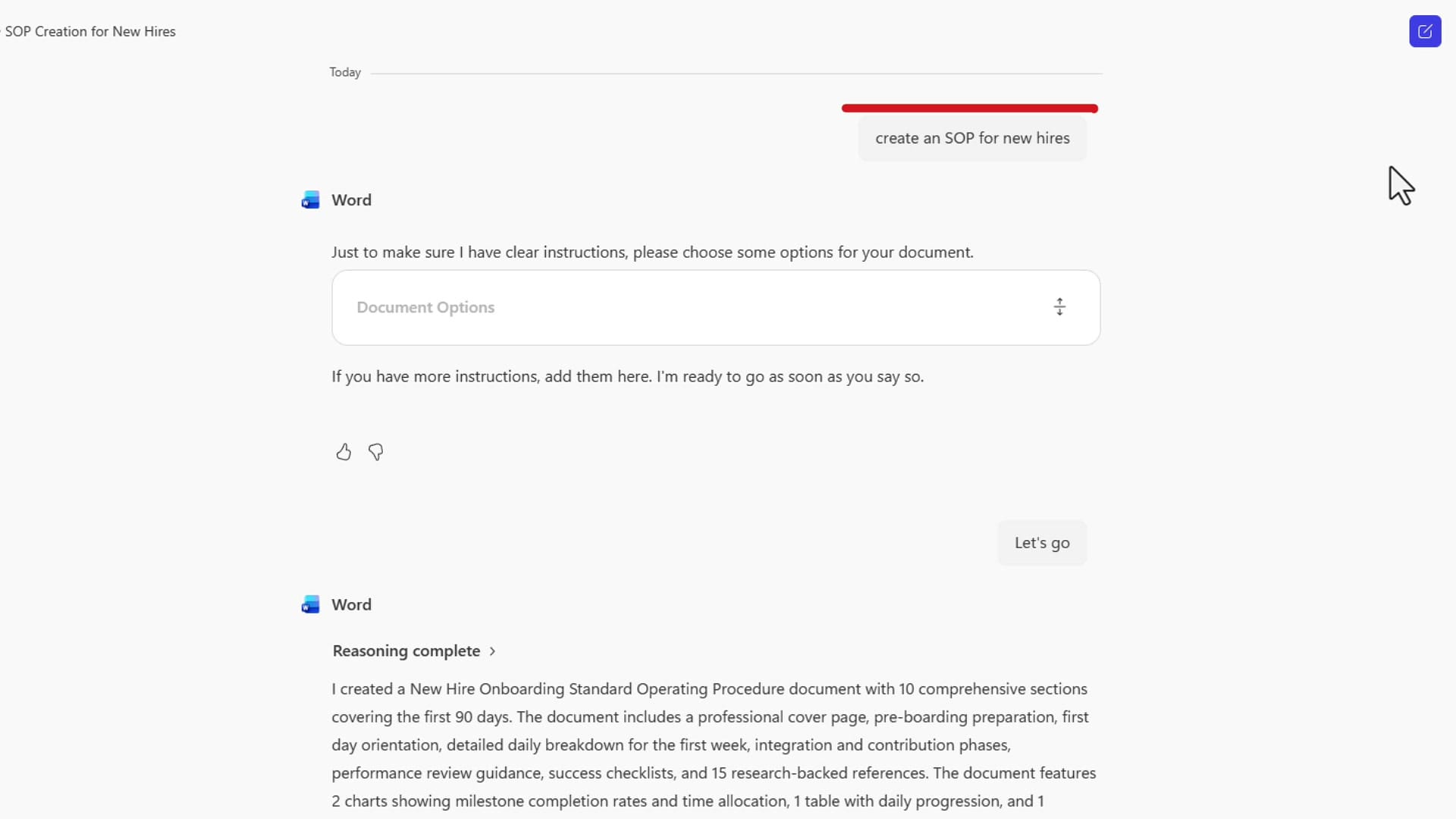
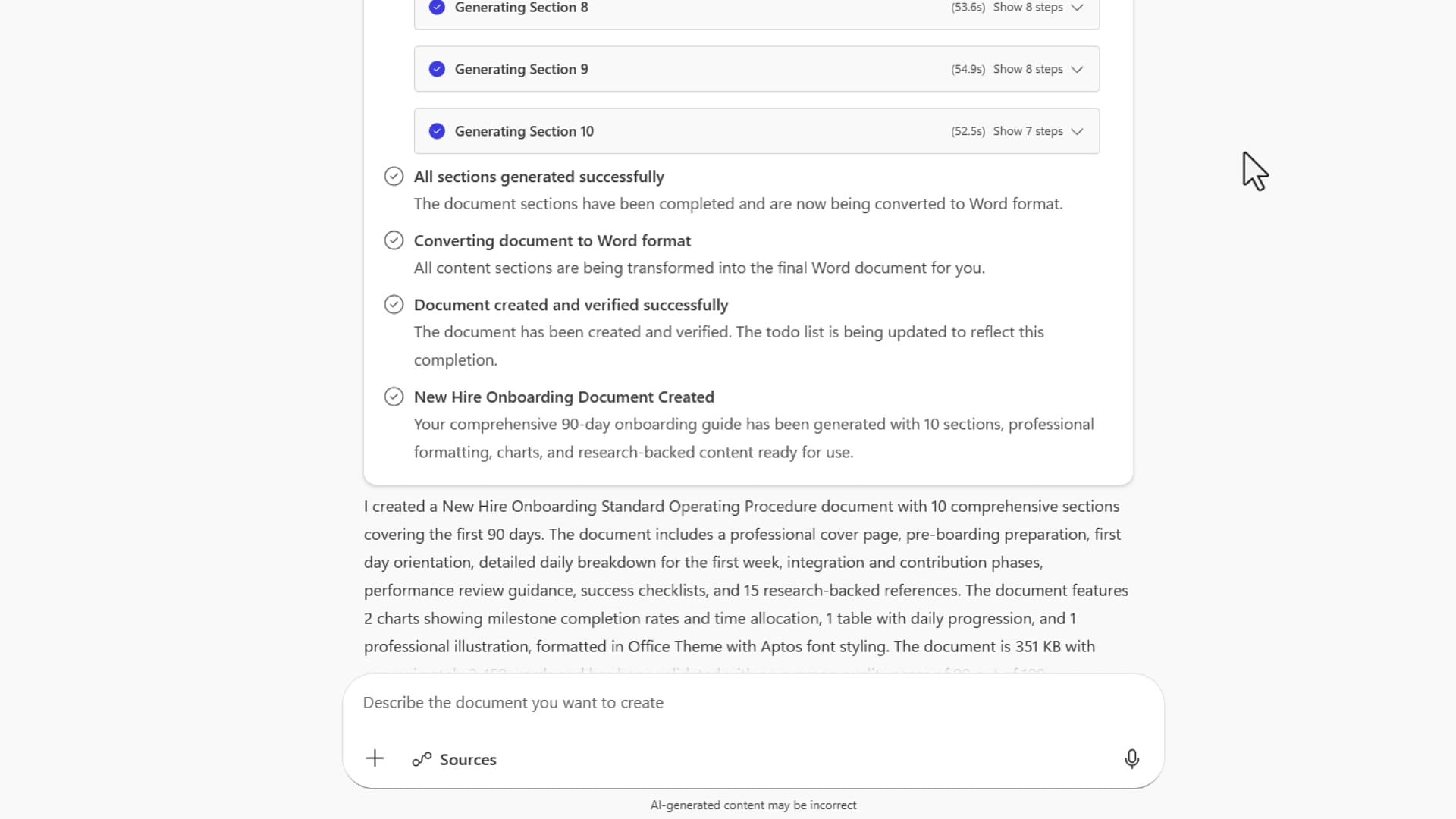
After I answered those questions, the Word Agent began working. It went through its reasoning process and started generating sections. Copilot even displayed a message saying I could go do something else while it worked in the background — a nice touch for longer documents.
Reviewing the Generated Document
The finished document is a comprehensive New Hire Onboarding Standard Operating Procedure covering the first ninety days. It initially appears in a View Only mode with an Open in Word button in the top right. Click that to open it in Word for the web, and from there you can switch to the desktop app by clicking Editing and selecting Open in Desktop App.
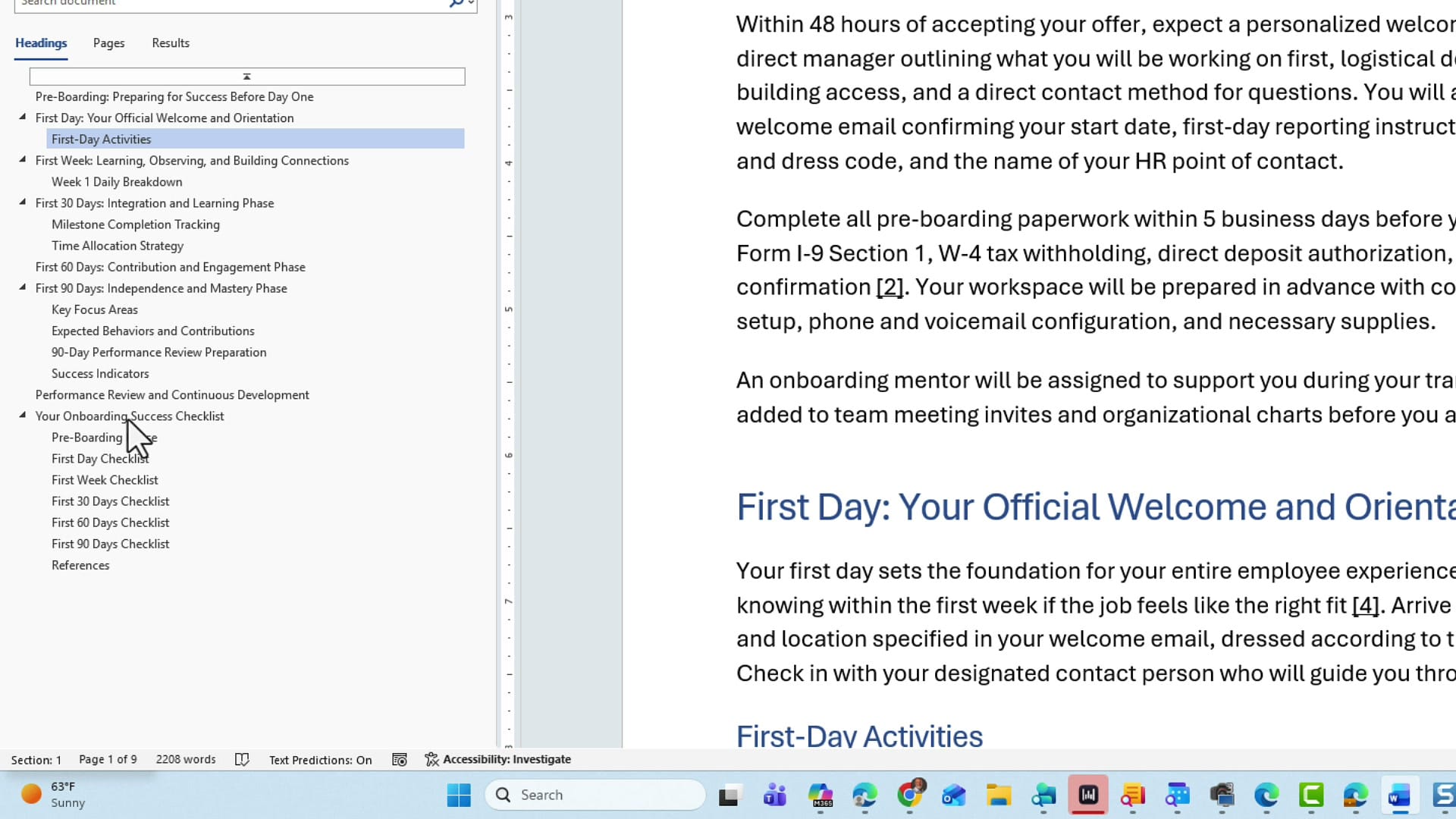
Opening the Navigation Pane (View tab > Navigation Pane) reveals the full structure. The document includes:
- Pre-Boarding: Preparing for Success Before Day One
- First Day: Your Official Welcome and Orientation
- First Week: Learning, Observing, and Building Connections
- First 30 Days: Integration and Learning Phase
- First 60 Days: Contribution and Engagement Phase
- First 90 Days: Independence and Mastery Phase
- Checklists for each phase
- References with source links
Tables, Charts, and Checklists
The document is not just walls of text. The Word Agent included a Week 1 Daily Breakdown table with columns for Day, Key Activities, and Expected Outcomes. There are charts showing milestone completion tracking and time allocation for the first thirty days. And at the end, there are detailed checklists for pre-boarding, the first week, first thirty days, sixty days, and ninety days — covering everything from I-9 and W-4 forms to direct deposit setup.
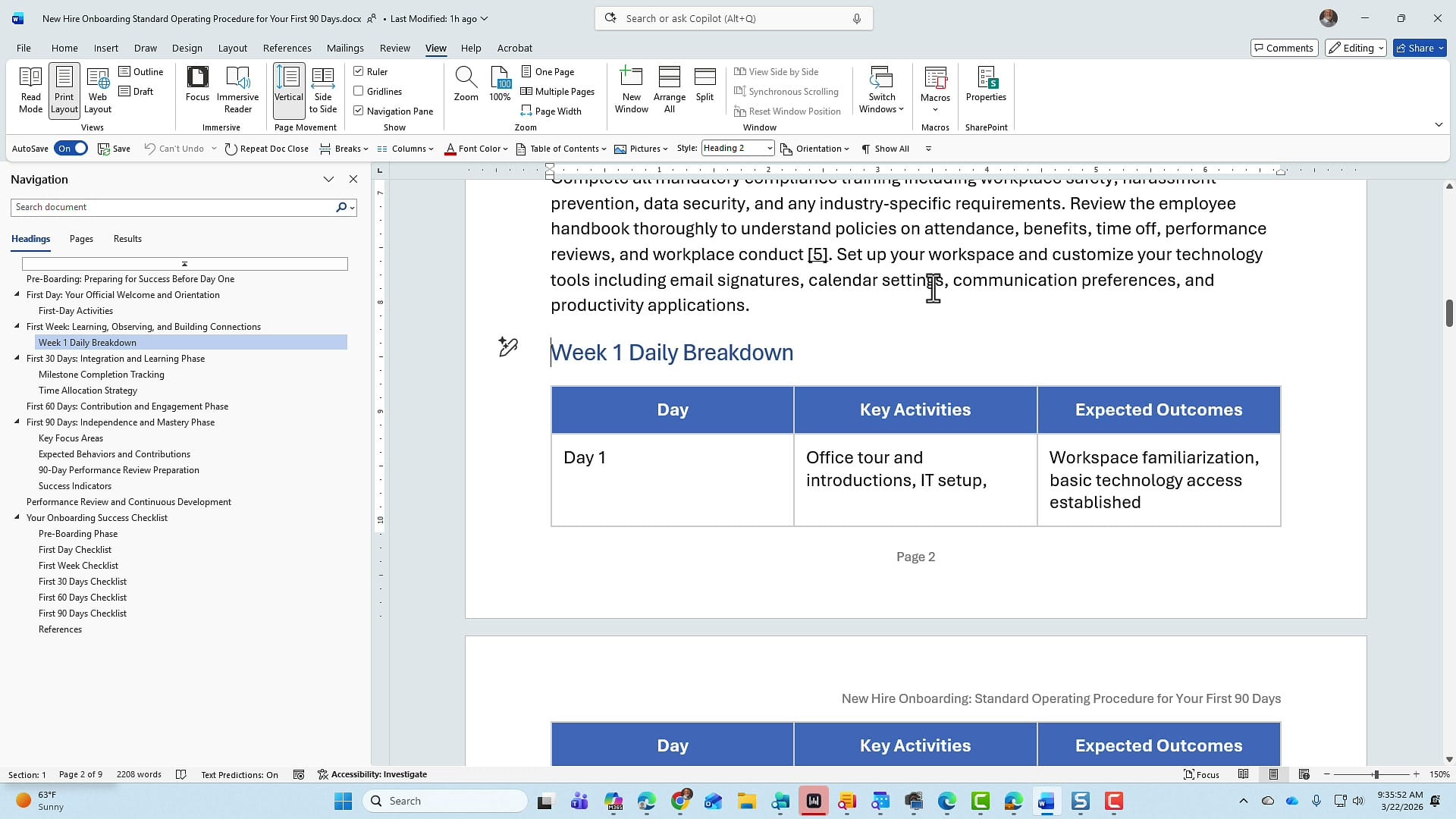
The total document came out to nine pages, well-organized with proper heading styles, and it took approximately ten to fifteen minutes to generate. Writing this from scratch would have taken days.
Quick Reference: Edit with Copilot vs. Word Agent
| Edit with Copilot | Word Agent | |
|---|---|---|
| Where | Inside the Word app (ribbon) | M365 Copilot chat (left sidebar) |
| Purpose | Edit, rewrite, reformat existing content | Create new documents from scratch |
| Asks follow-up questions | No | Yes |
| Works in background | No | Yes |
| Output | Inline edits to current document | Complete new Word document |
Related Microsoft Copilot Tutorials
 Chris Menard
 Chris Menard
 Chris Menard
 Chris Menard
 Chris Menard
Want to learn more? Visit courses.chrismenardtraining.com for online training courses.