Word Agent in Copilot: Fix Inconsistent Heading Styles Instantly

The Word Agent in Microsoft 365 Copilot can do more than create documents from scratch. It can also clean up and fix existing documents, including inconsistent heading styles. Here is how to use Word Agent Mode to make all your Heading 2 styles consistent in a single prompt.
Finding the Word Agent
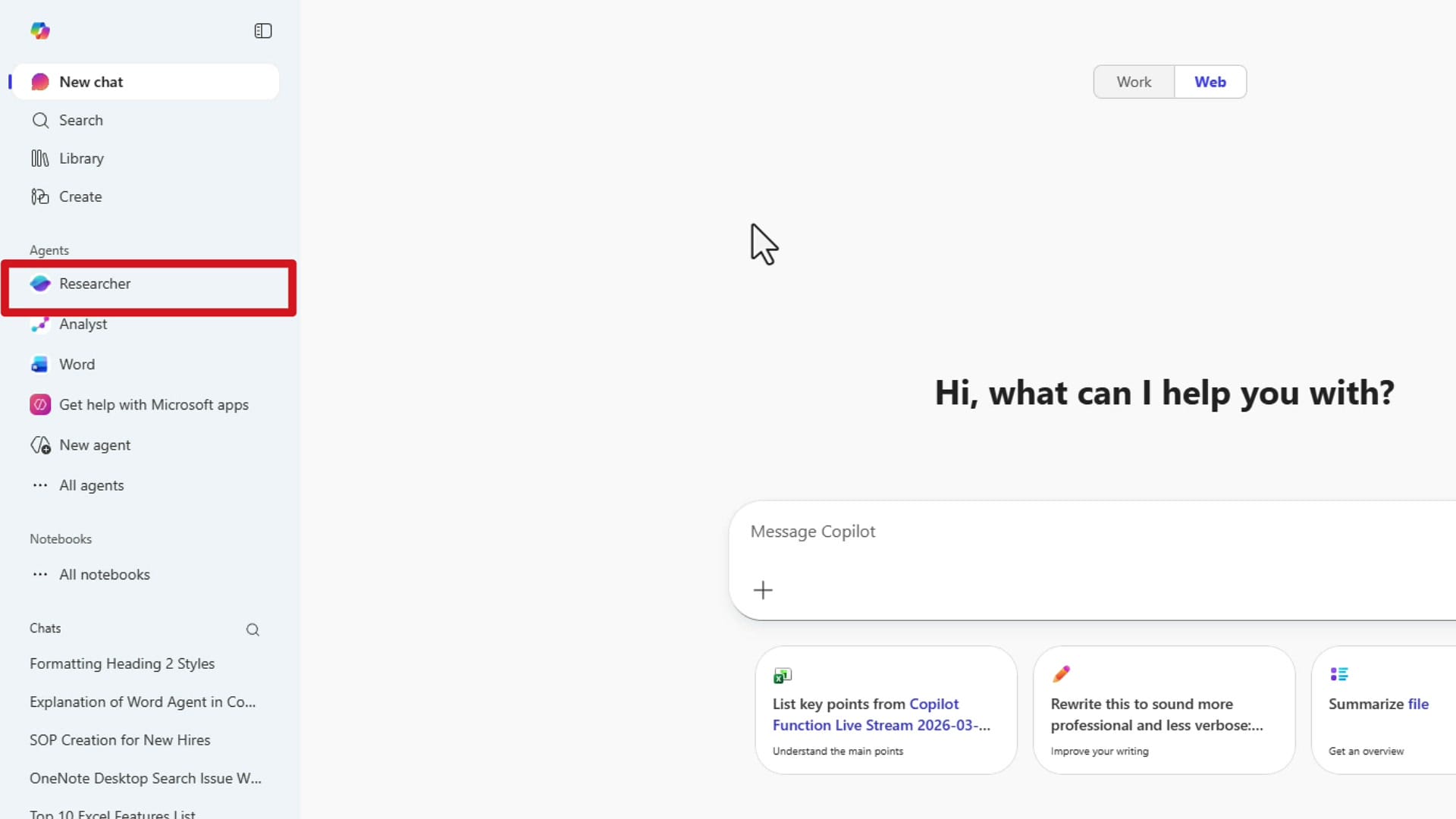
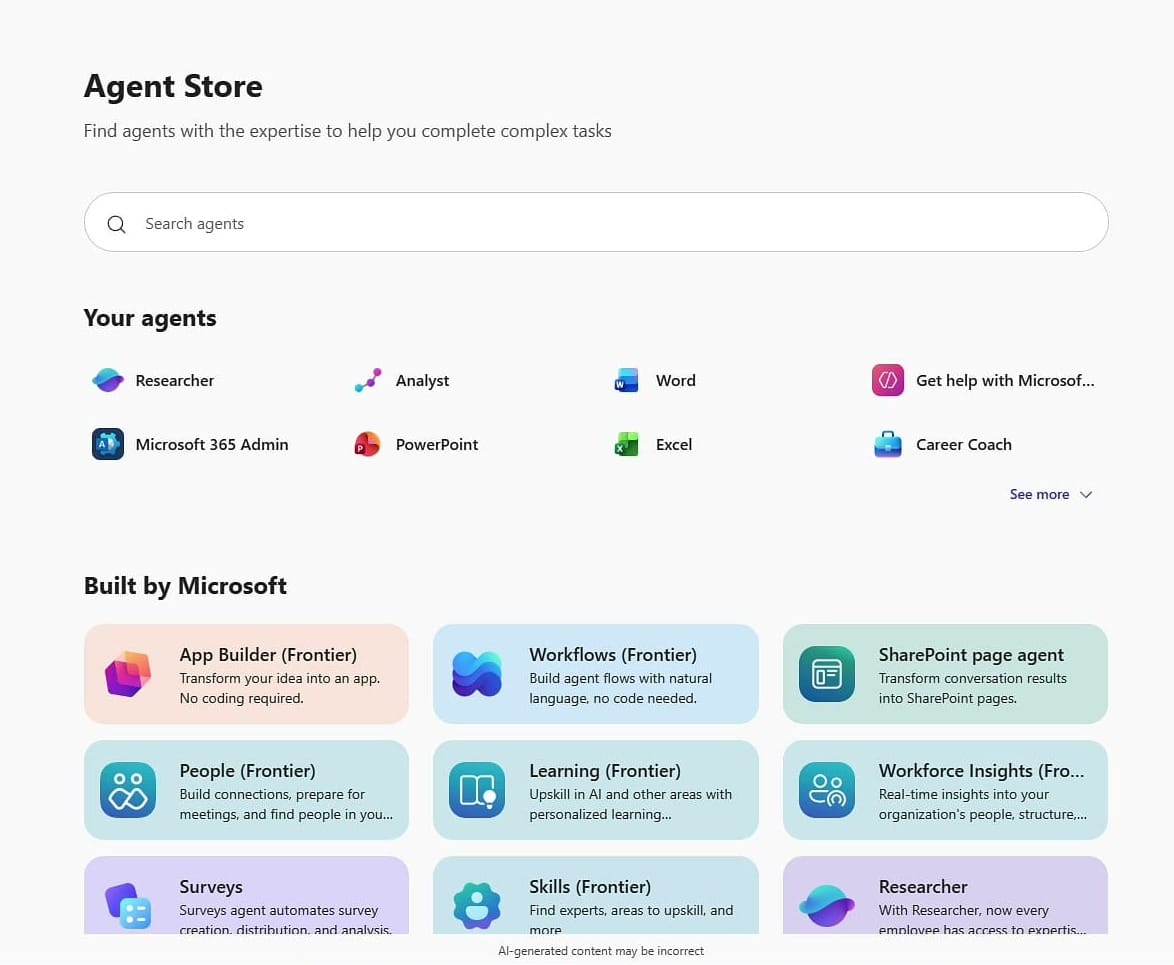
Open M365 Copilot from the taskbar. In the left sidebar under Agents, you will see Researcher and Analyst (which have been available for a while), and now Word. If you do not see Word listed, go to All agents at the bottom of the sidebar to find it in the Agent Store.
Spotting Heading Inconsistencies
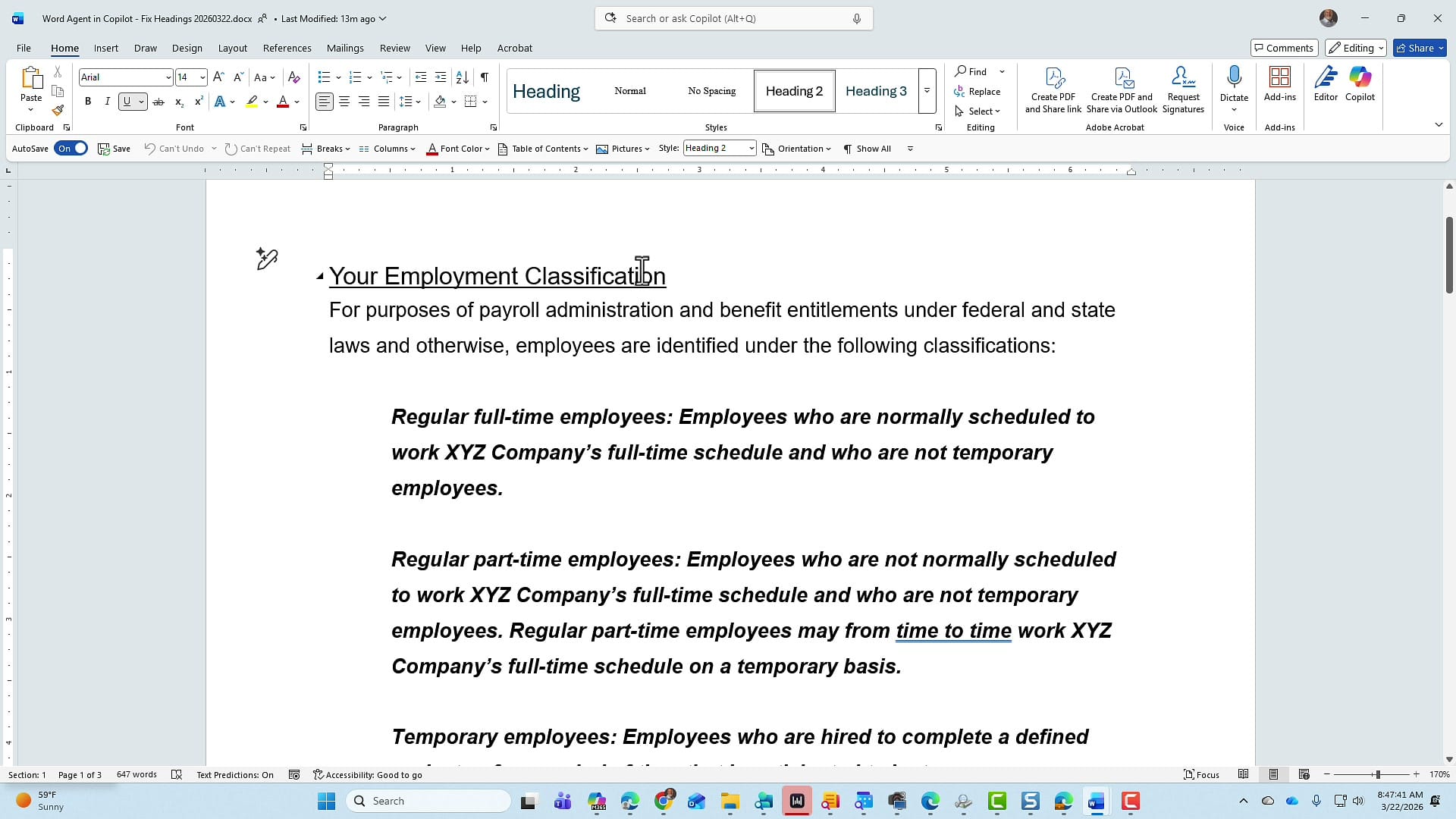
In this example, I have a three-page Word document with several Heading 2 styles applied. The first Heading 2, "Your Employment Classification," has a font size of fourteen and is underlined.
Scrolling through the document, most Heading 2s match that formatting. But then "Hours, Schedules, and Overtime" is a Heading 2 that is not underlined. The Heading 2 styles are inconsistent throughout the document.
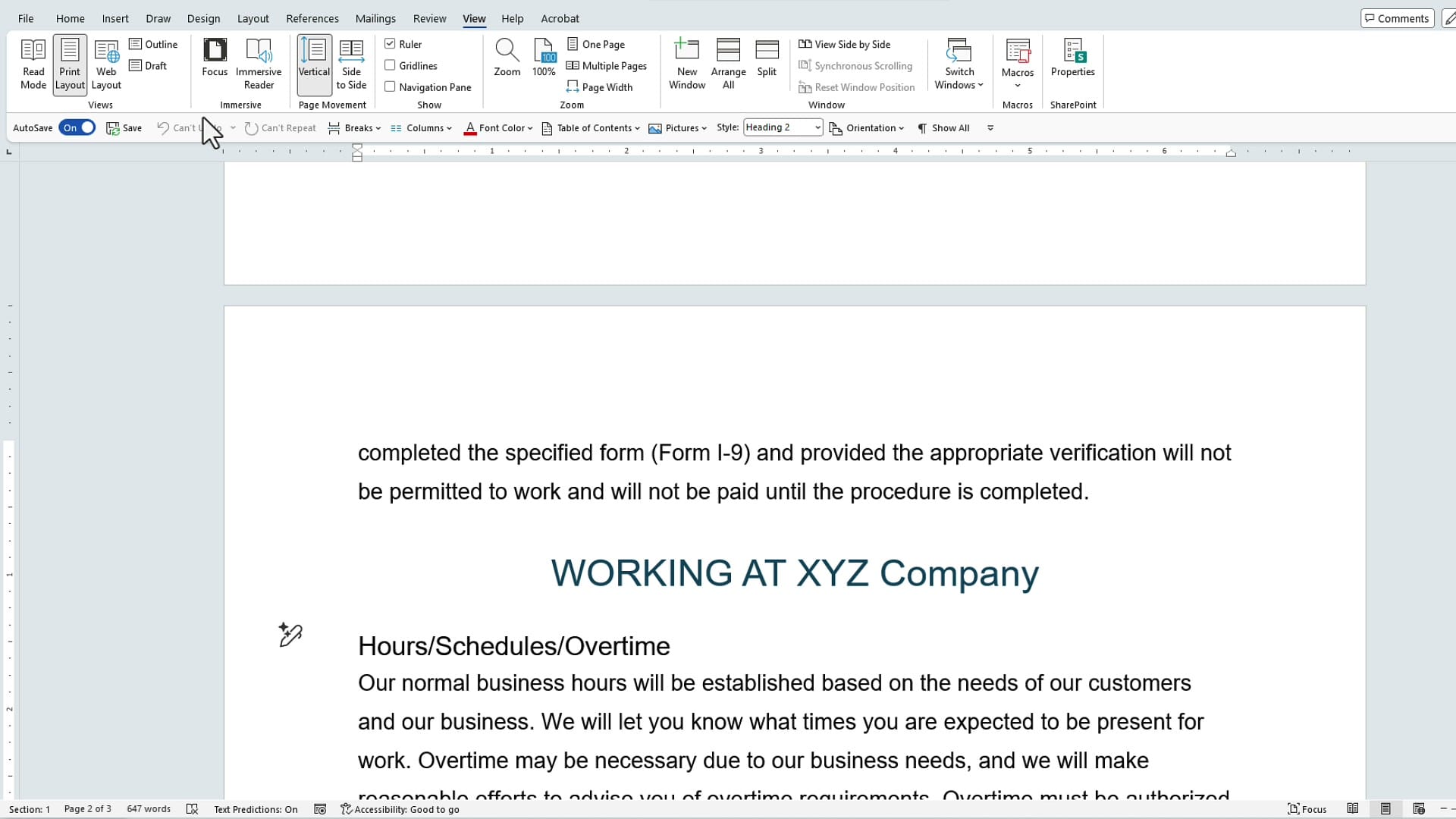
You can also switch to View > Draft mode to see your heading levels at a glance and quickly identify where the formatting does not match.
Writing the Prompt
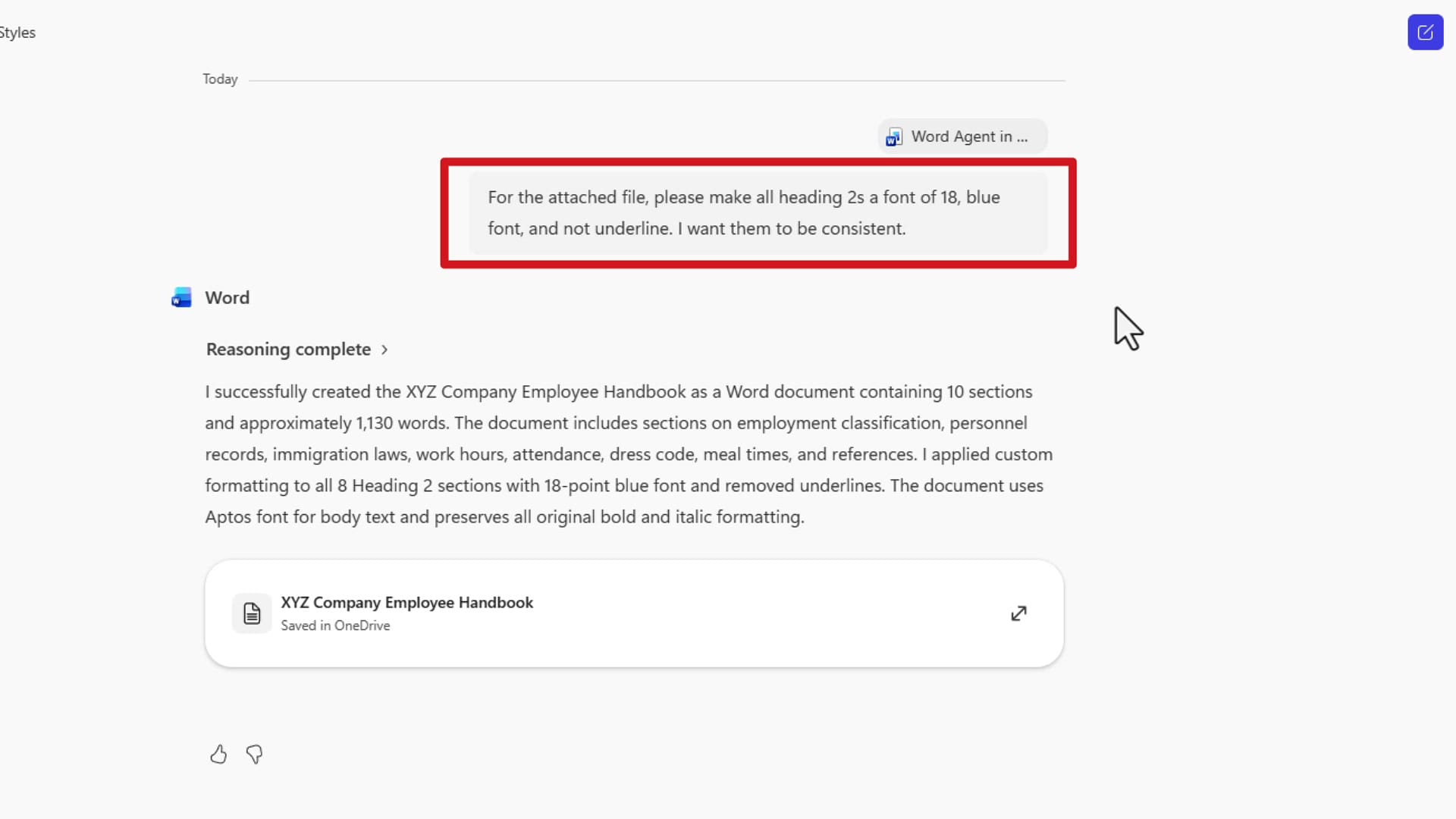
Close the original document and go back to the Word Agent in M365 Copilot. Click the + button to attach the Word document, then type your prompt. For this example:
"For the attached file, please make all Heading 2s a font of 18, blue font, and not underlined. I want them to be consistent."
The Word Agent processes the request, goes through its reasoning, and creates a brand-new Word document with all the changes applied. It saves the new file directly to OneDrive.
Reviewing the Results
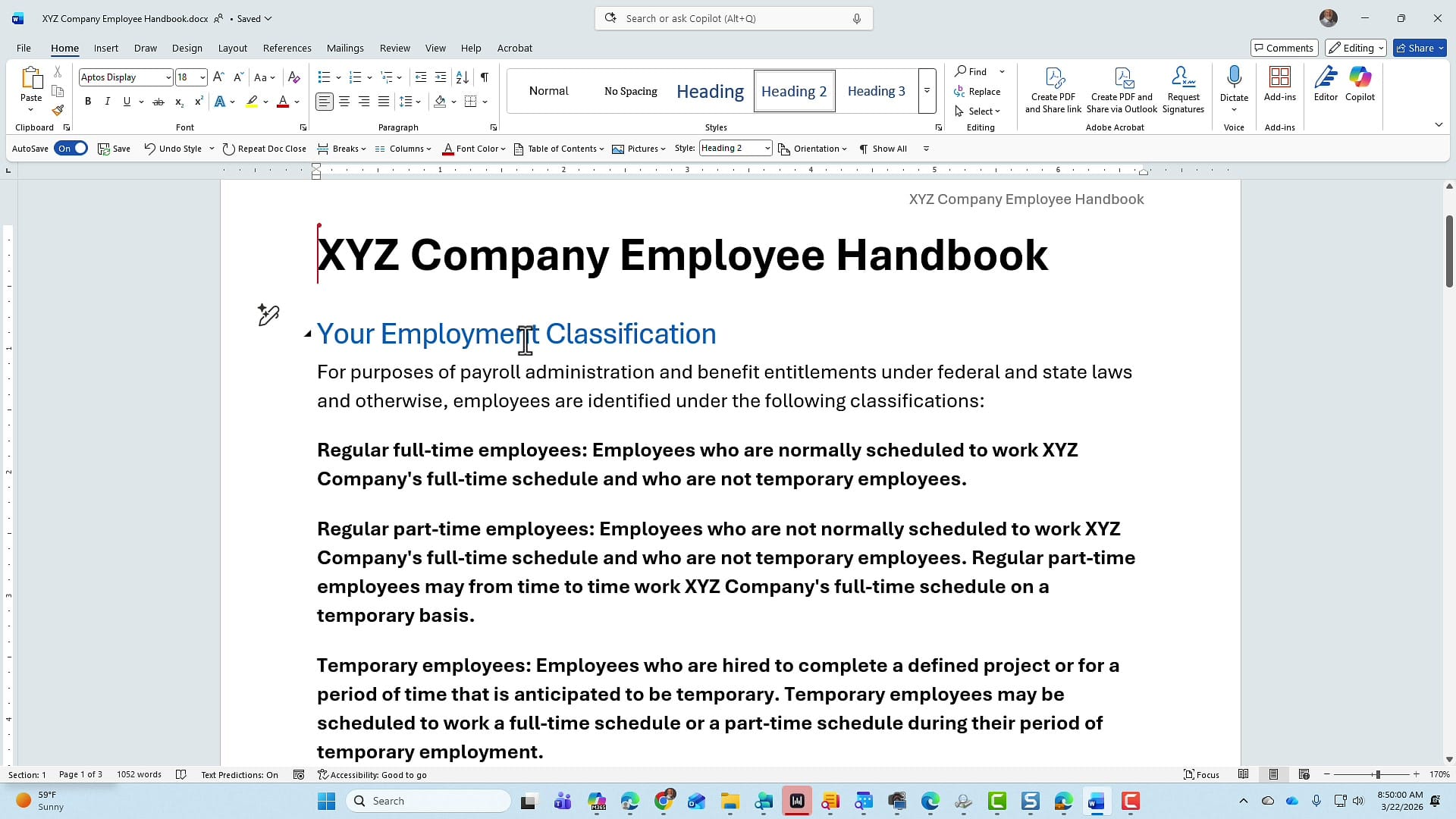
Open the new document and check the results. The Word Agent even added a title at the top of the document. Clicking on any Heading 2 confirms it is now font size 18 with no underline, exactly as requested.
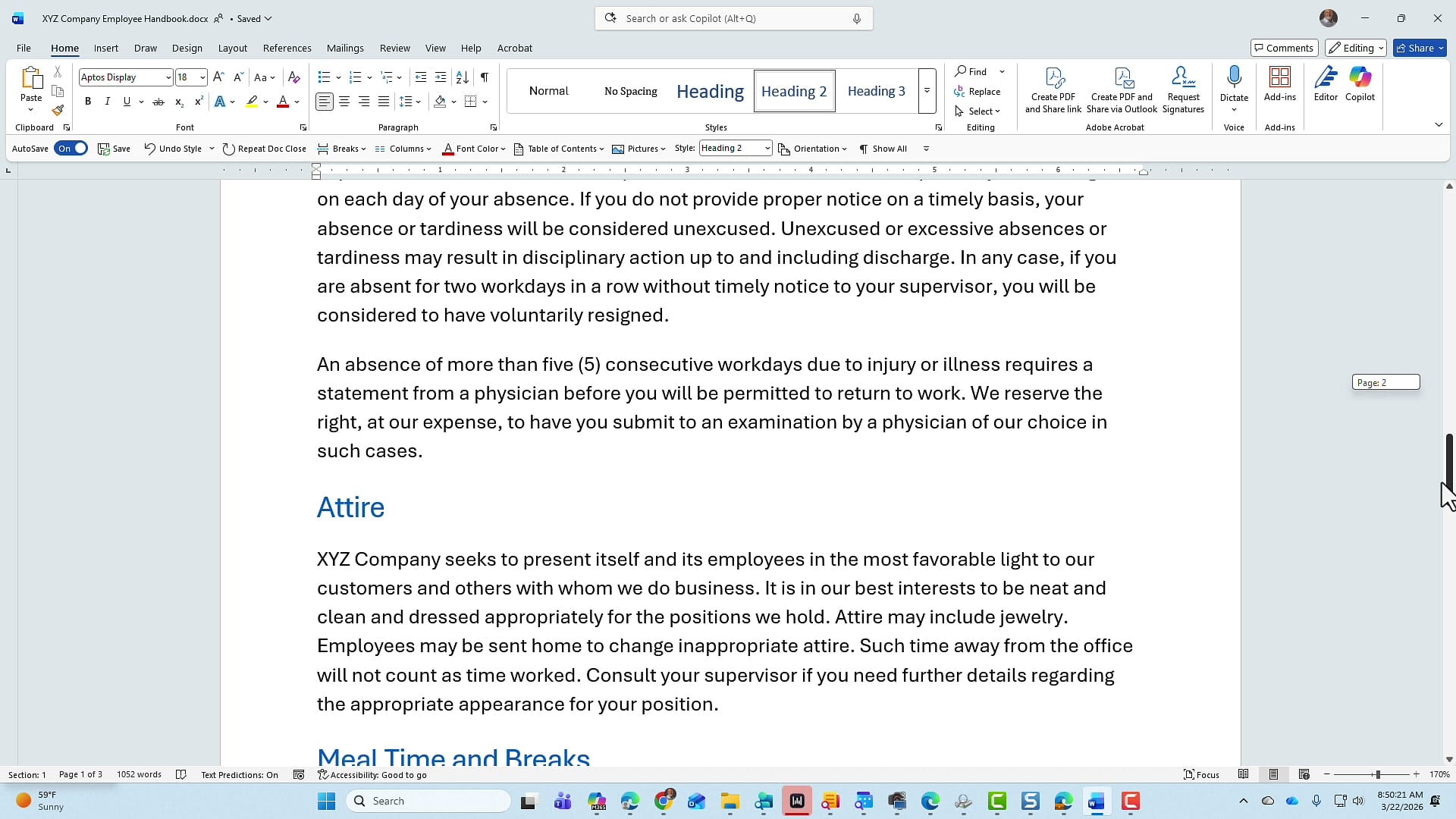
Scrolling through the rest of the document confirms every Heading 2 is now consistent. "Attire" and "Meal Time and Breaks" both show the same blue 18-point formatting. Heading 1 styles like "Working at XYZ" were left untouched.
Finding All Copilot Agents
To see all available agents, click All agents in the Copilot sidebar. The Agent Store shows Word, PowerPoint, and Excel agents, along with Researcher, Analyst, and others built by Microsoft.
Word Agent Mode can both create documents from scratch and fix existing ones. For document creation from scratch, see my separate tutorial on that topic.
Related Microsoft Copilot Tutorials
 Chris Menard
 Chris Menard
 Chris Menard
 Chris Menard
Want to learn more? Visit courses.chrismenardtraining.com for online training courses.