
Use Icon Set in Excel - just two arrows by Chris Menard

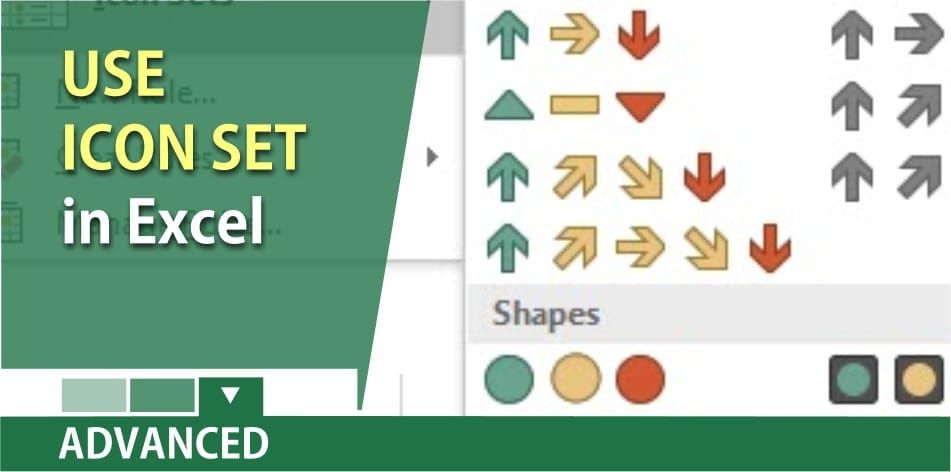
Icon Sets in Excel
Use an icon set to present data in three to five categories that are distinguished by a threshold value. Each icon represents a range of values and each cell is annotated with the icon that represents that range. For example, a three-icon set uses one icon to highlight all values that are greater than or equal to 67 percent, another icon for values that are less than 67 percent and greater than or equal to 33 percent, and another icon for values that are less than 33 percent.
In the video below, I only want to use the green arrow point up for positive numbers, and the red arrow pointing down for negative numbers. I do not want to use the yellow arrow. When showing icon set arrows, the arrows appear to the left of the number. You can not display the number and the arrows will appear in the middle of the column as shown in the video below.
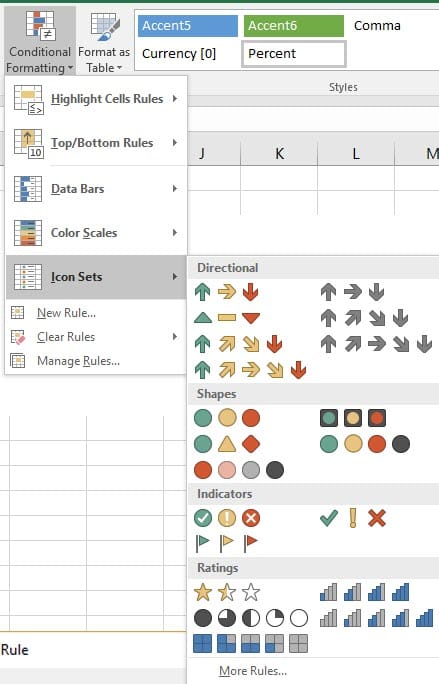
Use two arrow icon set with conditional formatting in Excel by Chris Menard -
Other useful Conditional Formatting Videos by Chris Menard
Icon sets fall under Conditional Formatting. Below are other useful videos on Conditional Formatting in Excel.
- [Compare two sets of data](
with Conditional Formatting
- Conditional Formatting with the [Countif function](
- [Conditional Formatting with dates](
- Conditional Formatting with [Max and Large function](
in Excel



