Three Great OneDrive Tips and Features You Might Not be Using


I love Microsoft's OneDrive and I use it all the time - in my work and also with my family. If you're using Microsoft Word, Excel, PowerPoint and any other software that needs storing files you might want backed up, synchronised across devices (and operating systems), OneDrive is for you. It's easy to use, integrates perfectly with Windows (and Mac) and adds great flexibility in my day to day work - specially when collaborating with co-workers or virtual assistants.
In this article I would like to show you three great OneDrive features I love and use, and I think you'll agree they are a great time (and life) saver!
Quickly Rename any Office File While it's Open
You can quickly rename files you have saved to OneDrive - whether they are Microsoft Word, Excel, PowerPoint, you can click on the top, header area where the name of the file is displayed and rename it. Easy! This will rename the file across your devices, if it's synchronizing with OneDrive:
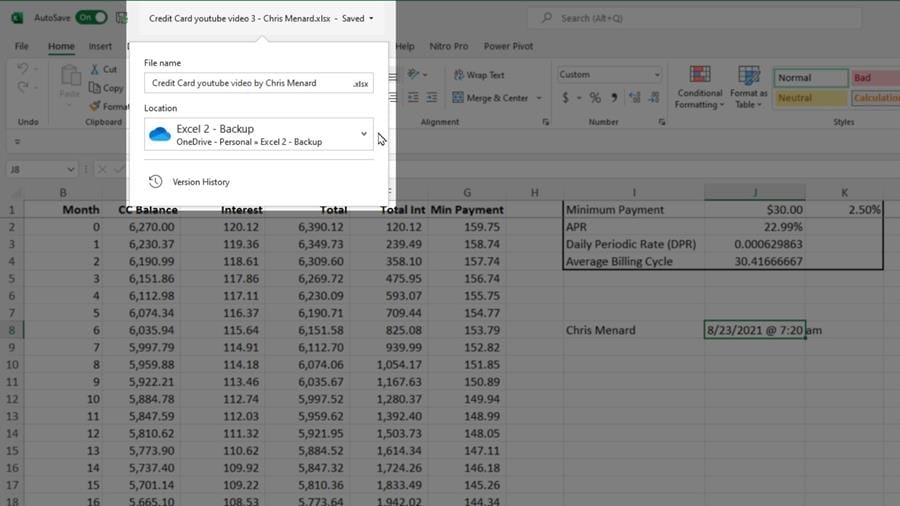
Renaming a file in OneDrive from the Application Title Bar
Restore Previous Versions of Files with AutoSave, Versioning and Restore
The other cool feature that I love about OneDrive and this again, applies to Word, Excel, it doesn't matter, is if you make a mistake, OneDrive is doing versioning. It works with any changes to file contents - say for example I delete an entire worksheet from an Excel workbook - I close this file out, I come back in later today or tomorrow and open it up to realize my worksheet is gone.
So if that happens, you go up where the filename is, click on **Version History**:
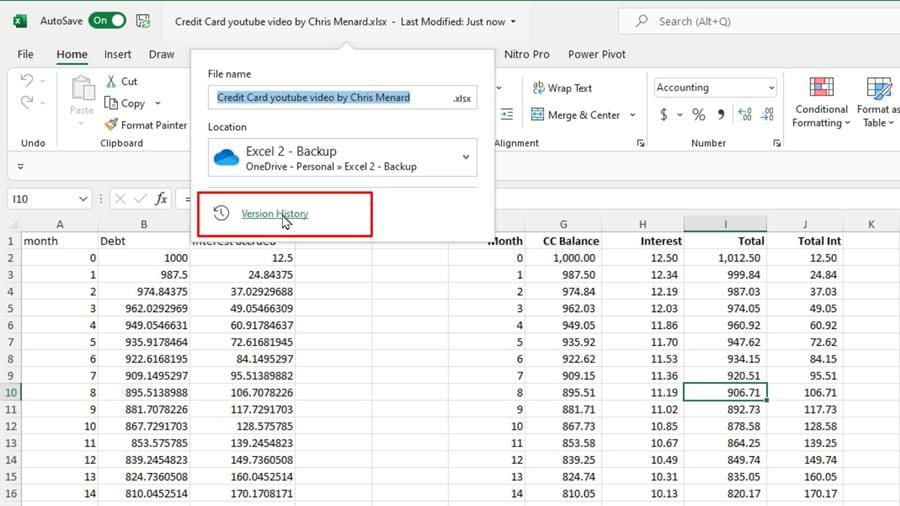
OneDrive creates versioning using AutoSave and Version History
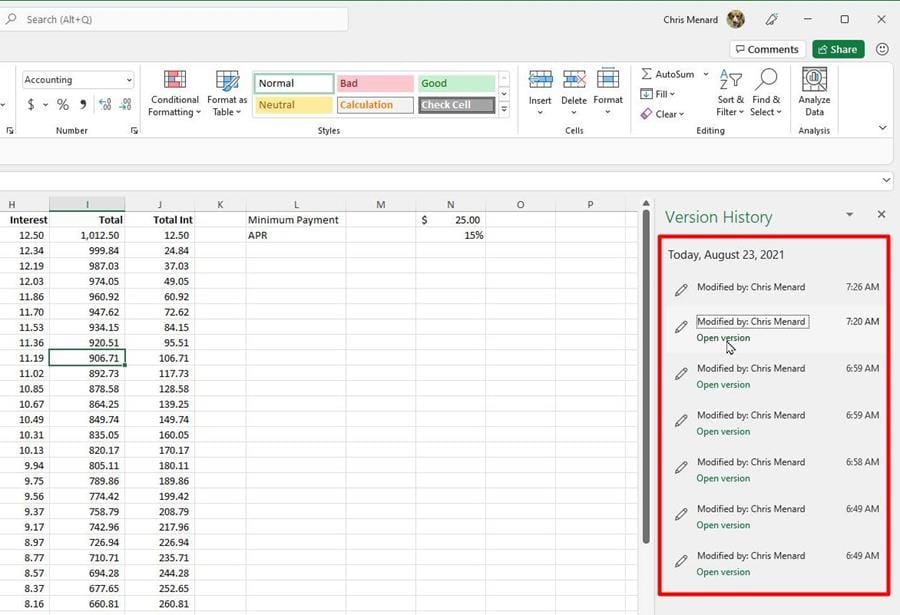
OneDrive allows you to choose previous version of a file in Version History panel
You can choose any previous version of that file, click **Restore** and you're back in business.
I use the version history in OneDrive all the time, especially because I'm in training, If I screw up a file, it's no big deal, I just go and pull up the previous version that I knew was correct.
This **file versioning** also works in Microsoft Word, it works in PowerPoint and other Office apps.
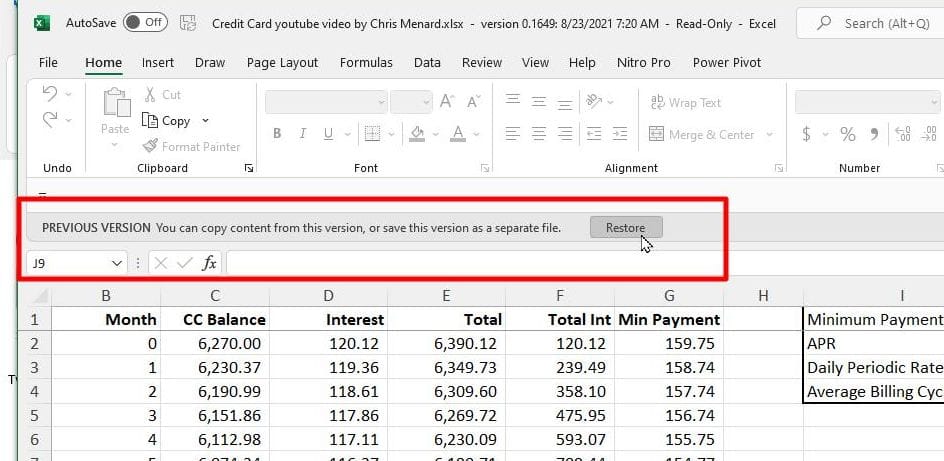
Choose which version you want and click RESTORE to bring your file back from OneDrive
Upload All Outlook Attachments at Once
The third item I want to discuss is Microsoft OneDrive in Outlook. There's great integration there between OneDrive and the entire Microsoft ecosystem. In Outlook, if you get emails with attachments, you can point to one of the attachments, click, upload. Very easy:
And even more useful is the ability to upload all attachments at once. If you get an email with 15 attachments, you can upload all attachments to OneDrive right here:
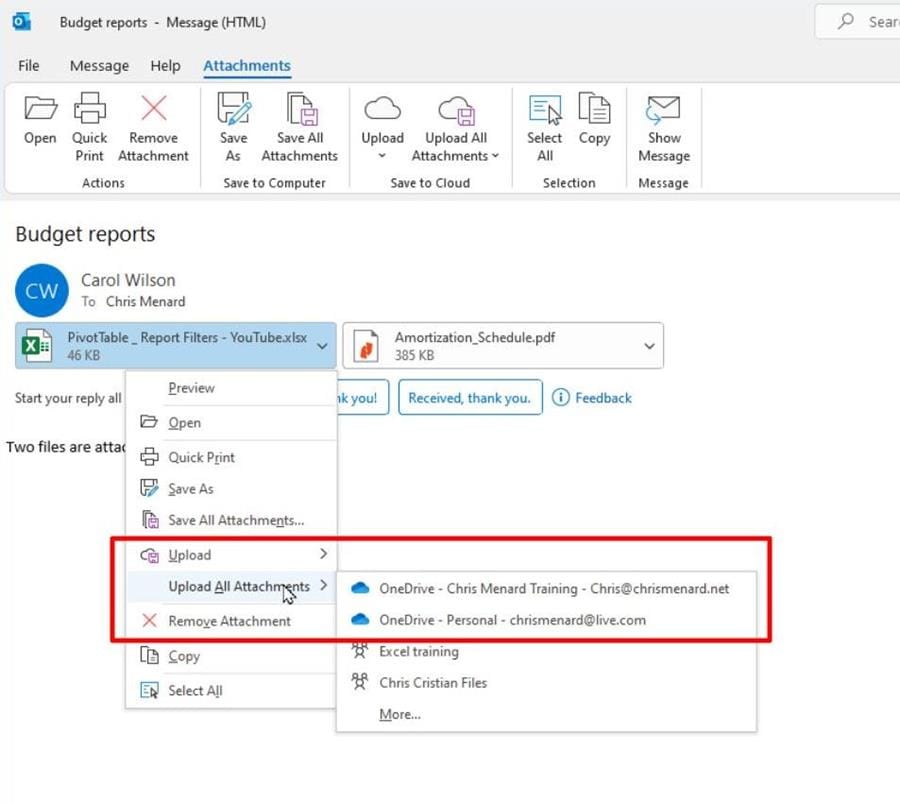
Upload attachments from Outlook to OneDrive directly
What version of OneDrive is best for you?
There are a couple major variants of OneDrive you can buy. The first version is actually broken up into two parts:
- You've got a [**Microsoft 365 Personal**](https://www.microsoft.com/en-us/microsoft-365/p/microsoft-365-personal/cfq7ttc0k5bf?activetab=pivot:overviewtab), which you can subscribe to if you want to - Very similar to that, what I actually have, is [**Microsoft 365 Family**](https://www.microsoft.com/en-us/microsoft-365/p/microsoft-365-family/cfq7ttc0k5dm?activetab=pivot:overviewtab).
So you pay a little more, but you can put it up to and share this with six people in your family.
The second OneDrive you have is [**OneDrive for Work or School**](https://support.microsoft.com/en-us/office/what-is-onedrive-for-work-or-school-187f90af-056f-47c0-9656-cc0ddca7fdc2). This was formerly called **OneDrive for Business**, but now we call it OneDrive for Work or School. The big difference between these two, the Work and School versus the Family/Personal, is that in the Family/Personal versions of OneDrive, you control that one. The OneDrive for Work or School is controlled by your company or university.
Three Great OneDrive Tips and Features | Microsoft OneDrive Tips and Tricks by Chris Menard