
OneDrive Recycle Bin Tips and Tricks: How to Recover Files


I rely on OneDrive every day, and the OneDrive Recycle Bin is one of those quiet lifesavers most people forget about until they panic. Whether it's a Teams meeting recording that a policy removed after 60 days or a spreadsheet I accidentally deleted, knowing how the OneDrive Recycle Bin works, where deleted items go, and how to recover them can save hours of work and a lot of stress.
Note: Microsoft Teams meeting recordings usually default to 60 days for expiration, but this can be changed by users or admins to 90 days, longer, or even "no expiration," depending on policies and file location (OneDrive/SharePoint)
🔍 Where deleted files go and why it matters
When you delete a file from OneDrive, it doesn’t vanish instantly. Files move to the OneDrive Recycle Bin first. That includes recordings from Teams that are stored in your OneDrive recording folder and then removed by company policy. The Recycle Bin serves as your first safety net, and understanding its behavior helps me recover data quickly rather than assuming files are gone forever.
🖱️ How to open the OneDrive Recycle Bin (step by step)
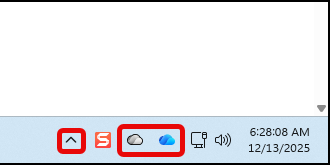
I have the OneDrive blue icon on my taskbar. The blue icon is for OneDrive for Work or School, and the white icon is OneDrive personal or family — but if it isn’t visible there, check the system tray up arrow. onedrive.com, The OneDrive Recycle Bin lives online.
YouTube Video - OneDrive Recycle Bin
When OneDrive opens online, you’ll typically land on Home on the left side under my name. To see delete options and manage files, switch to My files. Select the file or files you want to delete, then click Delete. OneDrive will confirm that the items are being sent to the OneDrive Recycle Bin.
Select a file and use the top toolbar to delete it — it sends the item to the Recycle Bin. You can also right-click the file and select delete.
♻️ Restoring deleted files from the recycle bin
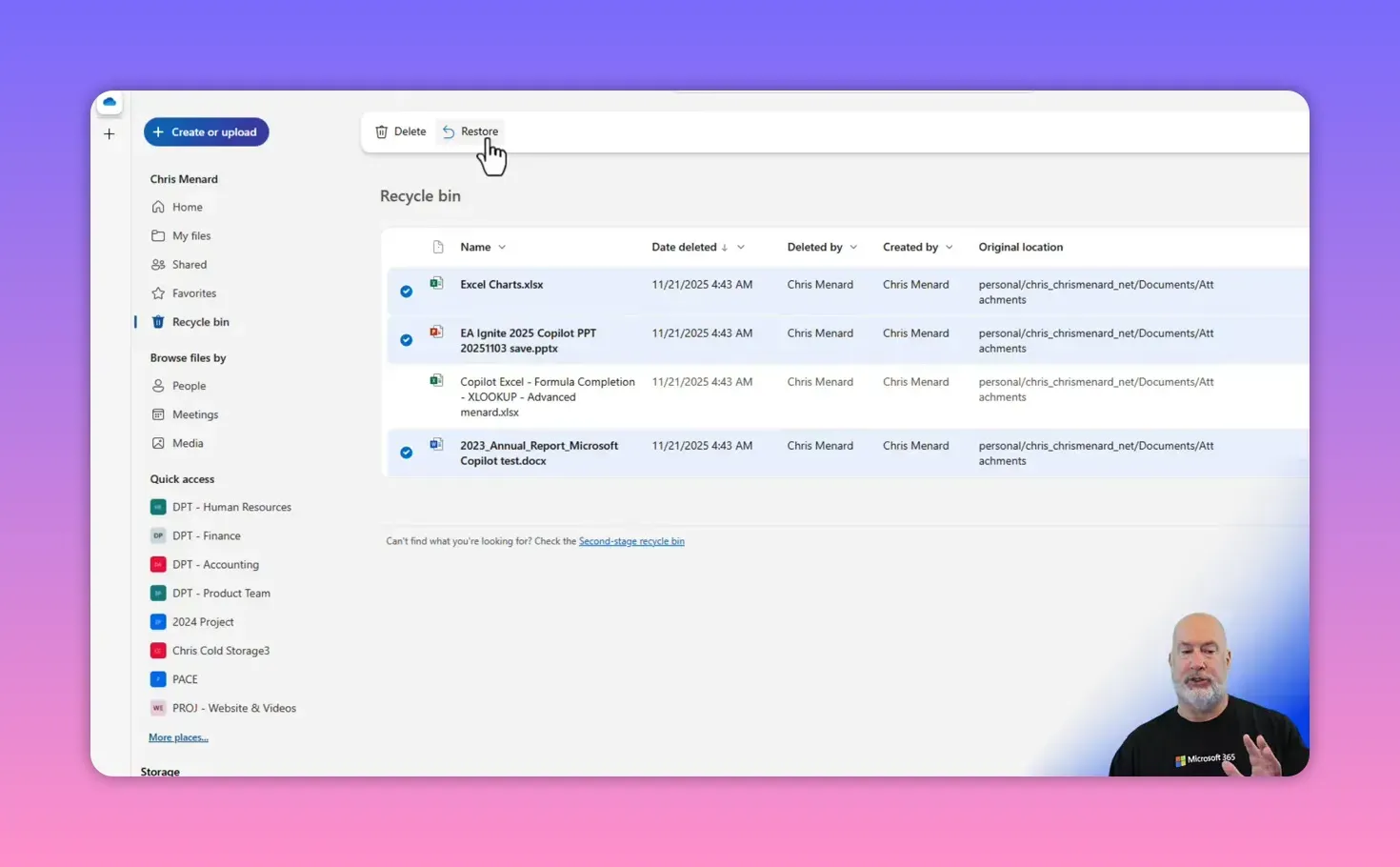
Restoring is simple and immediate. Open the OneDrive Recycle Bin from the left pane, select the items you want to recover, and click Restore. They return to their original folders exactly where they came from. If you restore a whole batch, it reverts to the correct structure, which often saves time on reorganization.
I select the files I want and click Restore to return them to their original folders.
If you only need a subset of deleted files, restore them individually. I use this all the time when an Excel, PowerPoint, or Word file is accidentally deleted. The OneDrive Recycle Bin makes granular recoveries painless.
⏳ Retention: how long items stay in the OneDrive Recycle Bin
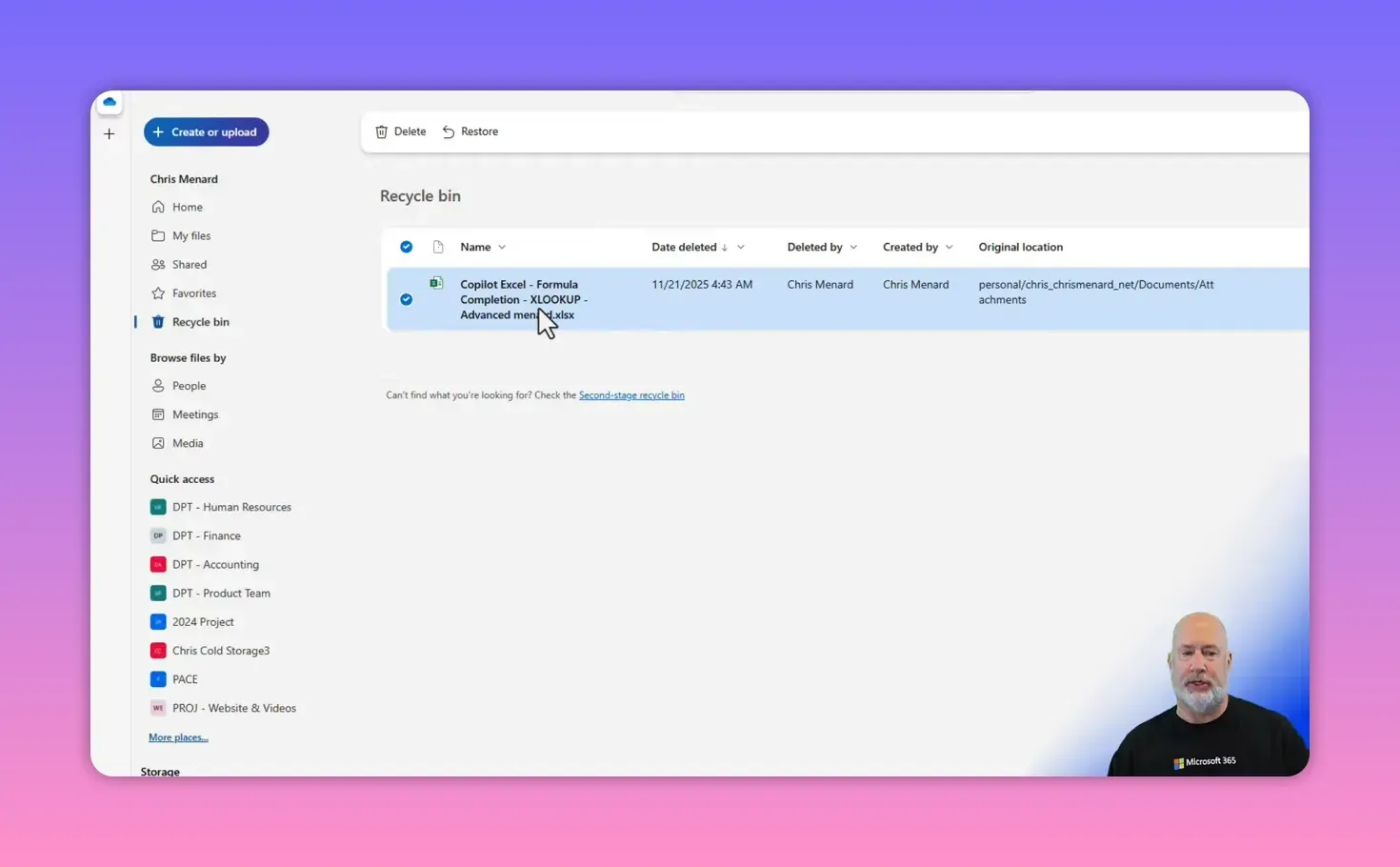
One crucial piece of the puzzle is the retention period. Deleted items sit in the OneDrive Recycle Bin for 93 days. After that, they disappear from the first-stage recycle bin. Knowing this timer is my first rule for recovery: act within 93 days to take the easiest path back.
🛟 Bonus tip: the second-stage recycle bin
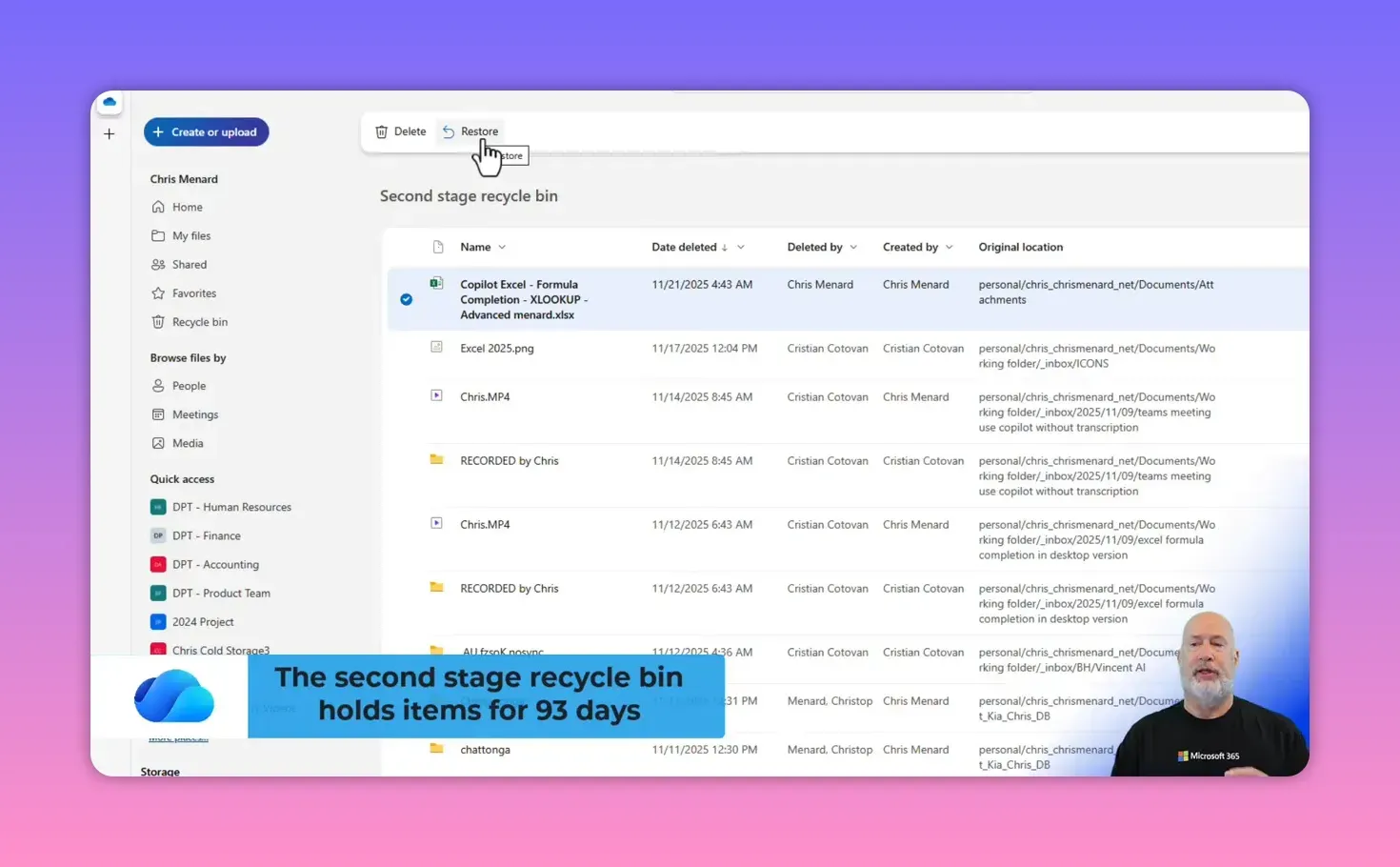
Here’s a trick most people miss. If an item is removed from the OneDrive Recycle Bin — either because you emptied it or because it passed the 93-day window — it doesn’t always mean permanent deletion right away. OneDrive has a second-stage recycle bin, sometimes called the site collection recycle bin, that can retain items for an additional period, depending on policies.
To find it, open your OneDrive Recycle Bin and locate the link to the second-stage Recycle Bin. That folder will show items that were purged from the first-stage bin. Restoring from this second stage returns files to their original location rather than back into the first-stage bin. I’ve used this to recover files I thought were gone forever after a quick, panicked cleanup.
🧭 A practical recovery checklist I use
- Step 1: Check the OneDrive Recycle Bin within 93 days of deletion.
- Step 2: If not found, open the second-stage recycle bin and search there.
- Step 3: Restore items and verify they returned to their original folder.
- Step 4: For Teams recordings, remember the recording folder in OneDrive is the likely location if your organization deletes them after 60 days or 90 days, depending on your tenant's policy.
Following this routine has saved me more than once. The OneDrive Recycle Bin, paired with the second-stage bin, gives you a layered approach to recovery.
📁 Best practices to avoid data loss
Prevention is always faster than recovery. Here are the practices I stick to:
- Regular backups: Keep copies of mission-critical files outside OneDrive, or use version control for frequently edited documents.
- Audit your retention policy: Know your organization’s Teams and OneDrive retention settings so you aren’t surprised when files disappear after 60 or 93 days.
- Check recycle bins first: Both the OneDrive Recycle Bin and the second-stage recycle bin are where I look before escalating to admin support.
Label recordings: If Teams recordings are important, set a longer expiration date or remove the expiration date.
❓ Frequently asked questions
How long do deleted items remain in the OneDrive Recycle Bin?
Deleted items remain in the OneDrive Recycle Bin for 93 days before they are moved to the first-stage Recycle Bin.
Where do Teams meeting recordings go after they are deleted after 60 days?
Most Teams recordings created by the meeting organizer are stored in the OneDrive recording folder and are moved to the OneDrive Recycle Bin when deleted, per policy.
What is the second-stage recycle bin, and how do I use it?
The second-stage Recycle Bin holds items removed from the first-stage OneDrive Recycle Bin. Open the Recycle Bin and follow the prompt to access the second-stage bin. Restore items from there to their original locations.
Can files be recovered after the second-stage recycle bin is emptied?
Possibly. If both recycle bins are empty, contact your IT or admin team. Some organizations maintain backups or retention policies that allow tenant-level recovery beyond the second-stage bin.
Will restoring from the second-stage recycle bin restore items to the first-stage bin?
No. Restoring from the second-stage recycle bin returns files to their original folder, not back to the first-stage recycle bin.
🔁 Final notes
I treat the OneDrive Recycle Bin as the first line of defense for accidental deletions. Find it, use the restore options, and remember the 93-day window. When in doubt, check the second-stage recycle bin before assuming a file is lost forever. With these steps, most recoveries are quick and painless.
If you ever need a checklist to follow during a recovery, copy the practical recovery checklist above and keep it handy. It’s the quickest way I’ve found to turn a "lost file" panic into a five-minute fix.
Other Popular OneDrive Posts and Articles
 Chris Menard
I rely on Microsoft OneDrive every day for both personal and work files. Along the way, I learned that seeing those tiny icons following files and folders in File Explorer can be confusing. This guide — OneDrive Icons explained — breaks down what those icons mean, how space is counted between the cloud and your PC, and exactly how to free up local hard drive space without losing access to your files.
 Chris Menard
Copilot in OneDrive is here, and it promises to revolutionize how we interact with documents. With features such as document summarization, FAQ creation, and document content queries, Copilot offers a powerful toolset for enhancing productivity and efficiency.



