
PowerPoint Presentations in a Teams Meeting: Improvements and New Features


Microsoft Teams keeps rolling out the cool features for Teams Meetings. Today, I’d like to tell you about new improvements for presenting PowerPoint slide decks, during a Teams meeting.
Speaker notes are visible by default
When you're in a Teams meeting and click Share content, you can share a PowerPoint presentation. Now, by default, you see the slides and the speaker notes:
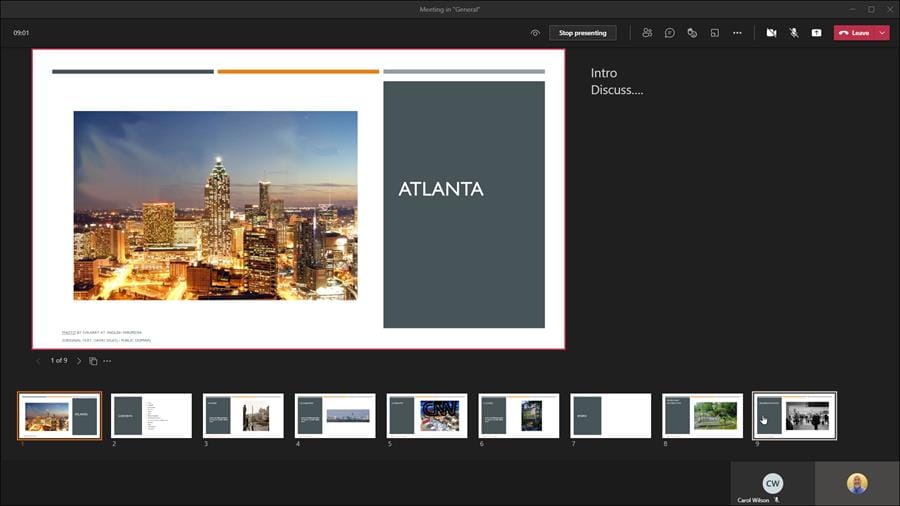
PowerPoint **speaker notes in a Teams Meeting are shown by default** in the presenter view
I usually have two monitors connected to my computer, so I’ve disconnected my secondary monitor for this test. I can still see the speaker notes on the main screen. They no longer have to be displayed separately. My meeting participants don’t see my speaker’s notes.
Quick-jump to any slide in the presentation
Another time-saving improvement is the ability to jump to any slide in the deck with one click. Access the “ _Go to slide_” function from the presentation screen, next to where the slide numbers are:
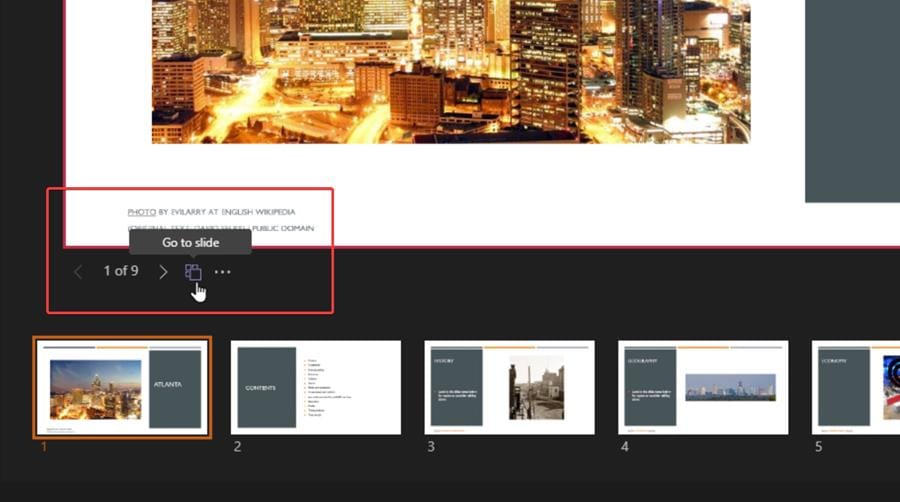
How to enable _**Go to Slide**_ in the presenter view
This button displays all my slides with a thumbnail. If I want to jump to any slide, click on it, and I’m there.
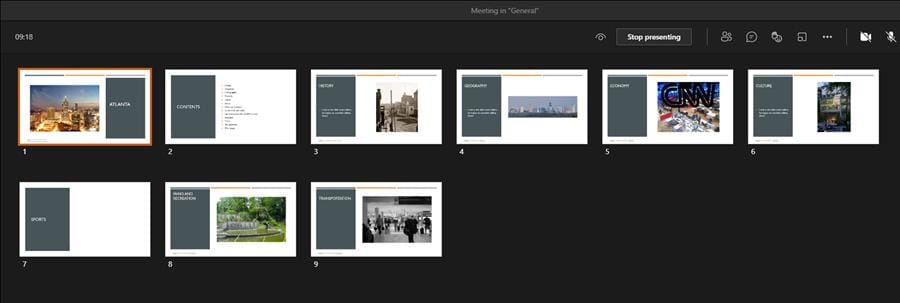
_**Go to slide**_ shows all my slides as thumbnails for quick access
Teams: Enhanced Experience while presenting PowerPoint during a Teams Meeting
If you’d rather use the keyboard, the keyboard shortcut for “Go to slide” is just the letter G to activate the thumbnails or hide them.
High-contrast slide view
Another cool feature, next to the slide view button, clicking on the three dots brings up the option to show the slides in high-contrast:
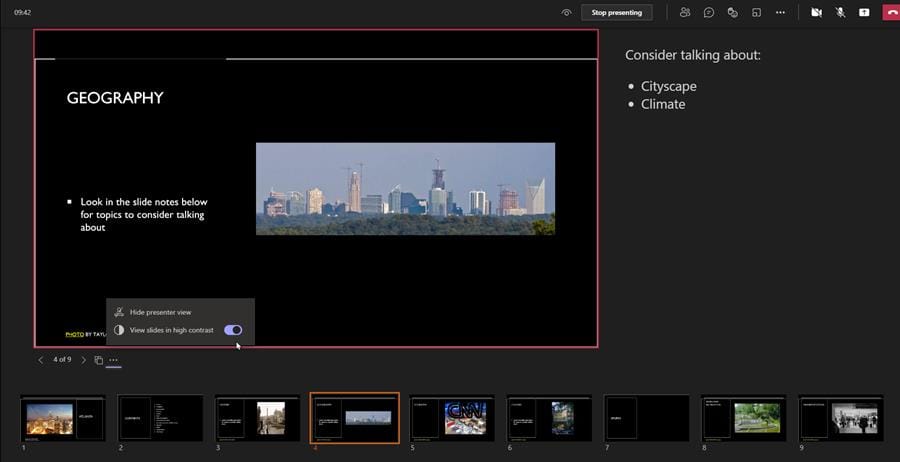
You can show the PowerPoint slides in **high-contrast** during a meeting
Switching presenters is more streamlined
If I am co-presenting with someone and, for example, I want to stop presenting and let someone else take over the same presentation, now I can do that. When I select “stop presenting,” I have a warning: “ _This will end your presentation for everyone. To switch presenters, select Cancel so the next person can take control._”
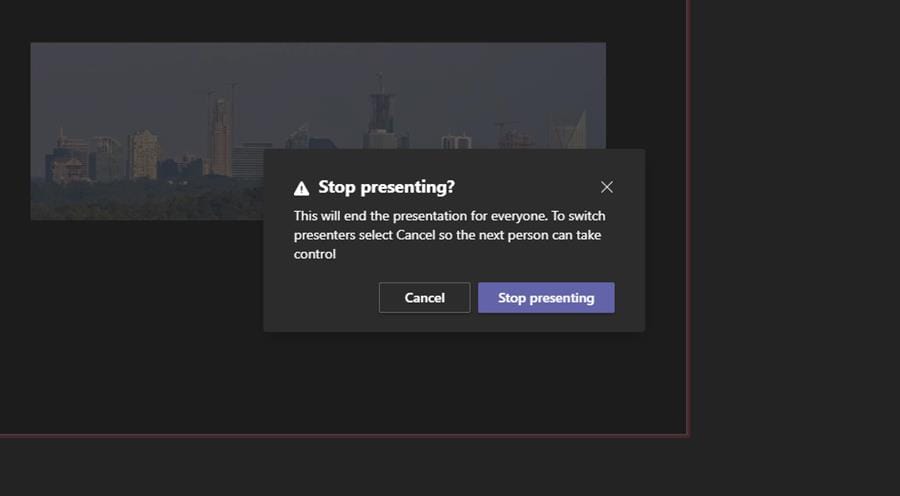
Instead of stopping presentation, **someone else can take control** and resume
Let's suppose I've presented slides 1 through 4, and I need someone else in the meeting to take over and continue the presentation. I can click _Cancel_ on this screen, and then that other person can take control of the presentation.
The nice thing about this switch is that we get to **keep the place in the presentation**, and the next speaker resumes right there.
If this other speaker then advances the PowerPoint presentation or goes to different slides, I get to continue where they left off if I then take back control. I also see my speaker's notes again.
So the presentation is more streamlined, and the participants don't get taken out of it by losing their place.
Hiding or showing your speaker notes
One last tip: if you don't want to see your speaker notes, you can click the three dots again, next to the slide numbers, and hide the presenter view (that’s also where you turn it back on). This will show or hide your speaker notes:
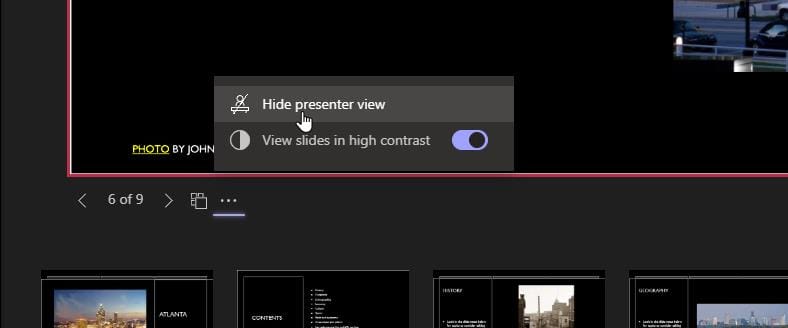
Hide or show the **presenter view** that also hides your speaker's notes



