
PivotTables: 3 Annoying Things FIXED!


PivotTables are one of the best features in Excel. PivotTables allow you to summarize, analyze and chart complex data. There are 3 annoying things in PivotTables that users always ask me about.
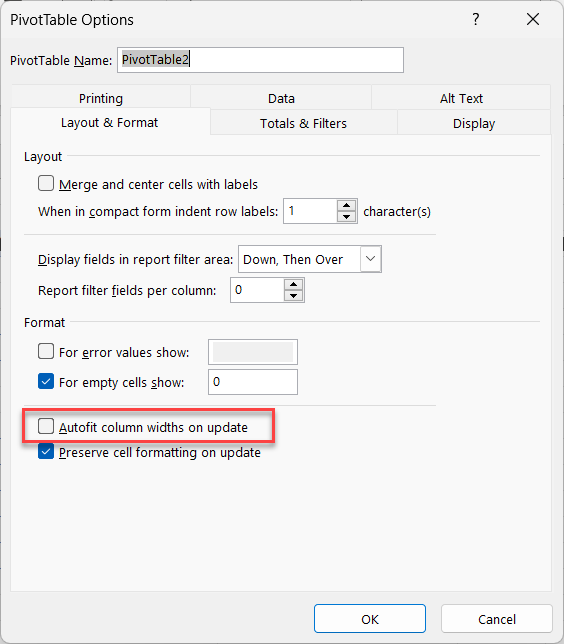
PivotTable Options - Autofit column widths on update
One of them is after changing the width of a column, on refresh, the PivotTable changes. Another annoying feature is blank or empty fields, and finally, data not repeating when it should. We will look at these annoying features and provide a fix for each one.
#1 - Autofit columns on update
By default, when you refresh a PivotTable, columns will autofit. This is annoying when you want to change the width of columns; after every update, you must keep changing the width.
Steps to turn off Autofit columns on update
1. Right-click a cell 2. Click **PivotTable Options...** 3. Remove the check for **Autofit columns on update** 4. Click **OK**
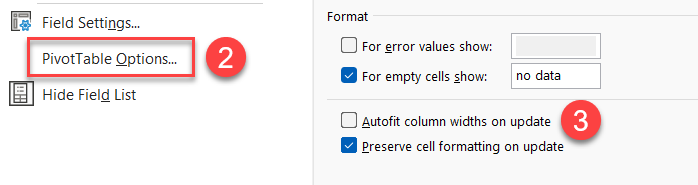
Autofit on update - turn off
YouTube video
PivotTables - 3 Annoying Things FIXED!
Chapters:
- 00:00 Introduction - 00:19 Convert data to a table - 00:36 Item 1 - Prevent Autofit - 02:22 Item 2 - Default value for empty fields - 03:42 Item 3 - Repeat item labels - 05:15 Quick Review - 05:46 Closing remarks
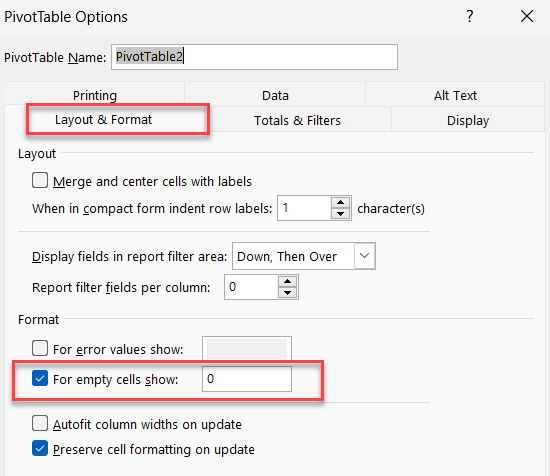
PivotTable - For empty cells show
#2 - For empty cells show
When fields in a PivotTable are empty, they will default to blank. If you want to use 0 (zero) or another text or value, right-click a cell and select PivotTable Options. Make sure you are on the Layout & Format tab, for empty cells, type in 0 or text.
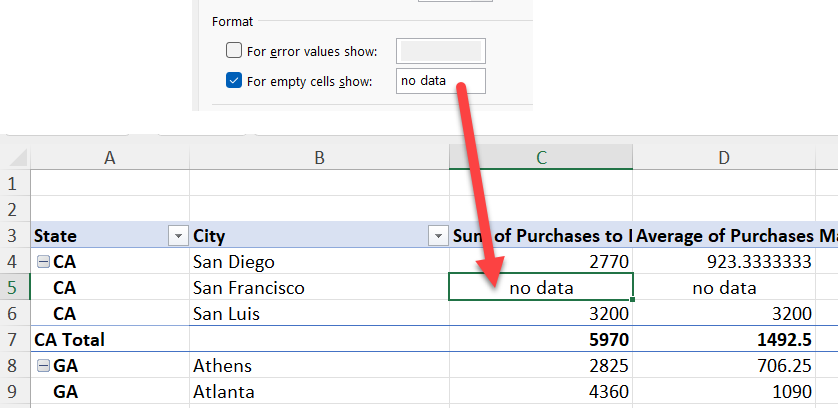
For empty cells show
#3 - Repeat Item Labels
Excel will show items labels once. If you want to repeat the item labels, use Field Settings.
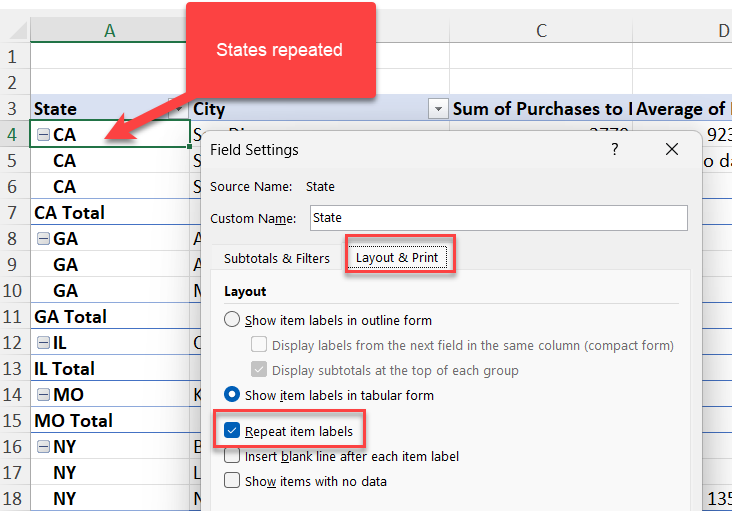
Repeat item labels
Steps to Repeat Item Labels
1. Right-click in the column you want to repeat 2. Click **Field Settings** 3. Go to the **Layout & Print tab**. 4. Check **Repeat item labels** 5. Click **OK**



