
OneNote: Copy text from picture - 2 reasons to use this awesome feature


Microsoft OneNote allows you to copy the text from a picture or image. OneNote supports Optical Character Recognition (OCR), which allows you to copy text from an image or picture and paste it on your notes or another application, like Word or Outlook, so you can edit the text. Another incredible feature on OneNote and OCR is the text in the picture is searchable!
In this video, I'm using OneNote for Windows 10, but I could have used OneNote desktop app (OneNote 2016, OneNote 2019, or OneNote 2013).
Video Chapters
- 0:00 Intro - 0:15 Copy text from picture - 1:48 Search text in a picture - 2:25 Search across multiple notebooks - 3:00 Copy text from picture not available
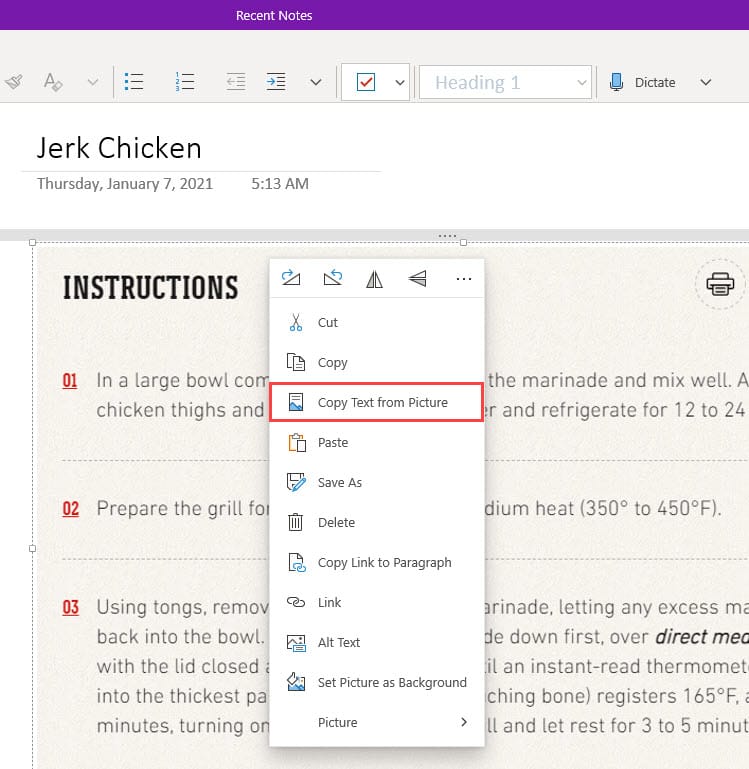
To copy text from picture in OneNote
1. Right-click the picture 2. Select **Copy Text from Picture** (see screenshot below) 3. Click where you want to paste the text 4. CTRL + V or right-click and paste
**Related articles**
- [**5 ways Microsoft OneNote works great with Outlook and other Office apps**](https://chrismenardtraining.com/post/5-ways-microsoft-onenote-works-great-with-outlook-and-other-office-apps) I share 5 great productivity tips for OneNote and Outlook that show the tighter integration Microsoft has built into the Office apps ecosystem.
- [**Outlook mail merge - personalize email messages**](https://chrismenardtraining.com/post/outlook-mail-merge-personalize-email-messages) Need to send emails to a group? Instead of sending to a contact group, you can do a mail merge and personalize each recipient's email.
How do I get an image into OneNote?
There are multiple ways.
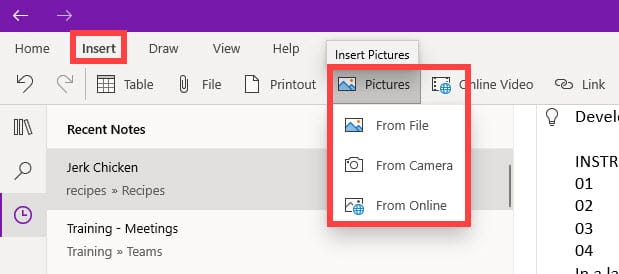
Method 1 - In OneNote, you could click Insert and then Picture.
You can select
1. From File 2. From Camera 3. From Online
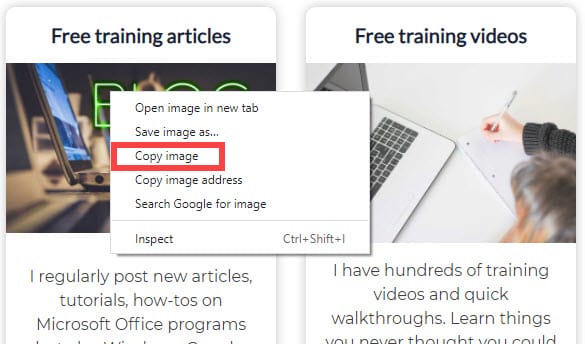
Method 2 - Find an image on the web, right-click the image, and select Copy image.
Copy text from picture not showing up
It may take between 4 to 10 minutes, in my test, for Copy text from picture to show up when right-click.
I would suggest if it is not showing up after 15 minutes, open OneNote on the web and see if the picture is on the page.
Also, refresh or Sync your notebook on your desktop.
What's the difference between the OneNote versions?
There are six OneNote versions. Here is a list of all OneNote versions. ( _As of 1/15/2021_)
1. OneNote for Windows 10 2. OneNote 2016 3. OneNote for Mac 4. OneNote for the web 5. OneNote for iOS 6. OneNote for Android
Windows users
OneNote (formerly called “OneNote 2016”), the free desktop app which runs on all supported versions of Microsoft Windows and is part of Office 2019 and Microsoft 365.
OneNote for Windows 10, the OneNote app which is pre-installed on all editions of Windows 10, and which can also be downloaded for free in the Microsoft Store.
The OneNote desktop app on Windows is part of Office 2019 and Microsoft 365, but it can also be downloaded as a standalone app and used independently on any PC. It runs on any currently supported version of Windows — including all editions of Windows 10.
Over the past few years, this app was called “OneNote 2016” (and “OneNote 2013” in earlier years). It’s now simply called “OneNote.”
OneNote for Windows 10
The OneNote for Windows 10 app is already pre-installed and ready to use on all editions of Windows 10, but it can also be manually downloaded for free in the Microsoft Store app.
**Related articles**
- [**How to use the Windows clipboard**](https://chrismenardtraining.com/post/how-to-use-the-windows-clipboard) With the Windows 10 clipboard, you can copy multiple images and text at one time. The clipboard previously held one item, but now the clipboard holds 25 items.
OneNote for Mac
OneNote for Mac is part of Office 2019 and Microsoft 365, but it can also be downloaded from the Mac App Store and used independently on any Mac with a 64-bit processor running macOS 10.13 or later.
OneNote for Mac features a full Office ribbon interface that can be permanently shown, or hidden until needed. When the Navigation pane is revealed, it displays colorful notebook section tabs vertically on the left side of the screen. The list of page tabs is shown immediately to the right of the section tabs.
OneNote for the web
Whenever you don’t have access to your OneNote apps on your own computer, you can use OneNote for the web from anywhere in the world to easily access all your cloud-based notebooks with any modern web browser, no matter what operating system a borrowed or rented computer or device is running.



