
OneDrive Recycle Bin: How to Recover Deleted Files and Use the Second-Stage Safety Net

When you delete a file from OneDrive, it doesn't disappear immediately. Files move to the OneDrive Recycle Bin first, where they stay for 93 days before permanent deletion. Knowing how the recycle bin works — and that there's a second-stage safety net — can save you from losing important files, whether it's an accidentally deleted spreadsheet or a Teams recording removed by company policy.
How to Access the OneDrive Recycle Bin
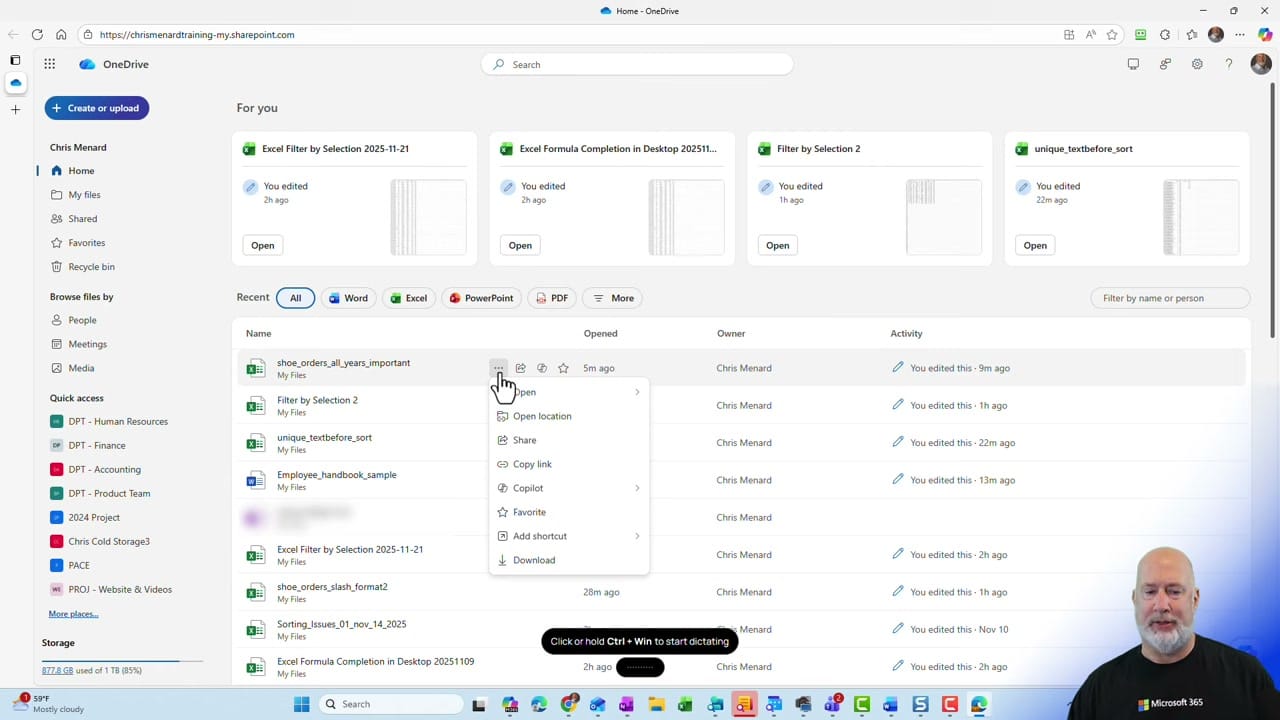
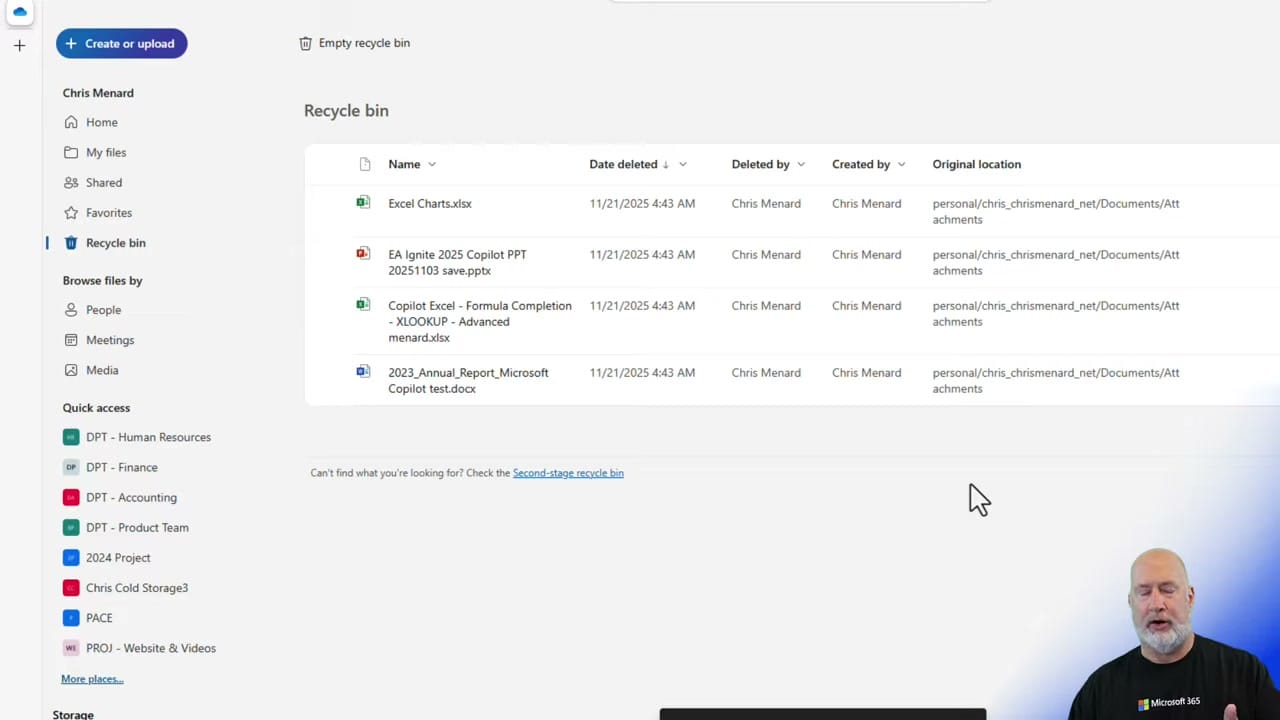
Open OneDrive in your browser by clicking the OneDrive cloud icon in your taskbar or going to either https://www.microsoft365.com/onedrive or https://www.office.com. Navigate to My files, then click Recycle bin in the left navigation pane. This shows all files deleted within the last 93 days.
Restoring Deleted Files
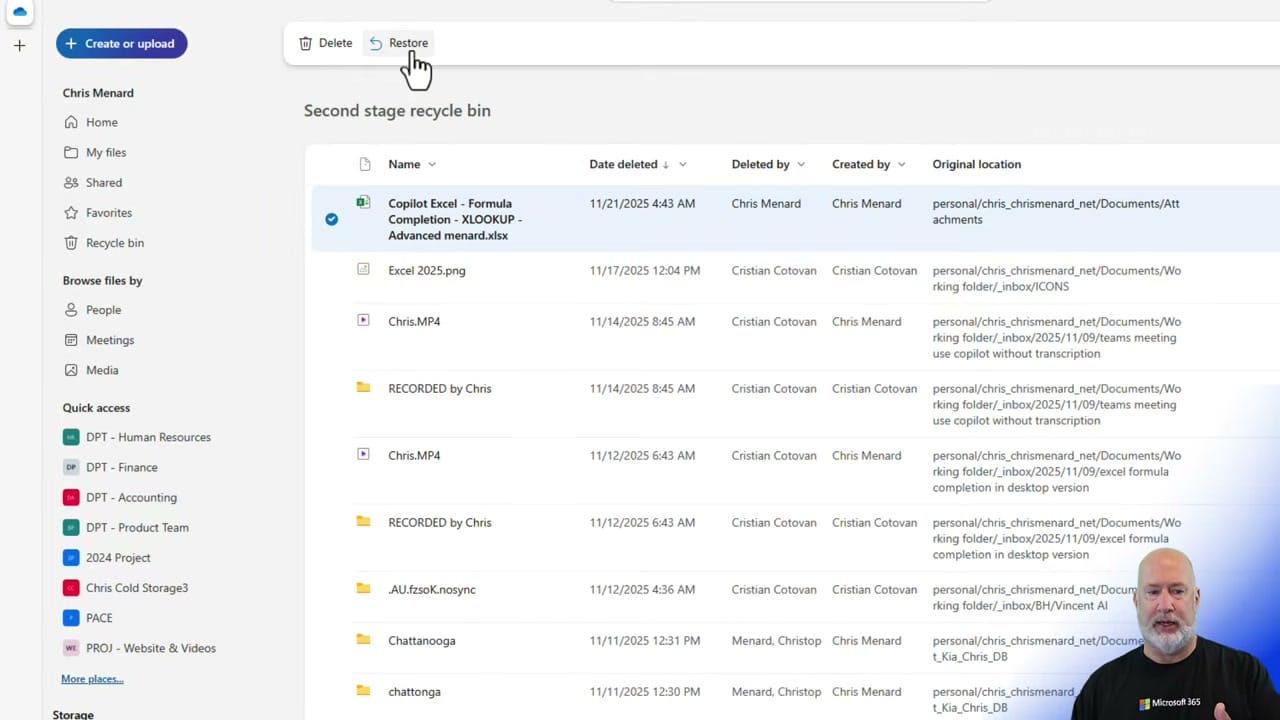
Open the Recycle bin from the left pane, select the files you want to recover, and click Restore. Files return to their original folders exactly where they came from — no need to reorganize. You can restore individual files or select multiple items at once.
The 93-Day Retention Period
Deleted items remain in the Recycle bin for 93 days. After that, they're automatically removed from the first-stage recycle bin. This timer is your window for easy recovery — act within 93 days to take the simplest path back.
The Second-Stage Recycle Bin
Here's the safety net most people miss. If a file is removed from the Recycle bin — either because you emptied it or because it passed the 93-day window — it may still be recoverable. OneDrive has a second-stage recycle bin (also called the site collection recycle bin) that retains items for an additional period.
To find it, open your Recycle bin and look for the Second-stage recycle bin link at the bottom of the page. Files restored from the second stage are returned to their original folder, not to the first-stage bin.
Key Points
- 93-day retention — Deleted files stay in the first-stage recycle bin for 93 days
- Second-stage backup — Files removed from the recycle bin may still be recoverable from the second-stage recycle bin
- Original location restored — Files return to their original folder when restored
- Teams recordings — Meeting recordings stored in OneDrive follow the same recycle bin rules (default expiration is 60 days, but admins can change this)
- This applies to all Microsoft 365 users with OneDrive for Business or School
Related guides
Want to learn more? Visit courses.chrismenardtraining.com for online training courses.



