OneDrive Personal Vault brings added security


OneDrive Personal Vault adds extra security to Microsoft's already secured OneDrive cloud storage. The Personal Vault is a great place to store your most confidential and sensitive files. The Personal Vault only works in OneDrive for Personal. It doesn't work with OneDrive for Business. Documents you may want to put into your Personal Vault would include images of passports, driver's license, social security cards, wills, estates, and other sensitive files.
Why you OneDrive Personal Vault?
1. Secured by Microsoft two-step verification 2. Automatically locks after 20 minutes of inactivity 3. Automatically turns off sharing to keep your files private 4. Personal Vault items do not show up in search results
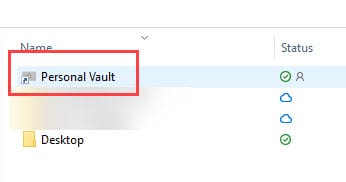
2nd Step of identity verification to get into the Personal Vault
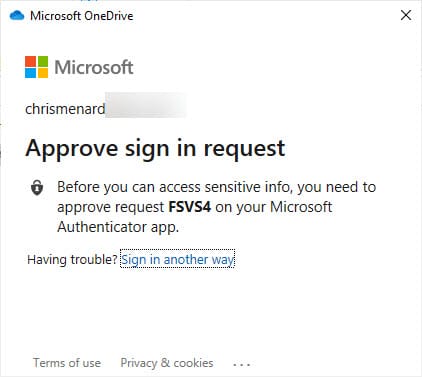
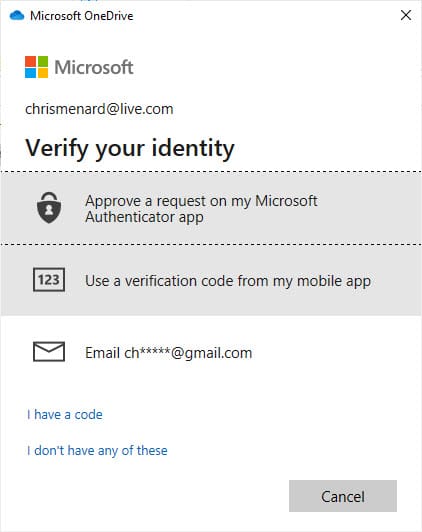
The Personal Vault requires a second method of identification to access. Methods to use include
1. Fingerprint 2. Face 3. PIN 4. Code sent to an email 5. Code sent to SMS
YouTube video on OneDrive's Personal Vault
OneDrive Personal Vault - extra security for your important files
Video Chapters
- 0:00 Intro - 0:22 Files to put in Personal Vault - 0:50 Open the Personal Vault - 2:25 Add files to Personal Vault - 3:00 Security features - Personal Vault - 3:45 Lock the Personal Vault - 4:00 Forgot 2FA method
Unlock your Personal Vault
For security, your Personal Vault automatically locks when you're not actively using it. You can change how long OneDrive waits before locking. Here's how to unlock it. In your OneDrive, select the Personal Vault folder.
Verify your identity by choosing a verification method. For example, select Text and follow the instructions to send yourself a text message on your phone.
If you're using text or email, you'll need to find the text or email message that you were sent and type in the code that you were sent.
You can unlock Personal Vault with the Microsoft Authenticator app. The app doesn't need Internet access to generate an access code. (I used this method in the video).
Move files to Personal Vault
You can move files that are already in your OneDrive to your Personal Vault.
_These steps are for **OneDrive on the Web**._
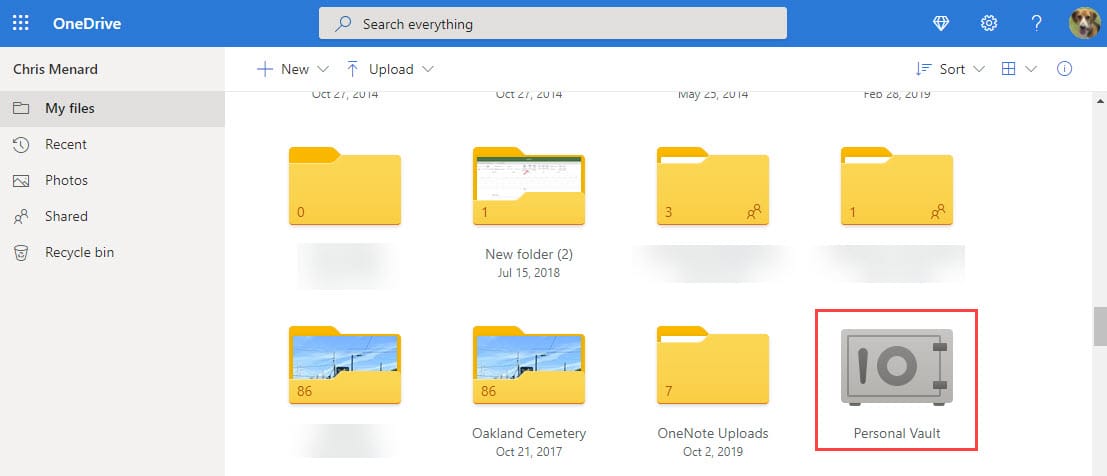
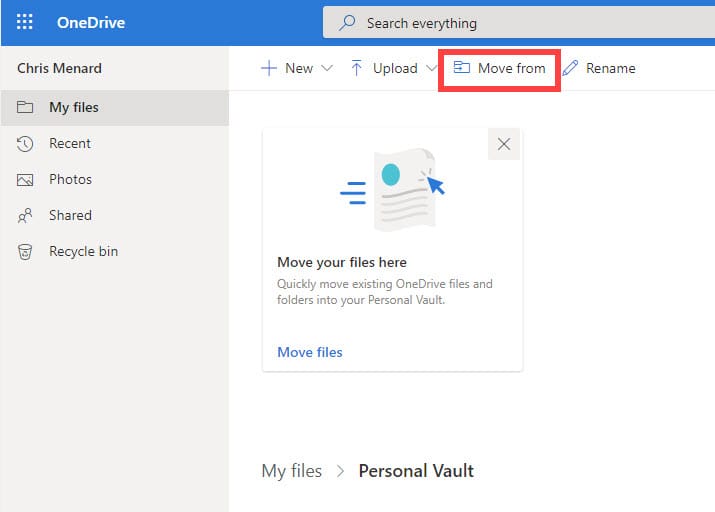
1. In your OneDrive, select the Personal Vault folder. 2. If you're prompted, sign in with your selected identity verification method. For example, select Text and follow the instructions to send yourself a text message on your phone. 3. Select **Move from**. 4. Select the files you want to move into Personal Vault, and then select Move items (or drag the items to your open Personal Vault).
What platforms does Personal Vault work on?
- Windows 10 (Version 1903 or newer) - Android 6 (or newer) - iOS 11.3 (or newer)
Why can't I add any more files to my Personal Vault?
If you don't have a Microsoft 365 Family or Personal subscription, you can only add up to three files to your Personal Vault. If you do have a subscription, you can add as many files as you want (up to your storage limit).
A web browser with the latest version of Edge, Chrome, or Firefox. For added security, use the In-Private or Incognito mode of your browser.