OneDrive Five Frequently Asked Questions (FAQ) Answered

OneDrive is Microsoft's cloud storage where you can store, share, and sync your work files. In this short video, I answer five frequently asked questions about OneDrive for Work or School.
Q1 - How do I upload a file to OneDrive?
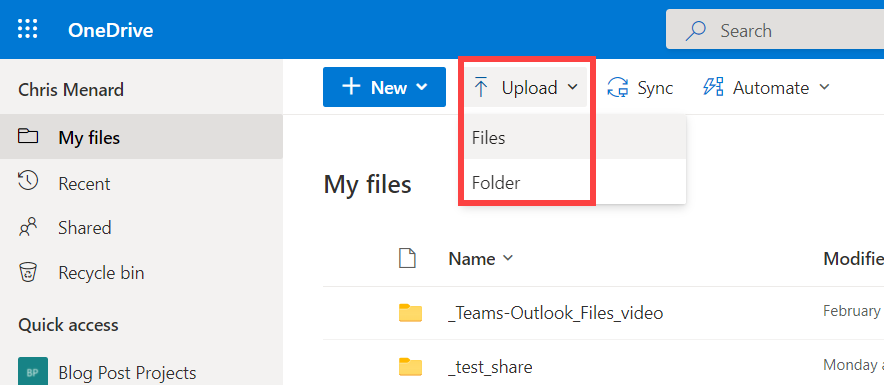
**Upload files to OneDrive**
To upload a file or files to OneDrive, you can either drag and drop or in OneDrive, select **Upload** then click **Files**.You can upload multiple files at one time.
YouTube Video
OneDrive Five Frequently Asked Questions (FAQ) Answered
Q2 - How do I upload a folder to OneDrive?
Uploading folders is similar to uploading files. You can drag and drop folders or use Upload, then click Folders. When you upload a folder, the files and subfolders in that folder are also uploaded.
Q3 - Why can't I turn on block download?
Block download is a feature that is in OneDrive for Work or School, but is not in OneDrive personal. To enable block download, you must make the file read only (also called view only). Uncheck **Allow Editing**.Next select **Block download**.Then click **Apply**..
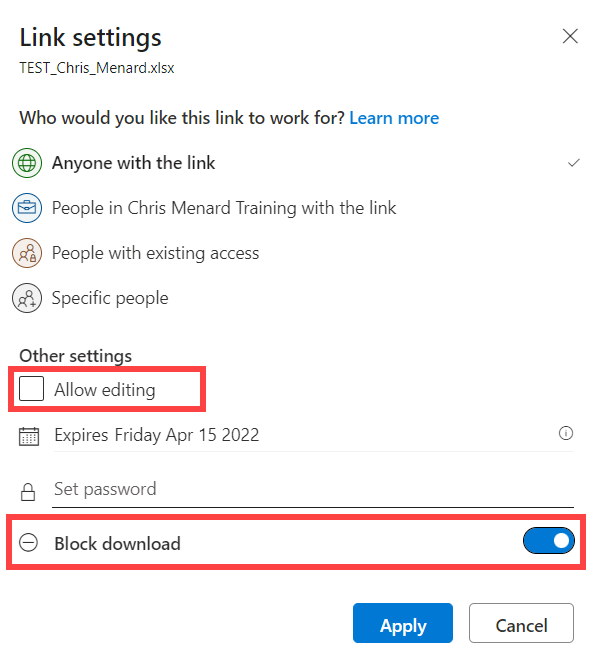
**OneDrive - Block download**
Q4 - How can I tell who I shared files with?
To see just one file, click **Show actions** (the three dots), and select **Manage Access**. This is also where you can stop sharing.
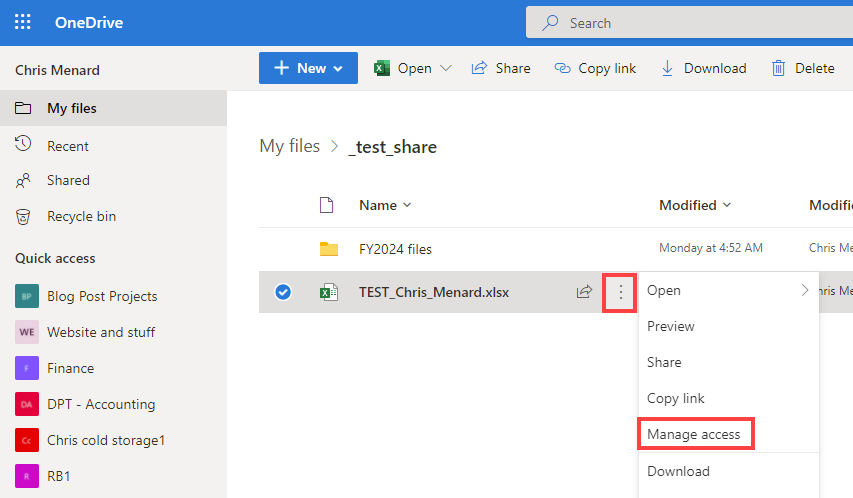
**OneDrive - Manage access**
To see all the files you have shared, on the left side on OneDrive, select **Shared**, then **Shared by you**. You can also stop sharing by clicking the Show Actions (the three dots) and then Manage Access.
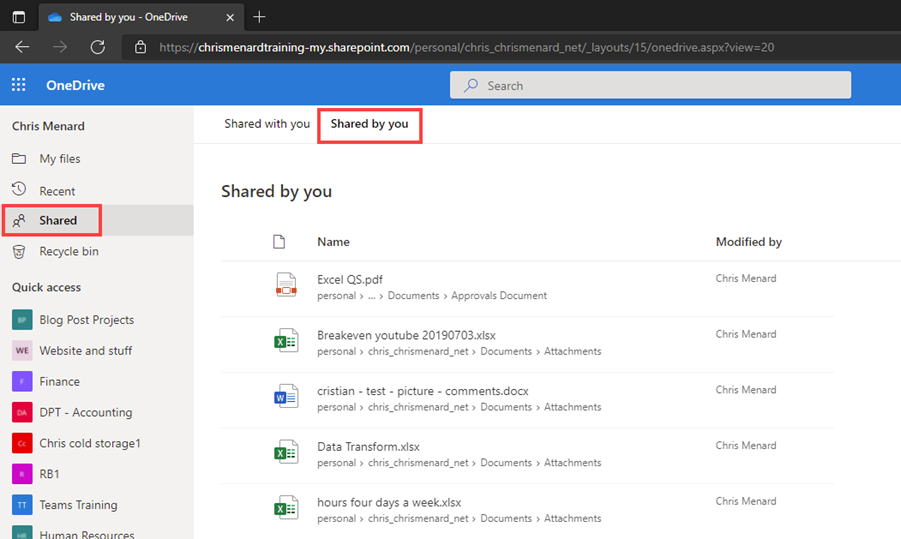
**OneDrive - Shared - Shared by you**
Q5 - How do I stop sharing a file?
To stop sharing a OneDrive file, go to **Manage Access** and select **Stop Sharing**.
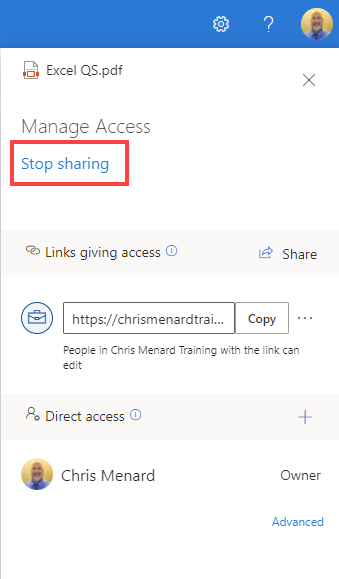
**OneDrive stop sharing a file**