
Microsoft Outlook on the Web - the FILE view feature is incredible!


Outlook on the Web makes it easy to search for emails with "Attachments," but what do you do when you only want to see file attachments and not the emails? Microsoft has a **File** view in Outlook on the Web, formerly Outlook Web Access (OWA), later Outlook Web App, making it easy to find any document and photos. This feature is only for Outlook on the Web. You can easily search for Outlook desktop attachments, but the File view is missing in the desktop version.
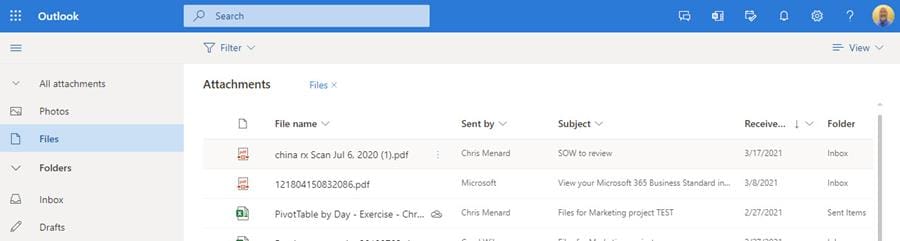
_**File** view - Outlook on the Web_
YouTube Video
Microsoft Outlook on the Web - the FILE view feature is incredible!
Access Files View
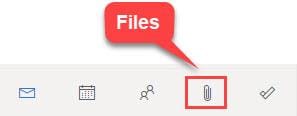
Click the **Files** icon in the bottom-left corner of Outlook. It appears as a paper clip. By default, it will be between the “People” and “To-Do” icons. If you don't see the Files icon, click the three dots and select Files.
Sort Files View
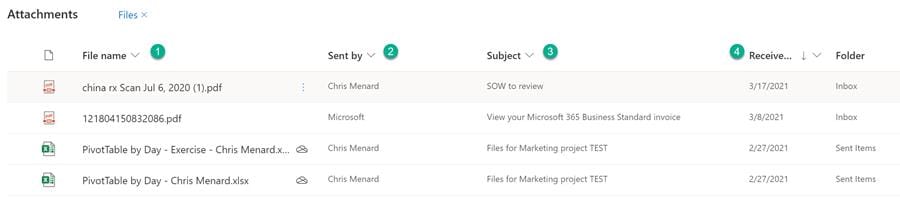
After accessing Files, you can sort by four different fields. Your sort can be either A to Z or Z to A. The four fields are
1. File name 2. Sent by 3. Subject 4. Received on
Filter Files view
Not only can you sort Files view, but you can also filter by file type. Common file types are Excel, Word, and PDF.
To filter, **click the drop-down arrow by Filter,** and select the file type you want to view. You can filter by multiple file types. For example, click Excel and click Word to see both file types.
You can also filter by date ranges, as shown in the screenshot below. The four options for date ranges are This week, Last week, This month, and Select range.
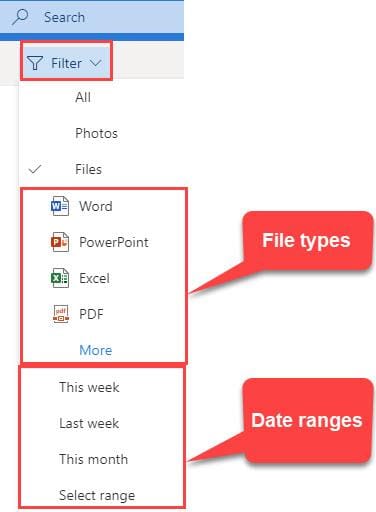
Filter File view by file type and date ranges
View Photos and images with File view
The default view for File view is Files. Photos and images do not show in Files. To see images, click **Photos** on the left. I tested and both JPG, and PNG files show in Photos. To see files and photos, click **All attachments** above Photos.
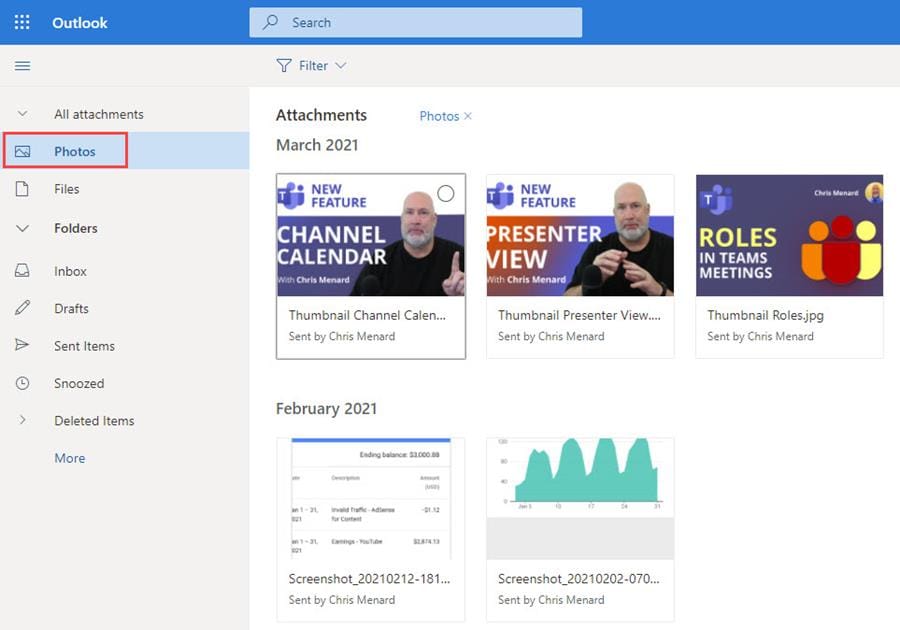
Click **Photos** to view only images
Tiles view and List view
Outlook on the web Files view has two views:
1. Tiles view 2. List view
Tiles view shows a thumbnail of the file or image, while List view shows one file per row, with the date received or sent, the folder - Inbox or Sent - and Sent by and Subject. Tiles groups by month while List allows you to sort.
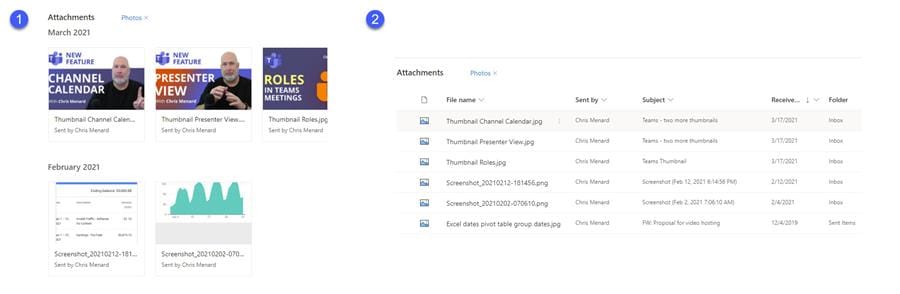
Tiles view is #1. List view is #2.



