Microsoft Copilot: Create a PowerPoint from a PDF | A Step-by-Step Guide

Step 1: Introduction to the New Feature
Microsoft Copilot has rolled out a fantastic new feature for PowerPoint users. If you're familiar with converting Word documents into PowerPoint presentations, you'll be excited to learn that you can now do the same with PDF files. This is a game-changer for anyone who needs to create presentations quickly and efficiently.
In this guide, I'll walk you through how to transform a PDF document into a sleek PowerPoint presentation using Copilot. Whether you're preparing for a big presentation or repurposing existing content, this new feature is a real time-saver.
PowerPoint from PDF with Copilot
Step 2: Accessing Copilot in PowerPoint
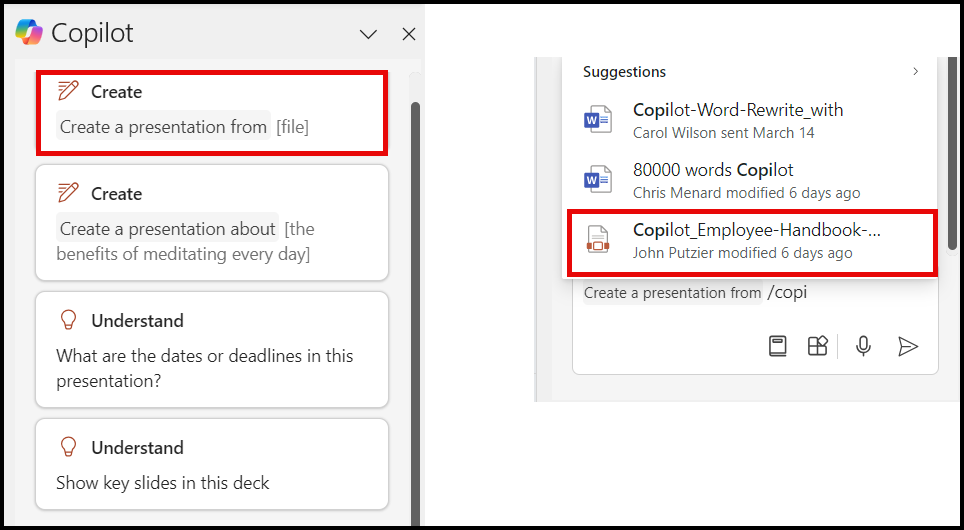
First, open Microsoft PowerPoint. If you're a Copilot user, you'll find the Copilot feature under the Home tab, all the way over to the far right. This is where the magic happens. Let's dive right in.
YouTube Video - Copilot Feature: PowerPoint Presentation from a PDF file
NEW Copilot Feature: PowerPoint Presentation from a PDF file - YouTube

Copilot in PPT - Home Tab
Step 3: Preparing Your PDF File
Before you start, make sure you have your PDF file ready. For this example, I used a 42-page PDF from the Bureau of Labor Statistics. It doesn't matter what the content is; the key is that it's a PDF file you want to convert into a PowerPoint presentation.
You don't need to have the Word document for this process, which is particularly useful if you only have the PDF version of your content. Close the PDF file if it's open, just to ensure everything works smoothly.
Step 4: Creating a Presentation from a PDF
Navigate to the Copilot feature in PowerPoint. You'll see the option to "Create a Presentation from a File." Click on it. The system will prompt you to select the file type. Traditionally, it looks for Word documents stored in OneDrive or SharePoint. **Make sure your PDF is stored in OneDrive or SharePoint.**
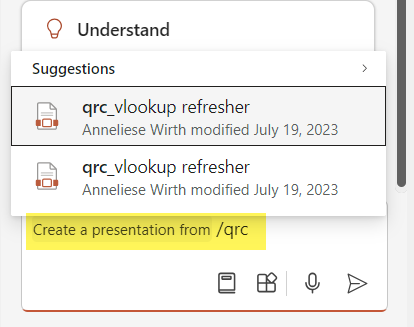
Type in the name of your PDF file. In my case, I typed "qrc" to find the PDF below. Select your file and hit "Open." Copilot will start processing the file to create your presentation.
Type the name of the file
Step 5: Reviewing the Generated Presentation
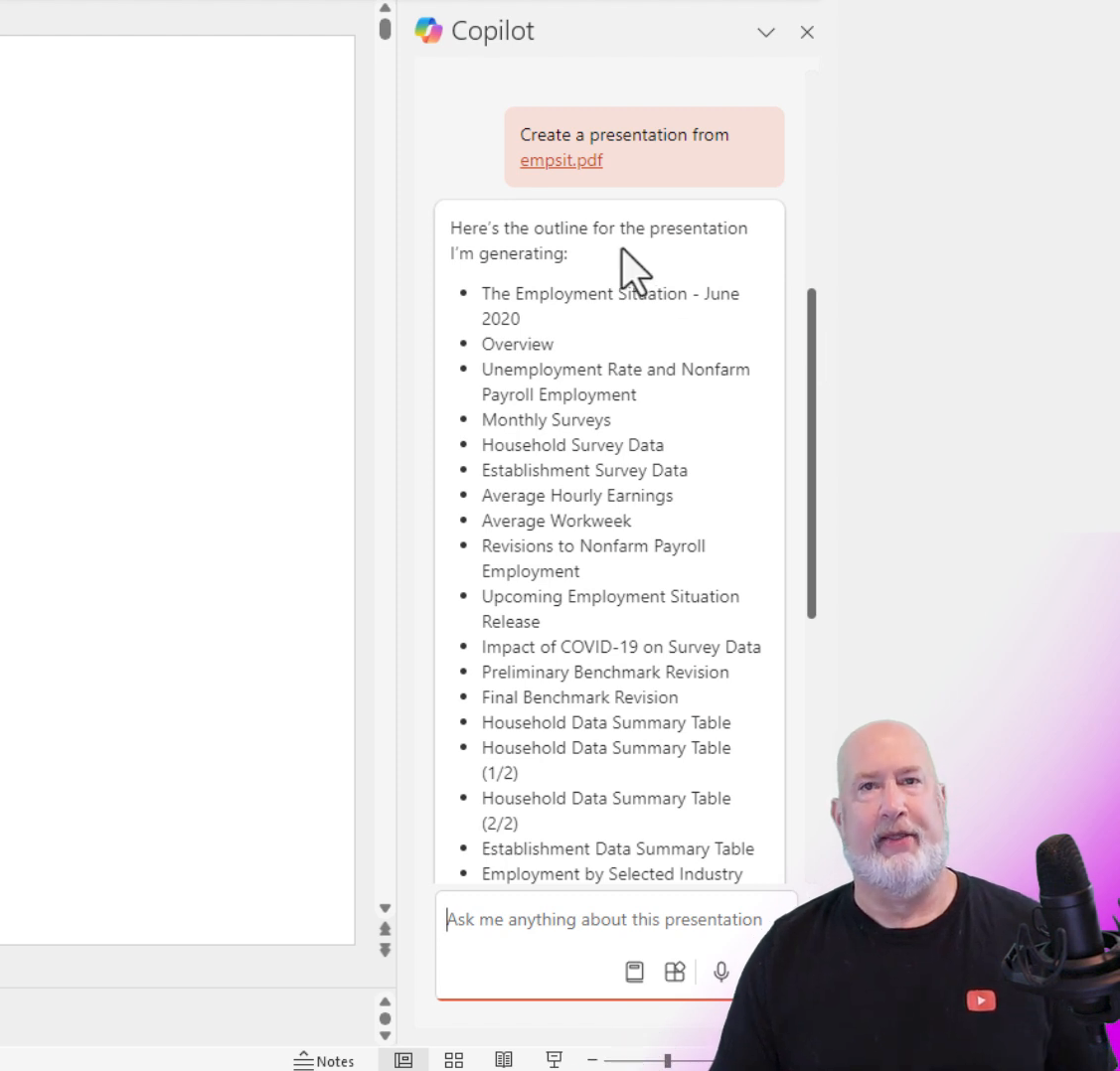
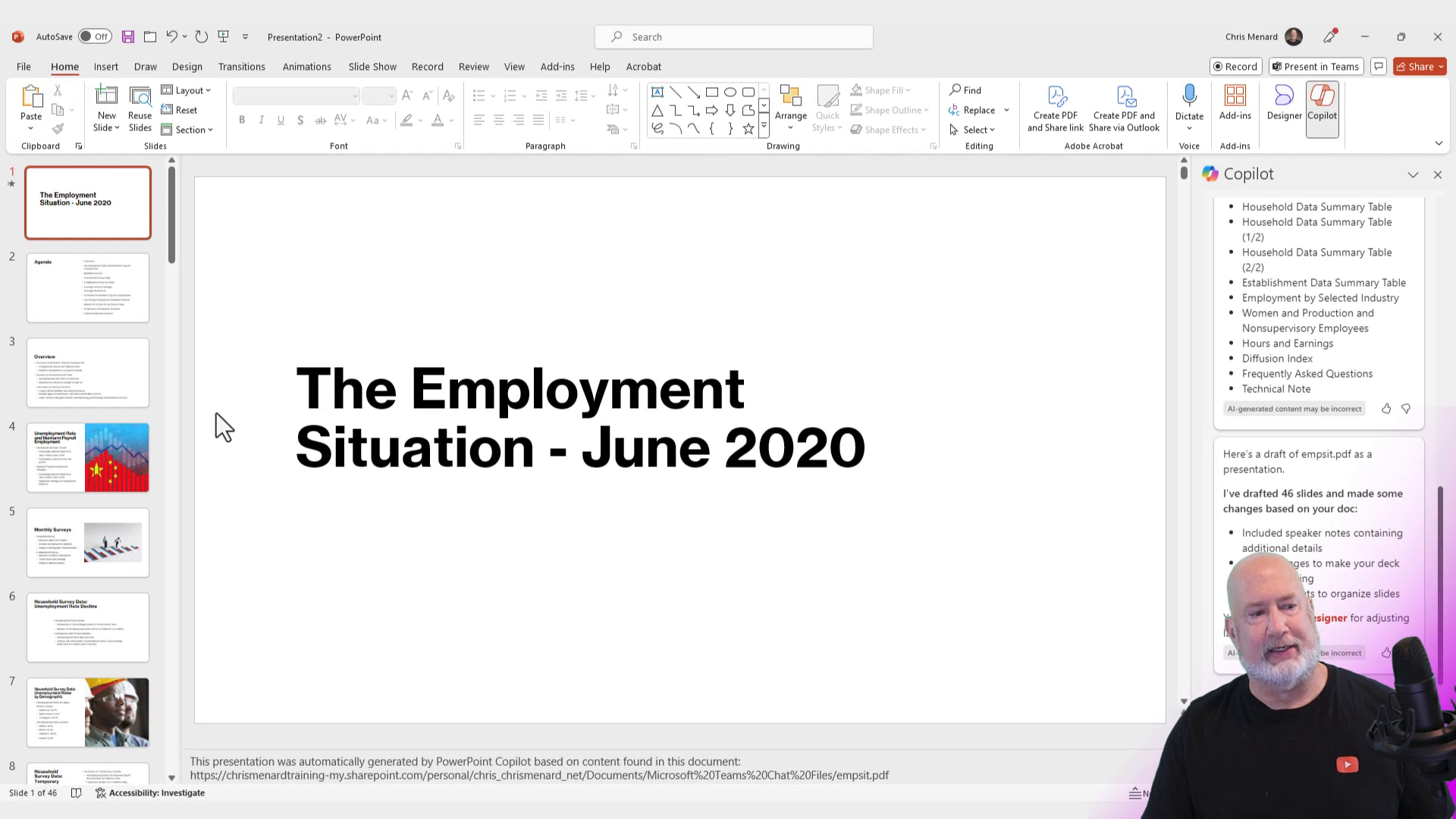
Once Copilot has processed your PDF, it will generate an outline based on the content. This outline will be visible on the right side of your screen in the Copilot taskpane. The system also creates speaker notes, just like it would for a Word document.
In this example, Copilot created 46 slides from the 42-page PDF. The slides include an agenda, graphics, tables, and images based on the PDF's content. This is incredibly useful for creating visually appealing presentations quickly.
Copilot PPT from PDF - Outline
Step 6: Customizing Your Presentation
With your slides generated, you can now customize them to fit your needs. You might want to rearrange slides, add additional content, or tweak the design. The generated slides are a great starting point, but customization will make your presentation truly stand out.
Focus on the key points you want to highlight and ensure your slides are engaging. Use the speaker notes generated by Copilot as a guide for your presentation.
Popular Articles by Chris Menard
 Chris Menard
 Chris Menard
 Chris Menard
 Chris Menard