
Mastering Microsoft 365 Copilot: Tips, Tricks & Fresh Updates


In this live session, Chris Menard and Melissa Ballesteros walk through practical tips for getting more out of Microsoft 365 Copilot. From Excel formula suggestions to AI-powered notebooks and PowerPoint presentation creation, this 45-minute session covers the features that matter most for everyday productivity.
Excel Formula Completion with TEXTAFTER
Chris demonstrates how Copilot's Formula Completion feature suggests formulas as you type. With a dataset containing invoice dates, typing = in a "Month" column prompts Copilot to suggest =TEXT(G3,"mmmm") — extracting the month name from each date. The same pattern works for extracting other date components.
He also shows how Formula Completion handles name parsing using TEXTAFTER. Given a column of full names with titles (like "Mr. Chris A. Menard"), Copilot suggests formulas to extract first names, last names, and city names from combined address fields — all without manually writing complex string functions.

Copilot Notebooks and AI Agents
Melissa introduces Copilot Notebooks — a newer feature within Microsoft 365 Copilot that provides a persistent workspace for longer prompts and multi-step tasks. Unlike the standard Copilot Chat, Notebooks keep your full prompt visible and let you iterate on results without losing context.
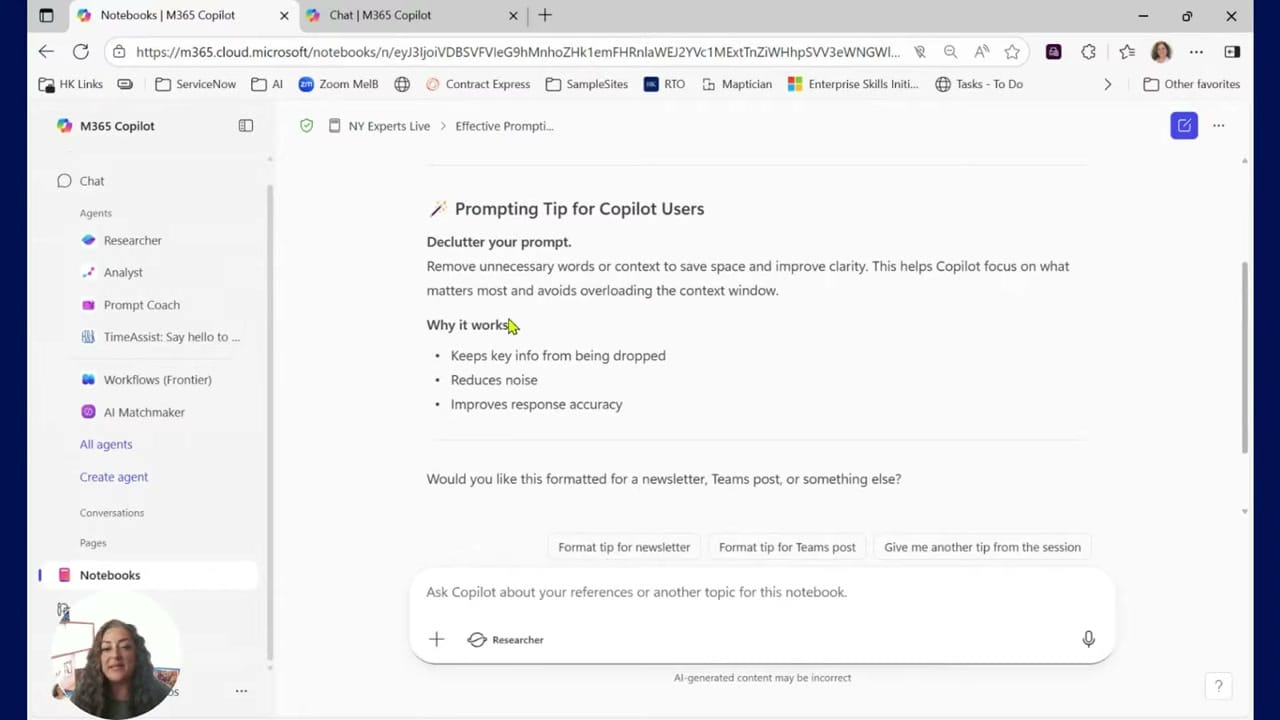
The Notebooks interface includes built-in agents accessible from the sidebar: Researcher for finding information, Analyst for data analysis, and Prompt Coach for improving your prompts. There's also a TimeAssist agent and Workflows (Frontier) for automation. These agents specialize in different tasks, so you can pick the right one for your current need.
Melissa shares a prompting tip: declutter your prompts. Remove unnecessary words and context to help Copilot focus on what matters most. Shorter, clearer prompts produce more accurate responses because they avoid overloading the context window.
Creating PowerPoint Presentations with Copilot
Chris shows how to create an entire presentation using Copilot in PowerPoint. Type a topic (like "Hartsfield-Jackson Airport") into the Copilot prompt, and it generates a full slide deck. New options include choosing presentation length — Short (3-6 slides), Medium (8-15 slides), or Long (15+ slides) — and attaching reference files from OneDrive to ground the content in your existing documents.
Copilot generates slides with section headings, bullet points, and placeholder images. You can also select a design template before generating, so the slides match your brand or preference from the start.

Excel Data Cleaning and Name Parsing
Returning to Excel, Chris demonstrates a data cleaning scenario with a spreadsheet containing full names (with titles like "Mr.", "Mrs.", "Prof.") and combined addresses. Using Copilot's formula suggestions, he parses these into separate columns for First Name, Last Name, and City — each requiring different TEXTAFTER and TEXTBEFORE formulas that Copilot generates automatically.
The key insight: Formula Completion reads your column headers and surrounding data to understand what you need. If your header says "First Name" and the adjacent column has full names, Copilot figures out the right extraction formula. This works across multiple sheets — Chris shows separate tabs for different cleaning tasks including text groups and numerical groups.

SharePoint and OneDrive File Actions
The session also covers Copilot's file-level actions in SharePoint and OneDrive. When browsing files, hovering over a document reveals quick actions powered by Copilot: Summarize the document, Create an FAQ from its contents, Create an audio overview (a podcast-style summary), or Ask a question about the file. These work with Word documents, PDFs, and other file types without needing to open them first.
Key Takeaways
- Formula Completion in Excel now handles complex parsing with TEXTAFTER, TEXTBEFORE, and TEXT functions
- Copilot Notebooks offer a persistent workspace with specialized AI agents for different tasks
- PowerPoint Copilot now supports presentation length selection and reference file attachments
- Declutter your prompts — shorter, focused prompts produce better Copilot results
- SharePoint/OneDrive file actions let you summarize, create FAQs, and ask questions without opening files
Related guides



Want to learn more? Visit courses.chrismenardtraining.com for online training courses.



