
Import Contacts from Excel into Outlook / People

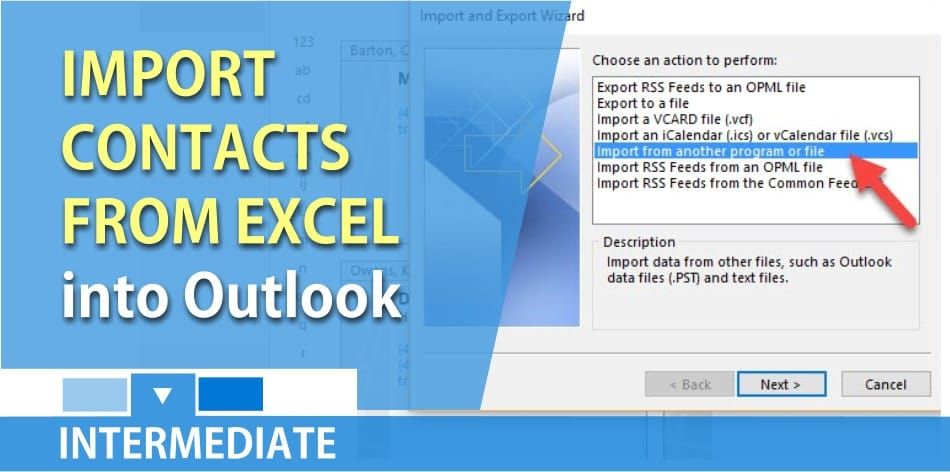
To import an Excel file that has contact information into Outlook, there are three main steps:
1. Save your Excel workbook as a .csv file. 2. Import your contacts. 00:56 in the video 3. Map the Excel spreadsheet columns with the appropriate Outlook fields. 01:35 in the video
YouTube Video of importing contacts into Outlook
Import Contacts from Excel into Outlook by Chris Menard - YouTube
Step 1: Save your Excel workbook as a .csv file
You must save your worksheet as a CSV file to import your contacts. The steps below work on all versions of Outlook / Excel.
1. In your workbook, click the worksheet with the contact information you want to import. 2. Click **File > Save As**. 3. Choose where to save your file. 4. In the **Save as type** box, choose **CSV (Comma delimited) (\*.csv)**, and click **Save**. 5. Click **OK**. 6. Click **Yes** to have Excel save the current worksheet as a CSV file. The original workbook (the .xlsx file) closes. 7. Close the CSV file.
Step 2: Import Your Contacts Into Outlook
01. Start Outlook. 02. Click **File** in the top left. 03. Click Open & Export > **Import/Export.** 04. Choose Import from another program or file and then click Next. 05. Choose **Comma Separated Values** and click Next. 06. Browse and find the file you saved in Step 1. 07. Under **Options**, choose whether to replace duplicates (existing contacts), create duplicate contacts, or not import duplicates. 08. Click **Next** and choose the destination folder for your contacts. **Contacts** should be selected by default, but if it’s not, scroll up or down until you find it. You can also choose a different folder, or create a new one. 09. Click **Next**. 10. Make sure the checkbox next to **Import “MyContacts.csv”** (assuming that’s your file name) is selected. 11. Don’t click Finish yet, because you’ll need to “map” some of the columns in your CSV file to the contact fields in Outlook. Mapping can help the imported contacts turn out just the way you want.
Steps 3: Map fields from your CSV file to Outlook fields
If your field in Excel was called First, and it is the First Name, you need to map it to the Outlook field called First Name. You map by dragging files from the left to the right. This is shown at the 1:35 mark in the video above.



