
How to use the SUM Function and AUTOSUM in Microsoft Excel | Tutorial for Absolute Beginners


The SUM function is the most popular and widely-used function in Microsoft Excel, along with its automated version: AutoSum. When you click AutoSum, Excel automatically enters a formula (that uses the SUM function) to sum the numbers. In this video, I demonstrate the SUM function and show you a few tips that you may not know, even if you've used the SUM function for a while.
If you need to sum a column or row of numbers, let Excel do the math for you with AutoSum. AutoSum is located on two tabs, the Home tab and the Formulas tab.
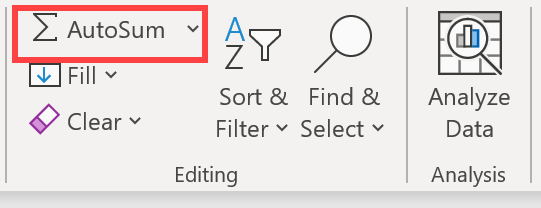
**AutoSum in Excel**
YouTube video
- 0:00 Intro - 0:32 AutoSum - 1:15 No numbers in the header - 2:23 Select cells and AutoSum - 3:15 CTRL to AutoSum ranges - 5:20 Chart with AutoSum
How to use the SUM Function and AUTOSUM in Microsoft Excel | Tutorial for Absolute Beginners
SUM Function
When you click AutoSum, Excel automatically enters a formula (that uses the SUM function) to sum the numbers. The SUM function adds numbers.
SUM Function keyboard shortcut
The keyboard shortcut for AutoSum is **ALT + =**
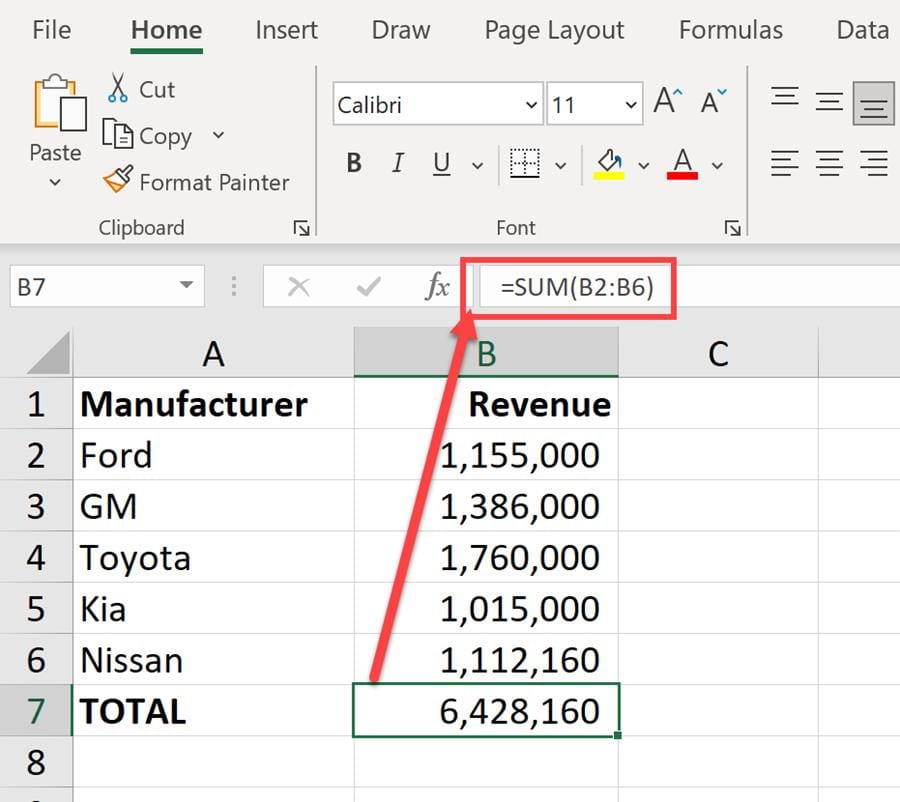
**SUM Function in Excel**
Headers with Numbers
At 1:15 in the video, we look at how to apply AutoSum for a range that has a number in the header row. That might throw off the AutoSum function to add the header row value as well. I show you how to circumvent that and exclude the header row from AutoSum by getting Excel to treat that cell as text.
If you have a header row in row 1, and cell B1 contains the year 2021, when you AutoSum or use the SUM function, it may include cell B1, which you did not intend. You should make B1 text instead of a value. To make B1 text, do one of the following:
- Type **FY2021** in B1. FY is for Fiscal Year - Type **Year 2021** in B1 - Use the ' before 2021 to make it text. Example **'2021**
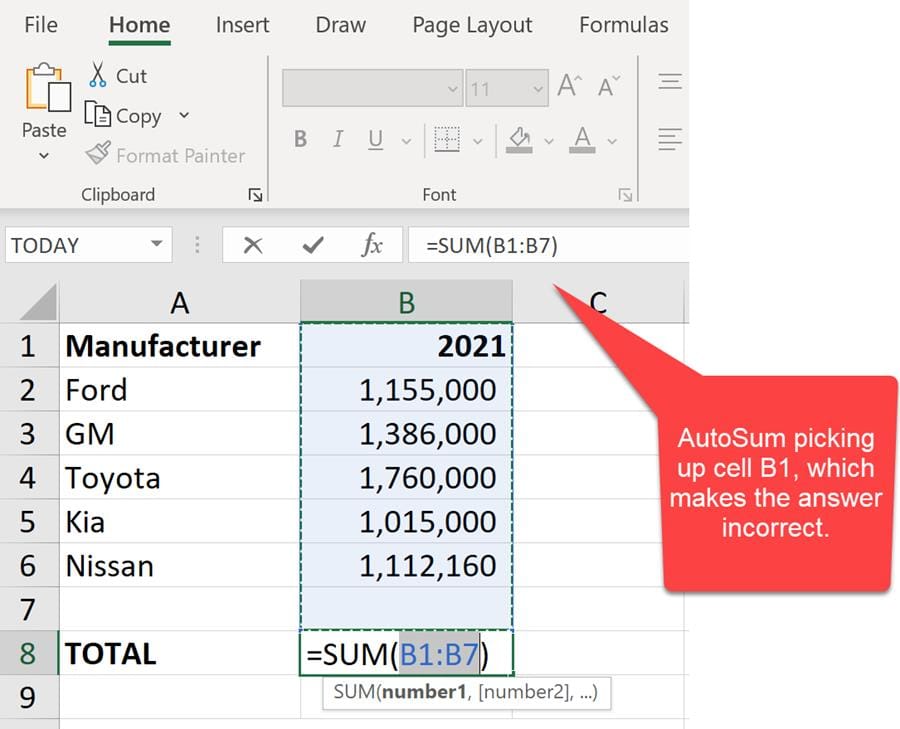
**Number in the header row in Excel**
Use CTRL to Sum multiple ranges and get a Grand Total in Excel
At 3:15 in the video, I demonstrate how you can create selections across multiple, non-adjacent number ranges and AutoSum everything automatically. Excel is smart enough to figure out that you have multiple ranges selected and AutoSum everything appropriately by taking into consideration the subtotals in your ranges.
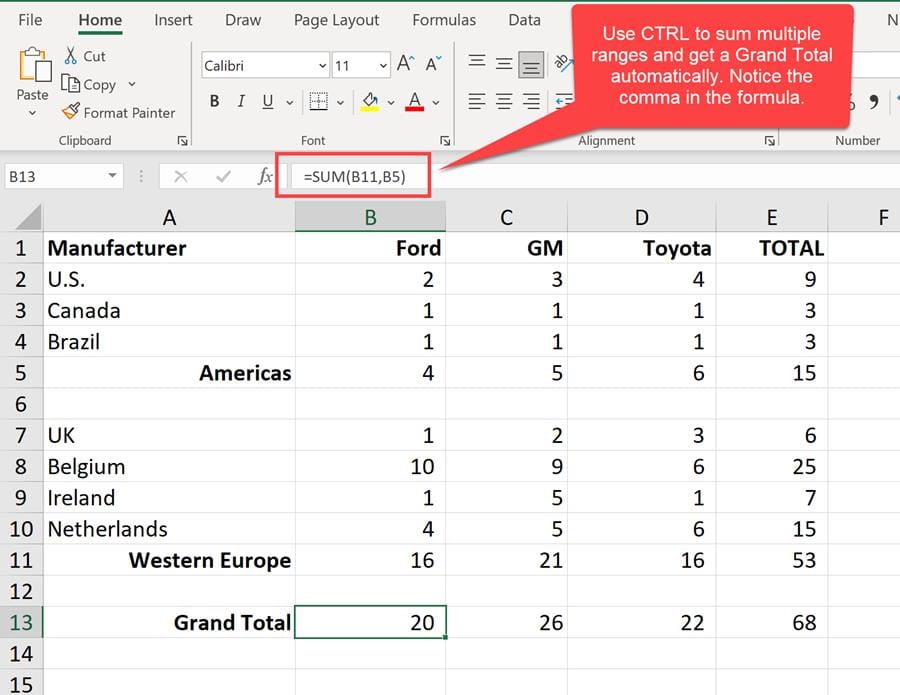
**Excel - CTRL to sum multiple ranges and get a grand total**



