How to Use the New Checkbox Feature in Microsoft Excel


Microsoft Excel now supports native checkboxes — a feature many users have been requesting. This works in Microsoft 365 for Windows and Excel on the web.
How to Insert Checkboxes
Select the range where you want checkboxes. Go to the Insert tab and click Checkbox in the Controls group.
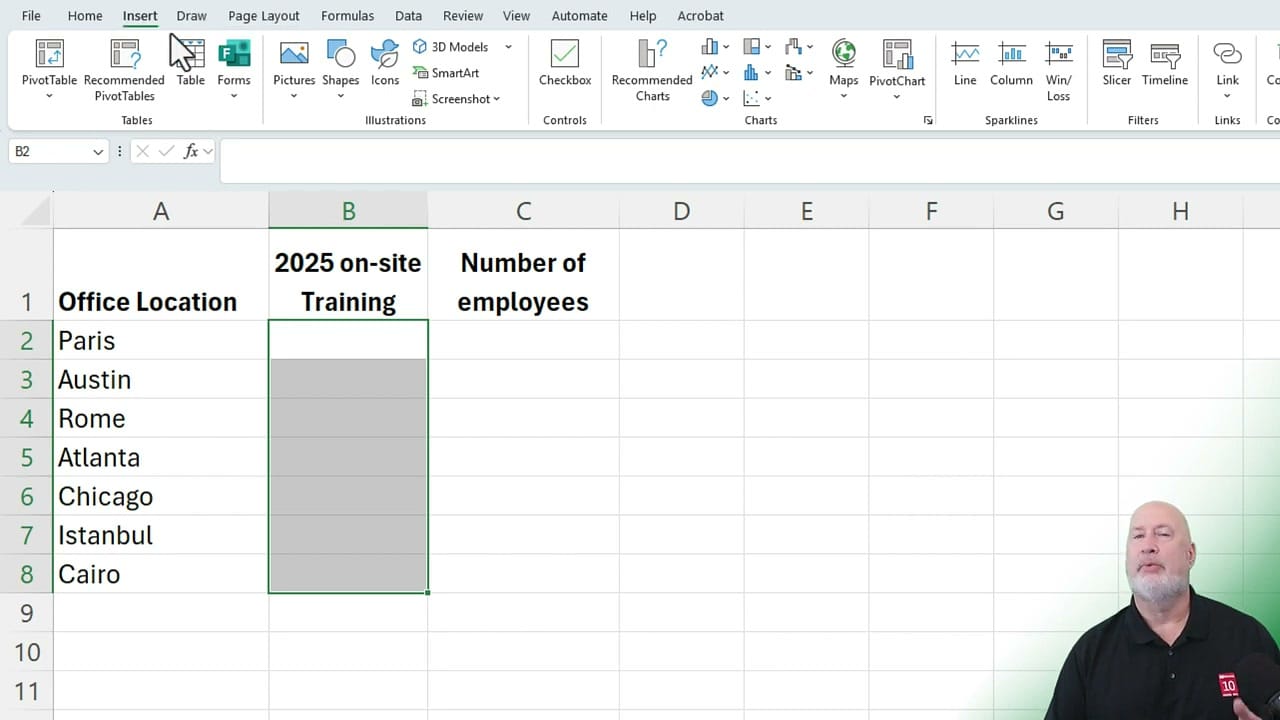
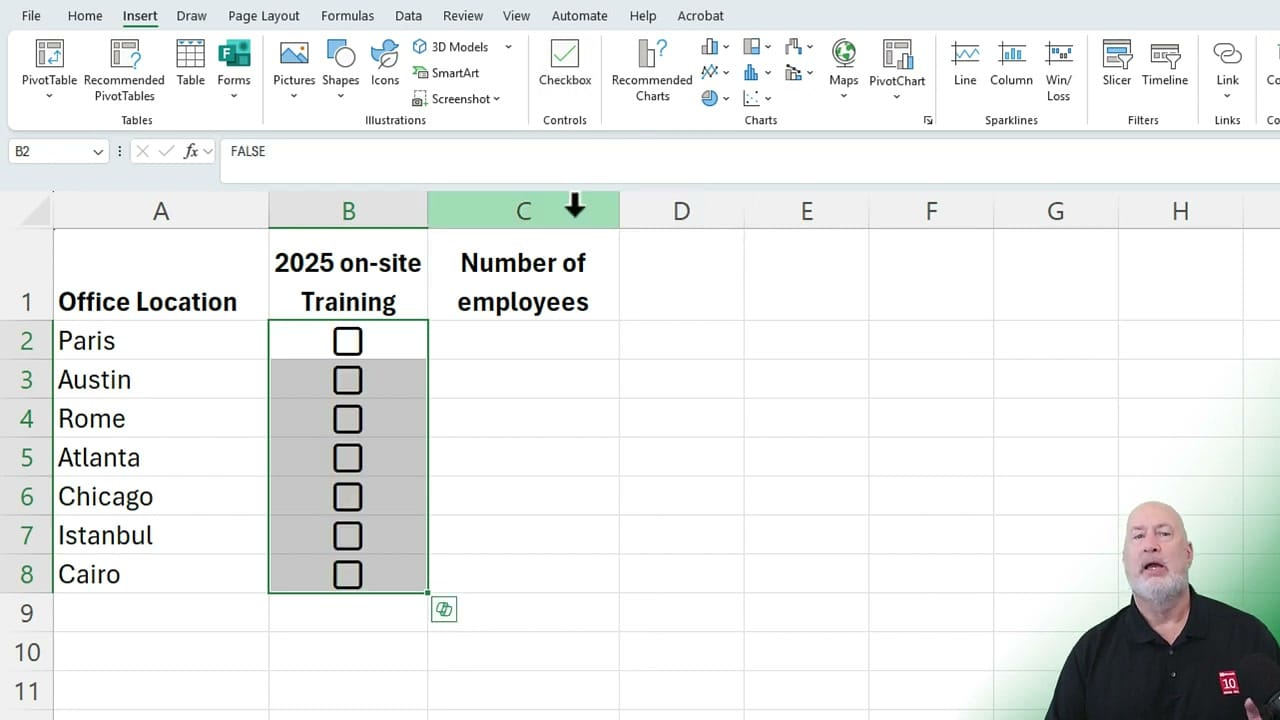
Checkboxes immediately appear in every selected cell. Each cell stores a FALSE (unchecked) or TRUE (checked) value behind the scenes.
YouTube Video
Tips for Working with Checkboxes
- Remove checkboxes: Select the cells and press the Delete key.
- Autofill: Insert a single checkbox, then double-click the Autofill handle (crosshairs at the cell corner) to fill the entire column.
- Toggle: Simply click a checkbox to check or uncheck it.
Counting Checked and Unchecked Items with COUNTIF
Since checkboxes store TRUE/FALSE values, you can use COUNTIF to count them.
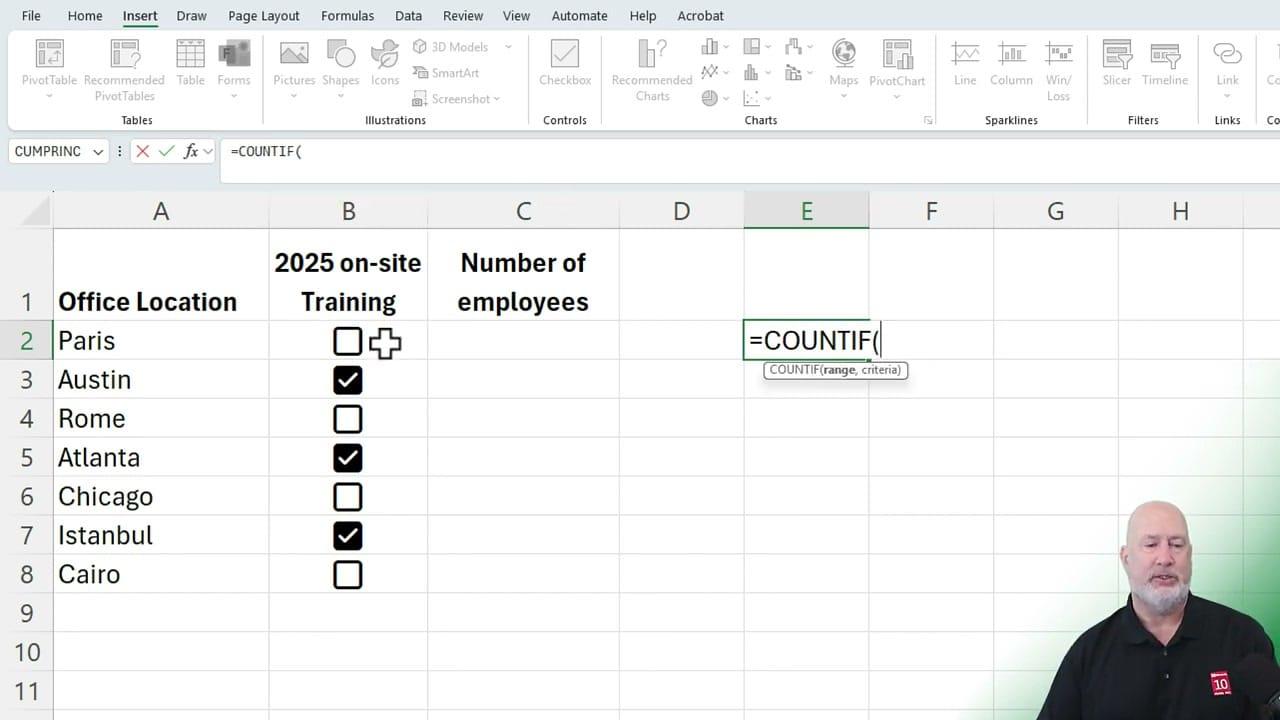
To count checked items: =COUNTIF(B2:B8,"true")
To count unchecked items: =COUNTIF(B2:B8,"false")
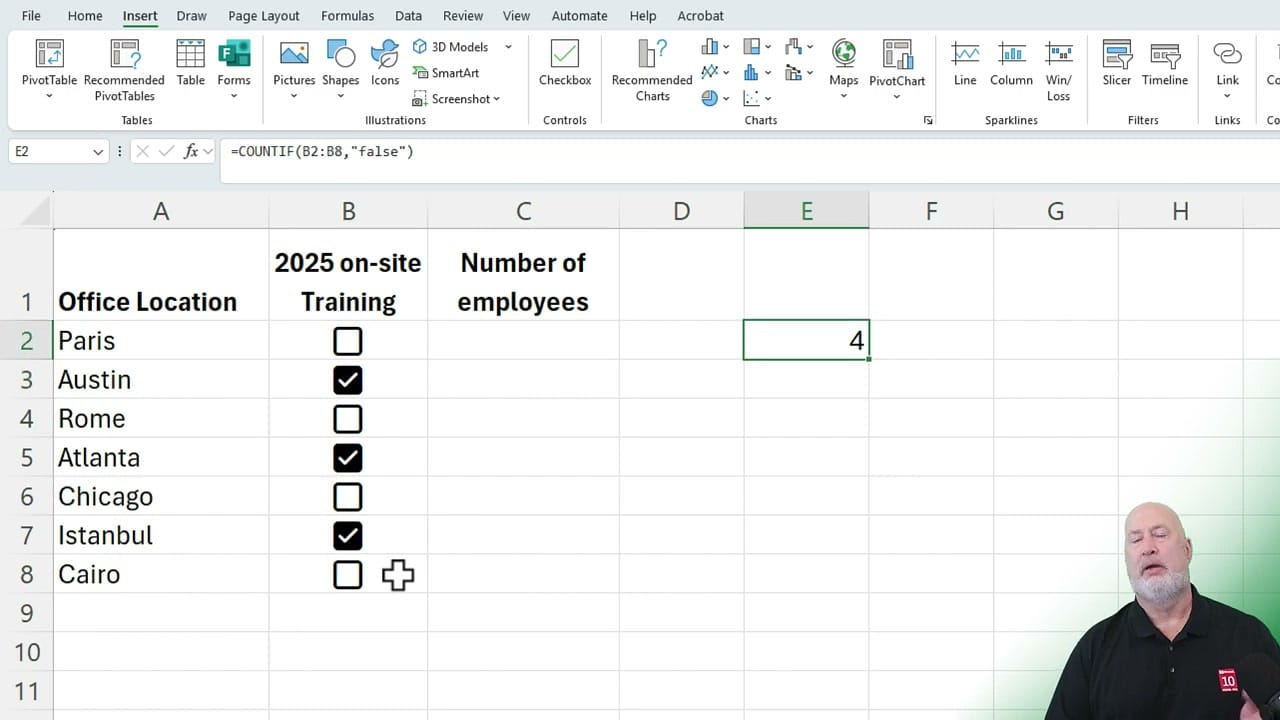
Make sure to put "true" or "false" in quotes within the COUNTIF formula.
Want to learn more? Visit courses.chrismenardtraining.com for online training courses.
Popular Articles
Microsoft Copilot - Create a PowerPoint from a PDF: A Step-by-Step Guide: Chris Menard Training
Create a PowerPoint presentation quickly from a PDF using Microsoft Copilot. New Feature for Copilot
 Chris Menard
Excel Focus Cell: Enhancing Active Cell Visibility and Navigation: Chris Menard Training
Microsoft Excel has introduced an exciting new feature called Focus Cell, designed to improve the visibility of the active cell and enhance navigation within spreadsheets. This powerful tool highlights the current cell’s row and column, making it easier to track your position in large datasets.
 Chris Menard
How to Use GROUPBY with HSTACK for Non-Adjacent Columns in Excel
Excel’s GROUPBY function is a formula-based alternative to PivotTables that updates automatically and offers more aggregation options — including MEDIAN, MODE, and custom LAMBDA functions. When you need to group by columns that aren’t next to each other, HSTACK lets you combine non-adjacent columns into a single range that GROUPBY can
 Chris Menard
Analyzing 50+ Years of Mortgage Rates in Excel: Insights and Trends: Chris Menard Training
Understanding mortgage rates is crucial for anyone looking to buy a home or refinance their existing mortgage. In this comprehensive analysis, we’ll dive deep into over 50 years of mortgage rate data using Microsoft Excel. We’ll explore historical trends, calculate key statistics, and examine how changes in interest rates impact monthly payments.
 Chris Menard